
Spam comments are the plague of any successful WordPress site. If you manage a blog, you know the frustration of sifting through hundreds of bot-generated submissions daily. While plugins exist, they often add unnecessary bloat and script weight to your pages. A cleaner, more performance-oriented approach is to manually add recaptcha v3 wordpress functionality directly into your theme.
Prerequisites
Before we dive into the code, ensure your environment meets the following requirements. This is a technical implementation that involves editing theme files.
- PHP 7.4 or higher (PHP 8.0+ recommended).
- Access to your WordPress theme’s
functions.phpfile or a custom site-specific plugin. - A Google account to register the site keys.
- Basic understanding of JavaScript and WordPress Hooks.
- Crucial: A complete backup of your website database and files before editing code.
Backup Required
functions.php. A syntax error here can result in the “White Screen of Death.” Step 1: Generate Google reCaptcha API Keys
To successfully add recaptcha v3 wordpress features, you first need to communicate with Google’s servers. This requires a unique Site Key (public) and Secret Key (private). Google reCaptcha v3 works differently than v2; it does not require user interaction (like clicking a checkbox). Instead, it assigns a score to the user’s behavior.
1.1 Access the Admin Console
Navigate to the Google reCaptcha Admin Console. You will need to sign in with your Google account. This dashboard allows you to manage all your reCaptcha keys and view traffic statistics.
1.2 Register Your Domain
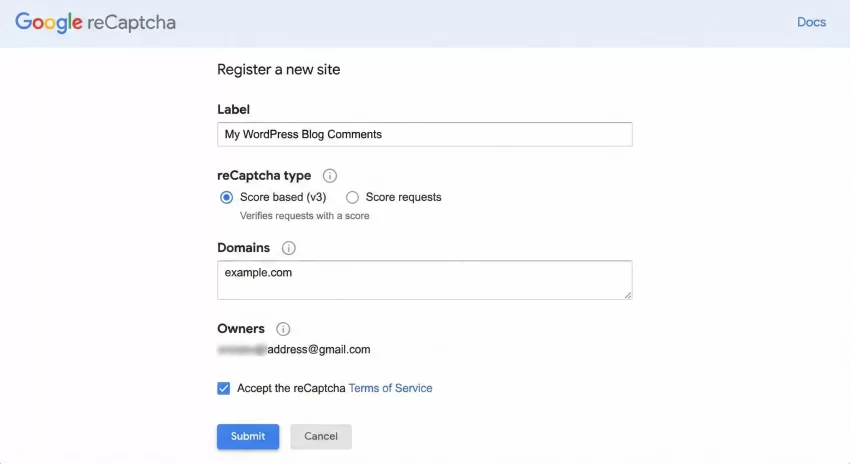
Fill in the registration form with the following details:
- Label: Enter a name to identify your site (e.g., “My Tech Blog Comments”).
- reCaptcha Type: Select “Score based (v3)”. This is critical. If you select v2, the code in this guide will not function correctly.
- Domains: Enter your website domain (e.g.,
example.com). Do not includehttps://orwww. - Owners: Your email is added by default. You can add developer emails here if needed.
Local Development
localhost or your local domain (e.g., mysite.local) to the Domains list. 1.3 Copy Your Keys
Once you accept the terms and submit, Google will present you with a Site Key and a Secret Key. Keep this tab open or copy these keys to a secure note. We will need the Site Key for the frontend JavaScript and the Secret Key for the backend PHP validation.
You might also like:

Step 2: Enqueue reCaptcha Scripts
The next phase to add recaptcha v3 wordpress capability is loading the Google library on your site. We will use the wp_enqueue_scripts hook to load the JavaScript only on single posts where comments are enabled. This ensures we don’t hurt the performance of your homepage or archive pages.
Add the following code to your theme’s functions.php file. Replace YOUR_SITE_KEY with the key you generated in Step 1.
function pnet_enqueue_recaptcha_scripts() {
    // Only load on single posts/pages where comments are open
    if ( is_singular() && comments_open() && get_option( 'thread_comments' ) ) {

        $site_key = 'YOUR_SITE_KEY_HERE';

        // Enqueue the Google reCaptcha API
        wp_enqueue_script(
            'google-recaptcha',
            'https://www.google.com/recaptcha/api.js?render=' . $site_key,
            array(),
            null,
            true
        );

        // Add inline script to handle the token generation
        $inline_script = "
        document.addEventListener('DOMContentLoaded', function () {
            const commentForm = document.getElementById('commentform');
            if (commentForm) {
                const submitBtn = commentForm.querySelector('input[type=submit]');

                commentForm.addEventListener('submit', function (e) {
                    e.preventDefault();
                    grecaptcha.ready(function () {
                        grecaptcha.execute('" . $site_key . "', { action: 'comment_submission' }).then(function (token) {
                            // Check if hidden input exists, if not create it
                            let tokenInput = document.getElementById('g-recaptcha-response');
                            if (!tokenInput) {
                                tokenInput = document.createElement('input');
                                tokenInput.type = 'hidden';
                                tokenInput.id = 'g-recaptcha-response';
                                tokenInput.name = 'g-recaptcha-response';
                                commentForm.appendChild(tokenInput);
                            }
                            tokenInput.value = token;
                            commentForm.submit();
                        });
                    });
                });
            }
        });
        ";

        wp_add_inline_script( 'google-recaptcha', $inline_script );
    }
}
add_action( 'wp_enqueue_scripts', 'pnet_enqueue_recaptcha_scripts' );
In the code above, we check is_singular() to ensure we are on a post or page. We strictly strictly follow WordPress best practices by using wp_add_inline_script rather than hardcoding script tags in the header. This method allows you to add recaptcha v3 wordpress logic cleanly, ensuring compatibility with caching plugins.
Intermediate
You might also like:
Step 3: Validate the Token (Server-Side)
Frontend protection is not enough; a sophisticated bot can bypass JavaScript entirely. The most critical step to add recaptcha v3 wordpress security is verifying the token on the server before the comment is saved to the database. We will use the preprocess_comment filter for this.
This function intercepts the comment data immediately after submission. It sends the token (received from the hidden input field we created in Step 2) to Google’s verification server. If the score is too low, we mark the comment as spam or reject it entirely.
function pnet_verify_recaptcha_comment( $commentdata ) {
    // Skip verification for logged-in administrators if preferred
    if ( current_user_can( 'manage_options' ) ) {
        return $commentdata;
    }

    // Check if the token exists in the POST request
    if ( isset( $_POST['g-recaptcha-response'] ) ) {
        $recaptcha_secret = 'YOUR_SECRET_KEY_HERE';
        $recaptcha_token  = sanitize_text_field( $_POST['g-recaptcha-response'] );

        // Make a request to Google's verification API
        $response = wp_remote_post( 'https://www.google.com/recaptcha/api/siteverify', array(
            'body' => array(
                'secret'   => $recaptcha_secret,
                'response' => $recaptcha_token,
                'remoteip' => $_SERVER['REMOTE_ADDR']
            )
        ) );

        if ( is_wp_error( $response ) ) {
            wp_die( 'reCaptcha verification failed. Please try again.' );
        }

        $response_body = wp_remote_retrieve_body( $response );
        $result        = json_decode( $response_body );

        // Threshold: 0.0 (bot) to 1.0 (human). 0.5 is a standard baseline.
        if ( ! $result->success || $result->score < 0.5 ) {
            // Mark as spam instead of dying, so you can review false positives
            add_filter( 'pre_comment_approved', 'pnet_mark_as_spam' );
        }
    } else {
        // If no token is present, it might be a direct bot request
        wp_die( 'Spam check failed. No reCaptcha token found.' );
    }

    return $commentdata;
}

function pnet_mark_as_spam() {
    return 'spam';
}

add_filter( 'preprocess_comment', 'pnet_verify_recaptcha_comment' );
This PHP block is the engine of the operation. By hooking into preprocess_comment, we ensure that every single comment submission is vetted. We use wp_remote_post—a native WordPress function—to handle the HTTP request to Google securely. This allows you to add recaptcha v3 wordpress validation without relying on cURL or other PHP extensions that might be disabled on shared hosting.
Must Read: How to Prefill Gravity Forms via URL Parameters: The Ultimate Guide
Common Errors & Troubleshooting
Even when you follow the steps to add recaptcha v3 wordpress precisely, environment variables can cause issues. Here are the most common problems developers face.
4.1 “ERROR for site owner: Invalid domain for site key”
This error appears visually on the reCaptcha badge. It means the domain you are accessing the site from does not match the domains listed in the Google Admin Console. Double-check your spelling in the console settings. If you are on a staging site, ensure the staging URL is also added.
4.2 Comments Stuck or Not Submitting
If clicking “Submit” does nothing, open your browser’s console (F12). Check for JavaScript errors. A common issue is that the ID of your comment form is not commentform. Inspect your theme’s HTML and update getElementById('commentform') in the Step 2 code to match your theme’s form ID.
4.3 False Positives (Legitimate Users Marked as Spam)
If real users are being flagged, your threshold might be too high. In the PHP code, look for $result->score < 0.5. Lower this to 0.4 or 0.3. Google v3 learns over time; initially, scores might fluctuate until it understands your site’s traffic patterns.
Conclusion
Congratulations! You have successfully secured your comment section. By choosing to add recaptcha v3 wordpress manually, you have saved your site from the overhead of a heavy plugin while utilizing enterprise-grade security. This “Problem-Solution” approach ensures your database stays clean and your legitimate visitors can engage without solving annoying puzzles.