
One of the most overlooked aspects of on-page optimization is image file naming. You diligently write meta descriptions and alt tags, but if your media library is full of files named IMG_5432.jpg or Screen-Shot-2026-02-14.png, you are leaving valuable ranking potential on the table. Search engines rely on filenames to understand context. The most efficient solution for developers is to build a function to automatically rename WordPress images upon upload.
Manually renaming files before uploading them is tedious and prone to human error. By leveraging WordPress filters, we can intercept the upload process and sanitize filenames dynamically. This guide will walk you through creating a robust PHP solution that converts chaotic filenames into clean, SEO-friendly slugs without relying on bloated third-party plugins. We will explore how to automatically rename WordPress images using the wp_handle_upload_prefilter hook.
- PHP 7.4 or higher: Ensure your server environment is up to date.
- Access to functions.php or a Site-Specific Plugin: You need to edit server-side code.
- Administrator Access: To upload files and test the implementation.
- Backup Required: Always backup your site before editing core theme files.
1. Understanding the WordPress Upload Pipeline
Before writing code, it is crucial to understand where in the WordPress execution order we can intervene. When a user drags a file into the Media Library, WordPress processes the file through several stages. To automatically rename WordPress images, we cannot wait until the file is saved to the /uploads/ directory; we must catch it while it is still in the temporary memory.
WordPress provides the wp_handle_upload_prefilter. This filter allows developers to modify the file array (containing name, type, tmp_name, error, and size) before WordPress performs its native security checks and moves the file to its final destination. This is the safest and most efficient point to alter the ['name'] index.
For Developers
2. Setting Up the Development Environment
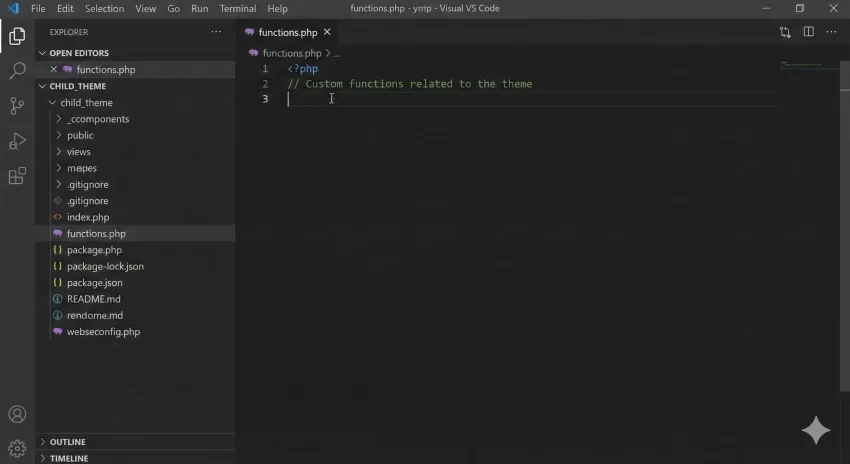
While you can add the code directly to your theme’s functions.php file, it is best practice to create a site-specific plugin or use a child theme. This prevents your custom code from being overwritten during a theme update. For this tutorial, we will assume you are working within a custom plugin or child theme.
We will create a master function prefixed with pnet_ to avoid conflicts with other plugins. This function will eventually handle the logic to automatically rename WordPress images based on specific SEO criteria, such as lowercasing, removing special characters, and appending unique identifiers.
3. Implementing Basic Clean-Up Logic
The first step in our function is to ensure that the filename is entirely lowercase and free of non-alphanumeric characters. Upper case characters and spaces in URLs are bad for SEO and can cause issues on Linux-based servers. We will use WordPress’s native sanitize_file_name() function, but we need to extend it to force lowercase and replace underscores with hyphens (which Google prefers as word separators).
Here is the initial setup of our filter:
add_filter( 'wp_handle_upload_prefilter', 'pnet_rename_image_on_upload' );

function pnet_rename_image_on_upload( $file ) {
    // 1. Get the file extension
    $path_info = pathinfo( $file['name'] );
    $extension = isset( $path_info['extension'] ) ? '.' . $path_info['extension'] : '';

    // 2. Get the base name (filename without extension)
    $base_name = isset( $path_info['filename'] ) ? $path_info['filename'] : '';

    // 3. Clean the name: Lowercase and replace underscores with hyphens
    $clean_name = strtolower( $base_name );
    $clean_name = str_replace( '_', '-', $clean_name );
    $clean_name = sanitize_title( $clean_name ); // Converts string to slug-like format

    // 4. Rebuild the filename
    $file['name'] = $clean_name . strtolower( $extension );

    return $file;
}
In the code above, sanitize_title() is a powerful helper that strips special characters and ensures the string is URL-friendly. By combining this with strtolower(), we solve the most common SEO issues immediately. However, this basic version has a flaw: it does not guarantee uniqueness.
You might also like: How to Create Custom WordPress Shortcode for Dynamic Data: Unlock Hidden Power
4. Handling Duplicate Filenames (The GUID Issue)
If you upload a file named seo-image.jpg and then upload a different image with the exact same name later, WordPress’s default behavior is to append a number (e.g., seo-image-1.jpg). While this works, it can look messy. Furthermore, aggressive caching systems might serve the old image if the names collide too closely. To truly automatically rename WordPress images effectively, we should append a unique identifier or a timestamp.
4.1 Appending a Timestamp
Adding a timestamp ensures that every single upload has a mathematically unique filename. This is highly recommended for high-volume sites.
function pnet_rename_image_with_timestamp( $file ) {
    $path_info = pathinfo( $file['name'] );
    $extension = isset( $path_info['extension'] ) ? '.' . $path_info['extension'] : '';
    $base_name = isset( $path_info['filename'] ) ? $path_info['filename'] : '';

    // Sanitize
    $clean_name = sanitize_title( $base_name );

    // Append Timestamp
    $timestamp = date( 'Ymd-His' );

    // Final Name: name-20260214-093021.jpg
    $file['name'] = $clean_name . '-' . $timestamp . strtolower( $extension );

    return $file;
}
// Hook this function instead of the previous one if you prefer timestamps
// add_filter( 'wp_handle_upload_prefilter', 'pnet_rename_image_with_timestamp' );
Intermediate
5. Advanced Strategy: Renaming Based on Post Title
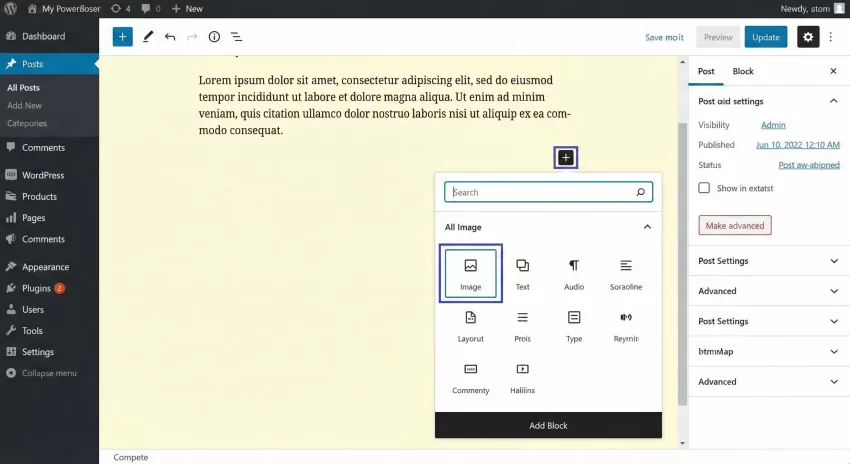
The “Holy Grail” of image SEO is having the filename match the content of the post it is attached to. For example, if your blog post is “10 Tips for WordPress Speed,” you want the image to be 10-tips-for-wordpress-speed.jpg. This is tricky because images are often uploaded via the Media Library (where there is no parent post) or via the Block Editor (which processes uploads asynchronously).
However, we can attempt to detect the parent post ID from the $_REQUEST global variable. If the image is uploaded directly from the “Edit Post” screen, this data is usually available.
Here is the advanced code to automatically rename WordPress images using the parent post title when available:
add_filter( 'wp_handle_upload_prefilter', 'pnet_advanced_rename_image' );

function pnet_advanced_rename_image( $file ) {
    // Check if uploaded from a post editor
    $post_id = 0;
    if ( isset( $_REQUEST['post_id'] ) ) {
        $post_id = intval( $_REQUEST['post_id'] );
    }

    $path_info = pathinfo( $file['name'] );
    $extension = isset( $path_info['extension'] ) ? '.' . $path_info['extension'] : '';

    // Logic: If attached to a post, use Post Slug. Else, use filename.
    if ( $post_id > 0 ) {
        $post = get_post( $post_id );
        if ( $post ) {
            $base_name = $post->post_name; // The slug of the post
        } else {
             $base_name = isset( $path_info['filename'] ) ? $path_info['filename'] : 'image';
        }
    } else {
        $base_name = isset( $path_info['filename'] ) ? $path_info['filename'] : 'image';
    }

    // Sanitize deeply
    $clean_name = sanitize_title( $base_name );

    // Add a short unique hash to prevent overwrites of same-post images
    $unique_hash = substr( md5( time() . rand() ), 0, 6 );

    $file['name'] = $clean_name . '-' . $unique_hash . strtolower( $extension );

    return $file;
}
This script checks if a post_id is present in the upload request. If it is, it retrieves the post’s slug (which is already SEO optimized) and uses that as the base filename. We append a short MD5 hash to ensure that if you upload 5 images to the same post, they don’t overwrite each other (e.g., post-slug-a1b2c3.jpg, post-slug-x9y8z7.jpg).
You might also like: BackupBuddy WordPress Plugin Review: Is It Still the Best in 2026?
6. Troubleshooting Common Errors
Even with clean code, server configurations can cause unexpected behaviors. Here are the most common issues when you try to automatically rename WordPress images.
6.1 Permission Denied Errors
If you see an error saying “Unable to create directory” or “Permission denied,” it is likely not an issue with the renaming script itself, but with your folder permissions. Ensure your /wp-content/uploads/ directory is set to 755 permissions.
6.2 Images Breaking After Upload
If the file uploads but appears broken in the library, check the filename length. Extremely long filenames (over 255 characters) can be truncated by the operating system or database, severing the link between the database record and the file.
6.3 Plugin Conflicts
Some image optimization plugins (like Smush or Imagify) also hook into the upload process. If your file is not being renamed, try increasing the priority of your filter to ensure it runs first:
// Priority 1 ensures this runs before most plugins (default is 10)
add_filter( 'wp_handle_upload_prefilter', 'pnet_advanced_rename_image', 1 );
7. Conclusion
Implementing a workflow to automatically rename WordPress images is a high-impact, low-effort strategy for technical SEO. By controlling the filenames at the server level using the wp_handle_upload_prefilter, you ensure consistency across your entire media library. This not only helps search engines index your content more effectively but also maintains a professional and organized file structure.
Remember to test this code on a staging environment first. Whether you choose the timestamp method or the post-title method depends on your specific content workflow, but either method is vastly superior to leaving your image names to chance.
You might also like: UpdraftPlus Premium Review: Is It Worth The Money?