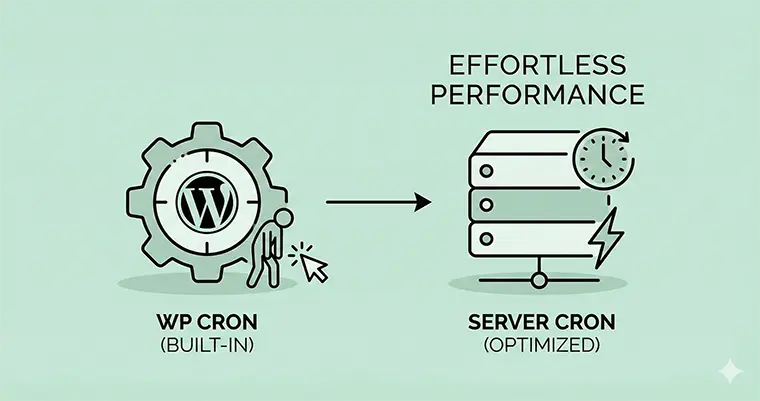
If you run a WordPress site, you want it to run like a well-oiled machine. But there is a silent performance killer lurking in the background that many developers overlook: the default WordPress Cron Job.
While WordPress is fantastic out of the box, its method of handling scheduled tasks—like publishing scheduled posts, running backup plugins, or checking for updates—can be surprisingly inefficient. If you have noticed high server resource usage or your scheduled posts missing their deadlines, the built-in cron system is likely the culprit.
In this guide, I will walk you through exactly why the default system struggles and how you can take control by setting up a robust server-side cron.
What is the WordPress Cron Job?
To understand the fix, we first need to understand the function. “Cron” is a technical term for a command to schedule a job to be executed at a specific time. In the world of servers (Linux), this is handled by the system clock.
However, WordPress was designed to work on all kinds of hosting environments, some of which might not give users access to the system clock. To get around this, developers created wp-cron.php.
The default WordPress Cron Job is a “pseudo-cron.” It doesn’t run on a real clock. Instead, every time a visitor loads a page on your website, WordPress checks: “Is there a scheduled task that needs to run?” If the answer is yes, it runs the task while the page is loading.
Why the Default WP-Cron is a Problem
While the default system is clever, it comes with two major flaws that can hurt your site:
- Performance Hits on High-Traffic Sites: If your site gets a lot of traffic, the WordPress Cron Job might get triggered constantly. This causes your server to spawn multiple requests, checking for tasks over and over again. This creates unnecessary load and can significantly slow down page speed for your users.
- Unreliability on Low-Traffic Sites: Conversely, if your site doesn’t get a visitor for a few hours, the cron simply won’t run. That “scheduled” post set for 8:00 AM might not actually publish until 11:30 AM when the first visitor arrives.
The Solution: Server-Side Cron
The best way to handle this is to disable the default trigger and set up a real system cron. This ensures your scheduled tasks run like clockwork—literally—regardless of whether anyone visits your site or not.
By offloading the WordPress Cron Job to the server, you reduce the processing overhead on page loads, resulting in a snappier experience for your visitors.
Step 1: Disable the Default WordPress Cron
First, we need to tell WordPress to stop checking for scheduled tasks on every page load. We will do this by editing the wp-config.php file in your site’s root directory.
You can access this file via FTP or your hosting File Manager.
- Open
wp-config.php. - Look for the line that says
/* That's all, stop editing! Happy publishing. */. - Add the following code specifically before that line:
/**
 * Disable the default WordPress Cron Job trigger
 * We will trigger this manually via server side cron.
 */
define( 'DISABLE_WP_CRON', true );
Once you save this file, WordPress will no longer run scheduled tasks automatically. Don’t worry—we are about to fix that in the next step.
Step 2: Set Up a Real Server-Side Cron
Now we need to instruct your server to run the WordPress Cron Job on a specific schedule (usually every 15 or 30 minutes is sufficient for most blogs).
Most hosting environments use cPanel. Here is how to set it up:
- Log in to your cPanel.
- Scroll down to the Advanced section and click on Cron Jobs.
- Under Add New Cron Job, choose “Once Per Hour” or “Twice Per Hour” from the common settings.
- In the Command input box, you will need to add the command that triggers WordPress.
There are two ways to write this command.
Option A: Using Wget (Recommended) – This method mimics a browser request and is generally the most compatible.
wget -q -O - https://yourdomain.com/wp-cron.php?doing_wp_cron >/dev/null 2>&1
Make sure to replace yourdomain.com with your actual domain name.
Option B: Using PHP – If you prefer running it internally via PHP:
/usr/local/bin/php /home/username/public_html/wp-cron.php
(Note: You must verify the correct path to PHP and your public_html folder with your host).
Step 3: Verify It’s Working
After setting this up, you want to ensure your WordPress Cron Job is actually firing. While you can wait to see if scheduled posts work, as a WordPress developer, I prefer to verify things programmatically.
You can add a small custom function to your theme’s functions.php file to log when the cron runs.
if ( ! function_exists( 'pnet_log_cron_execution' ) ) {
    /**
     * Log the last execution time of the WordPress Cron Job
     * * @return void
     */
    function pnet_log_cron_execution() {
        $upload_dir = wp_upload_dir();
        $log_file = $upload_dir['basedir'] . '/pnet-cron-log.txt';

        $current_time = current_time( 'mysql' );
        $message = "Cron executed successfully at: " . $current_time . "\n";

        // Append the execution time to a log file in the uploads folder
        file_put_contents( $log_file, $message, FILE_APPEND );
    }
}

// Hook into the 'init' action, but only if we are doing cron
add_action( 'init', function() {
    if ( defined( 'DOING_CRON' ) && DOING_CRON ) {
        pnet_log_cron_execution();
    }
});
Note: Remember to remove this code after a day or two once you have verified the log file is generating timestamps.
Conclusion
Taking control of the WordPress Cron Job is one of the easiest “quick wins” for WordPress performance. It stabilizes your scheduling and reduces the load on your server significantly.
By moving from the user-triggered pseudo-cron to a reliable server-side cron, you are ensuring your WordPress site operates professionally and efficiently.



