Every WordPress developer eventually encounters a scenario where the standard WooCommerce cart behavior just doesn’t fit the project requirements. Perhaps you are building a “Buy Now” flow that requires a strict single-item session, or maybe you are developing a membership site where users must clear their slate upon logging out. If you are struggling to find a reliable method to Empty WooCommerce Cart Programmatically, you have arrived at the right place.
In this guide, we will move beyond basic snippets and explore the architecture of the WC_Cart class. We will cover how to safely clear sessions, handle AJAX fragmentation, and ensure your code is compatible with the latest PHP and WooCommerce versions in 2026. By the end of this tutorial, you will have a robust, modular solution to manage cart data effectively.
Prerequisites
Before we dive into the code, ensure your development environment meets the following criteria to safely implement these changes:
- PHP 8.0+: Ensure your server is running a modern version of PHP for security and performance.
- WooCommerce 9.0+: The methods discussed rely on standard WooCommerce classes that are stable in recent versions.
- Child Theme or Custom Plugin: Never edit parent theme files directly. Use a child theme’s
functions.phpor a custom plugin. - Backup Your Site: Always create a full database and file backup before running functions that manipulate user sessions.
- FTP/SFTP Access: In case of a syntax error, you will need file access to revert changes.
Understanding the WC_Cart Class
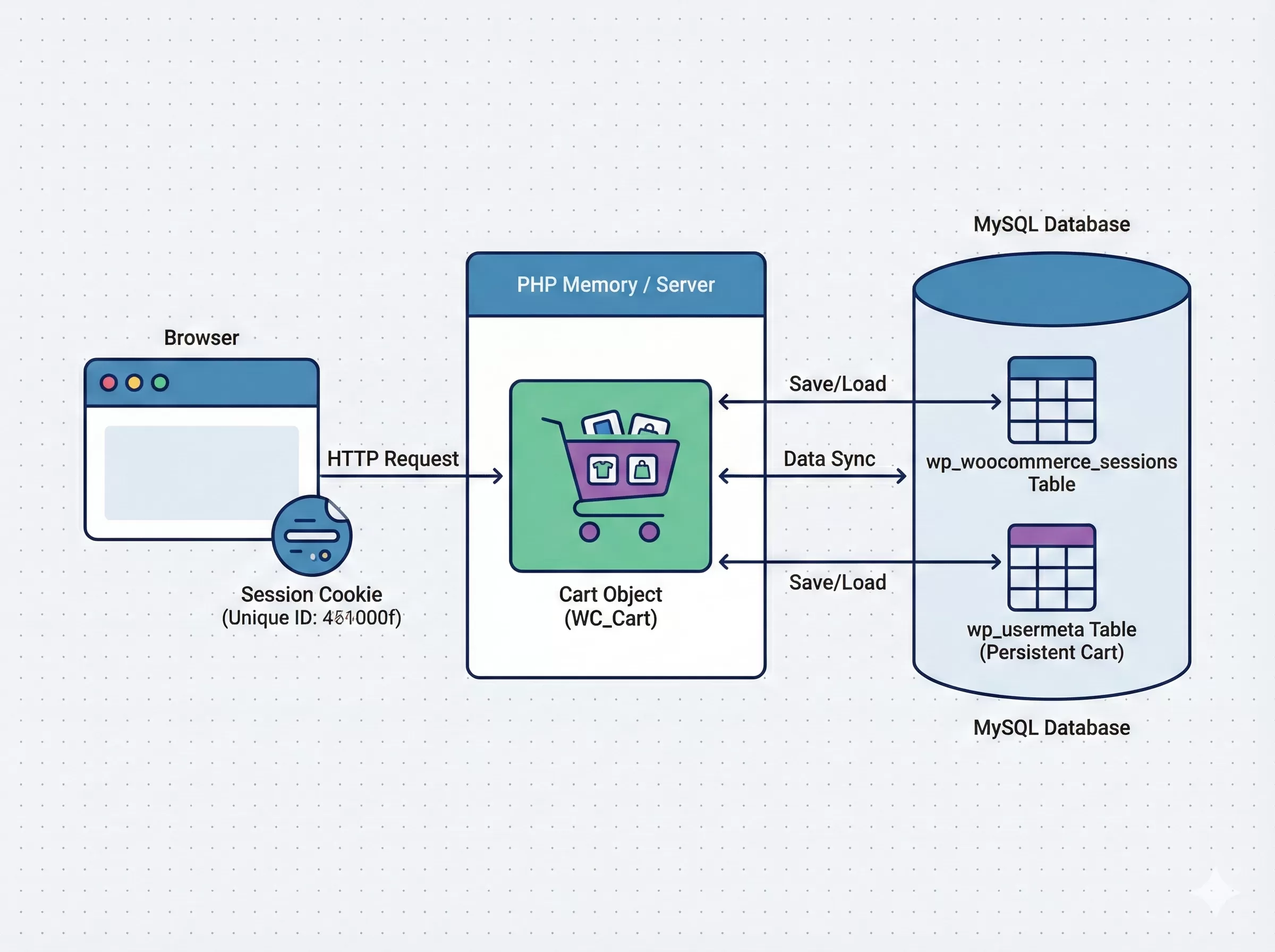
To Empty WooCommerce Cart Programmatically effectively, you must first understand how WooCommerce handles cart data. Unlike simple database entries, the cart is a complex object stored within the user’s session. WooCommerce uses the WordPress Codex standards for session management, often utilizing cookies to track unauthenticated users and database entries for logged-in users.
The core function we will be utilizing is empty_cart(), which belongs to the global WC() instance. However, simply calling this function isn’t always enough—context matters. Where and when you trigger this function determines whether the cart clears successfully or if the user sees “ghost” items due to caching.
Method 1: The Universal Empty Cart Snippet
The most direct way to clear the cart is by accessing the main WooCommerce instance. This is the foundational code you will use in almost all other methods.
Here is the basic syntax:
if ( function_exists( 'WC' ) ) {
    WC()->cart->empty_cart();
}
While simple, you cannot just drop this into your functions.php file alone, or it will run on every page load, frustrating your customers by making it impossible to buy anything. We need to wrap this in logic.
You might also like:
Method 2: Empty Cart on User Logout
A common security and privacy requirement for shared devices is ensuring the cart is completely wiped when a user logs out. By default, WooCommerce might persist the cart in the database (persistent cart) so it reappears upon the next login. To prevent this, we hook into the WordPress wp_logout action.
Use the following snippet to Empty WooCommerce Cart Programmatically specifically during the logout process:
/**
 * Clear WooCommerce cart when a user logs out.
 */
function pnet_empty_cart_on_logout() {
    if ( function_exists( 'WC' ) && WC()->cart ) {
        WC()->cart->empty_cart();
    }
}
add_action( 'wp_logout', 'pnet_empty_cart_on_logout' );
How this works: The wp_logout hook fires just before the user’s session is destroyed. By calling the empty cart method here, we ensure that the session data stored in the wp_woocommerce_sessions table is cleared for that specific user ID.
Must Read: Easily Customize WooCommerce Thank You Page: The Ultimate Guide
Method 3: Creating a “Clear Cart” Button (AJAX)
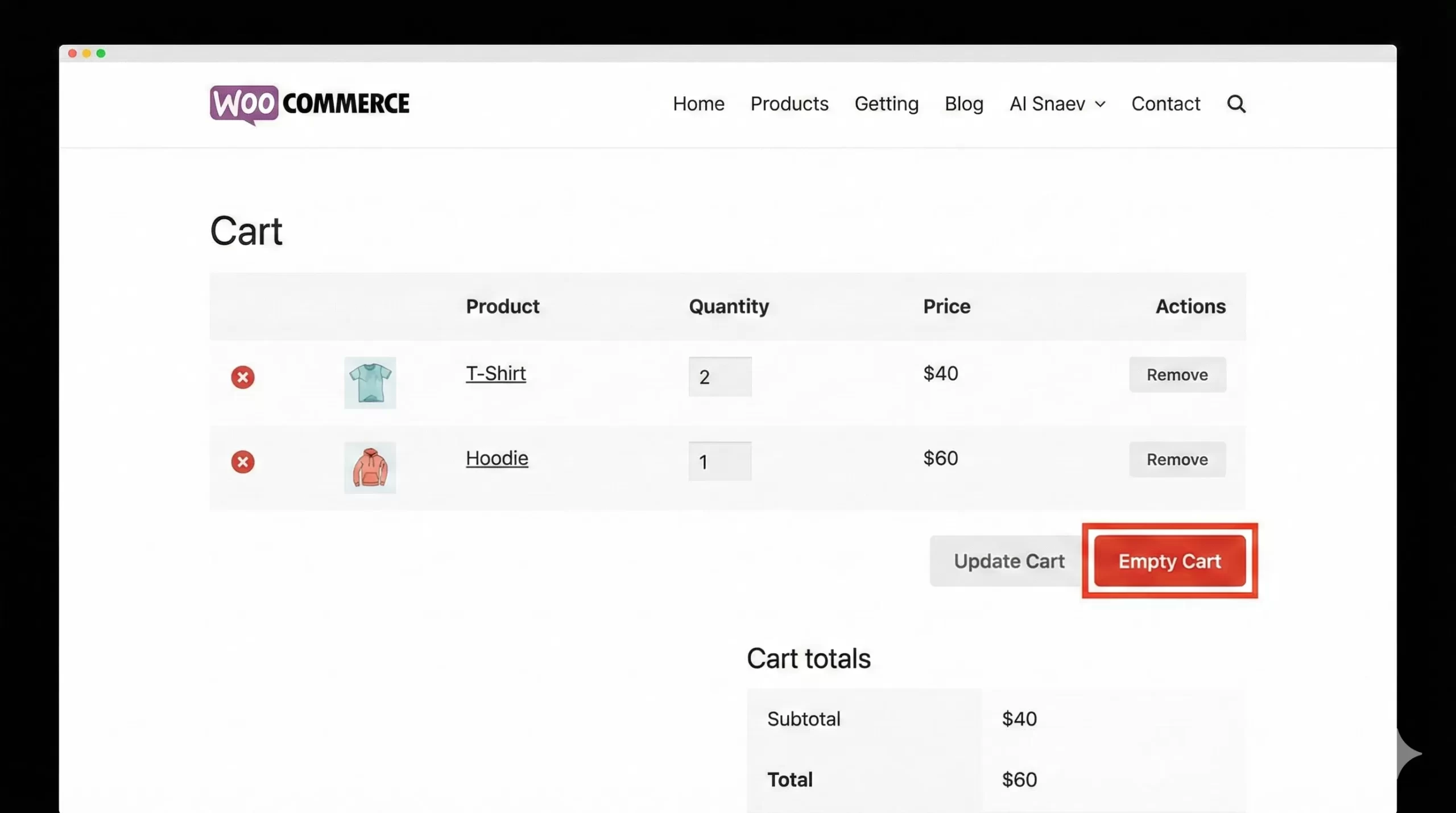
For a better User Experience (UX), you might want to give customers the option to restart their shopping journey with a single click. Implementing a “Clear Cart” button requires a combination of HTML, jQuery, and a PHP handler.
Step 1: Add the Button to the Cart Page
First, we hook into the cart page actions to render a button.
/**
 * Add a "Clear Cart" button to the cart page.
 */
function pnet_add_empty_cart_button() {
    echo '<a href="#" id="pnet-clear-cart" class="button" style="background-color: #d9534f; color: white; margin-top: 10px;">Empty Cart</a>';
}
add_action( 'woocommerce_cart_actions', 'pnet_add_empty_cart_button' );
Step 2: Enqueue the JavaScript
Next, we need to listen for the click event and send an AJAX request to the server. This prevents the page from reloading unnecessarily until the process is done.
/**
 * Enqueue script for the clear cart button.
 */
function pnet_enqueue_cart_scripts() {
    if ( is_cart() ) {
        ?>
        <script type="text/javascript">
        jQuery(document).ready(function($) {
            $('#pnet-clear-cart').click(function(e) {
                e.preventDefault();
                if (confirm('Are you sure you want to remove all items?')) {
                    $.ajax({
                        type: 'POST',
                        url: wc_add_to_cart_params.ajax_url,
                        data: {
                            action: 'pnet_empty_cart_ajax'
                        },
                        success: function(response) {
                            location.reload();
                        }
                    });
                }
            });
        });
        </script>
        <?php
    }
}
add_action( 'wp_footer', 'pnet_enqueue_cart_scripts' );
Step 3: The PHP Handler
Finally, we need the server-side logic to actually process the request and Empty WooCommerce Cart Programmatically.
/**
 * AJAX handler to clear the cart.
 */
function pnet_empty_cart_ajax_handler() {
    if ( function_exists( 'WC' ) ) {
        WC()->cart->empty_cart();
    }
    die();
}
add_action( 'wp_ajax_pnet_empty_cart_ajax', 'pnet_empty_cart_ajax_handler' );
add_action( 'wp_ajax_nopriv_pnet_empty_cart_ajax', 'pnet_empty_cart_ajax_handler' );
Method 4: Force Single Item Cart (Clear Before Add)
If you are selling subscriptions or digital courses, you often want to limit the user to one item at a time. To achieve this, you must empty the cart immediately before a new item is added.
We can utilize the woocommerce_add_to_cart_validation filter. This runs before the product is actually added to the cart object.
/**
 * Empty cart before adding a new item to ensure only one item exists.
 */
function pnet_force_single_item_cart( $passed, $product_id, $quantity ) {
    if ( ! WC()->cart->is_empty() ) {
        WC()->cart->empty_cart();
    }
    return $passed;
}
add_filter( 'woocommerce_add_to_cart_validation', 'pnet_force_single_item_cart', 10, 3 );
This snippet is incredibly powerful for membership sites. It automatically handles the logic so you don’t have to manually Empty WooCommerce Cart Programmatically via URL parameters or redirects.
You might also like:

Method 5: Clearing Cart via Custom URL Endpoint
Sometimes you need to send a user a link that, when clicked, clears their cart and redirects them to a shop page. This is useful for abandoned cart recovery campaigns where you want to offer a fresh start.
We will hook into the init action to check for a specific query string in the URL, such as ?clear-cart=yes.
/**
 * Clear cart if ?clear-cart=yes is present in the URL.
 */
function pnet_clear_cart_via_url() {
    if ( isset( $_GET['clear-cart'] ) && $_GET['clear-cart'] === 'yes' ) {
        if ( function_exists( 'WC' ) ) {
            WC()->cart->empty_cart();

            // Redirect to remove the query arg and avoid re-triggering
            wp_safe_redirect( wc_get_page_permalink( 'shop' ) );
            exit;
        }
    }
}
add_action( 'init', 'pnet_clear_cart_via_url' );
Now, you can link users to https://yourdomain.com/?clear-cart=yes and it will wipe their session clean before landing them on the shop page.
Troubleshooting Common Errors
Even with the correct code, you might find that the cart doesn’t seem to clear, or items reappear after a page refresh. Here are the most common culprits when trying to Empty WooCommerce Cart Programmatically.
1. Server-Side Caching (Varnish/Redis)
If you are using aggressive caching (like WP Rocket, Cloudflare, or server-level Varnish), the HTML of the cart widget might be cached. Even though the cart is technically empty in the backend, the frontend still shows items.
Solution: Ensure your caching plugin is configured to exclude the Cart and Checkout pages. Additionally, if you are doing this via AJAX (Method 3), ensure you trigger the wc_fragment_refresh event in JavaScript.
2. Code Firing Too Early
If you place your code in the plugins_loaded hook, WooCommerce might not have initialized the session yet. Always check if WC()->cart is not null before calling methods on it.
Solution: Use the wp_loaded or init hooks, as WooCommerce initializes the cart session during these phases.
3. Persistent Carts in Database
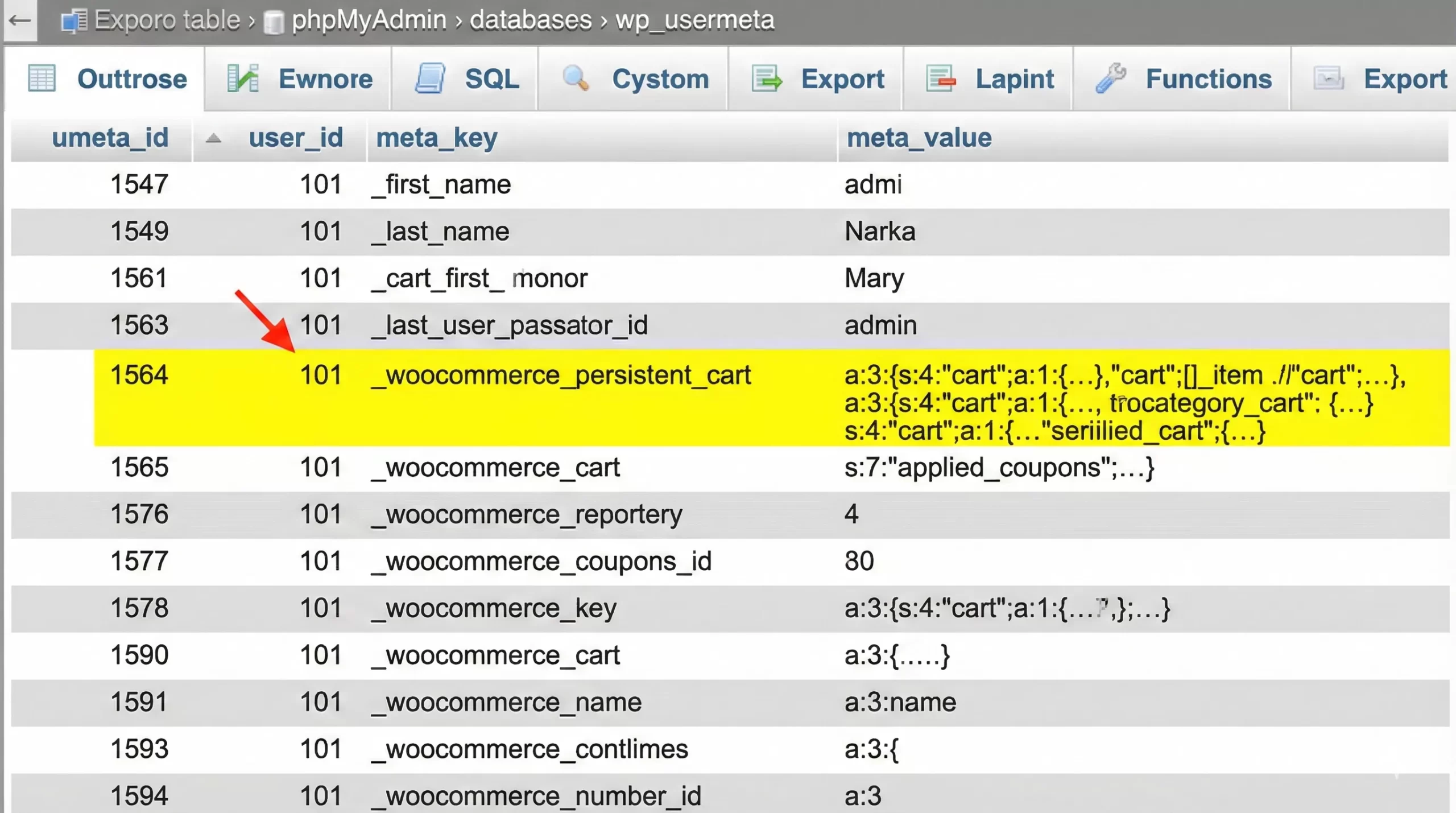
WooCommerce stores cart data in the wp_usermeta table for logged-in users. If you only clear the cookie session, the database backup might restore the cart upon the next page load.
Solution: The WC()->cart->empty_cart() method handles this natively by clearing the persistent cart meta. However, if you are manually manipulating sessions, ensure you also delete the user meta key _woocommerce_persistent_cart_1.
Advanced: Resetting the Session Cookie
In extreme cases where empty_cart() is insufficient—perhaps due to a corrupted session—you may need to force a session reset. This destroys the customer’s unique session ID entirely.
/**
 * completely destroy the customer session.
 */
function pnet_force_session_destroy() {
    if ( WC()->session ) {
        WC()->session->set_customer_session_cookie( false );
        WC()->session->cleanup_sessions();
        WC()->cart->empty_cart();
    }
}
Use this with caution, as it will also clear other session data like applied coupons or customer address data entered during checkout.
Conclusion
Managing the WooCommerce cart flow is a critical skill for any serious WordPress developer. Whether you are building a “Buy One Only” store, implementing privacy features for public computers, or simply debugging a custom checkout flow, knowing how to manipulate the WC_Cart object is essential.
We have covered how to trigger this action on logout, via AJAX buttons, through URL parameters, and during the validation of new products. Remember to always consider the user experience; suddenly removing items without feedback can be confusing.
By following the steps in this guide, you now have a toolkit of snippets to Empty WooCommerce Cart Programmatically in any situation 2026 throws at you.