Migrating a WooCommerce store or a standard blog to HTTPS is crucial for security and SEO, but it often comes with a frustrating aftermath: the dreaded “Not Secure” warning despite having a valid certificate. This usually happens because images, scripts, or stylesheets are still loading over HTTP. In this technical guide, we will examine exactly how to fix mixed content error WordPress developers encounter after activating the Really Simple Security (Really Simple SSL) plugin.
While plugins like Really Simple Security (Really Simple SSL) are excellent at handling the heavy lifting of SSL migration, they cannot always dynamically rewrite every single hardcoded URL in your database or theme files. This “mixed content” prevents the browser from showing the green padlock, potentially scaring off customers and hurting your search rankings. Below, we provide a deep-dive solution to diagnose, debug, and permanently resolve these issues.
Backup Required
Prerequisites
To successfully follow this guide and fix mixed content error WordPress implementations, ensure you have the following environment ready:
- PHP 7.4 or higher (PHP 8.1+ recommended for performance).
- Administrator Access to the WordPress Dashboard.
- FTP/SFTP or SSH Access to modify theme files if necessary.
- A Valid SSL Certificate installed on your server (Let’s Encrypt or paid).
- Really Simple Security (Really Simple SSL) plugin installed and activated.
- Chrome DevTools (or Firefox Developer Edition) for debugging.
Step 1: Diagnosing the Mixed Content Source
Before applying fixes, you must identify which assets are causing the blockage. Browsers block “Active” mixed content (scripts, iframes) by default, while “Passive” mixed content (images) usually triggers a warning indicator.
Using the Browser Console
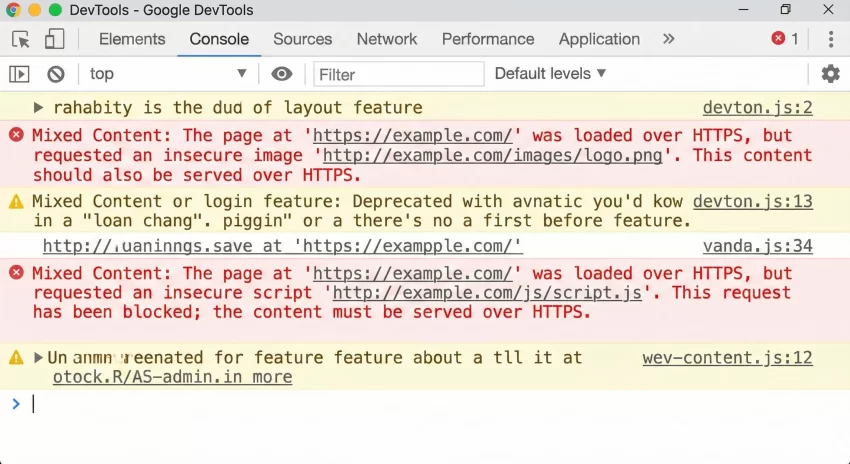
The fastest way to spot insecure assets is via the browser’s developer tools. Right-click anywhere on your page and select Inspect, then navigate to the Console tab.
Look for errors highlighted in red or yellow that state: “Mixed Content: The page at ‘https://…’ was loaded over HTTPS, but requested an insecure image ‘http://…’.”. These logs give you the exact file paths that need to be updated.
Identifying the Origin
Once you see the URL, determine its source. Is it a logo uploaded in the Theme Options? Is it a hardcoded script in header.php? Or is it an image embedded inside a post content?
- Theme/Plugin Files: Usually scripts or stylesheets enqueued incorrectly.
- Database Content: Images inside posts or page builder data (Elementor/Divi).
- Widgets: Custom HTML widgets often contain hardcoded
http://links.
You might also like: How to Fix Error Establishing a Database Connection in WordPress Fast
Step 2: Configuring Really Simple Security (Really Simple SSL) “Mixed Content Fixer”
The Really Simple Security (Really Simple SSL) plugin comes with a built-in feature designed to fix mixed content error WordPress sites generate on the fly. It uses PHP output buffering to replace http:// with https:// before the page is sent to the browser.
Enabling the Auto-Fixer
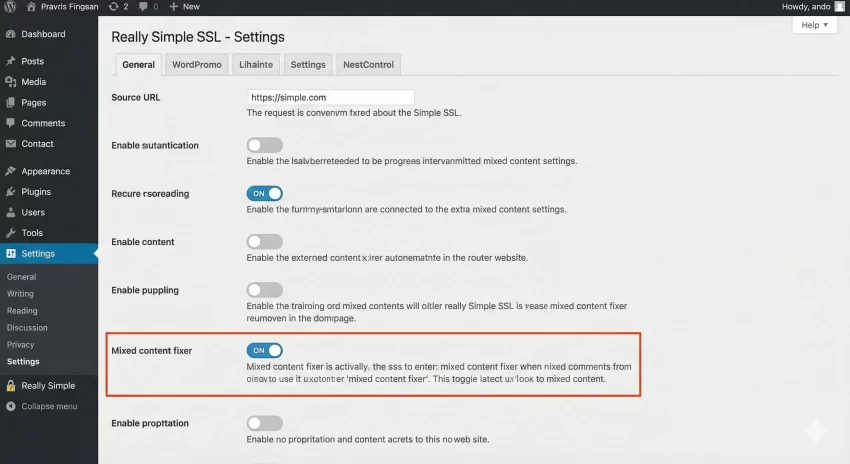
Navigate to Settings > SSL > Settings. Ensure the “Mixed content fixer” option is toggled ON. This handles the majority of standard WordPress assets.
How It Works
Switching to the Init Hook Method
If the default fixer doesn’t work (common in specific caching environments), you can switch the method. Go to the “General” tab in Really Simple Security (Really Simple SSL) settings. Look for the “Mixed content fixer – init hook” option. This fires the replacement logic earlier in the WordPress load sequence, which can catch assets that the standard output buffer misses.
Step 3: Performing a Database Search and Replace
The most robust way to fix mixed content error WordPress permanently—without relying on real-time plugin processing—is to update the database entries themselves. This is critical for WooCommerce product descriptions and post content.
Using a Plugin Solution
Install a plugin like “Better Search Replace”.
- Go to Tools > Better Search Replace.
- Search for:
http://yourdomain.com - Replace with:
https://yourdomain.com - Select all tables.
- Run as Dry Run: Always do this first to see how many changes will be made.
- Uncheck “Dry Run” and execute to commit changes.
Using WP-CLI (For Developers)
If you have SSH access, WP-CLI is faster and handles serialized data (like theme options) much better than standard SQL queries.
# Basic search and replace for the domain
wp search-replace 'http://example.com' 'https://example.com' --recurse-objects --skip-columns=guid

# Flush cache after replacing
wp cache flush
Do Not Use SQL Queries
UPDATE wp_posts SET... on the wp_options table. This breaks serialized data arrays, which can crash your theme and plugins. Step 4: Fixing Hardcoded Scripts and Styles
Sometimes, developers accidentally hardcode protocols in theme files. This is a common reason why you fail to fix mixed content error WordPress validators report. You need to verify your functions.php and template files.
Correct Enqueue Method
Inspect your theme’s functions.php. Look for wp_enqueue_script or wp_enqueue_style calls that use explicit http://.
Incorrect:
wp_enqueue_script( 'custom-js', 'http://example.com/wp-content/themes/mytheme/js/custom.js', array(), '1.0', true );
Correct (Protocol Relative):
// Use // to let the browser decide, or better yet, use WordPress internal functions
wp_enqueue_script( 'custom-js', '//example.com/wp-content/themes/mytheme/js/custom.js', array(), '1.0', true );
Best Practice (Using built-in paths):
function pnet_enqueue_secure_assets() {
    wp_enqueue_script(
        'pnet-custom-js',
        get_template_directory_uri() . '/js/custom.js',
        array('jquery'),
        '1.0',
        true
    );
}
add_action( 'wp_enqueue_scripts', 'pnet_enqueue_secure_assets' );
By using get_template_directory_uri(), WordPress automatically detects if SSL is active and serves the correct protocol.
You might also like: Easily Remove Unused CSS and JS in WordPress for Blazing Fast Speed
Step 5: Fixing Elementor and Page Builder Content
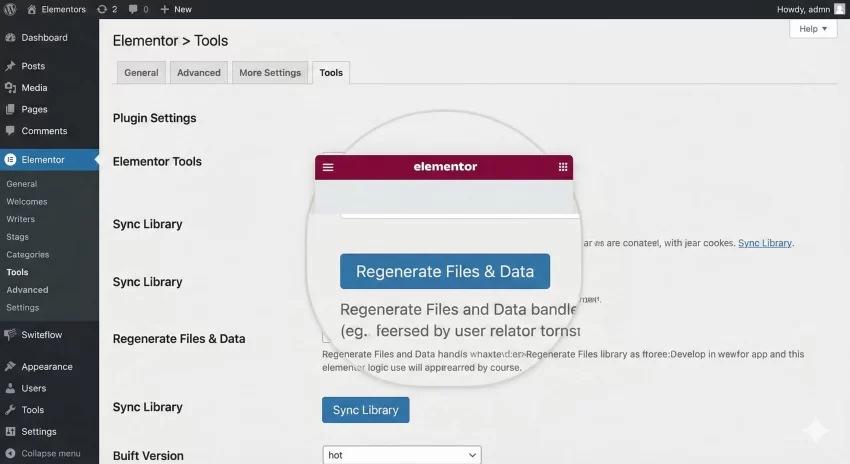
Page builders like Elementor store CSS in external files and often cache URLs. If you switched to SSL after building your site, Elementor might still be referencing the old HTTP CSS files.
Regenerating CSS Files
- Go to Elementor > Tools.
- Click on the Regenerate Files & Data button.
- Click Sync Library.
- Clear your browser cache and reload your site.
Elementor URL Replacement
Elementor also has its own specific replacement tool. Go to Elementor > Tools > Replace URL. Enter your old http URL and your new https URL. This updates Elementor-specific data rows that generic search-replace plugins might miss.
Troubleshooting Common Errors
Even after following the steps above, you might still struggle to fix mixed content error WordPress completely. Here are common edge cases.
External HTTP Resources
If you are loading a script from a third party (e.g., an old font API or a badge from another site) that does not support HTTPS, your green padlock will break.
Solution: You must either find an HTTPS version of that resource, host the file locally on your server, or remove it entirely. You cannot force an external server to serve SSL if they don’t support it.
Cache Persistence
Plugins like WP Rocket or Autoptimize store static HTML versions of your site. If these were generated before you fixed the links, they will serve the old HTTP content.
Solution: Always clear all caches (Server, CDN, and Plugin) immediately after applying SSL fixes.
Summary
Securing your site is not just about installing a certificate; it’s about ensuring data integrity across every request. To fix mixed content error WordPress sites effectively, you must combine the dynamic capabilities of Really Simple Security (Really Simple SSL) with a hard reset of your database URLs and careful code inspection. By following this guide, you ensure a safe environment for your visitors and a clean signal for search engines.
You might also like: How to Fix Error Establishing a Database Connection in WordPress Fast