
Is your WordPress not sending email notifications? Few things are more frustrating for a developer or site owner than realizing contact forms, password resets, and order confirmations are vanishing into the void. It is a silent business killer.
If you are facing the WordPress not sending email issue, you are not alone. It is one of the most common problems in the WordPress ecosystem. The good news is that it is almost always fixable without needing a heavy plugin, specifically if you are comfortable with a little code.
In this guide, we will dive deep into troubleshooting wp_mail failures. We will look at why WordPress not sending email errors occur and, most importantly, how to configure SMTP programmatically to ensure your emails hit the inbox every single time.
Why is WordPress Not Sending Email?
To fix the problem, you must understand why the WordPress not sending email issue happens in the first place. By default, WordPress uses a function called wp_mail(), which relies on PHP’s native mail() function.
There are three main reasons this fails:
- Server Configuration: Many hosting providers (especially shared hosting) disable PHP mail to prevent spam. If this is disabled, you will immediately face the WordPress not sending email problem.
- Spoofing Protection: Email providers like Gmail and Outlook check the sender’s authenticity. If your email claims to be from “yourdomain.com” but is sent from a generic server IP, it gets flagged as spam or blocked entirely.
- No SMTP Authentication: PHP mail sends emails unauthenticated. Without proper SMTP (Simple Mail Transfer Protocol) authentication, your deliverability rates plummet.
Step 1: Debugging wp_mail Failures
Before we apply a fix, we need to verify if wp_mail is actually failing or if the emails are just landing in spam. Debugging the WordPress not sending email error starts by checking the return value of the mail function.
You can add the following snippet to your theme’s functions.php file or a custom plugin to log email errors. This helps you confirm if the WordPress not sending email issue is internal.
/**
 * Log wp_mail errors to debug.log
 * Prefix: pnet_ for uniqueness
 */
function pnet_debug_email_errors( $wp_error ) {
    if ( is_wp_error( $wp_error ) ) {
        error_log( 'Email Error: ' . $wp_error->get_error_message() );
    }
}
add_action( 'wp_mail_failed', 'pnet_debug_email_errors' );
Note: Ensure WP_DEBUG and WP_DEBUG_LOG are enabled in your wp-config.php file to see these errors.
You might also like:

Step 2: The Permanent Fix – Configure SMTP Programmatically
The most reliable way to solve the WordPress not sending email issue is to bypass PHP mail() entirely and use a transactional email service (like SendGrid, Mailgun, or Amazon SES) via SMTP.
While there are many plugins for this, configuring it programmatically is cleaner, more secure, and improves site performance by reducing plugin bloat. This is the ultimate solution to the WordPress not sending email problem.
Prerequisites
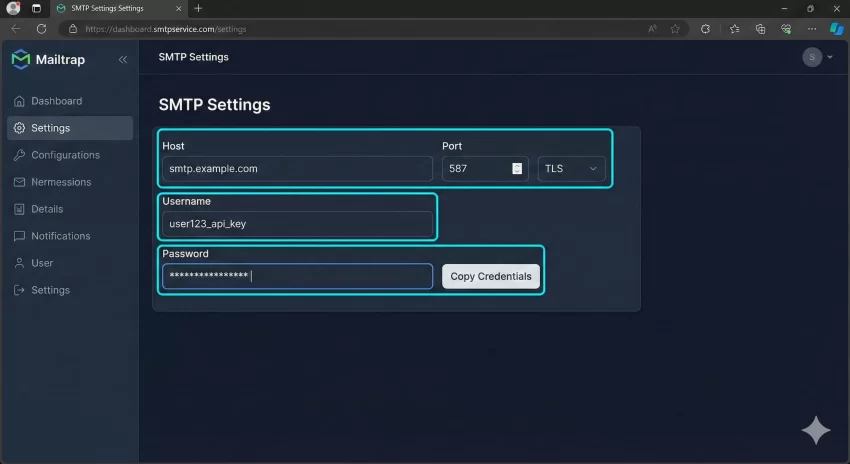
You will need SMTP credentials from your email provider:
- Host: (e.g., smtp.sendgrid.net)
- Port: (usually 587 for TLS or 465 for SSL)
- Username: (usually an API key or email address)
- Password: (your API key or password)
The Code
Add the following code to your functions.php or a site-specific plugin. This snippet hooks into phpmailer_init to force WordPress to use SMTP, effectively resolving the WordPress not sending email error.
/**
 * Configure SMTP programmatically to fix WordPress not sending email issues.
 * Prefix: pnet_
 */
function pnet_configure_smtp( $phpmailer ) {
    $phpmailer->isSMTP();
    $phpmailer->Host       = 'smtp.example.com'; // Replace with your SMTP host
    $phpmailer->SMTPAuth   = true;
    $phpmailer->Port       = 587; // Usually 587 (TLS) or 465 (SSL)
    $phpmailer->Username   = 'your_username_here'; // Your SMTP Username
    $phpmailer->Password   = 'your_password_here'; // Your SMTP Password
    $phpmailer->SMTPSecure = 'tls'; // Use 'tls' or 'ssl' based on your port

    // Optional: Force the "From" email and name
    $phpmailer->From       = 'noreply@yourdomain.com';
    $phpmailer->FromName   = 'Your Website Name';
}
add_action( 'phpmailer_init', 'pnet_configure_smtp' );
Once this code is active, WordPress will route all emails through your authenticated SMTP server. This usually fixes the WordPress not sending email issue instantly because the receiving server now trusts the sender.
You might also like:

Step 3: Testing Your Configuration
After implementing the code, you must verify that the WordPress not sending email problem is actually resolved. Do not just assume it works!
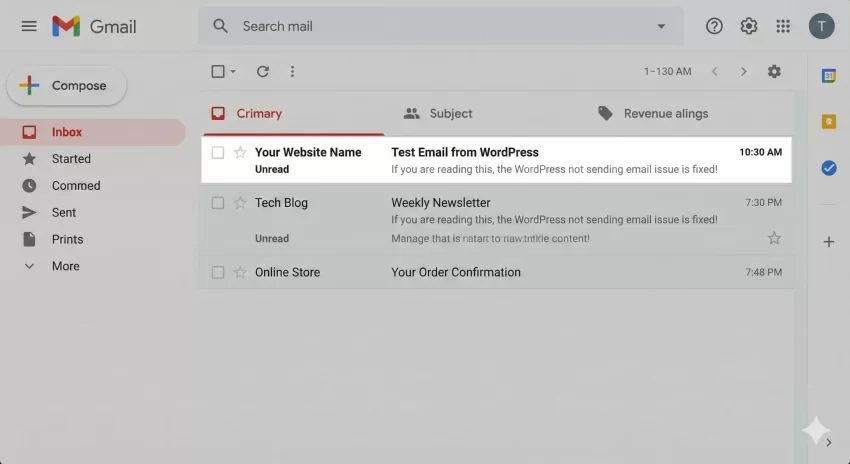
You can create a temporary shortcode to trigger a test email. Add this temporarily to your functions file:
/**
 * Shortcode to test email delivery.
 * Usage: [pnet_test_email]
 */
function pnet_send_test_email() {
    $to = 'your-actual-email@gmail.com'; // Change this to your email
    $subject = 'Test Email from WordPress';
    $message = 'If you are reading this, the WordPress not sending email issue is fixed!';
    $headers = array('Content-Type: text/html; charset=UTF-8');

    $sent = wp_mail( $to, $subject, $message, $headers );

    if ( $sent ) {
        return 'Success: Test email sent.';
    } else {
        return 'Error: WordPress not sending email even after config.';
    }
}
add_shortcode( 'pnet_test_email', 'pnet_send_test_email' );
Place the [pnet_test_email] shortcode on a private page and visit it. If you receive the email, you have successfully conquered the WordPress not sending email beast.
Common Troubleshooting Tips
If you have added the SMTP code but are still seeing the WordPress not sending email error, check these common culprits:
1. Firewall Blocking Ports
Some shared hosting providers block outbound connections on ports 587 or 465. If your WordPress not sending email issue persists, contact your host to whitelist these ports.
2. Incorrect Credentials
A single typo in your password or API key will result in authentication failure, leading back to the WordPress not sending email scenario. Double-check your copy-paste work.
3. “From” Address Mismatch
Some SMTP providers (like Amazon SES) require you to verify the “From” email address. If you try to send from an unverified address, the service will reject it, and you will think WordPress not sending email is the server’s fault.
Conclusion
Dealing with WordPress not sending email issues can be daunting, but it is almost always a configuration problem, not a bug in WordPress itself. By moving away from the unreliable PHP mail() function and configuring SMTP programmatically, you ensure high deliverability and professional reliability.
Don’t let a WordPress not sending email error cost you potential business. Implement the code snippets above, and ensure your communication lines stay open.