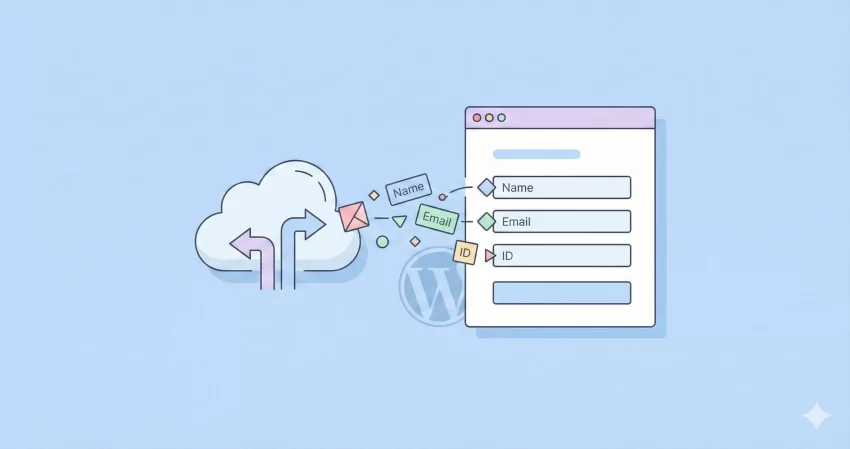
If you have ever filled out a long form online, you know the fatigue that sets in halfway through. As developers and site owners, our goal is to reduce that friction. One of the most powerful ways to boost your conversion rates is to prefill Gravity Forms dynamically. By passing data directly through the URL, you can save your users time and make your forms feel smarter and more personalized.
Imagine sending a newsletter to your subscribers. When they click the “Contact Us” link, wouldn’t it be seamless if their First Name and Email Address were already filled in? In this guide, we are going to dive deep into how to prefill Gravity Forms using query strings (URL parameters). Whether you are looking for a no-code solution or a custom programmatic approach, we have got you covered.
Why You Should Prefill Gravity Forms Dynamically
Before we jump into the code, let’s talk about the why. Dynamic population isn’t just a fancy trick; it is a fundamental UX improvement. When you prefill Gravity Forms, you are essentially telling your user, “I know who you are, and I value your time.”
Here are three key benefits:
- Reduced Friction: Fewer fields to type means a lower barrier to entry.
- Higher Accuracy: Passing data programmatically eliminates user typos in critical fields like emails or IDs.
- Better Tracking: You can pass hidden parameters (like campaign IDs or source codes) to track where your leads are coming from without the user ever seeing them.
Whether you are building a registration portal, a lead magnet, or a customer feedback loop, learning how to prefill Gravity Forms is an essential skill in your WordPress development arsenal.
Method 1: The Native Way (No Code Required)
Gravity Forms has built-in functionality to handle dynamic population. This method is perfect for static data or simple information passing between two pages on your site.
Step 1: Enable Dynamic Population
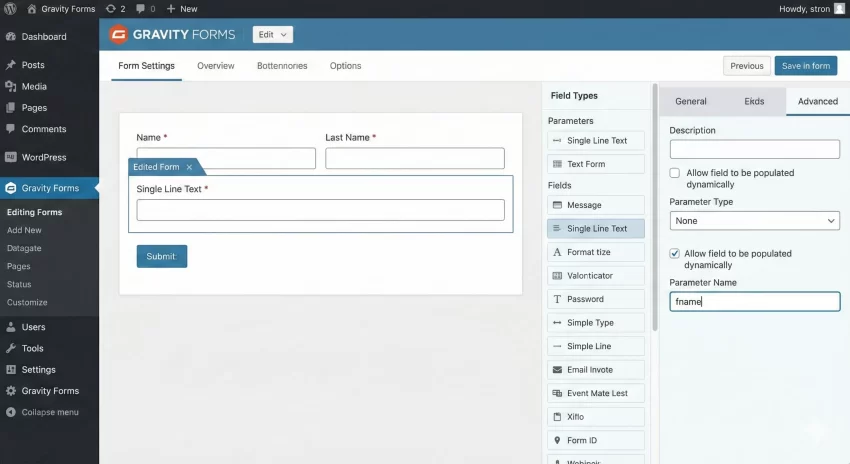
First, open the form you want to edit in the Gravity Forms editor. Click on the field you wish to prefill (for example, a Single Line Text field for “First Name”).
Navigate to the Advanced tab in the field settings. You will see a checkbox labeled “Allow field to be populated dynamically.” Check this box.
Step 2: Set the Parameter Name
Once checked, a new input box will appear asking for a Parameter Name. This is the “key” you will use in your URL. For this example, let’s use fname.
Step 3: Construct Your URL
Now, to prefill Gravity Forms fields, you simply append the query string to your page URL. If your form is located at https://example.com/contact/, you would structure your link like this:
https://example.com/contact/?fname=John
When the user lands on that page, the First Name field will automatically read “John”. You can chain multiple parameters using the ampersand (&) symbol. If you also set up an email field with the parameter user_email, your URL would look like this:
https://example.com/contact/?fname=John&user_email=john@example.com
You might also like:

Method 2: The Developer Way (Using Hooks and Filters)
The native method is great, but what if you need to prefill Gravity Forms with dynamic data that isn’t easily exposed in a URL? Perhaps you want to pull the current logged-in user’s role, a value from the database, or calculate a date dynamically.
This is where the power of WordPress hooks comes in. We will use the gform_field_value_$parameter_name filter. This allows us to intercept a specific parameter name and inject a value using PHP.
Let’s say we want to populate a hidden field with the current user’s ID, and we have set the parameter name in Gravity Forms to pnet_user_id.
Add the following code to your theme’s functions.php file or a custom functionality plugin:
/**
 * Dynamically populate a field with the parameter name "pnet_user_id"
 *
 * @param string $value The value to be populated.
 * @return string The modified value.
 */
function pnet_populate_user_id( $value ) {
    // Check if the user is logged in
    if ( is_user_logged_in() ) {
        // Get the current user's ID
        $current_user_id = get_current_user_id();
        return $current_user_id;
    }

    // Return the default value if not logged in
    return $value;
}
add_filter( 'gform_field_value_pnet_user_id', 'pnet_populate_user_id' );
In this example, we are telling Gravity Forms: “Whenever you see a field asking for pnet_user_id, run this function to get the data.” This is a much cleaner and more secure way to prefill Gravity Forms than exposing sensitive IDs in the URL bar.
You might also like:

Advanced Strategy: Prefilling Complex Data
Sometimes you need to do more than just pass a simple string. You might need to prefill Gravity Forms based on complex logic. Let’s look at a scenario where we want to prefill a “Referral Source” field based on a cookie, or fallback to a default value if the cookie doesn’t exist.
For more details on how filters work in WordPress, you can refer to the official add_filter documentation on the WordPress Codex.
Here is how we can write a robust function to handle this:
/**
 * Prefill Gravity Forms "source" field from a cookie or default.
 * Parameter Name in GF: "pnet_source"
 */
function pnet_populate_referral_source( $value ) {
    // 1. Check if a specific cookie exists
    if ( isset( $_COOKIE['pnet_referral_cookie'] ) ) {
        // Sanitize the cookie data before passing it to the form
        return sanitize_text_field( $_COOKIE['pnet_referral_cookie'] );
    }

    // 2. If no cookie, check if a URL parameter exists regardless
    if ( isset( $_GET['ref'] ) ) {
        return sanitize_text_field( $_GET['ref'] );
    }

    // 3. Fallback default
    return 'Direct Traffic';
}
add_filter( 'gform_field_value_pnet_source', 'pnet_populate_referral_source' );
Handling List Fields and Checkboxes
One of the trickier aspects when you try to prefill Gravity Forms is handling multi-select fields like Checkboxes or Multi-Select Dropdowns. The URL structure changes slightly here.
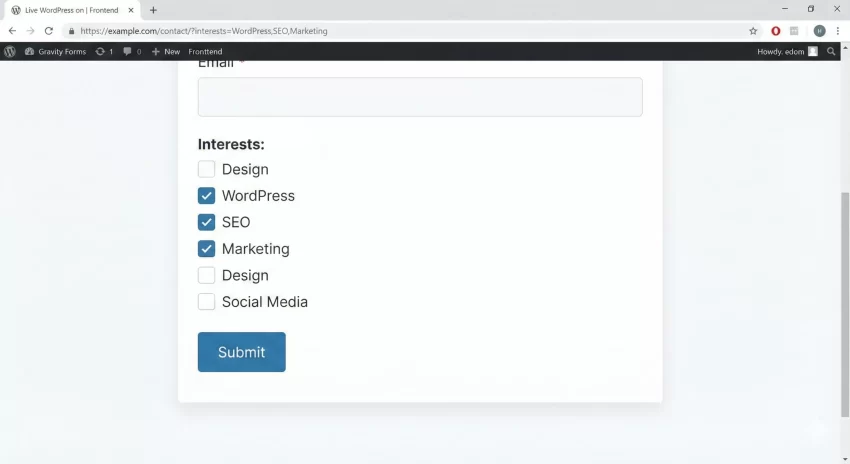
To prefill multiple items in a checkbox list via URL, you generally need to separate values with a comma. However, relying on URL encoding for arrays can be messy. A better approach is to use the PHP filter method we discussed above to return an array of values.
/**
 * Prefill a Checkbox field with multiple selected options.
 * Parameter Name: "pnet_interests"
 */
function pnet_populate_checkboxes( $value ) {
    // Return an array of values that match the "Value" setting of the choices in Gravity Forms
    return array( 'WordPress', 'SEO', 'Marketing' );
}
add_filter( 'gform_field_value_pnet_interests', 'pnet_populate_checkboxes' );
Troubleshooting Common Issues
Even for experienced developers, things can go wrong. If your attempts to prefill Gravity Forms are not working, check these common culprits:
1. Caching Issues
This is the number one enemy of dynamic content. If you are using a caching plugin (like WP Rocket or Autoptimize) or server-side caching (Varnish), the form might be served as a static HTML file. This means the PHP functions that prefill Gravity Forms fields never run for that specific visitor.
The Fix: Exclude the page containing the form from caching, or use AJAX to populate the form after the page loads (though this requires significantly more custom JavaScript).
2. Parameter Mismatch
The parameter name in the “Advanced” tab is case-sensitive. If you set it to UserEmail in the form settings but use ?useremail=... in the URL, it will not work. Always ensure your casing matches exactly.
3. Security and Sanitization
When you prefill Gravity Forms via URL, you are essentially taking user input and displaying it on the screen (inside the input value attribute). While Gravity Forms handles a lot of sanitization, it is best practice to ensure you aren’t passing malicious scripts.
If you are using the PHP method, always wrap your variables in sanitize_text_field() or esc_html() where appropriate to prevent XSS vulnerabilities.
Tip: Contact Form 7: How to Redirect Users To a Thank You Page
Conclusion
Mastering the ability to prefill Gravity Forms allows you to create seamless, professional experiences for your users. It bridges the gap between different pages of your website and external campaigns, ensuring that data flows smoothly without asking the user to repeat themselves.
Whether you choose the simple URL query string method for basic needs or the robust gform_field_value_ filter for advanced logic, the result is a better converting form. Start experimenting with these parameters today, and watch your form abandonment rates drop.