
Every extra second a customer spends on your checkout page is a potential drop-off point. In the world of eCommerce, friction is the enemy of conversion. If you are selling B2C (Business to Consumer), asking for a company name is often redundant and confusing. By default, WooCommerce includes this field, but for many store owners, the best move is to remove company name field WooCommerce provides in the standard setup.
At PixelNet, we believe in lean, efficient code and user experiences that convert. Whether you are running a digital download store or a physical clothing brand, simplifying your checkout form is one of the quickest wins you can achieve. In this comprehensive guide, we will walk you through multiple methods to get rid of that unnecessary field—ranging from simple settings to advanced PHP snippets using the pnet_ prefix standard.
Why You Should Streamline Your WooCommerce Checkout
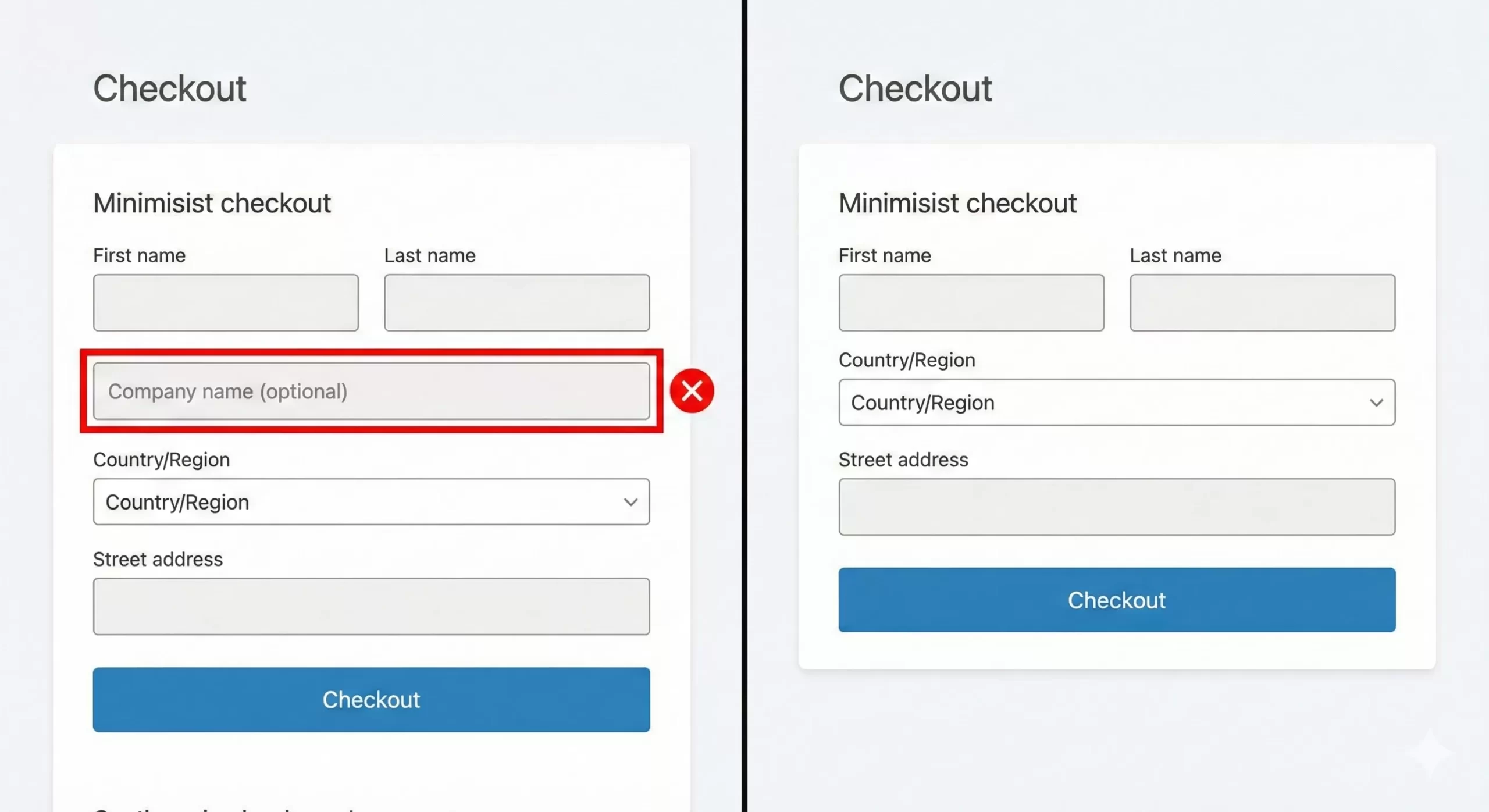
Research consistently shows that shorter forms lead to higher conversion rates. When a user sees a long list of fields, cognitive load increases. They subconsciously ask, “Do I really need to fill this out?” The “Company Name” field is a frequent offender. A regular shopper might pause, wondering if they need a business entity to purchase from you. By choosing to remove company name field WooCommerce checkout forms display, you eliminate this hesitation instantly.
B2B vs. B2C Needs
If you are strictly a B2B (Business to Business) wholesaler, keeping the field makes sense. However, for the vast majority of WooCommerce stores catering to individual buyers, this field is just noise. It pushes important fields like “Address” and “Email” further down the page, particularly on mobile devices where screen real estate is at a premium.
Data Hygiene and Shipping Labels
Another overlooked reason to remove this field is data hygiene. When users are forced to skip over optional fields, they sometimes enter junk data just to be safe. This can clutter your order management screen and even mess up formatting on shipping labels generated by third-party plugins. Removing the input at the source ensures your database remains clean.
You might also like:
Method 1: The Native Customizer Option (No Code)
Before we dive into the code, it is worth noting that WooCommerce has evolved. In recent versions, there is a built-in option within the WordPress Customizer that allows you to hide specific fields. While this doesn’t technically “unset” the field in the PHP backend in the same way a filter does, it is the safest method for non-developers.
To access this:
- Navigate to Appearance > Customize in your WordPress dashboard.
- Select WooCommerce.
- Click on Checkout.
- Look for the “Company name” field setting and switch it to “Hidden”.
However, many custom themes override these default settings. If you follow these steps and the field persists, or if you want to ensure the data is completely removed from the checkout object programmatically, the code-based methods below are superior. We generally recommend the code approach for developers because it ensures consistency regardless of the active theme.
Method 2: Using PHP Filters (The Developer Way)
As WordPress developers, we prefer solutions that are robust and version-control friendly. The most reliable way to remove company name field WooCommerce adds to the checkout is by hooking into the woocommerce_checkout_fields filter. This method completely removes the field from the array before the form is rendered.
You can add the following code snippet to your child theme’s functions.php file or a site-specific plugin. We will use our custom prefix pnet_ to avoid conflicts.
/**
 * Remove Company Name Field from WooCommerce Checkout
 * * @param array $fields The array of checkout fields.
 * @return array The modified array of fields.
 */
function pnet_remove_company_name_field_woocommerce( $fields ) {
    // Unset the billing company field
    unset( $fields['billing']['billing_company'] );

    // Unset the shipping company field
    unset( $fields['shipping']['shipping_company'] );

    return $fields;
}
add_filter( 'woocommerce_checkout_fields', 'pnet_remove_company_name_field_woocommerce' );
This code is efficient because it targets the specific array keys used by WooCommerce. By using unset(), we are telling WooCommerce, “Forget this field exists.” This is cleaner than hiding it with CSS, as the field will not be processed during the checkout validation logic either.
Understanding the Code Structure
Let’s break down what is happening in the snippet above for those new to WooCommerce hooks. The $fields variable is a massive array containing nested arrays for ‘billing’, ‘shipping’, ‘account’, and ‘order’.
When you need to modify checkout fields via the filter, you must target the specific group. Common mistakes include trying to unset $fields['company_name'] directly, which will not work because the field is nested inside the ‘billing’ and ‘shipping’ groups.
Method 3: Conditional Removal (Advanced)
What if you sell both B2B and B2C products? You might want to remove company name field WooCommerce shows for regular products, but keep it visible if the cart contains a “Wholesale” item. This requires a slightly more complex logic check.
Here is how you can implement conditional logic based on the product categories in the cart:
function pnet_conditional_checkout_fields( $fields ) {
    // Define the category slug that REQUIRES a company name
    $wholesale_category = 'wholesale';
    $is_wholesale = false;

    // Check content of the cart
    foreach ( WC()->cart->get_cart() as $cart_item_key => $values ) {
        $product = $values['data'];
        if ( has_term( $wholesale_category, 'product_cat', $product->get_id() ) ) {
            $is_wholesale = true;
            break;
        }
    }

    // If it is NOT wholesale, remove the fields
    if ( ! $is_wholesale ) {
        unset( $fields['billing']['billing_company'] );
        unset( $fields['shipping']['shipping_company'] );
    }

    return $fields;
}
add_filter( 'woocommerce_checkout_fields', 'pnet_conditional_checkout_fields' );
This snippet gives you the best of both worlds. It keeps your checkout clean for retail customers while capturing necessary tax info for business clients.
You might also like:

Method 4: The CSS Approach (Quick Fix)
Sometimes you might not have FTP access or the ability to edit PHP files. In these cases, CSS can hide the field visually. However, be warned: this does not remove the field from the page source; it just makes it invisible. Robots and screen readers might still detect it.
To use this method, go to Appearance > Customize > Additional CSS and add:
#billing_company_field,
#shipping_company_field {
    display: none !important;
}
While this effectively hides the element, we generally advise against it for a permanent solution. If a plugin later marks the Company field as “Required,” users will be unable to checkout because they cannot see the field they need to fill in. Always prefer the PHP method to remove company name field WooCommerce logic entirely.
Must Read: The Ultimate Guide to the WordPress Transients API : Boost Your Site Speed
Troubleshooting Common Issues
Even with the correct code, sometimes the field refuses to disappear. Here are common culprits:
Caching
If you have added the PHP snippet but still see the field, clear your server cache (like LiteSpeed or WP Rocket) and your browser cache. WooCommerce checkout fragments are heavily cached.
Theme Overrides
Some premium themes have their own “Checkout Manager” built-in. If your theme has a settings panel, check there first. A hard-coded theme setting will often override a standard functions.php filter. You might need to increase the priority of your function:
// Increasing priority to 1000 to override themes
add_filter( 'woocommerce_checkout_fields', 'pnet_remove_company_name_field_woocommerce', 1000 );
Plugin Conflicts
Plugins like “Checkout Field Editor” allow you to manage fields via a GUI. If you have such a plugin installed, it is better to use the plugin’s interface to delete the field rather than adding code on top of it, which could cause conflicts.
Impact on SEO and User Experience
You might wonder, does removing a field really impact SEO? Indirectly, yes. Google values user experience metrics, including bounce rate and time on site. A smoother checkout flow reduces cart abandonment. When you remove company name field WooCommerce generates, you create a layout that looks cleaner and loads marginally faster (fewer DOM elements).
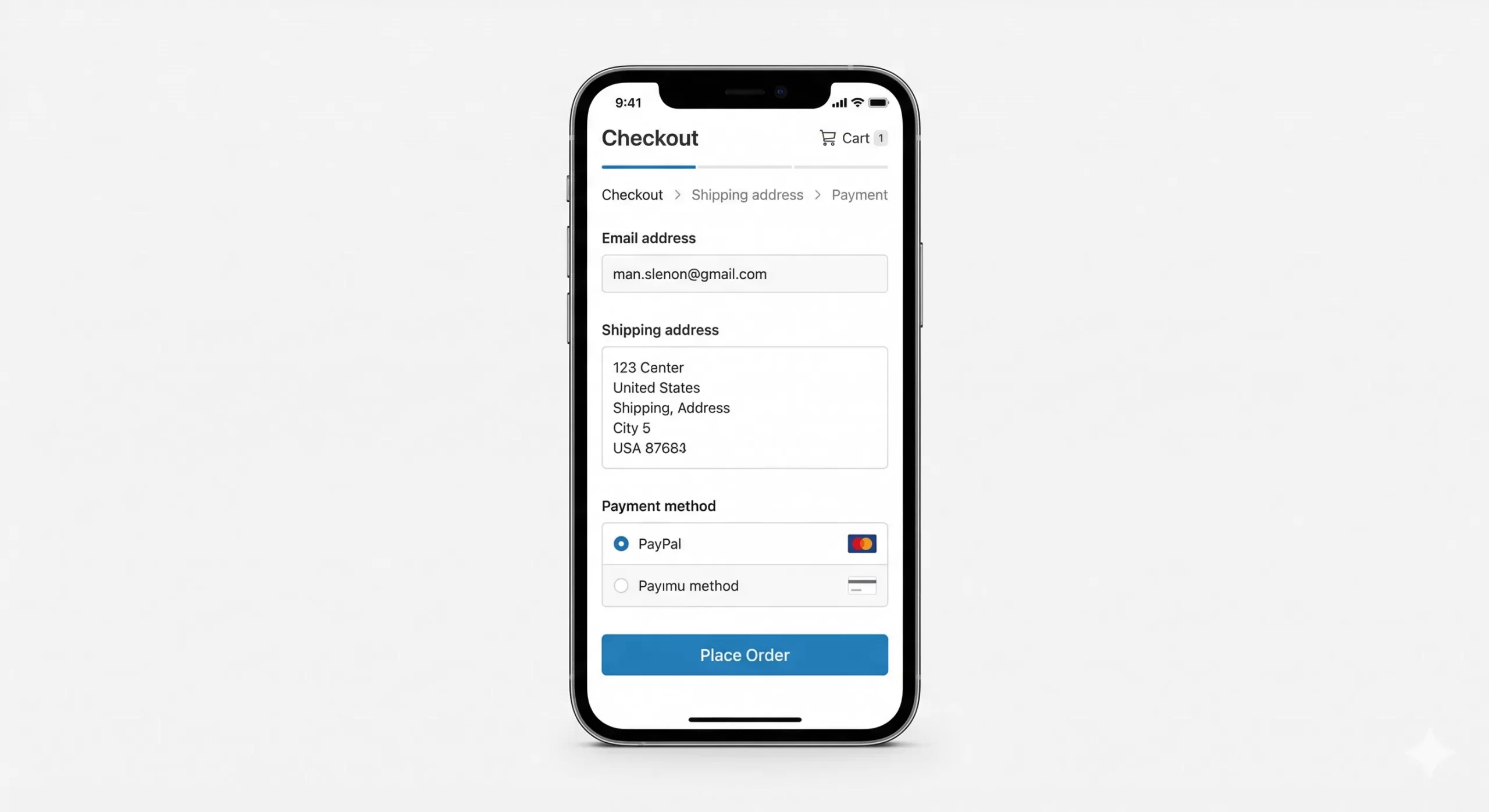
Furthermore, mobile-friendliness is a ranking factor. On a smartphone, every vertical pixel counts. Removing a 50px height input field pushes the “Place Order” button higher up the viewport, making it more accessible to the user’s thumb.
Conclusion
Optimizing your eCommerce store is an ongoing process of refinement. The default WooCommerce installation is designed to work for everyone, which means it includes features you likely don’t need. Taking the time to remove company name field WooCommerce settings include is a small step that signals professionalism and respect for your customer’s time.
Whether you choose the simple Customizer route or the robust PHP filter method using our pnet_ functions, the goal remains the same: a friction-free path to purchase. Test the changes on a staging site first, check your mobile view, and watch your conversion rates improve.
At PixelNet, we are committed to helping you master the art of WordPress. If you found this guide helpful, check out our other tutorials on customizing the WooCommerce remove company name field WooCommerce experience and more.