We have all been there. You find a fantastic plugin that solves a specific problem on your site, maybe a contact form or a slider. You install it, activate it, and it works perfectly. But then, you run a speed test, and your heart sinks. Your once-snappy site is now dragging its feet. Why? Because that plugin is likely loading its assets on every single page of your website, not just where it is needed. Today, we are going to dive deep into how to remove unused CSS and JS in WordPress to reclaim your site’s performance.
WordPress is an incredible platform because of its extensibility. However, this strength is also its greatest weakness regarding performance. Many plugin developers take the “better safe than sorry” approach, loading their stylesheets and JavaScript files globally to ensure their plugin works immediately, regardless of where a user places a shortcode. While convenient for beginners, this is a nightmare for optimization. To achieve high Core Web Vitals scores and keep Google happy, you must learn to remove unused CSS and JS in WordPress by deregistering and starting to dequeue unwanted files.
Why You Must Remove Unused CSS and JS in WordPress
Before we jump into the code, let’s understand the “why.” Every time a visitor lands on your website, their browser has to request, download, and parse every CSS and JavaScript file listed in your HTML. If you have a contact form plugin that loads its CSS on your homepage (where there is no form), the browser still downloads it. This creates “render-blocking” resources.
When you take the time to remove unused CSS and JS in WordPress, you achieve several critical wins:
- Reduced HTTP Requests: Fewer files mean fewer trips to the server.
- Smaller Page Size: Less code means a lighter page that downloads faster.
- Better Core Web Vitals: Specifically, you will see improvements in Largest Contentful Paint (LCP) and First Input Delay (FID).
- Improved User Experience: Mobile users on slower connections will thank you.
The Difference Between Deregister and Dequeue
In the WordPress development world, you will hear two terms thrown around often: dequeue and deregister. While they often go hand-in-hand when you want to remove unused CSS and JS in WordPress, they do technically different things.
wp_dequeue_script / wp_dequeue_style
This function stops the script or style from loading (printing) on the page. It tells WordPress, “I know this file is registered and ready to go, but do not output it on this specific page request.”
wp_deregister_script / wp_deregister_style
This function completely un-registers the handle. It tells WordPress, “Forget this script ever existed.” This is often used if you want to replace a plugin’s script with your own version (like a CDN version of jQuery) or if you want to ensure it is absolutely impossible for that handle to be called later.
For the purpose of cleaning up bloat and remove unused CSS and JS in WordPress, we usually use both in conjunction to ensure a complete cleanup.
You might also like:
Step 1: Finding the “Handle” of the Unwanted Asset
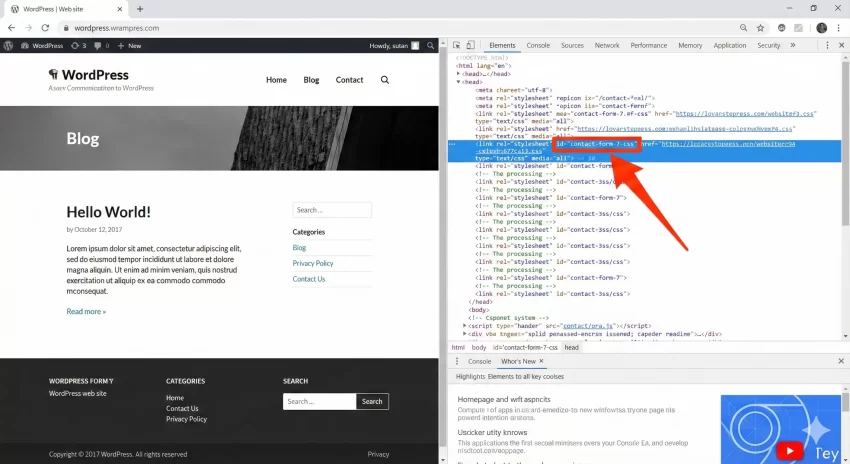
You cannot simply tell WordPress to “remove that blue button style.” You need the specific ID, or “handle,” that the plugin author used to register the file. Finding this is the first step to remove unused CSS and JS in WordPress.
Here is the easiest way to find it:
- Go to the page on your website where the unwanted file is loading.
- Right-click anywhere and select Inspect or Inspect Element.
- Navigate to the Sources tab or look at the
<head>tag in the Elements tab. - Look for the
<link>tag (for CSS) or<script>tag (for JS). - Look at the
idattribute.
Important Note on CSS IDs: WordPress automatically appends -css to the end of style IDs when they are output in HTML. If you see an ID like contact-form-7-css, the actual handle you need to use in your code is just contact-form-7. You must remove the -css suffix to target the handle correctly.
Step 2: Where to Place Your Custom Code
Now that we are about to write some PHP, you might be tempted to paste this into your theme’s functions.php file. While that works, it is not the safest method. If you update your theme, you lose your optimizations. Furthermore, modifying theme files directly can be risky if you make a syntax error.
We highly recommend creating a site-specific plugin for these types of performance tweaks, such as the mission we are on now, remove unused CSS and JS in WordPress. We actually have a detailed guide on exactly why and how to do this. Please read our article on why it’s important to have a site specific plugin before proceeding. It will save you headaches in the long run.
Step 3: The Code to Remove Unused CSS and JS
Let’s get into the logic. We will hook into wp_enqueue_scripts using a high priority (like 100). The high priority ensures our code runs after the plugins have added their scripts, allowing us to remove them effectively.
Scenario A: Removing a Plugin’s CSS Everywhere (Global Removal)
If you have a plugin that you know you only need on the backend, or perhaps you have hardcoded the styles into your main stylesheet and want to disable the plugin’s file to save a request, you can remove it globally.
Here is how you remove unused CSS and JS in WordPress globally for a specific handle:
/**
 * Dequeue and Deregister Contact Form 7 styles globally.
 * Handle: contact-form-7
 */
function pnet_remove_cf7_globally() {
    // Remove the style
    wp_dequeue_style( 'contact-form-7' );
    wp_deregister_style( 'contact-form-7' );

    // Remove the script
    wp_dequeue_script( 'contact-form-7' );
    wp_deregister_script( 'contact-form-7' );
}
add_action( 'wp_enqueue_scripts', 'pnet_remove_cf7_globally', 100 );
Scenario B: The “Smart” Removal (Conditional Logic)
This is where the magic happens. You don’t want to break your site; you just want to load assets where they belong. To effectively remove unused CSS and JS in WordPress without breaking functionality, we use WordPress conditional tags like is_page(), is_single(), or is_front_page().
Let’s assume you use a heavy form plugin (like Contact Form 7 or WPForms). You only have a contact form on your “Contact Us” page (slug: contact-us). Currently, it loads on every page.
Here is the code to unload it everywhere except the contact page:
/**
 * Conditionally remove Contact Form 7 assets.
 * Only load on the page with slug 'contact-us'.
 */
function pnet_conditional_asset_loading() {
    // If we are NOT on the contact page, remove the assets
    if ( ! is_page( 'contact-us' ) ) {

        // Dequeue CSS
        wp_dequeue_style( 'contact-form-7' );
        wp_deregister_style( 'contact-form-7' );

        // Dequeue JS
        wp_dequeue_script( 'contact-form-7' );
        wp_deregister_script( 'contact-form-7' );
    }
}
add_action( 'wp_enqueue_scripts', 'pnet_conditional_asset_loading', 100 );
By using the ! (NOT) operator, we are saying: “If this is NOT the contact page, get rid of these files.” This is the most efficient way to remove unused CSS and JS in WordPress.
You might also like:

Advanced: Removing WooCommerce Styles from Non-Ecommerce Pages
WooCommerce is notorious for loading its styles on every blog post and standard page. If you run a content-heavy site that also sells a few products, you don’t need cart fragments and shop styles on your blog posts.
Here is a snippet to clean up WooCommerce scripts on standard content pages:
function pnet_manage_woocommerce_assets() {
    // If it's a WooCommerce page, keep assets. Otherwise, remove them.
    // function_exists check prevents errors if Woo is deactivated.
    if ( function_exists( 'is_woocommerce' ) ) {
        if ( ! is_woocommerce() && ! is_cart() && ! is_checkout() ) {

            // Dequeue WooCommerce Styles
            wp_dequeue_style( 'woocommerce-general' );
            wp_dequeue_style( 'woocommerce-layout' );
            wp_dequeue_style( 'woocommerce-smallscreen' );

            // Dequeue WooCommerce Scripts fragments
            wp_dequeue_script( 'wc-cart-fragments' );
        }
    }
}
add_action( 'wp_enqueue_scripts', 'pnet_manage_woocommerce_assets', 100 );
Identifying Common Bloated Plugins
When you start your mission to remove unused CSS and JS in WordPress, look out for these common offenders. They are great plugins, but often load assets globally:
- Form Plugins: CF7, WPForms, Gravity Forms (often load CSS everywhere).
- Page Builders: Elementor or Divi (sometimes leave residual CSS on pages not using the builder).
- Social Sharing Plugins: These often load heavy font icons on every page.
- Sliders: Slider Revolution is a heavy resource that should only load on the page where the slider exists.
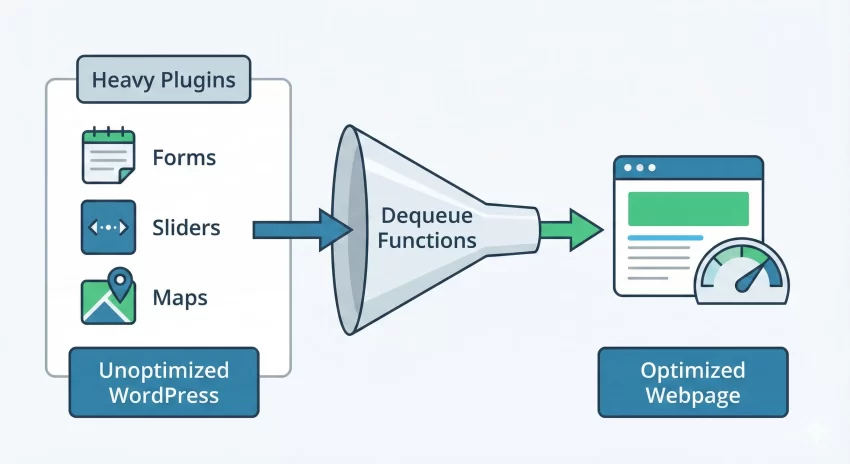
Using the Function Reference
It is vital to use the correct syntax when you modify core behavior. While we have provided the code snippets above, understanding the underlying functions gives you more power. For a deeper technical dive into the parameters and return values of these functions, you should check the official documentation.
For more details, you can visit the WordPress Code Reference for wp_dequeue_script().
Troubleshooting: “I Broke My Site!”
It happens to the best of us. You tried to remove unused CSS and JS in WordPress, and suddenly your navigation menu looks weird, or a button stops clicking. This usually happens because you dequeued a dependency.
For example, if you dequeue jQuery to save space, but your mobile menu relies on jQuery, your menu will break. Here is how to troubleshoot:
- Comment out your code: Go to your site-specific plugin or functions file and comment out the
wp_dequeue_...lines. - Check dependencies: Some plugins rely on core WordPress scripts.
- Verify the Handle: Ensure you didn’t accidentally use the
-cssID suffix in the PHP function. - Clear Cache: Always clear your caching plugin (WP Rocket, W3 Total Cache) and your browser cache after making changes.
Conclusion
Speed is no longer a luxury; it is a necessity. By taking control of your asset loading, you ensure that your visitors get the content they came for without waiting for a heavy slider script to load on a simple About Us page. Learning to remove unused CSS and JS in WordPress is one of the most high-impact skills you can learn as a site administrator.
Start small. Identify one plugin that is loading where it shouldn’t, apply the function logic code provided above, and watch your PageSpeed score climb. Happy coding!