As a WordPress developer, you have undoubtedly faced the frustration of meticulously crafting a website’s aesthetic, only to have a client or editor break the design by selecting a clashing neon color from the default block editor. Controlling the theme.json color palette is the ultimate, foolproof solution to this problem. By defining specific, brand-aligned colors at the global level, you establish strict design guardrails that ensure consistency across every page and post. Whether you are building a custom client portal or refining a sleek dark-mode blog, mastering the Gutenberg color settings is a non-negotiable skill for modern WordPress development.
Before the Full Site Editing (FSE) era, developers had to rely on complex PHP arrays and custom hooks to inject colors into the editor. Today, the configuration is centralized, declarative, and highly efficient. When you properly configure your theme.json color palette, WordPress automatically generates the corresponding CSS custom properties (variables) and utility classes, dramatically reducing the amount of manual CSS you need to write. This guide will walk you through the entire process, from disabling the core defaults to injecting your own semantic naming conventions.
- WordPress 6.0 or higher installed and running.
- A Block Theme or a Classic Theme with theme.json support enabled.
- A code editor (preferably utilizing a dark theme to reduce eye strain).
- Basic understanding of JSON syntax and strict formatting rules.
- A child theme or custom theme environment (never edit parent theme files directly).
Step 1: Understanding the theme.json File Hierarchy
The theme.json file serves as the central nervous system for your WordPress theme’s design tokens. It dictates everything from typography and spacing to layout constraints and, most importantly, the theme.json color palette. Understanding the hierarchical structure of this file is crucial before we begin adding custom properties. The file is broadly divided into two main sections: settings and styles. The settings section acts as the configuration hub where you declare your available design tokens (like defining the colors themselves), while the styles section is where you apply those declared tokens to specific blocks or global elements (like setting the site’s background color).
When you define a theme.json color palette, you are working strictly within the settings.color.palette path of the JSON object. It is essential to realize that WordPress processes these files in a specific cascade: Core settings are loaded first, followed by the theme’s settings, and finally, any user modifications made via the Site Editor (saved in the database). By explicitly declaring our palette in the theme file, we override the core defaults and provide a curated list of options that will populate the Gutenberg block inspector.
The Importance of Strict JSON Syntax
Unlike PHP or HTML, JSON is incredibly unforgiving. A single trailing comma, a missing quotation mark, or using smart quotes instead of straight quotes will instantly break the file, resulting in WordPress falling back to the core defaults or displaying a white screen in the editor. Always validate your code using a JSON linter before refreshing your local development environment. It is highly recommended to build your file incrementally, saving and checking the editor after each major block of code.
Step 2: Disabling Core and Custom Editor Colors
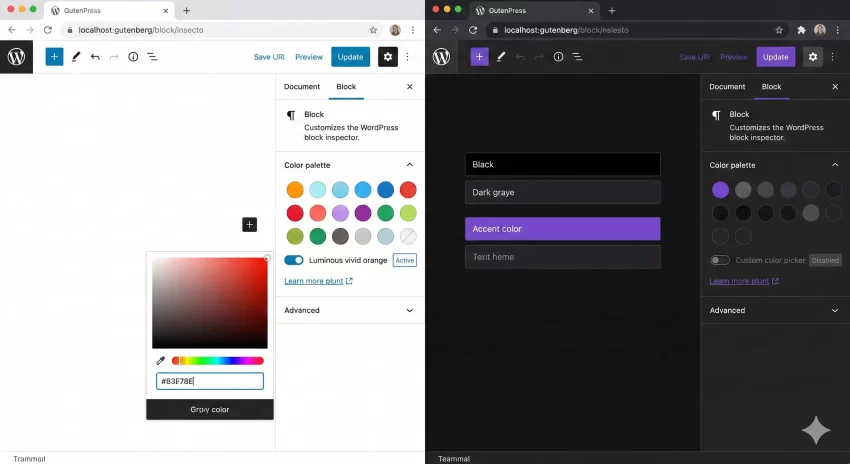
Before we introduce our custom theme.json color palette, we must clean the slate. By default, WordPress provides a standard set of colors (luminous vivid orange, pale cyan blue, etc.) and allows users to open a custom color picker to select any hex code they desire. If brand consistency is your goal, both of these features must be disabled immediately.
We achieve this by setting two specific boolean flags within the settings.color object: defaultPalette and custom. Setting defaultPalette to false completely strips out the WordPress core colors. Setting custom to false removes the hexadecimal color picker, ensuring the user can only click on the predefined swatches you provide. This is the single most effective way to prevent rogue design choices on your blog or client site.
Applying the Boolean Flags
To implement this, open your theme.json file and locate or create the settings object. Within that, add the color object and apply the flags. If you are starting from scratch, your file should look exactly like the code block below. Notice how we use straight quotes and ensure there are no trailing commas after the final boolean value.
{
    "version": 2,
    "settings": {
        "color": {
            "custom": false,
            "defaultPalette": false
        }
    }
}
Step 3: Defining Your Custom Color Array
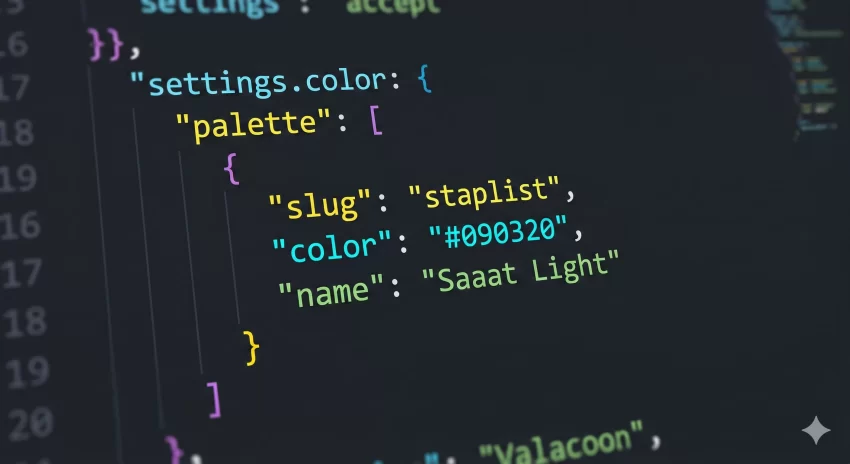
Now that the default options are out of the way, it is time to build your customized theme.json color palette. This is done by creating an array of objects assigned to the palette key inside the color settings. Each object in this array represents a single color swatch in the Gutenberg editor and requires three specific key-value pairs: slug, color, and name.
The name is the human-readable label that appears in a tooltip when a user hovers over the swatch (e.g., “Primary Accent”). The color is the actual valid CSS color value (hex, rgb, or hsl). The slug is the most critical piece of the puzzle: it is a machine-readable string (lowercase, hyphenated) that WordPress uses to generate the backend CSS variables and utility classes. For example, a slug of surface-dark will generate a CSS variable named --wp--preset--color--surface-dark and a text-color class named has-surface-dark-color.
Crafting a Dark Theme Palette
Let’s construct a practical example. Suppose we are building a developer-focused blog that utilizes a dark theme. We need deep backgrounds, contrasting surface layers, and a vibrant accent color for links and buttons. Carefully mapping these out in the theme.json color palette ensures that if we ever need to tweak the exact shade of our accent color, we only have to change it in one place, and the entire site will update automatically.
{
    "version": 2,
    "settings": {
        "color": {
            "custom": false,
            "defaultPalette": false,
            "palette": [
                {
                    "slug": "base",
                    "color": "#121212",
                    "name": "Base Dark"
                },
                {
                    "slug": "surface",
                    "color": "#1E1E1E",
                    "name": "Surface"
                },
                {
                    "slug": "accent",
                    "color": "#BB86FC",
                    "name": "Purple Accent"
                },
                {
                    "slug": "text-main",
                    "color": "#E0E0E0",
                    "name": "Main Text"
                }
            ]
        }
    }
}
Step 4: Applying Palette Colors to Theme Elements
Defining the theme.json color palette makes the colors available to the user in the block editor, but it does not automatically apply them to your site’s frontend design. To set the default background color of the body or the default text color of your paragraphs, we must move out of the settings section and into the styles section of the JSON file.
When referencing a color from your palette within the styles section, you cannot just type the hex code. Doing so would break the dynamic link between the setting and the style. Instead, WordPress uses a specific formatting string: var(--wp--preset--color--{slug}). Alternatively, you can use the WordPress-specific shorthand syntax which is highly recommended for cleaner code: var:preset|color|{slug}. This tells the parser to look up the slug in the palette array and apply the correct CSS variable.
You might also like: Unbiased W3 Total Cache Review: The Ultimate Speed Booster or Just Hype?
Styling the Global Layout
To apply our newly created dark theme colors globally, we target the top-level color object inside styles. We will set our “Base Dark” color as the site background and our “Main Text” color as the default typography color. This ensures that the moment the theme is activated, the foundational design is completely locked in based on our theme.json color palette.
{
    "version": 2,
    "settings": {
        "color": {
            "custom": false,
            "defaultPalette": false,
            "palette": [
                { "slug": "base", "color": "#121212", "name": "Base Dark" },
                { "slug": "text-main", "color": "#E0E0E0", "name": "Main Text" }
            ]
        }
    },
    "styles": {
        "color": {
            "background": "var:preset|color|base",
            "text": "var:preset|color|text-main"
        },
        "elements": {
            "link": {
                "color": {
                    "text": "var:preset|color|accent"
                }
            }
        }
    }
}
Pro Tip
When referencing colors in your CSS files outside of the block editor (like in an external stylesheet or a custom plugin), always use the standard CSS custom property format:
var(--wp--preset--color--your-slug). This ensures your custom styles remain synced with the user’s choices in the Site Editor.Step 5: Retrofitting Support for Classic Themes
While the theme.json color palette is primarily designed for modern Block Themes (FSE), you might be maintaining a legacy Classic Theme that uses standard PHP templates. Fortunately, WordPress allows you to leverage the power of the JSON configuration file even in classic environments. By placing a valid theme.json file in the root directory of your classic theme, Gutenberg will read the settings and apply them to the post and page editor.

However, to ensure full compatibility and to trigger the generation of the necessary CSS variables on the frontend, you must explicitly declare support for the editor color palette via PHP in your functions.php file. Without this function, the editor might show the colors, but the utility classes and variables will not be enqueued properly when the page renders for the visitor.
The PHP Integration Snippet
Open your functions.php file and use the add_theme_support function hooked into after_setup_theme. Note how we are using a custom pnet_ prefix to prevent namespace collisions with other plugins or core updates. This is a best practice for any custom development work.
function pnet_enable_json_palette_support() {
    // Explicitly add support for the block editor color features
    add_theme_support( 'editor-color-palette' );
    add_theme_support( 'disable-custom-colors' );
}
add_action( 'after_setup_theme', 'pnet_enable_json_palette_support' );
Once this PHP code is active alongside your JSON file, your classic theme will flawlessly inherit the exact same color restrictions and design tokens as a cutting-edge block theme. This hybrid approach is an excellent way to modernize older projects without having to completely rewrite the entire theme architecture from scratch.
Common Errors and Troubleshooting
Working with the theme.json color palette can sometimes be tricky due to the strict nature of JSON and WordPress caching mechanisms. If you are not seeing your changes reflected in the Gutenberg editor, or if the editor completely fails to load, you are likely encountering one of a few common pitfalls. Below are the most frequent issues developers face and how to quickly resolve them.
Why are my custom colors not updating in the block editor?
If you have modified your JSON file but the old colors still appear in the editor, this is almost always a caching issue. WordPress aggressively caches the results of the theme.json file to improve backend performance. Furthermore, if you are working on a Site Editor enabled theme, any changes saved previously in the database via the visual interface will override your file changes. To fix this, first clear your browser cache. Then, go to the Site Editor, open the Styles panel, click the three dots, and select “Clear customizations” to force WordPress to read directly from your updated file.
Why am I getting a White Screen of Death (WSOD) in Gutenberg?
A white screen or a broken block editor layout immediately after modifying the theme.json color palette indicates a fatal JSON syntax error. JSON does not tolerate trailing commas, missing brackets, or unescaped characters. If you have a trailing comma after the last color object in your palette array, the entire file becomes invalid. Revert your last change, copy your code, and paste it into a free online JSON validator. Once the syntax error is corrected, the editor will immediately begin functioning again.
You might also like: Unlock the Power of WordPress Debug Mode to Effortlessly Fix Fatal Errors
Summary and Final Thoughts
By taking the time to configure a robust theme.json color palette, you are fundamentally upgrading the quality and resilience of your WordPress themes. You transition from hoping clients won’t ruin the design to systemically ensuring they cannot. Disabling the core defaults and providing a tightly curated list of brand-specific, accessible colors empowers content creators to build beautiful pages safely. Whether deploying a lightweight blog or a massive enterprise platform, treating your theme.json color palette as the single source of truth for your design tokens is a hallmark of professional, scalable WordPress development.