There is nothing quite as panic-inducing for a website owner as staring at the WordPress login screen, typing in your credentials, and seeing the dreaded “ERROR: The password you entered for the username is incorrect.” It’s a sinking feeling that hits the pit of your stomach instantly.
usually, the “Lost your password?” link is your best friend. You click it, wait for the email, and you are back in business. But what happens when that email never arrives? Maybe your server’s email functionality isn’t configured correctly, or the recovery email is going to an old, inaccessible inbox. When the front door is jammed, you need a back door key. That key is your database.
In this comprehensive guide, we are going to walk you through exactly how to reset WordPress password phpMyAdmin. This method allows you to bypass the WordPress dashboard entirely and change your credentials directly within the database. It is a powerful skill that every WordPress developer and site owner should have in their toolkit.
Why You Might Need to Reset WordPress Password phpMyAdmin
Before we dive into the technical steps, let’s look at why you might need to resort to this method. While the standard email reset is convenient, it relies on two things working perfectly: your WordPress email delivery system (wp_mail) and your access to the administrative email account.
If your website has been hacked, the attacker might have changed the admin email address, rendering the “Lost your password?” link useless. Alternatively, if you are working on a localhost environment (like XAMPP or WAMP) or a staging site where email services aren’t set up, the database method is often the only way to regain access.
Learning how to reset WordPress password phpMyAdmin gives you absolute control over your user accounts without relying on third-party mail servers or plugins. It is direct, immediate, and effective.
Prerequisites: Safety First
We are about to edit your WordPress database. The database is the brain of your website; it stores every post, comment, setting, and user detail. Making a mistake here can break your site.
Before proceeding, please ensure you have a fresh backup of your database. Most hosting providers (like Bluehost, SiteGround, or Hostinger) offer one-click backup tools in their control panels. If you are unsure, you can export a quick SQL dump via phpMyAdmin before making changes.
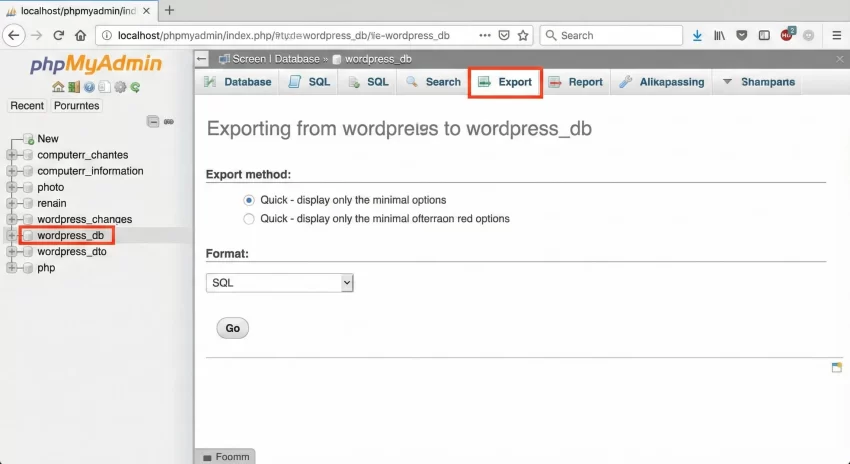
Step 1: Accessing phpMyAdmin via Your Hosting Panel
To start the process to reset WordPress password phpMyAdmin, you first need to log in to your web hosting control panel. This is typically cPanel, Plesk, or a custom dashboard provided by your host.
- Log in to your hosting account.
- Navigate to the Databases section.
- Look for an icon or link labeled phpMyAdmin.
phpMyAdmin is a visual tool that lets you interact with MySQL databases using a web browser. It removes the need to write complex command-line code for basic tasks, making it incredibly user-friendly for WordPress management.
You might also like:

Step 2: Locating Your WordPress Database
Once phpMyAdmin opens, look at the left-hand sidebar. You will see a list of databases. If you only have one website, you might only see two or three items (one is usually information_schema—do not touch that one!).
Click on the database name that corresponds to your WordPress site. If you have multiple installations and aren’t sure which database is the right one, you can check your wp-config.php file in your site’s root directory via File Manager. Look for the line that defines DB_NAME.
// Example from wp-config.php identifying the database name
define( 'DB_NAME', 'your_database_name_here' );
Step 3: Finding the Users Table
After clicking your database name, the main panel will populate with a list of tables. WordPress tables usually have a prefix, which by default is wp_. However, for security reasons, many developers change this to something random like wp83_ or site_.
You need to find the table that stores user information. Look for the table ending in _users. For a standard installation, this will be: wp_users
Click on this table to open it. You will see a list of all registered users on your site, including their ID, user_login (username), user_email, and user_pass.
Check our tutorial on Easily Fix the WordPress Maintenance Mode Error (Beginner Guide)
Step 4: Editing the User Row
Locate the username for which you want to reset the password. If you are the admin, it is usually the row with ID 1 (though not always, especially on migrated sites). Or, just look for the ID of the user who you are trying to reset WordPress password phpMyAdmin.
Click the Edit button (often represented by a pencil icon) next to that user’s row.
You might also like:
Step 5: The MD5 Hash Trick
This is the most critical step to successfully reset WordPress password phpMyAdmin. You will see a field named user_pass. It contains a long string of random characters (e.g., $P$B55D6LJF...). This is because WordPress does not store your password in plain text; it encrypts it using hashing algorithms.
If you simply type “MyNewPassword123” into this field and save, it won’t work. WordPress will try to decrypt “MyNewPassword123” when you log in, fail, and lock you out again.
To fix this, follow these specific actions:
- Value Field: Delete the existing long string in the
user_passfield and type your new plain-text password (e.g., NewStrongPassword!2025). - Function Dropdown: To the left of the value field, there is a dropdown menu labeled “Function”. Click it and select MD5.
Note on Security: While modern WordPress uses a more complex hashing system (phpass), it is designed to recognize MD5 hashes. When you save the password as MD5 and log in for the first time, WordPress will automatically upgrade that hash to its newer, more secure format. You can read more about how WordPress handles passwords on the official WordPress Documentation.
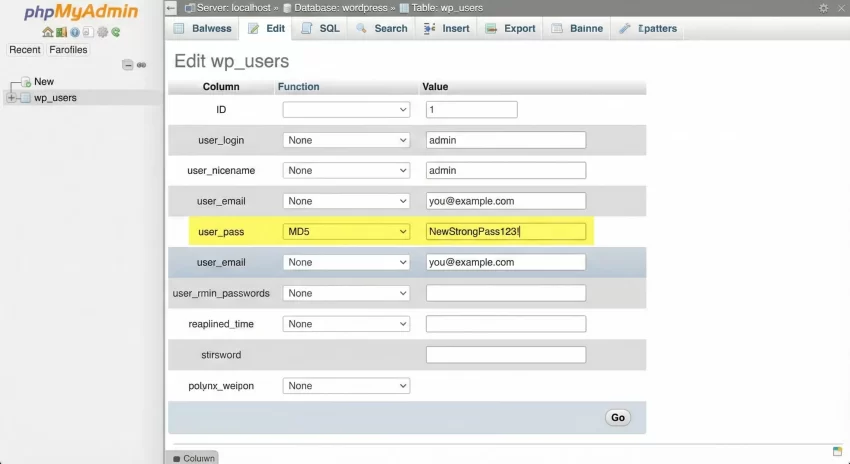
Step 6: Saving and Testing
Once you have selected MD5 and entered your new password:
- Scroll to the bottom of the page.
- Click the Go button to save your changes.
You should see a success message indicating 1 row affected. Now, navigate to your WordPress login page (/wp-admin), enter your username and the new plain text password you just created. You should be able to log in immediately.
Advanced Method: Reset via SQL Query
If you prefer working with code or want to reset WordPress password phpMyAdmin faster without navigating through UI clicks, you can use the SQL tab. This is particularly useful for developers managing multiple sites.
Click on the SQL tab in phpMyAdmin and paste the following query. Remember to replace NewPassword with your actual desired password and admin_username with your actual username.
UPDATE wp_users
SET user_pass = MD5('NewPassword')
WHERE user_login = 'admin_username';
If you changed your database prefix during installation (e.g., to pnet_), make sure you update the table name in the query:
/* Example for a custom prefix */
UPDATE pnet_users
SET user_pass = MD5('NewPassword')
WHERE user_login = 'admin_username';
Troubleshooting Common Issues
Even with a straightforward process, things can sometimes go wrong. Here are a few hiccups you might encounter when you try to reset WordPress password phpMyAdmin.
1. The Password Reset Didn’t Work
If you followed the steps but still can’t log in, verify that you actually selected MD5 in the function dropdown. If you left it blank, the database saved your plain text password, which WordPress does not recognize.
2. Wrong Database
It is surprisingly easy to edit the wrong database, especially if you have old backups or staging sites on the same server. Double-check your wp-config.php file to ensure you are targeting the live site’s database.
3. Caching Issues
Sometimes your browser or a server-side cache might remember the old login state. Try clearing your browser cookies or opening an Incognito/Private window to test the new credentials.
Conclusion
Getting locked out of your site is stressful, but understanding how to reset WordPress password phpMyAdmin turns a potential disaster into a minor 5-minute fix. It bypasses email delivery issues and puts the control back in your hands.
While this method is powerful, remember to update your password to something complex once you are back inside the dashboard to ensure maximum security. It is also a great time to check your admin email settings to ensure the “Lost Password” link works for next time!
Have you ever been locked out of your WordPress site? Let us know in the comments if this method saved your day!