 Are you running an online store and feeling that the default button labels are just a bit too generic? You aren’t alone. One of the most common customization requests we see is how to change add to cart button text WooCommerce uses by default. While “Add to Cart” is standard, it isn’t always the best fit for every business model.
Imagine you are selling digital courses; “Enroll Now” sounds much more professional. Or perhaps you run a non-profit; “Donate Now” is far more compelling. The ability to change add to cart button text WooCommerce displays can significantly impact your user experience and, more importantly, your conversion rates.
In this comprehensive guide, we will walk you through exactly how to modify this text globally across your site. We will cover the specific code snippets you need, where to place them, and how to troubleshoot common issues. Whether you are a developer or a DIY store owner, this guide is designed for you.
Why You Should Customize Your Button Text
Before we dive into the code, it is worth understanding why you should bother to change add to cart button text WooCommerce provides. Small changes in micro-copy can lead to substantial improvements in how users interact with your store.
Here are a few scenarios where changing the text is crucial:
- Personalization: It aligns the language with your brand’s voice. A playful brand might use “Grab It!” instead of the stiff “Add to Cart.”
- Clarity: For bookings or services, “Book Now” is far more accurate than “Add to Cart.”
- Urgency: Using words like “Buy Now” or “Get Instant Access” can psychologically trigger a faster purchase decision.
By tailoring this text, you aren’t just changing words; you are optimizing your sales funnel. Now, let’s get into the “how-to” and change add to cart button text WooCommerce uses on your site.
The Technical Breakdown: Single Product vs. Archive Pages
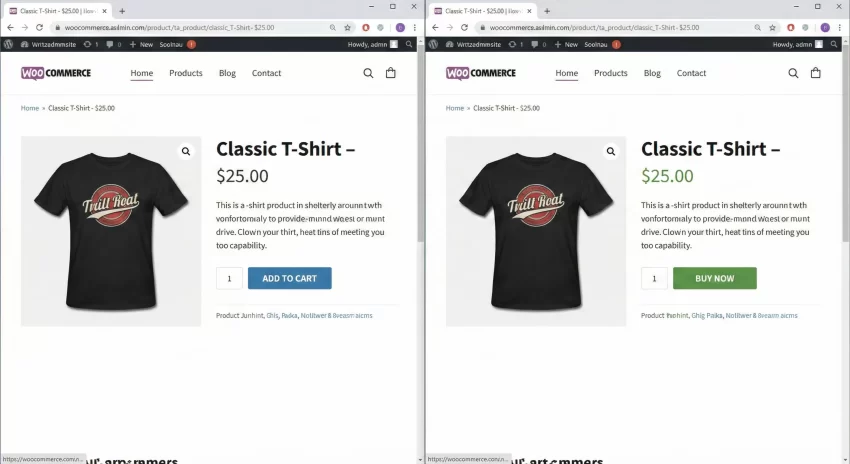
When you decide to change add to cart button text WooCommerce renders, you need to understand that WooCommerce handles this text in two distinct areas:
- The Single Product Page: This is the individual page for a specific item.
- Product Archives: These are your Shop page, Category pages, and Related Products sections.
To successfully change add to cart button text WooCommerce displays globally, you must target both of these locations. If you only change one, your site will look inconsistent, which can confuse customers.
Where to Add the Code
For the methods below, we will be using PHP code snippets. The best practice is to add these snippets to your child theme’s functions.php file or use a code snippets plugin. Using a standard WordPress filter allows us to modify data before it is rendered on the screen without altering the core WooCommerce files.
You might also like:

Step 1: Change Button Text on Single Product Pages
Let’s start with the product page itself. This is where the primary decision-making happens. To change add to cart button text WooCommerce uses here, we need to filter woocommerce_product_single_add_to_cart_text.
Here is the code snippet to change the text to “Buy Now”:
/**
 * Change the add to cart text on single product pages
 */
function pnet_change_single_add_to_cart_text() {
    return __( 'Buy Now', 'woocommerce' );
}
add_filter( 'woocommerce_product_single_add_to_cart_text', 'pnet_change_single_add_to_cart_text' );
In the code above, the function pnet_change_single_add_to_cart_text simply returns the new string. Because we hooked it into the filter, WooCommerce will use our returned text instead of the default.
Step 2: Change Button Text on Archive Pages (Shop/Categories)
Next, we need to address the shop pages. If you forget this step, a user browsing your catalog will still see “Add to Cart,” but once they click the product, they will see “Buy Now.” This inconsistency is unprofessional. To change add to cart button text WooCommerce shows on archives, we use the woocommerce_product_add_to_cart_text filter.
/**
 * Change the add to cart text on product archives (Shop/Category pages)
 */
function pnet_change_archive_add_to_cart_text() {
    return __( 'Buy Now', 'woocommerce' );
}
add_filter( 'woocommerce_product_add_to_cart_text', 'pnet_change_archive_add_to_cart_text' );
The Complete Solution: Changing Text Globally
While the above snippets work individually, it is cleaner to combine them if you want the same text everywhere. This ensures that when you want to change add to cart button text WooCommerce uses in the future, you only have to edit one line of code.
Here is the combined snippet to change add to cart button text WooCommerce displays globally:
/**
 * Globally change "Add to Cart" text to "Add to Bag"
 */
function pnet_change_global_add_to_cart_text( $text ) {
    return __( 'Add to Bag', 'your-text-domain' );
}

add_filter( 'woocommerce_product_single_add_to_cart_text', 'pnet_change_global_add_to_cart_text' );
add_filter( 'woocommerce_product_add_to_cart_text', 'pnet_change_global_add_to_cart_text' );
Note: Replace ‘Add to Bag’ with whatever text suits your brand strategy.
You might also like:

Pro Tip: If you want to customize WooCommerce further, check our tips in WooCommerce Customization Guides.
Advanced: Changing Text Based on Product Type
Sometimes, a global change is too broad. You might sell both physical goods (requiring “Add to Cart”) and downloadable files (requiring “Download”). Fortunately, you can conditionally change add to cart button text WooCommerce applies based on the product type.
This is slightly more advanced because we need to check the global $product object to see what kind of product is currently being displayed.
/**
 * Change button text based on Product Type
 */
function pnet_change_text_by_product_type( $text ) {
    global $product;

    // Check if product object exists to avoid errors
    if ( ! $product ) {
        return $text;
    }

    if ( $product->is_type( 'variable' ) ) {
        return __( 'Select Options', 'your-text-domain' );
    }

    if ( $product->is_type( 'external' ) ) {
        return __( 'Buy on Amazon', 'your-text-domain' );
    }

    return __( 'Add to Basket', 'your-text-domain' );
}

add_filter( 'woocommerce_product_single_add_to_cart_text', 'pnet_change_text_by_product_type' );
add_filter( 'woocommerce_product_add_to_cart_text', 'pnet_change_text_by_product_type' );
This snippet gives you granular control. It ensures that when you change add to cart button text WooCommerce displays, it is contextually relevant to what the customer is actually buying.
Troubleshooting: Why Didn’t My Text Change?
So, you applied the code to change add to cart button text WooCommerce, but nothing happened. Don’t panic. This is a common occurrence usually caused by one of three things:
1. Caching Plugins
If you are using a caching plugin like WP Rocket or W3 Total Cache, your site might still be serving the “old” version of the page. Clear your site cache and your browser cache immediately after applying the code.
2. Theme Overrides
Some premium themes (like Divi or Avada) have their own built-in settings to change add to cart button text WooCommerce uses. These themes often override standard WordPress hooks. Check your theme options panel first. If the theme is hard-coding the button text, you may need to edit the theme template files directly (usually found in woocommerce/loop/add-to-cart.php within your theme folder), though this is less recommended.
3. Translation Plugins
If you are using a plugin like WPML or Loco Translate, the string might be controlled there. Ensure your new code isn’t being overwritten by a translation string.
Conclusion
Customizing your store is essential for standing out in a crowded market. When you change add to cart button text WooCommerce defaults to, you take control of your customer’s journey. Whether you choose “Add to Bag,” “Purchase,” or “Claim Yours,” the goal is to make the action clear and enticing.
Remember, while it is easy to change add to cart button text WooCommerce offers via code, always test your changes on a staging site or back up your website before editing functions.php. Small syntax errors can take a site offline, so proceed with care.
We hope this guide helped you successfully change add to cart button text WooCommerce on your website. If you have any questions or run into issues with specific themes, let us know in the comments below!