Storing complex data in the default WordPress wp_postmeta table can lead to significant performance bottlenecks as your site scales. When you need to handle high-volume transactional data, logs, or custom analytics, the most efficient solution is to create custom database table structures directly within your theme. In this guide, we will solve the problem of bloated metadata by programmatically generating a dedicated SQL table immediately upon theme activation.
Prerequisites
Before modifying your database, ensure your environment meets the following requirements:
- PHP 7.4 or higher (PHP 8.0+ recommended).
- Administrative access to your WordPress dashboard.
- FTP or File Manager access to edit
functions.php. - Critical: A full backup of your existing database.
Backup Required
Why You Should Avoid Post Meta
WordPress uses an Entity-Attribute-Value (EAV) model for the wp_postmeta table. While flexible, it is not optimized for complex queries or sorting large datasets. If you are building a feature that requires frequent ORDER BY or complex WHERE clauses, you will experience slow query times.
When you create custom database table architectures, you ensure data integrity, define specific data types (INT, VARCHAR, DATETIME), and index columns for lightning-fast retrieval.
Step 1: Understanding dbDelta and SQL Syntax
WordPress provides a powerful function called dbDelta(). This function examines the current database structure, compares it to the desired structure, and creates or modifies the table as necessary. It is “idempotent,” meaning you can run it multiple times without breaking the table or duplicating columns.
However, dbDelta is extremely strict about SQL syntax. If you do not follow its spacing rules exactly, the function will fail silently, and you will not create custom database table successfully.
Syntax Warning
You might also like: Unbiased Divi Builder Review (2026): Is It the Ultimate WordPress Tool?
Step 2: Defining the Table Creation Function
We will create a function that defines the table schema. In this example, we are creating a table to store “User Activity Logs” with a custom ID, user ID, activity name, and timestamp.
Loading the Upgrade API
The dbDelta() function is not available by default in the theme scope. We must explicitly include the upgrade library from the WordPress admin includes directory.
The Code Implementation
Place the following code in your theme’s functions.php file:
function pnet_create_custom_activity_table() {
    global $wpdb;

    // Define the table name with the WordPress prefix
    $table_name = $wpdb->prefix . 'pnet_activity_log';

    // Check if the table already exists to save resources (optional but recommended)
    if ( $wpdb->get_var( "SHOW TABLES LIKE '$table_name'" ) != $table_name ) {

        $charset_collate = $wpdb->get_charset_collate();

        // SQL Query - Pay attention to spacing!
        $sql = "CREATE TABLE $table_name (
            id mediumint(9) NOT NULL AUTO_INCREMENT,
            user_id bigint(20) UNSIGNED NOT NULL,
            activity_type varchar(55) NOT NULL,
            activity_details text NOT NULL,
            created_at datetime DEFAULT '0000-00-00 00:00:00' NOT NULL,
            PRIMARY KEY  (id)
        ) $charset_collate;";

        // Include the upgrade script to use dbDelta
        require_once( ABSPATH . 'wp-admin/includes/upgrade.php' );

        // Execute the query
        dbDelta( $sql );

        // Add a database version option for future updates
        add_option( 'pnet_activity_db_version', '1.0' );
    }
}
Step 3: Hooking into Theme Activation
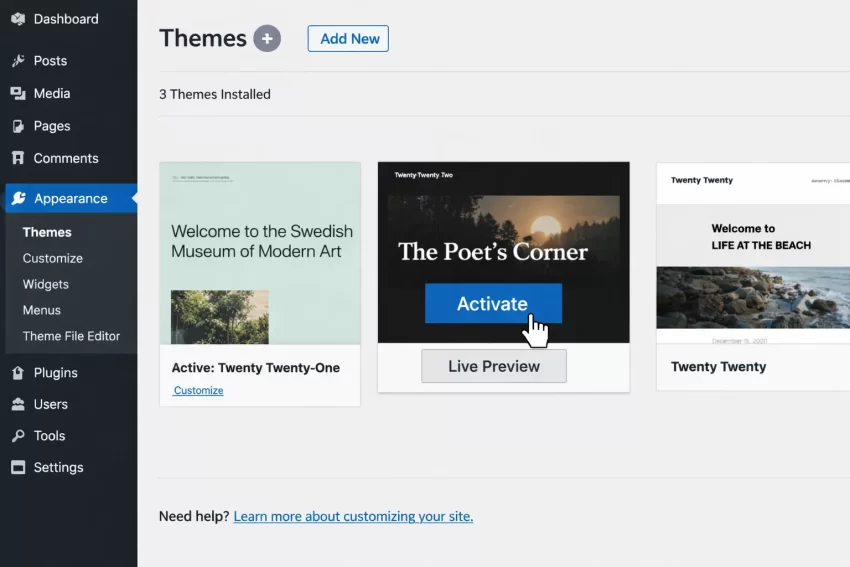
Unlike plugins, which use register_activation_hook, themes utilize the after_switch_theme hook. This action fires only once when the theme is activated by the administrator. This is the perfect moment to create custom database table entries.
Add this line below your function:
add_action( 'after_switch_theme', 'pnet_create_custom_activity_table' );
Step 4: Verifying the Table Creation
Once you have activated the theme, you need to verify that the table was created successfully. You can do this using a database management tool like phpMyAdmin or via the command line.
Checking via phpMyAdmin
Navigate to your hosting control panel and open phpMyAdmin. Select your WordPress database. You should see wp_pnet_activity_log (assuming your prefix is wp_) in the table list.
Step 5: Handling Updates (Versioning)
As your theme evolves, you may need to add new columns to your custom table. To handle this, we check the stored database version against the code version.
You would modify the function to check get_option('pnet_activity_db_version'). If the version in the database is lower than your new version, you run dbDelta again with the new SQL schema and update the option.
Pro Tip
Troubleshooting Common Errors
Even experienced developers encounter issues when they try to create custom database table structures. Here are the most common pitfalls.
Table Not Created
If the table doesn’t appear, check strictly for SQL syntax errors. The most common cause is missing the require_once for upgrade.php, or incorrect spacing around PRIMARY KEY.
Issues with AJAX
If you are trying to trigger this via AJAX, ensure user permissions are checked. However, for theme activation, this is rarely an issue.
Summary
Optimizing your WordPress database is crucial for high-performance applications. By following this guide, you can programmatically create custom database table structures using the after_switch_theme hook and dbDelta. This approach ensures your data remains organized, scalable, and separate from the global metadata tables.
You might also like: UpdraftPlus Premium Review: Is It Worth The Money?