If you build custom extensions—perhaps for a bespoke client portal or a specialized tool—you already know the frustration of users not being able to find your settings page. The most elegant solution is to add a direct shortcut right where they expect it. In this guide, we will explore exactly how to add WordPress plugin action links to your custom plugins so your users can navigate straight to your settings or documentation.
By default, WordPress only provides “Activate/Deactivate” and occasionally “Delete” links under a plugin’s name on the installed plugins screen. When dealing with complex builds, forcing a user to hunt through the massive WordPress admin menu sidebar is a poor user experience. Injecting custom WordPress plugin action links directly under the plugin name bridges this gap, creating a seamless, intuitive workflow for your end-users.
For Developers
Prerequisites and Setup
Before we start modifying your plugin’s core files to inject your custom WordPress plugin action links, ensure you have the following ready:
- PHP 8.0 or higher running on your local or staging environment.
- A complete backup of your WordPress site and database.
- Admin access to your WordPress installation.
- A custom plugin already installed and active (we will use a dummy plugin name for this example).
Understanding the Core Filter Hook
To modify the links that appear below your plugin’s description on the plugins page, WordPress provides a dynamic filter hook. Understanding how this hook is constructed is critical to successfully adding your WordPress plugin action links without affecting other extensions on the site.
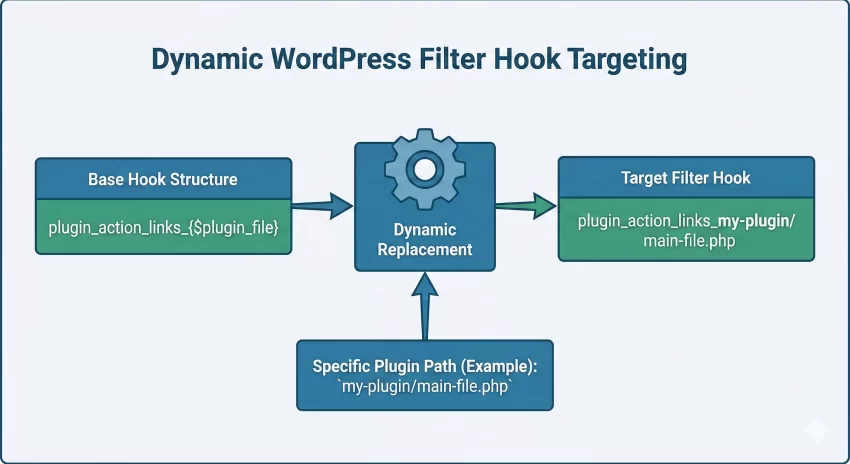
The plugin_action_links_{$plugin_file} Filter
Unlike standard static hooks, this is a dynamic filter. The hook name itself changes based on the specific plugin you are targeting. The {$plugin_file} portion must be replaced with the exact path to your plugin’s main PHP file, relative to the wp-content/plugins/ directory.
For example, if your plugin is located at wp-content/plugins/pixelnet-tools/pixelnet-tools.php, the filter you need to hook into will be exactly: plugin_action_links_pixelnet-tools/pixelnet-tools.php. If you get this path wrong, your custom WordPress plugin action links simply will not render, which is the most common pitfall developers face.
Do you want to setup WooCommerce Custom Email Notifications to alert your team or customers instantly?
Writing the Custom Callback Function
Now that we know which hook to target, we need to write the PHP callback function that will physically inject the new links into the existing array of links. This function will receive the array of existing links (like Deactivate) and must return the modified array.
Creating the Settings Link
Below is the standard approach to injecting a settings link. We will use a standard PHP array merge to ensure our new link appears exactly where we want it.
// Define the dynamic hook based on your plugin's directory and main file
$pnet_plugin_basename = 'pixelnet-tools/pixelnet-tools.php';

add_filter( 'plugin_action_links_' . $pnet_plugin_basename, 'pnet_add_custom_action_links' );

/**
 * Injects custom links into the plugin action links array.
 *
 * @param array $links The existing array of plugin links.
 * @return array The modified array of links.
 */
function pnet_add_custom_action_links( $links ) {
    // Build the URL to your custom settings page
    $settings_url = admin_url( 'admin.php?page=pnet-settings' );

    // Create the HTML anchor tag
    $settings_link = '<a href="' . esc_url( $settings_url ) . '">' . __( 'Settings', 'pixelnet-tools' ) . '</a>';

    // Add the new link to the beginning of the array
    array_unshift( $links, $settings_link );

    return $links;
}
In the code block above, we utilize the array_unshift() function. This is a deliberate choice. Using array_unshift() places your custom WordPress plugin action links at the very beginning of the list, ensuring “Settings” appears *before* “Deactivate”. This prevents accidental deactivations by users trying to quickly click the first link they see.
Pro Tip
esc_url() when outputting URLs in the WordPress admin dashboard to prevent XSS vulnerabilities, and remember to make your link text translatable using the __() function. Adding External Documentation Links
Sometimes a settings page isn’t enough. If you are distributing tools or handing off a complex site to a client, providing quick access to external documentation is incredibly helpful. Let’s expand our function to include multiple WordPress plugin action links.
Pushing Links to the Array
While we want the Settings link first, we usually want external links (like Docs or Support) to appear at the end of the list. We can achieve this by simply appending the new link to the array after the existing items.
function pnet_add_advanced_action_links( $links ) {
    // 1. Add Settings link to the front
    $settings_url  = admin_url( 'options-general.php?page=pnet-config' );
    $settings_link = '<a href="' . esc_url( $settings_url ) . '">' . __( 'Configuration', 'textdomain' ) . '</a>';
    array_unshift( $links, $settings_link );

    // 2. Add external Docs link to the end
    $docs_url  = 'https://pixelnet.example/docs';
    // Notice the target="_blank" to open in a new tab
    $docs_link = '<a href="' . esc_url( $docs_url ) . '" target="_blank" rel="noopener noreferrer">' . __( 'Docs', 'textdomain' ) . '</a>';
    $links['docs'] = $docs_link; // Appending with a specific key

    return $links;
}
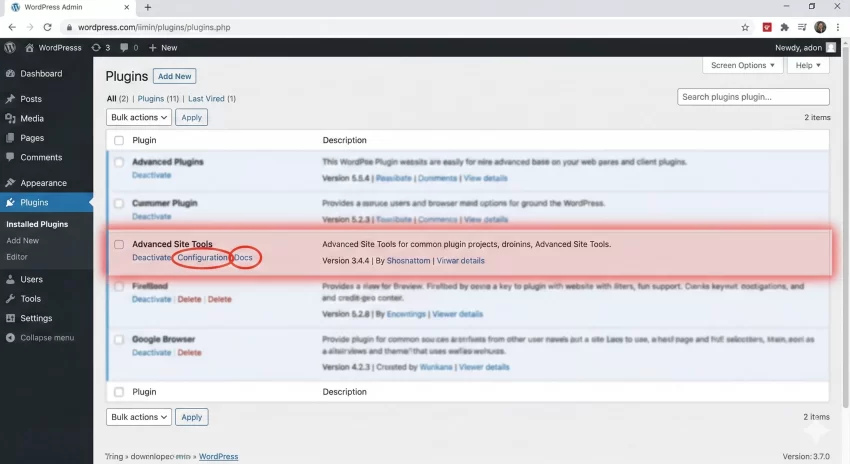
When adding external links, always include target="_blank" and rel=”noopener noreferrer” for security and to ensure the user doesn’t lose their place in the WordPress dashboard. Customizing your WordPress plugin action links in this manner drastically improves the overall polish of your software.
Troubleshooting Common Errors
Even experienced developers run into hiccups when manipulating WordPress plugin action links. Here are the most common issues and how to resolve them.
Why are my custom links not showing up?
The most frequent cause of missing links is an incorrect plugin path in the filter name. If your plugin folder is named my-plugin and the main file is core.php, your hook must be exactly plugin_action_links_my-plugin/core.php. Double-check your directory structure.
Why am I getting a fatal PHP error about array manipulation?
If you receive an error stating “array_unshift() expects parameter 1 to be array, null given,” it means another plugin or a poorly written theme has returned null on this filter hook instead of an array. To fix this, always ensure your function checks if $links is an array before manipulating it.
You might also like: Is WPML Worth the Hype? An Honest WPML Review for Developers (2026)
Summary and Conclusion
Improving dashboard navigation is a critical step in professional WordPress development. By utilizing the dynamic filter hook, we solved the problem of users getting lost looking for configuration screens. You can seamlessly inject settings, documentation, or support portals directly into the plugin list, creating a much better experience for your clients or customers.
Whether you are building a simple utility tool or a massive client portal, taking five minutes to properly configure your WordPress plugin action links adds a layer of professional polish that users will genuinely appreciate. Keep experimenting, keep your code clean, and happy coding!