Building custom solutions in the WordPress ecosystem often requires relying on the functionality of other existing tools, such as WooCommerce, Advanced Custom Fields, or Elementor. When your custom code relies on a third-party tool to function, you introduce a strict requirement. If a user installs and activates your custom add-on without having the parent tool installed and active first, it typically results in a fatal PHP error, bringing down the entire website. The definitive solution to prevent this terrible user experience is implementing a bulletproof WordPress plugin dependency check within your code’s architecture.
In this comprehensive guide, we will walk through the exact steps to build a robust system that verifies required tools are active before executing your custom logic. We will cover the specific hooks needed, how to display graceful admin notices, and how to safely auto-deactivate your add-on to protect the user’s site. By the end of this tutorial, your WordPress plugin dependency check will be secure, reliable, and ready for production environments.
Before we dive into the code for our WordPress plugin dependency management, let’s ensure your development environment is prepared. You will need a few basic tools and access levels to implement these safeguards correctly.
- PHP 8.0 or higher running on your local or staging server.
- A dedicated local WordPress development environment (like LocalWP or XAMPP).
- Administrator access to the WordPress dashboard.
- A code editor (like VS Code or Sublime Text).
- A basic understanding of WordPress hooks and filters.
- A complete backup of your development site’s files and database.
Step 1: Understanding the Hook Sequence
When implementing a WordPress plugin dependency check, the most critical concept to grasp is the WordPress load order. WordPress loads active plugins sequentially. If your add-on loads before the parent tool it relies on, checking for the parent tool’s existence immediately upon file execution will result in a false negative. You cannot simply place your check at the top of your main file.
To safely evaluate a WordPress plugin dependency, you must wait until WordPress has finished loading all active plugins. The dedicated hook for this exact moment is plugins_loaded. By attaching your validation logic to this specific action hook, you guarantee that WordPress has registered every active tool, allowing your code to accurately determine if the required parent is present.
Why Immediate Execution Fails
Many novice developers attempt to run a WordPress plugin dependency check using the is_plugin_active() function directly in the main file’s root scope. Because WordPress includes plugins alphabetically by folder name, an add-on named “AAA-Addon” will load before “WooCommerce”. The check will fail, and your add-on will think WooCommerce is missing, even when it is active. Deferring the check using the proper hook is non-negotiable.
Crucial Loading Concept
plugins_loaded hook to evaluate your WordPress plugin dependency to ensure absolute accuracy regardless of folder names. Step 2: Creating the Dependency Check Function
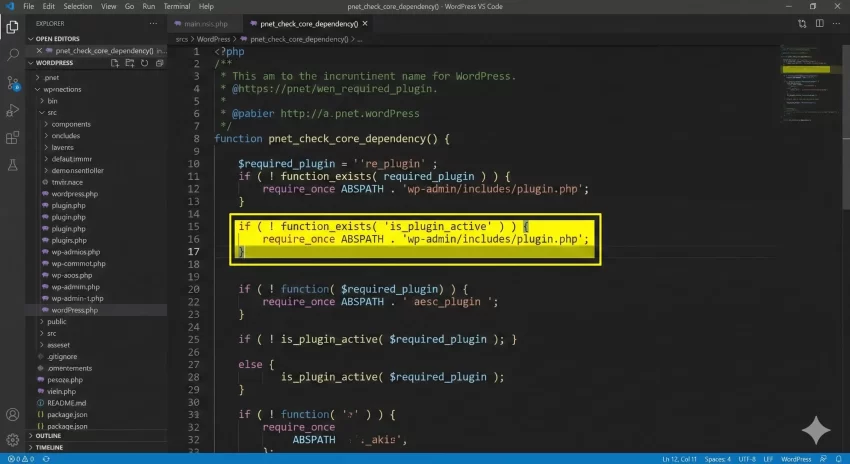
Now that we understand the timing, we can build the core function that will handle our WordPress plugin dependency validation. We will utilize the native is_plugin_active() function. However, this function is normally only available in the WordPress admin area. If your add-on executes logic on the front end, you must manually include the file that contains this function.
Let’s create a wrapper function that safely checks for the parent tool, handling the necessary file inclusions behind the scenes. This ensures our WordPress plugin dependency logic works universally across both the admin dashboard and the front end of the site.
Writing the Core Validation Logic
In your main file, we will define a function that checks for the specific folder and file name of the required parent. In this example, we will simulate requiring WooCommerce as our primary WordPress plugin dependency.
  /**
   * Check if the required parent plugin is active.
   *
   * @return bool True if active, false otherwise.
   */
  function pnet_check_core_dependency() {
      // Ensure the is_plugin_active function is available on the frontend
      if ( ! function_exists( 'is_plugin_active' ) ) {
          include_once ABSPATH . 'wp-admin/includes/plugin.php';
      }

      // Define the target plugin folder and main file (e.g., WooCommerce)
      $required_plugin = 'woocommerce/woocommerce.php';

      // Evaluate the wordpress plugin dependency
      return is_plugin_active( $required_plugin );
  }
This snippet forms the foundation of our WordPress plugin dependency architecture. It is lightweight, secure, and utilizes native WordPress core functions to perform the validation.
You might also like: Wordfence vs iThemes Security: The Shocking Truth About Server Overhead & Protection
Step 3: Displaying an Admin Notice
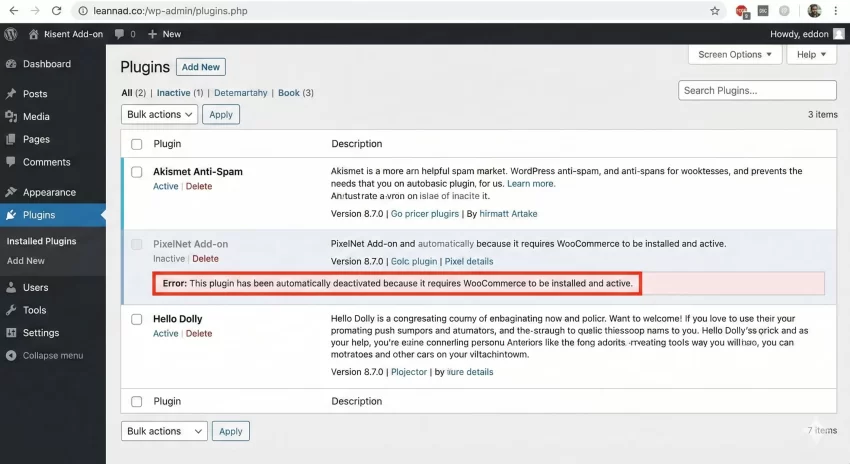
If our WordPress plugin dependency check fails, we cannot simply let the site crash, nor should we fail silently. The best practice is to inform the site administrator exactly why our add-on is not functioning. We do this by utilizing the admin_notices hook to display a prominent, styled error message at the top of the WordPress dashboard.
This provides a graceful degradation of functionality. Instead of a white screen of death, the user sees a clear instruction on how to resolve the missing WordPress plugin dependency, improving the overall user experience and reducing support tickets.
Crafting the Error Message
We will create a function hooked to admin_notices that outputs standard WordPress UI markup for an error notification. It’s important to make the message actionable, telling the user exactly which tool they need to install or activate.
  /**
   * Display an admin notice if the dependency is missing.
   */
  function pnet_missing_dependency_notice() {
      // Only show to users who have permission to manage plugins
      if ( ! current_user_can( 'activate_plugins' ) ) {
          return;
      }

      $class   = 'notice notice-error';
      $message = __( '<strong>PixelNet Add-on Error:</strong> The required wordpress plugin dependency (WooCommerce) is missing. Please install and activate WooCommerce to use this add-on.', 'text-domain' );

      printf( '<div class="%1$s"><p>%2$s</p></div>', esc_attr( $class ), wp_kses_post( $message ) );
  }
User Permissions
current_user_can check. There is no reason to show a WordPress plugin dependency error to a subscriber or author who cannot fix the problem. Always scope your admin notices to administrators. 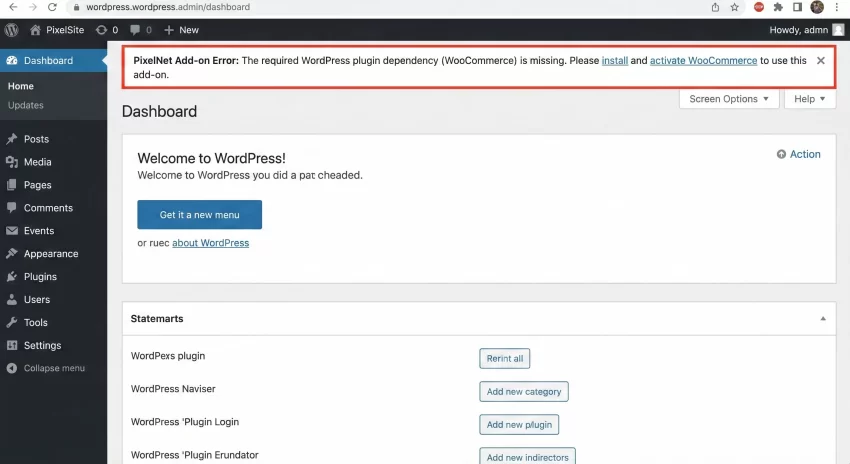
Step 4: Auto-Deactivating Your Plugin
Displaying a warning is great, but to create a truly bulletproof WordPress plugin dependency system, we must take defensive action. If the parent tool is missing, allowing our custom add-on to remain active is dangerous. Subsequent code execution might still trigger fatal errors if it tries to call functions that don’t exist.
To prevent this, our WordPress plugin dependency logic must forcibly deactivate our custom add-on if the check fails. We achieve this using the deactivate_plugins() function, effectively neutralizing our code until the environment meets the necessary requirements.
Implementing the Deactivation Routine
When we detect a missing WordPress plugin dependency, we will trigger the deactivation function and then immediately attach our admin notice function to ensure the user knows why the add-on was turned off.
  /**
   * Deactivate this plugin if dependencies are not met.
   */
  function pnet_deactivate_self() {
      // Define the path to this specific add-on file
      $plugin_path = plugin_basename( __FILE__ );

      // Deactivate the plugin safely
      require_once ABSPATH . 'wp-admin/includes/plugin.php';
      deactivate_plugins( $plugin_path );

      // Suppress the default "Plugin activated" notice
      if ( isset( $_GET['activate'] ) ) {
          unset( $_GET['activate'] );
      }
  }
By suppressing the default activation notice, we avoid confusing the user. They won’t see “Plugin activated” right next to our custom WordPress plugin dependency error notice.
Step 5: Putting It All Together
Now that we have all the individual pieces for our WordPress plugin dependency check—the evaluation logic, the admin notice, and the deactivation routine—we need to assemble them into a master initialization function hooked to plugins_loaded.
This master function acts as the gatekeeper. It evaluates the WordPress plugin dependency first. If the parent is missing, it triggers the deactivation and shows the notice. If the parent is present, it proceeds to load the rest of your custom add-on’s functionality.
The Master Bootstrapper
  /**
   * Initialize the plugin and check dependencies.
   */
  function pnet_init_plugin() {
      // 1. Evaluate the wordpress plugin dependency
      if ( ! pnet_check_core_dependency() ) {
          // Dependency missing: Deactivate and show notice
          add_action( 'admin_init', 'pnet_deactivate_self' );
          add_action( 'admin_notices', 'pnet_missing_dependency_notice' );
          return; // Halt further execution
      }

      // 2. Dependency is met: Proceed with loading the add-on features
      // require_once plugin_dir_path( __FILE__ ) . 'includes/class-main-feature.php';
      // pnet_run_main_feature();
  }
  add_action( 'plugins_loaded', 'pnet_init_plugin' );
This structure guarantees that your custom code will never execute unless the strict WordPress plugin dependency requirements are met, completely eliminating the risk of undefined function errors related to missing parent tools.
Did you know: You can significantly reduce your server load and improve Time to First Byte (TTFB) by reading our deep-dive WP Super Cache Plugin Review to configure your caching correctly?
Common Errors and Troubleshooting
Even with a solid WordPress plugin dependency implementation, you might encounter edge cases or specific environment configurations that cause unexpected behavior. Let’s address some of the most common issues developers face when implementing these checks.
Why is is_plugin_active() undefined?
This is the most common error when building a WordPress plugin dependency check. The is_plugin_active() function is defined in wp-admin/includes/plugin.php. WordPress only loads this file automatically when a user is in the admin dashboard. If your plugin’s main file executes logic on the front end of the site before checking for this function, PHP will throw a fatal error. The solution is to always wrap your check with a function_exists() conditional and manually include the plugin.php file using the ABSPATH constant if it is missing, as demonstrated in Step 2.
Why does my site crash before the admin notice shows?
If your site is experiencing a fatal error before your WordPress plugin dependency notice can be rendered, it means you are executing dependent code too early in the WordPress lifecycle. This usually happens if you attempt to call a function from the parent tool directly in your main plugin file outside of any hook, or if you hook into an action that fires before plugins_loaded. To fix this, absolutely all of your custom logic that relies on the parent tool must be wrapped inside functions that are triggered after your wordpress plugin dependency check has successfully passed on the plugins_loaded hook.
Can I check for a specific plugin version?
Yes. Sometimes a simple active check isn’t enough; your WordPress plugin dependency might require a specific minimum version of the parent tool. To do this, after verifying the parent is active, you can use the get_plugin_data() function (also requiring plugin.php) to retrieve the parent’s version number. You can then use the PHP version_compare() function to evaluate if the installed version meets your minimum requirements. If it doesn’t, you can trigger the same deactivation and notice routines, customizing the error message to specify that an update is required.
Intermediate Developer Task
Conclusion and Next Steps
Implementing a rigorous WordPress plugin dependency check is an essential skill for any professional WordPress developer creating add-ons or extensions. By deferring execution to the plugins_loaded hook, safely utilizing the core validation functions, presenting clear and actionable admin notices, and utilizing forced auto-deactivation, you protect the end-user’s website from catastrophic fatal errors.
This architecture not only safeguards the site’s stability but also significantly improves the user experience by providing clear feedback when requirements are not met. As you continue to develop your custom solutions, ensure this WordPress plugin dependency pattern is a standard part of your boilerplate, guaranteeing that your code behaves predictably in any environment.