The Ultimate Free WordPress htaccess Generator Tool
Let’s be honest: editing your server configuration files can be terrifying. One missing character or a misplaced bracket in your .htaccess file, and your entire website could crash, displaying the dreaded “500 Internal Server Error.” Yet, this file is the gatekeeper of your website’s security and performance.
That is exactly why we built this free WordPress .htaccess generator. Whether you are a seasoned developer looking to save time or a beginner trying to force HTTPS without breaking your site, this tool is designed for you. It simplifies the complex syntax of Apache configuration into a simple point-and-click interface.
What is a .htaccess File and Why Do You Need It?
The .htaccess (Hypertext Access) file is a powerful configuration file used by the Apache web server. It allows you to override server settings for a specific directory—in this case, your WordPress installation.
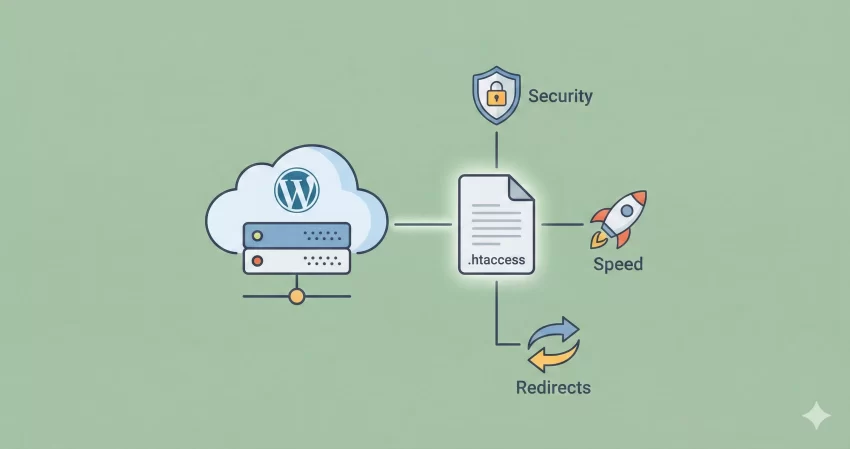
While WordPress creates a basic version of this file by default to handle permalinks, a standard installation often leaves a lot of performance and security on the table. By using a robust WordPress .htaccess generator, you can unlock features like:
- Enhanced Security: Protect vital files like
wp-config.phpfrom prying eyes. - Improved Speed: Enable Gzip compression and browser caching to make your site load faster.
- SEO Redirects: Properly handle
wwwvs.non-wwwversions of your site and force SSL (HTTPS).
How to Use This WordPress htaccess Generator
We designed this tool to be as intuitive as possible. You don’t need to know how to write code; you just need to know what you want your website to do. Follow these simple steps to create your custom configuration:
Step 1: Configure Security & Redirects
In the left-hand column of our WordPress htaccess generator, you will see a list of security options. We recommend starting with “Force HTTPS” if your site has an SSL certificate installed. This ensures all visitors are served the secure version of your site.
You can also choose to redirect “Non-WWW to WWW” or vice versa. This is crucial for SEO, as search engines treat example.com and www.example.com as two different websites. Consolidating them helps your domain authority.
Step 2: Optimize for Performance
Speed is a ranking factor. Check the boxes for “Enable Gzip Compression” and “Browser Caching.” These rules tell the visitor’s browser to store static files (like images and CSS) locally, so they don’t have to re-download them on every page visit.
Step 3: Generate and Copy
Once you have selected your preferences, click the “Generate Rules” button. The WordPress htaccess generator will instantly create the code in the box on the right. Simply click anywhere inside the code box to copy the snippet to your clipboard.
Privacy and Security: How We Handle Your Data
Security is a top priority for us, and we know it is for you too. Unlike many other online tools that process your data on a remote server, our WordPress htaccess generator is built entirely with client-side JavaScript.
What does this mean for you?
- Zero Data Leakage: The domain name and rules you select never leave your browser. They are processed instantly on your device.
- No Server Logs: We do not store, save, or see the configuration you generate.
- Instant Speed: Because there is no communication with a backend server, the code generation happens in milliseconds.
Advanced Features Explained
If you are wondering what some of the specific checkboxes in our WordPress htaccess generator actually do, here is a quick breakdown:
Disable Directory Browsing
By default, if a folder on your server doesn’t have an index file (like index.php), the server might list all the files inside it. This is a security risk. Checking this box prevents hackers from seeing your folder structure.
Disable Image Hotlinking
Hotlinking happens when another website embeds your images directly on their pages using your URL. They get the image, but you pay for the bandwidth. Our generator adds a rewrite rule that blocks external sites from stealing your bandwidth.
Protect wp-config.php
Your wp-config.php file holds your database name, username, and password. It is the most sensitive file in your installation. Our tool adds a rule to deny access to this specific file from any browser.
Frequently Asked Questions (FAQs)
Where do I find my .htaccess file?
The file is located in the “root” folder of your WordPress installation (usually public_html). You can access it using an FTP client (like FileZilla) or the File Manager in your hosting control panel. Note that the dot at the start of the filename makes it a hidden file, so ensure you have “Show Hidden Files” enabled.
Do I need a backup before using this?
Yes! Always create a backup of your existing .htaccess file before pasting in new code. While our WordPress htaccess generator creates standard, valid code, server configurations vary. Having a backup ensures you can revert changes instantly if something conflicts.
What if my site breaks after updating the file?
If you see a “500 Internal Server Error,” it usually means there is a syntax conflict. Simply log in to your site via FTP, delete the current .htaccess file, and upload your backup. Alternatively, you can regenerate the default WordPress rules using our tool and upload that to reset the system.
Does this tool work for Nginx servers?
No. This tool generates rules specifically for Apache servers, which power the majority of WordPress sites. Nginx uses a different configuration syntax (nginx.conf) and does not read .htaccess files.
Using a properly configured .htaccess file is one of the easiest “quick wins” for site optimization. Give our free WordPress htaccess generator a try above and secure your site today!