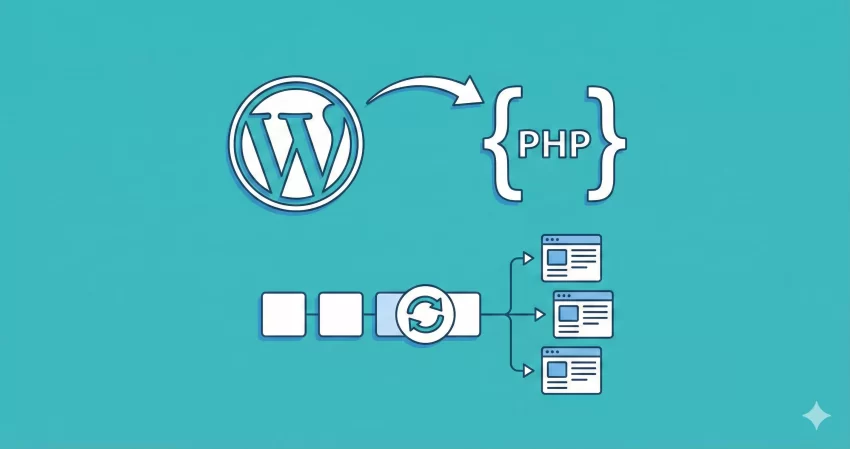
Managing content consistency across multiple client websites can be a logistical nightmare for agencies and freelancers. You often find yourself manually exporting JSON files and importing them to set up standard call-to-action sections or headers. This manual process is prone to error and incredibly time-consuming. The solution lies in automation. By learning how to create synced pattern programmatically, you can deploy complex, globally updatable layouts to hundreds of sites instantly via a simple plugin or theme update.
In this guide, we will bypass the manual “Import/Export” feature entirely. Instead, we will write a robust PHP function that checks for existing patterns and inserts new ones directly into the database as wp_block post types. This method ensures your client sites always have the latest “Synced Patterns” (formerly Reusable Blocks) ready for use immediately upon plugin activation.
Why Programmatic?
- WordPress 6.3+ (Required for modern Pattern architecture).
- PHP 7.4+ (PHP 8.0+ recommended for better performance).
- Administrator Access to the WordPress dashboard.
- FTP/SFTP or Code Editor access to your theme or plugin files.
- Basic knowledge of WP_Query and
wp_insert_postfunctions.
1. Understanding the Architecture of Synced Patterns
Before we write code, it is crucial to understand what we are actually building. In the modern WordPress ecosystem (Post-Gutenberg), a “Synced Pattern” is technically a custom post type named wp_block. Unlike standard “Unsynced Patterns” which are registered via register_block_pattern() and live only in PHP memory, a Synced Pattern lives in the wp_posts database table.
When you create synced pattern programmatically, you are essentially automating the creation of a post. The “content” of this post is the raw Block Grammar (HTML with specifically formatted comments). If you modify this post programmatically later, the changes propagate to every page where this pattern is used, provided the user hasn’t detached it. This synchronization is the superpower we are trying to harness.
2. Capturing the Correct Block Grammar
To create synced pattern programmatically, you first need the source code of the layout you want to create. You cannot simply write standard HTML; it must include the React-based block comments that WordPress uses to render the editor interface.
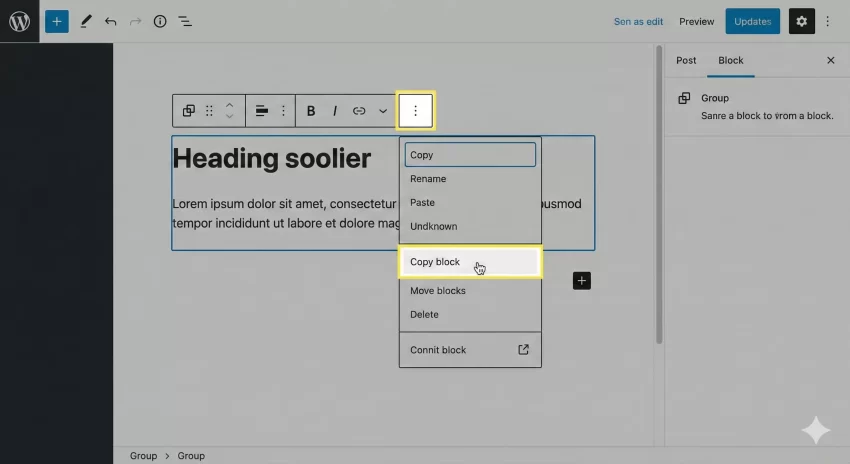
The easiest way to get this is to build your pattern visually in the WordPress Block Editor first. Create the layout exactly as you want it—add your groups, columns, buttons, and styling. Once finished, select the parent block, click the three dots options menu, and select “Copy block”.
Preparing the Code for PHP
Once you have the copied code, paste it into a text editor. You will see HTML mixed with JSON-like objects inside comments, such as <!-- wp:group {"layout":{"type":"constrained"}} -->. When we move this into PHP, we must be extremely careful with quotes. Since the JSON attributes use double quotes, it is best practice to wrap your PHP string in single quotes to avoid syntax errors.
3. Setting Up the Plugin Structure
While you can add this code to your theme’s functions.php file, it is best practice to wrap this functionality in a site-specific plugin. This ensures that even if the theme is changed, your functional patterns remain available. We will create a simple plugin structure to house our function to create synced pattern programmatically.
Create a new folder in your wp-content/plugins directory named pnet-synced-patterns and add a main PHP file. We will define a constant for our pattern versioning, which helps if we need to force updates in the future.
/*
Plugin Name: PNET Programmatic Patterns
Description: A utility to create synced pattern programmatically on activation.
Version: 1.0
Author: Your Name
*/

if ( ! defined( 'ABSPATH' ) ) {
    exit; // Exit if accessed directly
}

// Define a namespace or prefix to avoid collisions
define( 'PNET_PATTERN_VERSION', '1.0.0' );
You might also like: Easily Save Contact Form 7 to Database: The Ultimate Developer’s Guide
4. Preventing Duplicates: The Existence Check
A common mistake when developers attempt to create synced pattern programmatically is failing to check if the pattern already exists. Without this check, every time your function runs (or the plugin reactivates), you will spawn infinite duplicate patterns in the library.
We will write a helper function pnet_get_pattern_by_title(). This function uses WP_Query to search the wp_block post type for a specific title. If it finds a match, it returns the ID; otherwise, it returns false. This logic is the gatekeeper of our deployment script.
/**
 * Check if a synced pattern (wp_block) exists by title.
 *
 * @param string $title The title of the pattern.
 * @return int|bool The Post ID if found, false otherwise.
 */
function pnet_get_pattern_by_title( $title ) {
    $args = array(
        'post_type'              => 'wp_block',
        'post_status'            => 'publish',
        'title'                  => $title,
        'posts_per_page'         => 1,
        'update_post_term_cache' => false,
        'update_post_meta_cache' => false,
        'no_found_rows'          => true, // Optimization for performance
    );

    $query = new WP_Query( $args );

    if ( $query->have_posts() ) {
        return $query->posts[0]->ID;
    }

    return false;
}
5. The Core Function to Create Synced Pattern
Now we arrive at the core logic. We will create the function pnet_create_synced_pattern(). This function accepts a title and the raw block content. It utilizes the standard WordPress function wp_insert_post().
Crucially, we must set the post_type to 'wp_block'. This is what tells WordPress, “This is not a blog post; this is a Synced Pattern.” We also set the status to ‘publish’ immediately so it is available to clients. If you fail to set the post type correctly, you will simply create a standard blog post with weird content, which defeats the purpose to create synced pattern programmatically.
/**
 * Main function to create synced pattern programmatically.
 *
 * @param string $title   The visible name of the pattern.
 * @param string $content The raw HTML block grammar.
 * @return int|WP_Error   The post ID on success.
 */
function pnet_create_synced_pattern( $title, $content ) {
    // First, check if it exists to avoid duplicates
    $existing_id = pnet_get_pattern_by_title( $title );

    if ( $existing_id ) {
        return $existing_id; // Already exists, return ID
    }

    // Prepare post data
    $post_data = array(
        'post_title'    => $title,
        'post_content'  => $content,
        'post_status'   => 'publish',
        'post_type'     => 'wp_block', // Critical for Synced Patterns
        'post_author'   => 1, // Assign to admin
        'post_name'     => sanitize_title( $title ),
    );

    // Insert the post
    $post_id = wp_insert_post( $post_data );

    if ( ! is_wp_error( $post_id ) ) {
        // Optional: Set a meta flag to identify programmatic patterns
        update_post_meta( $post_id, '_pnet_programmatic_pattern', true );
    }

    return $post_id;
}
Escape Your Output
$content variable in the next step, ensure you do not break the PHP string. If your block HTML contains single quotes, escape them with a backslash. 6. Deploying via Activation Hook
You do not want this code running on every single page load. That would be a significant performance waste. The best time to create synced pattern programmatically is when the plugin is activated.
We will use register_activation_hook. Inside this hook, we will define our content string (the block grammar we copied in step 2) and call our creation function. This ensures the database write operation happens exactly once—when you enable the plugin on the client’s site.
/**
 * Trigger the creation on plugin activation.
 */
function pnet_run_pattern_deployment() {

    // Example: A simple Call to Action Group Block
    // Note: Use single quotes for the PHP string wrapper
    $pattern_content = '<div class="wp-block-group has-background" style="background-color:#f0f0f0">
    <h2 class="wp-block-heading">Contact Us Today</h2>
    <p>This is a synced pattern deployed via code.</p>
    <div class="wp-block-button"><a class="wp-block-button__link wp-element-button">Click Me</a></div>
    </div>
    ';

    // Call our function
    pnet_create_synced_pattern( 'PNET Global CTA', $pattern_content );
}

// Hook into the plugin activation
register_activation_hook( __FILE__, 'pnet_run_pattern_deployment' );
You might also like: Unbiased Divi Builder Review (2026): Is It the Ultimate WordPress Tool?
7. Verifying the Deployment
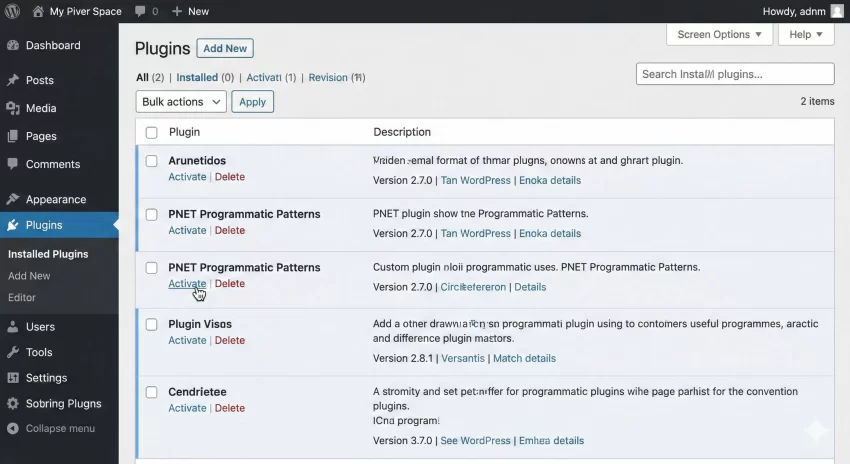
Once you have activated the plugin, you need to verify that you successfully managed to create synced pattern programmatically. Go to the WordPress Admin dashboard. Navigate to Appearance > Editor, or if you are using a classic theme, check the “Reusable Blocks” management screen (often hidden, accessible via /wp-admin/edit.php?post_type=wp_block).
You should see “PNET Global CTA” listed there. Open it to ensure the block integrity is maintained. If you see a message saying “This block contains unexpected or invalid content,” it usually means the HTML grammar inside your $pattern_content variable was malformed or stripped during the PHP execution.
Updating Existing Patterns
If you change the design in the future, you can update the function to look up the ID using pnet_get_pattern_by_title and then use wp_update_post() instead of insert. This allows you to push design updates to clients programmatically without ever logging into their dashboard.
8. Troubleshooting Common Errors
Even experienced developers face hurdles when manipulating block grammar via PHP. Here are the most common issues when you attempt to create synced pattern programmatically.
Intermediate Difficulty
JSON Encoding Mismatches
WordPress blocks rely on strict JSON formatting inside HTML comments. If you accidentally use a “curly quote” (smart quote) instead of a straight quote inside the comment attributes, the block will break. Always copy-paste from a code editor, not a rich text processor.
Slash Stripping
If your content contains backslashes (e.g., in inline CSS or URLs), WordPress might strip them during wp_insert_post depending on the context. You may need to use wp_slash() on your content string before passing it to the insert function to ensure data integrity.
Summary
Deploying synced patterns manually is a task of the past. By leveraging the wp_block post type and WordPress activation hooks, you can create synced pattern programmatically with precision and speed. This approach transforms how you manage client sites, allowing you to deploy sophisticated, reusable layouts that are consistent across your entire portfolio. Start implementing this in your utility plugins today to save hours of development time.