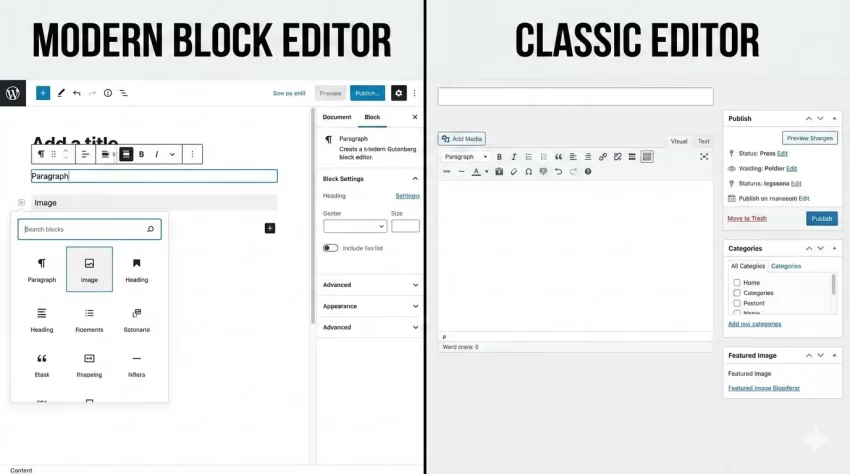
Are you tired of the block-based editing experience and looking for a way to restore the simplicity of the Classic Editor? You are not alone. While WordPress 5.0 introduced a modern approach to content creation, many developers and writers still prefer the traditional interface. If you want to regain control over your content flow without relying on heavy plugins, learning how to disable Gutenberg editor programmatically is the most efficient solution.
In this guide, we will dive deep into the code. We aren’t just going to install a plugin; we are going to use core WordPress filters to turn off the block editor conditionally, completely, or for specific post types. Whether you are building a custom site for a client who hates blocks or you simply miss the distraction-free nature of TinyMCE, this tutorial covers it all.
Why Developers Choose to Disable Gutenberg Editor
Before we jump into the code, it is worth exploring why so many WordPress professionals choose to disable Gutenberg editor. The block editor is powerful, undoubtedly. It allows for rich layout creation without page builders. However, it introduces complexity that isn’t always necessary.
For many “How To” blogs or news portals, the content is text-heavy. The Classic Editor offers a linear writing experience that feels more natural for standard blogging. Furthermore, for developers maintaining legacy websites, the block editor can sometimes break existing custom meta boxes or complex page templates that were designed years ago.
By using code to disable Gutenberg editor, you avoid the “bloat” of installing yet another plugin. Plugins like “Classic Editor” are great for beginners, but as a developer, you know that keeping your plugin count low is vital for site performance and security. A few lines of code in your functions.php file is always cleaner than an external dependency.
Prerequisites: Backup Your Site
As we will be editing the functions.php file of your active theme (or a site-specific plugin), it is crucial to backup your website. A single syntax error can take your site offline. Ensure you have FTP access or a file manager ready to revert changes if necessary.
You might also like:

Method 1: Completely Disable Gutenberg Editor for All Post Types
The most straightforward approach is to completely turn off the block editor globally. This will revert every post, page, and custom post type back to the Classic Editor interface. This is often the nuclear option, but it is highly effective if you want a uniform experience across the entire dashboard.
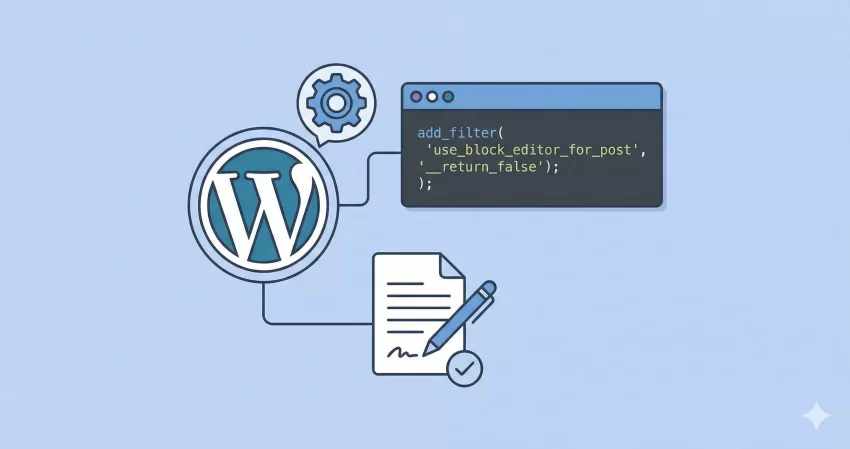
To achieve this, we utilize the use_block_editor_for_post filter. This filter allows us to return false, effectively telling WordPress not to load the block editor.
Add the following snippet to your theme’s functions.php file:
/**
 * Completely disable Gutenberg editor for all post types.
 */
add_filter( 'use_block_editor_for_post', '__return_false' );
That is it. Just one line of code. However, often we need more control than this. You might want to keep the block editor for your “Landing Pages” but disable Gutenberg editor for your standard blog posts.
Method 2: Disable Gutenberg Editor by Post Type
A more common scenario for developers is needing to disable the editor for specific post types. Perhaps you have a Custom Post Type (CPT) called ‘Books’ where you only need simple text input, but you want to keep the block functionality for standard ‘Pages’.
We can expand on the previous filter by adding a conditional check. In the function below, we check the current post type and return false only if it matches our criteria.
/**
 * Disable Gutenberg editor for specific post types.
 */
function pnet_disable_gutenberg_by_post_type( $use_block_editor, $post_type ) {
    // Define the post types where you want to disable the editor
    $disabled_post_types = array( 'post', 'book', 'product' );

    if ( in_array( $post_type, $disabled_post_types, true ) ) {
        return false;
    }

    return $use_block_editor;
}
add_filter( 'use_block_editor_for_post', 'pnet_disable_gutenberg_by_post_type', 10, 2 );
In this example, the pnet_disable_gutenberg_by_post_type function checks if the current post type is a ‘post’, ‘book’, or ‘product’. If it is, the Classic Editor is loaded. For all other types (like ‘page’), the block editor remains active.
Method 3: Disable Based on Post ID or Template
Sometimes, granular control is required. Imagine you have a specific page, say your “Privacy Policy,” that is messing up the block layout, or a specific page template that relies heavily on legacy PHP custom fields.
You can disable Gutenberg editor based on the Post ID using a similar logic. This is incredibly useful for hot-fixing specific pages without altering the workflow for the rest of the site.
/**
 * Disable Gutenberg editor for specific Post IDs.
 */
function pnet_disable_gutenberg_by_id( $use_block_editor, $post ) {
    // Add IDs of posts/pages to disable
    $disabled_ids = array( 12, 45, 108 );

    if ( $post && in_array( $post->ID, $disabled_ids, true ) ) {
        return false;
    }

    return $use_block_editor;
}
add_filter( 'use_block_editor_for_post', 'pnet_disable_gutenberg_by_id', 10, 2 );
Understanding the Filter
The core of these methods is the use_block_editor_for_post filter. This is a powerful boolean filter provided by WordPress core. By intercepting the decision-making process of WordPress regarding which editor to load, we gain absolute control over the editing experience.
You might also like:

Method 4: Disabling Gutenberg Widgets
It is not just the post editor that changed; the Widgets screen also got a block-based makeover in recent WordPress versions. Many users find the block-based widget screen cumbersome compared to the classic drag-and-drop interface.
If your goal is to completely disable Gutenberg editor elements across the site, you should also restore the Classic Widgets screen. Fortunately, this is also achievable with a few lines of code.
/**
 * Disable Gutenberg Blocks in Widgets.
 */
function pnet_disable_gutenberg_widgets() {
    // Restore the classic widgets screen
    remove_theme_support( 'widgets-block-editor' );
}
add_action( 'after_setup_theme', 'pnet_disable_gutenberg_widgets' );
By removing theme support for widgets-block-editor, WordPress automatically falls back to the legacy widget interface.
Tip: How to Create a Stunning WordPress Multi-Step Form : Boost Conversions Instantly
Removing Gutenberg Frontend Styles
Even if you disable Gutenberg editor on the backend, WordPress might still load the default block CSS files on the frontend of your website. This is unnecessary bloat if you are not using blocks at all. It can impact your page load speed and Google PageSpeed scores.
To fully clean up your site, you should dequeue the block library CSS.
/**
 * Remove Gutenberg Block Library CSS from frontend.
 */
function pnet_remove_wp_block_library_css() {
    wp_dequeue_style( 'wp-block-library' );
    wp_dequeue_style( 'wp-block-library-theme' );
    wp_dequeue_style( 'wc-block-style' ); // Remove WooCommerce block styles if needed
}
add_action( 'wp_enqueue_scripts', 'pnet_remove_wp_block_library_css', 100 );
Note: Only use this snippet if you are absolutely sure you are not using any Gutenberg blocks anywhere on your site. If you have a mixed environment (some pages with blocks, some without), removing these styles will break the layout of the block-based pages.
Troubleshooting Common Issues
When you attempt to disable Gutenberg editor, you might run into a few minor hiccups. Here is how to solve them:
1. The “Edit” link disappears
If you have disabled the editor for a post type that doesn’t support the standard ‘editor’ feature (like some custom post types), you might not see the main editing area. Ensure your Custom Post Type supports ‘editor’ in its registration code.
2. Meta Boxes are missing
The Classic Editor and Block Editor handle meta boxes differently. If you revert to Classic, ensure your meta boxes are compatible. Most legacy meta boxes will actually work better in the Classic Editor, which is one of the main reasons developers choose to switch back.
Conclusion
WordPress is an evolving platform, and the block editor is undoubtedly the future. However, the future doesn’t always fit every project’s present needs. Whether for client familiarity, development simplicity, or maintaining legacy systems, having the ability to disable Gutenberg editor programmatically is a vital skill in a WordPress developer’s toolkit.
By using the code snippets provided above, you can tailor the editing experience to fit your exact requirements without bloating your site with extra plugins. Remember to test these changes in a staging environment before pushing them to your live server.
Now that you have regained control of your editor, you can focus on what matters most: creating great content and building robust websites.