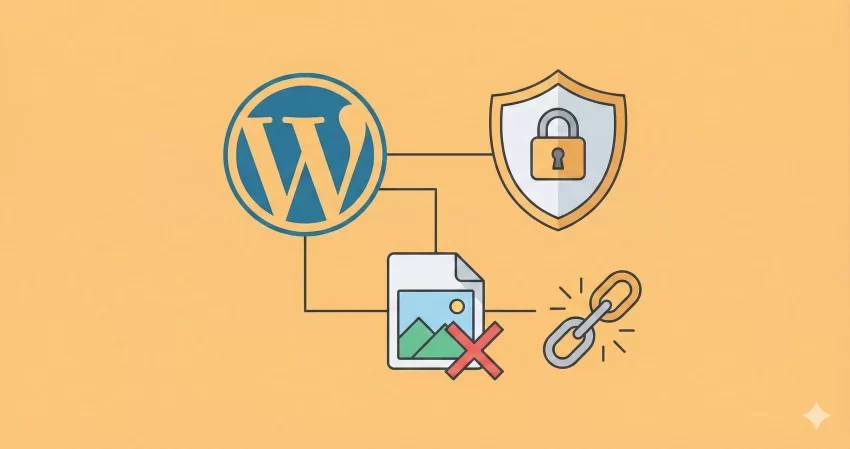
Are other websites stealing your server bandwidth by embedding your media files directly onto their pages? This common problem, known as inline linking, drains your server resources, slows down your page load speeds, and can severely impact your display ads and affiliate marketing revenue. The immediate and most effective solution is to disable WordPress image hotlinking directly at the server level. In this comprehensive technical tutorial designed specifically for developers, we will walk you through exactly how to implement this fix. By the time you finish reading, you will know how to effectively disable WordPress image hotlinking and protect your hard-earned server bandwidth.
When you run a growing blog like PixelNet or build custom client portals, every kilobyte of bandwidth matters. If external domains are loading your graphics, your server is doing all the heavy lifting while the other site reaps the benefits. To disable WordPress image hotlinking is a mandatory security measure for any serious webmaster. We will explore the Apache configuration rules necessary to disable WordPress image hotlinking, ensuring your site remains fast, responsive, and secure.
Prerequisites for This Tutorial
Before you proceed to disable WordPress image hotlinking, ensure you have the following requirements met. Modifying core server files can be risky if done incorrectly, so preparation is key.
- Active access to your web hosting control panel (cPanel, DirectAdmin, etc.).
- FTP or SFTP credentials for your server.
- A plain text editor (preferably with a dark theme for eye comfort during late-night coding).
- A complete backup of your current website.
- Apache HTTP Server running your WordPress installation.
Backup Required
Understanding How Hotlinking Drains Your Server
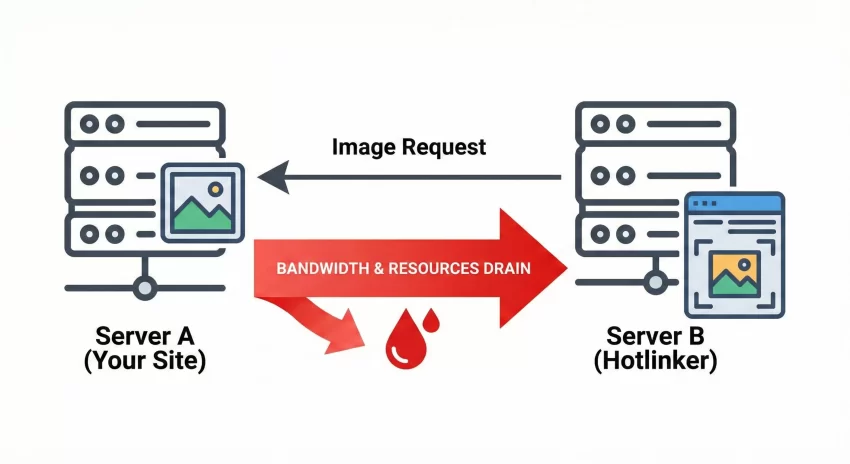
Before we write the code to disable WordPress image hotlinking, it is crucial to understand the mechanics of the problem. When a visitor loads a webpage, their browser sends HTTP requests to fetch all the assets (CSS, JS, graphics) required to render that page. If Site B uses an image URL hosted on Site A, Site A’s server processes the request and serves the file, consuming its own bandwidth allocation.
To disable WordPress image hotlinking is to instruct your server to check the HTTP Referrer header of every incoming request. If the referrer does not match your approved list of domains, the server blocks the request. This is why learning how to disable WordPress image hotlinking is so critical for sites monetizing through ads; slow load times equal lower viewability and lost revenue.
Step 1: Access Your Server Environment
The first actual step to disable WordPress image hotlinking requires accessing the root directory of your website. You cannot reliably disable WordPress image hotlinking from the standard wp-admin dashboard without relying on bloated third-party plugins. Instead, we will tackle this at the root level.
Connect to your web hosting server using either the cPanel File Manager or a secure FTP client like FileZilla to begin the process. If you are building tools for your visitors, you understand the importance of keeping your environment clean. Navigate to your public_html folder or the specific document root where your installation resides. This directory contains the configuration files we need to modify to disable WordPress image hotlinking.
Step 2: Locate and Backup the .htaccess File
To successfully disable WordPress image hotlinking, you must modify a specific hidden file. Find the hidden .htaccess file in your root public_html directory and download a backup copy to your local machine before making any changes. This file controls how Apache handles directory structures, permalinks, and security restrictions.
Because it is a hidden file (indicated by the dot prefix), you may need to toggle the “Show Hidden Files” option in your FTP client or File Manager settings. Once visible, right-click and download it. Having a backup is your safety net; if your attempts to disable WordPress image hotlinking cause an error, you can simply upload the original file to restore functionality immediately.
You might also like: Easily Fix Mixed Content Error in WordPress: The Proven “No-Plugin” Guide
Step 3: Add the Apache Rewrite Rules
Now comes the core technical implementation to disable WordPress image hotlinking. We will use Apache’s mod_rewrite module. Insert the specific regex directives into your configuration file to block unauthorized domains from loading your media assets.
Open your downloaded file in your code editor. You will likely see existing rules enclosed in # BEGIN WordPress and # END WordPress tags. Do not alter those. Instead, add the following code block directly below them to safely disable WordPress image hotlinking. For more technical insights into server configurations, refer to the official Apache documentation.
# Code snippet to disable WordPress image hotlinking
RewriteEngine on
RewriteCond %{HTTP_REFERER} !^$
RewriteCond %{HTTP_REFERER} !^http(s)?://(www\.)?yourdomain.com [NC]
RewriteCond %{HTTP_REFERER} !^http(s)?://(www\.)?google.com [NC]
RewriteCond %{HTTP_REFERER} !^http(s)?://(www\.)?bing.com [NC]
RewriteRule \.(jpg|jpeg|png|gif|webp)$ - [NC,F,L]
Replace yourdomain.com with your actual domain name. This code checks the referrer. If it’s empty (direct visit) or from your domain or search engines, it allows the file. Otherwise, it serves a Forbidden (403) error. This is the most efficient way to disable WordPress image hotlinking.
Pro Tip
Step 4: Implement a Fallback Image Placeholder
When you disable WordPress image hotlinking, third-party sites will display broken icons where your media used to be. A clever alternative is to serve a custom image instead. Upload a branded placeholder graphic that will be displayed on third-party sites when they attempt to steal your server bandwidth.
This graphic can be a polite notice or an advertisement for your site. By doing this, you turn bandwidth theft into free marketing. To modify your setup to serve a fallback graphic while you disable WordPress image hotlinking, alter the last line of your code to point to a specific file hosted externally or in an unprotected directory.
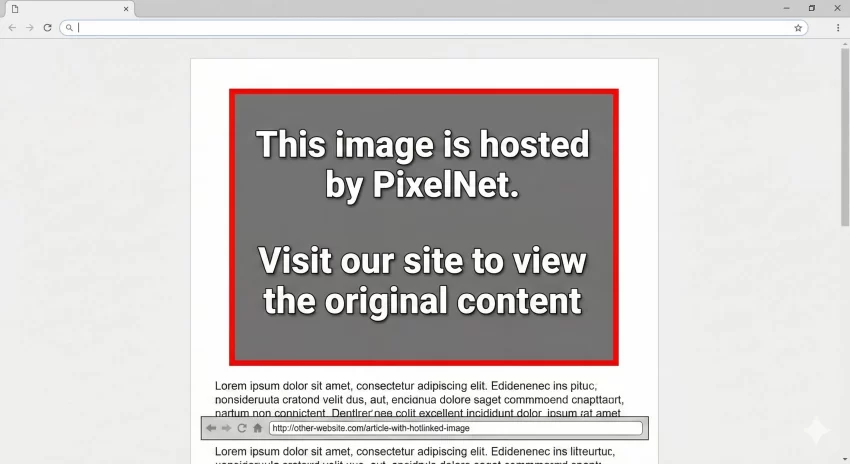
# Serve fallback image when you disable WordPress image hotlinking
RewriteRule \.(jpg|jpeg|png|gif|webp)$ https://yourdomain.com/unprotected-folder/hotlink-warning.jpg [R,L]
Step 5: Advanced PHP Method for Custom Dashboards
For advanced developers who want to automate this, perhaps for a client portal built with Laravel and Tailwind, or a custom WP plugin, you can inject these rules programmatically. If you want to disable WordPress image hotlinking dynamically, you can use PHP to write to the file.
Here is an example of how you might write a custom function to disable WordPress image hotlinking upon plugin activation. Notice the use of our required prefix convention. This function utilizes the native file system functions provided by the CMS environment to safely append the rules required to disable WordPress image hotlinking.
function pnet_insert_htaccess_rules() {
    $htaccess_path = ABSPATH . '.htaccess';
    $rules = "\n# Custom Rules to disable WordPress image hotlinking\n";
    $rules .= "RewriteEngine on\n";
    $rules .= "RewriteCond %{HTTP_REFERER} !^$\n";
    $rules .= "RewriteCond %{HTTP_REFERER} !^http(s)?://(www\.)?yourdomain.com [NC]\n";
    $rules .= "RewriteRule \.(jpg|jpeg|png|gif|webp)$ - [NC,F,L]\n";

    if ( file_exists( $htaccess_path ) && is_writable( $htaccess_path ) ) {
        $current_content = file_get_contents( $htaccess_path );
        if ( strpos( $current_content, 'disable WordPress image hotlinking' ) === false ) {
            file_put_contents( $htaccess_path, $current_content . $rules );
        }
    }
}
Step 6: Verify the Implementation
After applying the code to disable WordPress image hotlinking, you must test your site thoroughly. Clear your site caches and test external domains to ensure your media is properly protected and your internal links still function perfectly. Navigate through your posts and verify that all media renders correctly for normal visitors.
To verify you successfully managed to disable WordPress image hotlinking, you can use third-party testing tools or simply create a local HTML file on your desktop with an <img> tag pointing to one of your live URLs. When you open that local file in a browser, the media should fail to load, confirming that you did indeed disable WordPress image hotlinking.
You might also like: Master WordPress Custom Post Type Code (The Right Way)
Troubleshooting Common Errors
When you attempt to disable WordPress image hotlinking, things can occasionally go wrong. Here are the most frequent issues developers face and how to resolve them quickly.
Why are my images not loading on my own site after this?
This usually happens if you forgot to include your own domain in the allowed referrers list. Double-check the regex syntax in your configuration. If your domain has a hyphen or unusual characters, ensure it is properly formatted. When you disable WordPress image hotlinking, strict rule adherence is mandatory.
What causes a 500 Internal Server Error when trying to disable WordPress image hotlinking?
A 500 error is typically caused by a typo, missing space, or incorrect character in your Apache directives. Restore your backup immediately and check your syntax. Even a single misplaced bracket when you disable WordPress image hotlinking can break the server configuration.
Summary and Conclusion
Bandwidth theft is a frustrating reality for webmasters, but taking the steps to disable WordPress image hotlinking puts you back in control of your server resources. By leveraging Apache’s rewrite capabilities, you can effectively block unauthorized domains from draining your performance. Remember, the decision to disable WordPress image hotlinking is not just about security; it is about maintaining optimal page speeds and protecting your monetization strategies.
We hope this guide has provided you with the technical clarity needed to safely modify your configuration files. Whether you are managing a personal blog or deploying complex client portals, knowing how to strictly disable WordPress image hotlinking is an essential skill in your development arsenal.