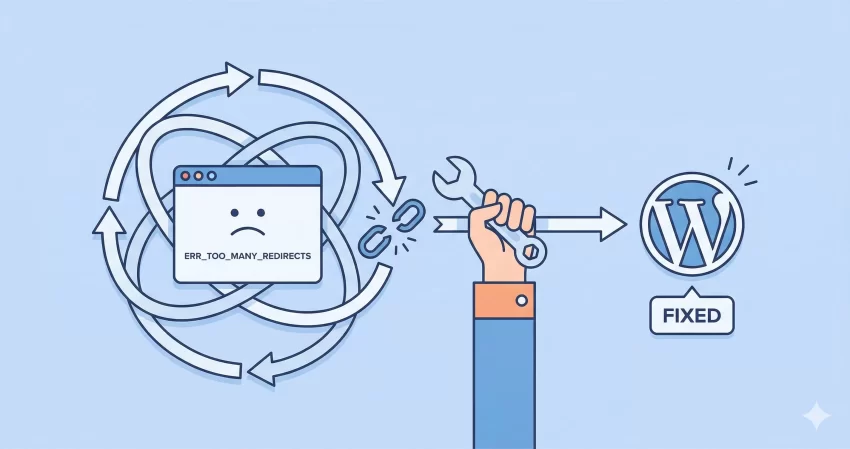
There are few things more heart-stopping for a site owner than typing in your URL and being greeted by a blank screen or a browser warning. Among these terrors, the WordPress redirect loop is particularly frustrating. It doesn’t just break your site; it traps your browser in an infinite cycle of trying to load a page that refuses to settle, eventually spitting out the dreaded “ERR_TOO_MANY_REDIRECTS” message.
If you are staring at this error right now, take a deep breath. While it looks catastrophic, it is one of the most common issues WordPress developers and users face, and it is almost always fixable without data loss. In this guide, we will break down exactly what causes this loop and walk you through step-by-step solutions to banish it for good.
What is a WordPress Redirect Loop?
Before we dive into the code, it helps to understand the mechanics of the failure. A WordPress redirect loop occurs when your server configuration and your WordPress installation get into an argument about where your website lives.
Imagine you tell your browser to visit Page A. The server tells the browser, “Page A has moved to Page B.” The browser dutifully goes to Page B, but the server then says, “Actually, Page B is now at Page A.” The browser bounces back and forth between these two instructions until it gets tired and crashes. This circular logic is the “loop.”
Common culprits usually include:
- Misconfigured WordPress Address and Site Address URLs.
- Corrupt
.htaccessfile. - SSL (HTTPS) configuration errors, often involving Cloudflare.
- Rogue plugins interfering with routing.
- Browser cache holding onto old redirect data.
Let’s roll up our sleeves and fix this.
Step 1: The “Have You Tried Turning It Off and On Again?” (Clear Your Cache)
It sounds cliché, but often the WordPress redirect loop isn’t on your website at all—it’s in your browser. If you recently migrated your site or changed SSL settings, your Google Chrome or Firefox browser might be “remembering” a redirect that no longer exists.
Before touching a single line of code, try opening your website in an Incognito or Private window. If the site loads perfectly there, the issue is your browser cache. Clear your cookies and cache for your specific domain, and you might be done already. If the error persists in Incognito mode, the problem is on the server. Let’s move to the backend.
Step 2: Check Your URL Settings (The Hard Way)
The most common cause of a redirect loop is a mismatch between the WordPress Address (URL) and the Site Address (URL). Usually, you would check this in the dashboard under Settings > General. But since you likely cannot access your dashboard right now, we need to override these settings manually using the WordPress wp-config.php file.
Access your site via FTP or your hosting File Manager. Locate the wp-config.php file in the root directory and add the following lines just above the line that says “That’s all, stop editing!”:
define( 'WP_HOME', 'https://yourdomain.com' );
define( 'WP_SITEURL', 'https://yourdomain.com' );
Important: Ensure you are using the correct protocol. If your site has an SSL certificate, you must use https://. If you use http:// while the server forces HTTPS, you will create the very WordPress redirect loop you are trying to fix.
You might also like:
Step 3: Fix SSL and Cloudflare Configuration
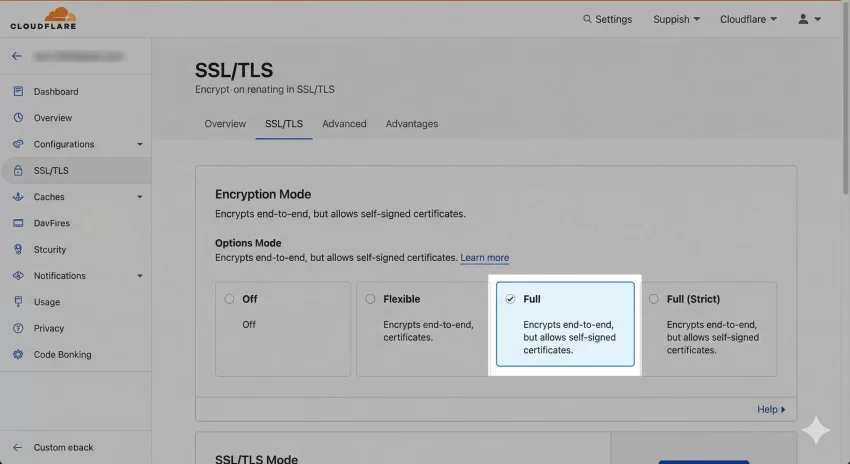
If you use Cloudflare or a similar CDN, this is the most likely suspect. A very specific conflict occurs when your WordPress site is set to load over HTTPS, but your Cloudflare SSL setting is set to “Flexible.”
In “Flexible” mode, Cloudflare sends requests to your hosting server over HTTP (unencrypted). However, if your WordPress site (or an SSL plugin like Really Simple SSL) is configured to force HTTPS, it sees the HTTP request and redirects it back to HTTPS. Cloudflare sees this, sends it back as HTTP, and the loop begins.
The Solution
- Log in to your Cloudflare dashboard.
- Go to the SSL/TLS tab.
- Change the encryption mode from Flexible to Full or Full (Strict).
If you cannot use Full SSL for some reason, you may need to force WordPress to recognize the forwarded protocol. You can add this snippet to your wp-config.php file to handle the proxy headers correctly:
if (isset($_SERVER['HTTP_X_FORWARDED_PROTO']) && $_SERVER['HTTP_X_FORWARDED_PROTO'] == 'https') {
    $_SERVER['HTTPS'] = 'on';
}
Step 4: Regenerate Your .htaccess File
Your .htaccess file acts as a traffic controller for your server. If a plugin corrupts this file, or if manual rules conflict with WordPress rewrite rules, it can send traffic into a tailspin. To rule this out, we will disable the current file and force WordPress to create a clean one, or use our .htaccess rules generator for more optimized code to fix WordPress redirect loop error.
- Connect to your site via FTP.
- Find the
.htaccessfile in the root directory. - Rename it to
.htaccess_old. - Try to load your site.
If the site loads, you have found the culprit! However, you now have no permalinks. To fix this, log in to your WordPress dashboard, go to Settings > Permalinks, and simply click Save Changes. This forces WordPress to generate a clean, default .htaccess file.
If you cannot access the dashboard to regenerate it, you can manually create a new .htaccess file and paste the standard WordPress code into it:
# BEGIN WordPress

RewriteEngine On
RewriteRule .* - [E=HTTP_AUTHORIZATION:%{HTTP:Authorization}]
RewriteBase /
RewriteRule ^index\.php$ - [L]
RewriteCond %{REQUEST_FILENAME} !-f
RewriteCond %{REQUEST_FILENAME} !-d
RewriteRule . /index.php [L]

# END WordPress
For more advanced configurations or understanding how rewrites work, you can refer to the wp_redirect function documentation regarding how WordPress handles internal redirects programmatically.
You might also like:

Step 5: Detect Plugin Conflicts
If the URLs are correct and the .htaccess is clean, a plugin is likely hijacking the routing process. Redirection plugins, SSL enforcers, and caching plugins are the usual suspects for a WordPress redirect loop.
Since you probably can’t access the Admin Plugins page, we will disable them via FTP:
- Navigate to the
/wp-content/folder. - Rename the
pluginsfolder toplugins_deactivate. - Reload your website.
If the site loads, one of your plugins is the saboteur. Rename the folder back to plugins and then rename each plugin folder inside it one by one (e.g., redirection_old) until the site breaks again or fixes itself, isolating the bad actor.
Step 6: Advanced Debugging with a Custom Function
If you are still stuck with WordPress redirect loop error, you might need to trace exactly where the redirect is happening. While you typically shouldn’t leave debug code on a live site, creating a small “tracer” can help identify the redirect chain. You can temporarily add a custom function to your theme’s functions.php (or a mu-plugin) to log redirect attempts.
Below is a custom debugging snippet using the custom pnet_ prefix to ensure no conflicts with other core functions:
/**
 * Log redirects to a debug file to trace the loop source.
 * * @param string $location The path to redirect to.
 * @param int $status The HTTP status code.
 * @return string
 */
function pnet_debug_redirects( $location, $status ) {
    $log_entry = sprintf(
        "[%s] Redirecting to: %s | Status: %d \n",
        date( 'Y-m-d H:i:s' ),
        $location,
        $status
    );

    // Save to a log file in the wp-content directory
    $log_file = WP_CONTENT_DIR . '/pnet_redirect_log.txt';
    file_put_contents( $log_file, $log_entry, FILE_APPEND );

    return $location;
}
add_filter( 'wp_redirect', 'pnet_debug_redirects', 10, 2 );
Warning: Only use this for brief troubleshooting and remove it immediately after. A text file filling up with logs can become a security risk or performance drain.
Step 7: Check the Database Tables
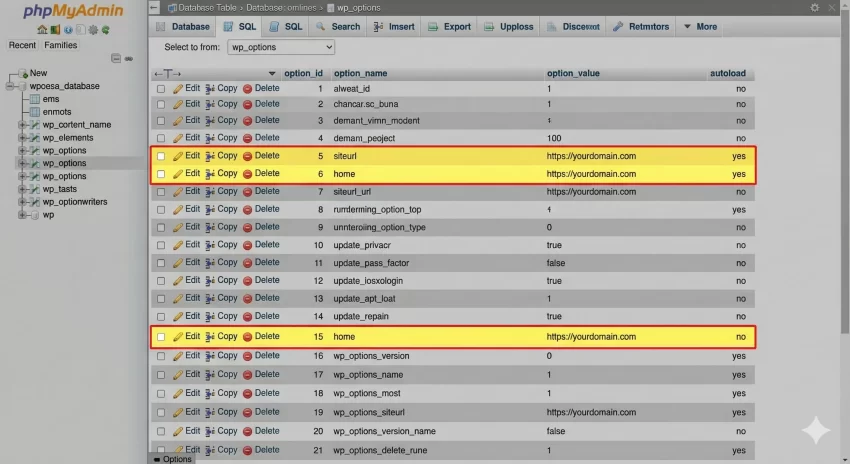
Sometimes, old plugin settings remain in the database even after the plugin is deleted. If you recently moved domains, there might be hard-coded URLs in your database tables causing the WordPress redirect loop.
Access your database via phpMyAdmin (usually found in your cPanel). Look at the wp_options table specifically. Ensure the `siteurl` and `home` rows exactly match the URL you configured in Step 2. Sometimes, a trailing slash (e.g., `example.com/` vs `example.com`) can cause issues depending on how your theme handles canonical URLs.
Conclusion
The WordPress redirect loop is intimidating because it locks you out of the tools you normally use to fix problems. However, by methodically checking your browser cache, enforcing URL consistency in wp-config.php, inspecting your SSL/Cloudflare settings, and resetting your .htaccess file, you can solve 99% of these cases.
Remember, whenever you make changes to core files or the database, always take a backup first. With these steps, your site should be back up, running smoothly, and ready for visitors.