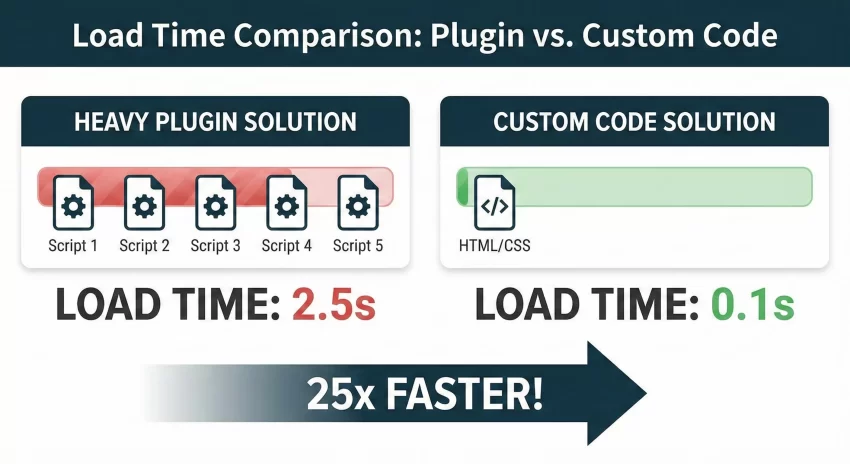
Every WordPress user eventually faces the same dilemma: you want your content to be shareable, but you are terrified of the performance cost. We have all been there. You install a “simple” sharing plugin, and suddenly your GTMetrix score tanks because that plugin loaded 15 distinct JavaScript files and a heavy font library just to display a Facebook icon. Today, we are going to solve this by learning how to add social share buttons without plugin bloat.
As a developer, I believe in keeping the WordPress ecosystem clean. Your website does not need a complex API connection just to create a link that opens a new window. By building this functionality yourself, you ensure that your site remains lightning-fast, your code remains clean, and you maintain complete control over the design. In this guide, we will build a lightweight, SVG-based social sharing system that you can drop directly into your theme or a site-specific plugin.
Why You Should Ditch the Sharing Plugins
Before we open our code editor, it is vital to understand the “why.” Most social sharing plugins are overkill. They often include tracking scripts, heavy analytics, and aggressive upsells that clutter your dashboard. When you decide to add social share buttons without plugin dependencies, you are stripping away all that excess weight.
A custom solution uses standard HTML and CSS. It relies on “query strings” to pass the URL and title of your post to the social network. This method is often referred to as “stateless” sharing because it does not require a database connection or external API calls to count shares. While you might lose the “share count” number (which is often inaccurate anyway due to API restrictions), you gain significant page speed.
The Anatomy of a Lightweight Share Button
To successfully add social share buttons without plugin reliance, we need three core components:
- The Function: A PHP block that generates the buttons and automatically grabs the current post’s URL and title.
- The Icons: We will use Inline SVGs. This means no external font libraries like Font Awesome are required, saving another HTTP request.
- The Styles: A snippet of CSS to make them look professional and responsive.
You might also like:

Step 1: The PHP Function
We will write a function that hooks into the WordPress content. This ensures that our buttons appear automatically at the bottom of every single post. We are going to use the the_content filter, which allows us to append our HTML string to the end of your blog posts.
Copy the following code into your theme’s functions.php file or your custom site-specific plugin. Note that we are using the pnet_ prefix to ensure no conflicts occur.
function pnet_add_social_share_buttons($content) {
    // Only show on single posts, not pages or archives
    if (is_single()) {

        // Get current page URL and Title
        $pnet_url   = urlencode(get_permalink());
        $pnet_title = urlencode(get_the_title());

        // Construct Sharing URLs
        $facebook_url = "https://www.facebook.com/sharer/sharer.php?u={$pnet_url}";
        $twitter_url  = "https://twitter.com/intent/tweet?text={$pnet_title}&url={$pnet_url}";
        $linkedin_url = "https://www.linkedin.com/shareArticle?mini=true&url={$pnet_url}&title={$pnet_title}";
        $whatsapp_url = "https://api.whatsapp.com/send?text={$pnet_title}%20{$pnet_url}";

        // SVG Icons (Inline for performance)
        $icon_fb = '<svg viewBox="0 0 24 24" width="20" height="20" stroke="currentColor" stroke-width="2" fill="none" stroke-linecap="round" stroke-linejoin="round"><path d="M18 2h-3a5 5 0 0 0-5 5v3H7v4h3v8h4v-8h3l1-4h-4V7a1 1 0 0 1 1-1h3z"></path></svg>';

        $icon_tw = '<svg viewBox="0 0 24 24" width="20" height="20" stroke="currentColor" stroke-width="2" fill="none" stroke-linecap="round" stroke-linejoin="round"><path d="M23 3a10.9 10.9 0 0 1-3.14 1.53 4.48 4.48 0 0 0-7.86 3v1A10.66 10.66 0 0 1 3 4s-4 9 5 13a11.64 11.64 0 0 1-7 2c9 5 20 0 20-11.5a4.5 4.5 0 0 0-.08-.83A7.72 7.72 0 0 0 23 3z"></path></svg>';

        $icon_in = '<svg viewBox="0 0 24 24" width="20" height="20" stroke="currentColor" stroke-width="2" fill="none" stroke-linecap="round" stroke-linejoin="round"><path d="M16 8a6 6 0 0 1 6 6v7h-4v-7a2 2 0 0 0-2-2 2 2 0 0 0-2 2v7h-4v-7a6 6 0 0 1 6-6z"></path><rect x="2" y="9" width="4" height="12"></rect><circle cx="4" cy="4" r="2"></circle></svg>';

        $icon_wa = '<svg viewBox="0 0 24 24" width="20" height="20" stroke="currentColor" stroke-width="2" fill="none" stroke-linecap="round" stroke-linejoin="round"><path d="M21 11.5a8.38 8.38 0 0 1-.9 3.8 8.5 8.5 0 0 1-7.6 4.7 8.38 8.38 0 0 1-3.8-.9L3 21l1.9-5.7a8.38 8.38 0 0 1-.9-3.8 8.5 8.5 0 0 1 4.7-7.6 8.38 8.38 0 0 1 3.8-.9h.5a8.48 8.48 0 0 1 8 8v.5z"></path></svg>';

        // Build the HTML
        $pnet_buttons = '<div class="pnet-share-container">';
        $pnet_buttons .= '<h4>Share this post:</h4>';
        $pnet_buttons .= '<div class="pnet-share-links">';
        $pnet_buttons .= '<a href="'.$facebook_url.'" target="_blank" rel="nofollow noopener" class="pnet-share-btn pnet-fb">'.$icon_fb.' Facebook</a>';
        $pnet_buttons .= '<a href="'.$twitter_url.'" target="_blank" rel="nofollow noopener" class="pnet-share-btn pnet-tw">'.$icon_tw.' Twitter</a>';
        $pnet_buttons .= '<a href="'.$linkedin_url.'" target="_blank" rel="nofollow noopener" class="pnet-share-btn pnet-in">'.$icon_in.' LinkedIn</a>';
        $pnet_buttons .= '<a href="'.$whatsapp_url.'" target="_blank" rel="nofollow noopener" class="pnet-share-btn pnet-wa">'.$icon_wa.' WhatsApp</a>';
        $pnet_buttons .= '</div></div>';

        // Append to content
        $content .= $pnet_buttons;
    }
    return $content;
}
add_filter('the_content', 'pnet_add_social_share_buttons');
This code block handles the heavy lifting. By hooking into the_content, we ensure that you add social share buttons without plugin settings pages slowing down your admin area. The SVG icons used here are defined directly in the PHP, meaning they load instantly with the page HTML.
Tip: How to Safely Enable SVG in WordPress Without Plugins: The Ultimate Guide
Step 2: Styling the Buttons with CSS
Now that we have the HTML structure, it likely looks a bit plain. We need to style it to make it clickable and attractive. Add the following CSS to your theme’s style.css file or the Customizer’s “Additional CSS” section.
/* Container Styling */
.pnet-share-container {
    margin-top: 40px;
    padding: 20px;
    background: #f9f9f9;
    border-radius: 8px;
    border: 1px solid #e0e0e0;
}

.pnet-share-container h4 {
    margin-top: 0;
    margin-bottom: 15px;
    font-size: 18px;
    text-transform: uppercase;
    letter-spacing: 1px;
}

/* Flexbox for layout */
.pnet-share-links {
    display: flex;
    flex-wrap: wrap;
    gap: 10px;
}

/* General Button Styling */
.pnet-share-btn {
    display: inline-flex;
    align-items: center;
    padding: 10px 15px;
    text-decoration: none;
    color: #fff;
    border-radius: 5px;
    font-weight: 600;
    font-size: 14px;
    transition: transform 0.2s ease, box-shadow 0.2s ease;
}

.pnet-share-btn svg {
    margin-right: 8px;
    stroke: #fff; /* White icon lines */
}

.pnet-share-btn:hover {
    transform: translateY(-2px);
    box-shadow: 0 4px 6px rgba(0,0,0,0.1);
    color: #fff;
}

/* Brand Colors */
.pnet-fb { background-color: #1877F2; }
.pnet-tw { background-color: #1DA1F2; }
.pnet-in { background-color: #0077B5; }
.pnet-wa { background-color: #25D366; }

/* Mobile Responsiveness */
@media (max-width: 600px) {
    .pnet-share-btn {
        flex: 1 1 45%; /* Buttons take up half width on mobile */
        justify-content: center;
    }
}
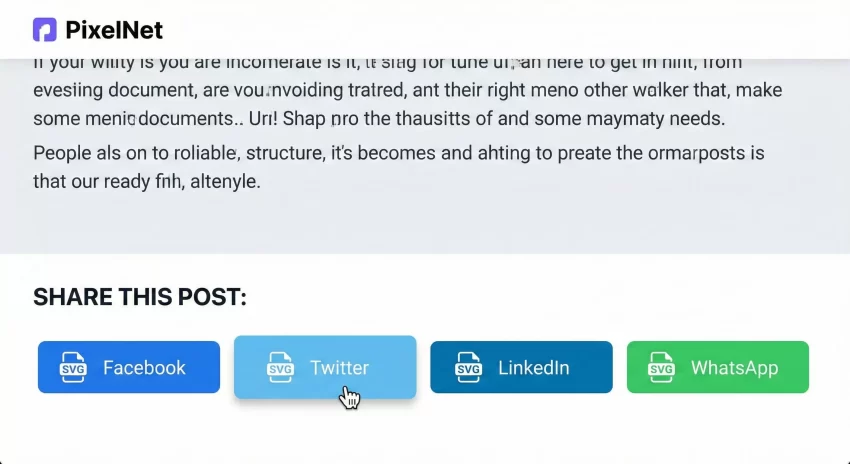
This CSS utilizes Flexbox to align the items. It also includes a media query to ensure that when you add social share buttons without plugin support, they still look fantastic on mobile devices where most sharing actually happens.
Why Inline SVG is Better Than Font Icons
You might notice I used raw <svg> tags in the PHP code. In the past, developers would enqueue an entire FontAwesome library just to display a Facebook ‘F’. That library is often 70kb+. Our SVG code is less than 1kb combined. When you add social share buttons without plugin overhead, using inline SVG is the gold standard for performance. It scales indefinitely without blurring and can be styled easily with CSS properties like stroke and fill.
You might also like:

Advanced Customization: Shortcode Implementation
Sometimes you do not want the buttons at the bottom of the post. Maybe you want them at the top, or in the middle of a long tutorial. We can modify our code slightly to create a shortcode. This gives you granular control over placement.
To do this, we change the add_filter logic to add_shortcode. Here is how you modify the end of the PHP snippet we wrote earlier:
// Change the function name to be distinct
function pnet_social_share_shortcode() {
    // ... Copy the same logic from Step 1 here ...

    // Instead of appending to $content, we simply return the HTML string
    // Ensure you define $pnet_buttons inside this function before returning
    return $pnet_buttons;
}
add_shortcode('pnet_share', 'pnet_social_share_shortcode');
Now, you can type [pnet_share] anywhere in your post content to render the icons. This flexibility is rarely found even in premium tools, yet you achieved it easily when you chose to add social share buttons without plugin limitations.
Understanding the SEO Impact
Does adding sharing buttons affect SEO? Indirectly, yes. Social signals are not a direct ranking factor for Google, but traffic is. By making it easier for users to share your content, you increase visibility and potential backlinks. However, if your sharing buttons slow down your site, they hurt your Core Web Vitals score.
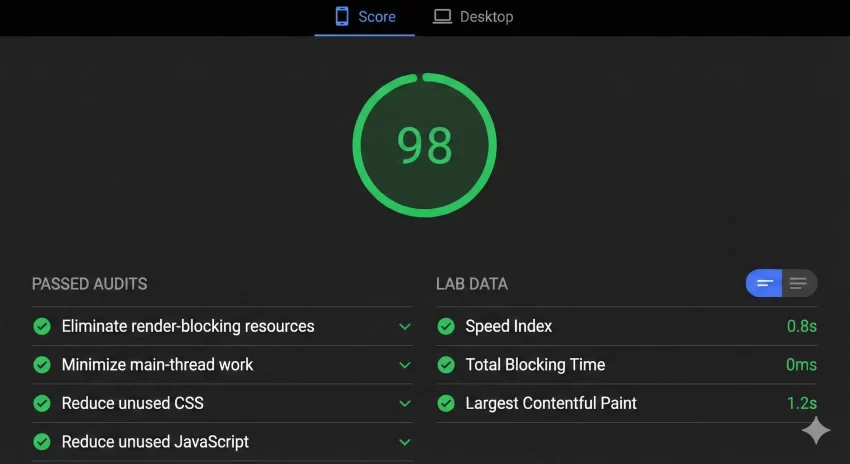
Google’s Core Web Vitals update made page speed a ranking factor. A plugin that loads heavy JavaScript in the <head> of your document blocks rendering. Our method puts the HTML in the footer area (or content area) and uses zero JavaScript. This ensures your “Largest Contentful Paint” (LCP) remains green. This is the primary reason why savvy developers add social share buttons without plugin solutions.
Testing Your New Buttons
Once you have implemented the code, clear your website cache (especially if you are using WP Rocket or Autoptimize). Navigate to a single blog post and verify the following:
- Visual Check: Do the icons align correctly?
- Functionality Check: Click the Twitter button. Does it open a new window with your post title and URL pre-filled?
- Mobile Check: Resize your browser or check on your phone. The buttons should stack or resize according to our CSS media query.
If you see raw code instead of icons, double-check that you pasted the code into functions.php and not a CSS file. If the styles look broken, ensure your browser cache is cleared.
Conclusion
Taking control of your WordPress site’s performance requires small but significant changes. By choosing to manually code features like this, you reduce dependency on third-party developers and keep your site lean. You have learned how to inject PHP functions, utilize inline SVGs, and style elements with CSS—all while solving the problem to add social share buttons without plugin bloat for good.