As a WordPress developer, you have likely encountered the tedious task of migrating sites, deploying new environments, or setting up complex local testing grounds. Clicking through the WordPress admin dashboard to enable or disable dozens of add-ons one by one is an immense waste of valuable development time. The problem escalates when you are building custom deployment scripts or maintaining a massive multisite network where manual intervention is simply not scalable. The most robust solution is to programmatically manage WordPress plugins. By leveraging core WordPress functions and direct database interactions via code, you can automate your entire workflow, eliminate human error during deployments, and create highly customized administrative tools for your clients.
In this comprehensive guide, we will dive deep into the WordPress core architecture to understand exactly how plugin states are stored and manipulated. We will explore the native functions provided by the WordPress core, understand the dependencies required to execute them safely outside the standard administrative context, and write practical, robust PHP scripts to bulk activate and deactivate plugins on the fly. Whether you are building a custom reset tool, an automated testing suite, or just trying to speed up your daily development routine, learning to programmatically manage WordPress plugins will significantly elevate your engineering efficiency.
- PHP 8.0 or higher environment configured for local development.
- A complete database backup of your WordPress site (modifying active plugins via code can cause fatal errors if dependencies are missing).
- Administrator-level access to the server via SFTP or SSH.
- Familiarity with writing and executing custom PHP scripts within the WordPress bootstrap environment.
- A text editor or IDE (like VS Code or PhpStorm) for writing your deployment scripts.
Understanding How WordPress Stores Active Plugins
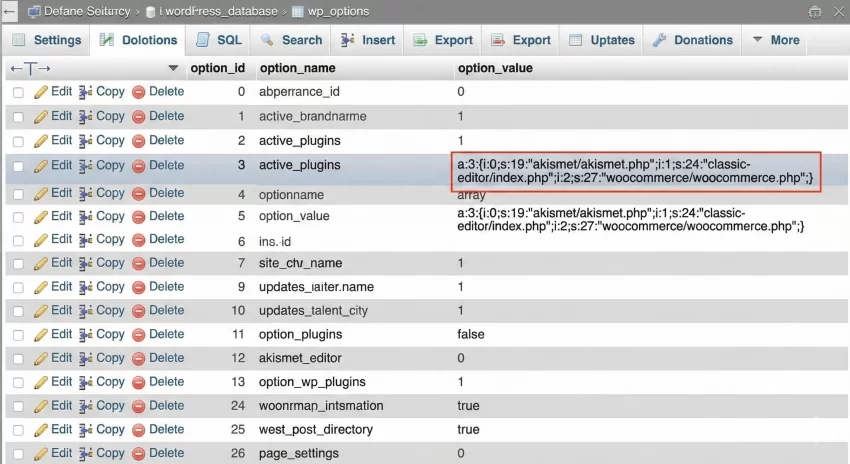
Before writing any code to programmatically manage WordPress plugins, it is absolutely critical to understand the underlying mechanics of how WordPress tracks which plugins are turned on and which are turned off. Unlike some content management systems that use configuration files, WordPress relies entirely on its MySQL database for this state management. Specifically, the state of your plugins is stored within the wp_options table under a single, serialized array associated with the option_name of active_plugins. When WordPress bootstraps during a page load, one of the very first things it does is query this specific option, unserialize the array, and sequentially load the main PHP file for each listed plugin.
Because the system relies on this serialized array, manipulating the list requires careful handling. You cannot simply inject a string into the database. You must retrieve the array, append or remove the specific plugin paths (relative to the wp-content/plugins/ directory), ensure there are no duplicate entries, re-serialize the array, and update the option in the database. While you can do this using standard PHP array manipulation and the update_option() function, WordPress provides dedicated API functions in the admin namespace that handle the necessary safety checks, firing of activation hooks, and dependency validation. Using these native functions is always the recommended approach when you programmatically manage WordPress plugins.
Important Architecture Note
wp-admin/includes/plugin.php. If your custom script runs outside the WP-Admin area (for example, via a custom REST API endpoint or a standalone cron job), you must manually require this file before calling activation functions. Inspecting the Database Structure
If you were to open a database management tool like phpMyAdmin or Adminer and run a query for SELECT * FROM wp_options WHERE option_name = 'active_plugins';, you would see a value that looks something like this: a:3:{i:0;s:19:"akismet/akismet.php";i:1;s:24:"classic-editor/index.php";i:2;s:27:"woocommerce/woocommerce.php";}. This represents an array containing three active plugins. The paths are always formatted as the folder name followed by a slash and the main executable PHP file of the plugin. When you programmatically manage WordPress plugins, you must always format your plugin references exactly like this relative path. A minor typo in the folder or file name will result in the plugin failing to load, and potentially triggering a silent error in your activation script.
Understanding this structure also helps when writing disaster recovery scripts. If a broken plugin completely locks you out of the WordPress admin dashboard (the infamous “White Screen of Death”), you can write a lightweight standalone PHP script that connects to the database, queries this option, removes the offending plugin’s string from the array, and pushes the updated array back. This circumvents the need to rename folders via FTP, which is a common but less elegant workaround.
Step 1: Retrieving the List of Currently Active Plugins
The very first step in any script designed to programmatically manage WordPress plugins is establishing the current state of the environment. You need to know what is currently running before you can safely make bulk changes. Retrieving this list is straightforward because it utilizes one of the most common functions in the WordPress developer ecosystem: get_option(). By fetching the active_plugins option, you are handed a clean, numerically indexed PHP array containing the relative paths of every plugin currently executing on the site.
It is highly recommended to log or output this list before executing bulk activation or deactivation routines. This serves as an in-memory backup of the previous state. For example, if you are building a deployment script that temporarily disables caching and security plugins to perform database migrations, you must store the original array so you can restore the exact same configuration once the migration process is complete. Failing to capture the initial state is a common pitfall that leads to broken production environments.
Fetching and Validating the Array
To safely retrieve the array, we call get_option('active_plugins'). However, defensive programming dictates that we should never assume the database returned exactly what we expected. If the option is corrupted or missing, the function might return an empty string or boolean false. Therefore, we must cast the result to an array or implement a strict type check before attempting to iterate over it or pass it to our management functions. This validation step is a cornerstone of securely writing code to programmatically manage WordPress plugins.
/**
 * Retrieve and safely validate the list of active plugins.
 *
 * @return array List of active plugin paths.
 */
function pnet_get_active_plugins_list() {
    // Fetch the raw option from the database
    $active_plugins = get_option('active_plugins');

    // Ensure the returned value is strictly an array
    if (!is_array($active_plugins)) {
        $active_plugins = array();
    }

    // Optional: Log the active plugins for debugging
    error_log(print_r($active_plugins, true));

    return $active_plugins;
}
Once you have this validated array, you can perform checks. For instance, you can use PHP’s native in_array() function to verify if a specific dependency (like WooCommerce or Advanced Custom Fields) is currently active before your custom script attempts to utilize its specific classes or functions. This is a far more reliable method than checking for the existence of classes directly, especially in complex environments where autoloaders might behave unpredictably during the bootstrap sequence.
You might also like: Stop WordPress Cron Job Not Working: The Ultimate Reliability Guide
Step 2: Bulk Activating Plugins via Code
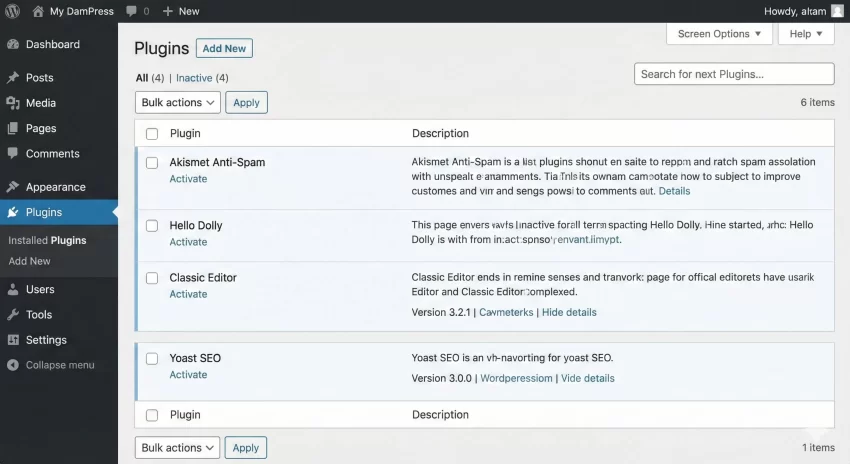
When you need to turn on multiple plugins simultaneously, you must use the activate_plugin() or activate_plugins() functions provided by the WordPress core. The plural version, activate_plugins(), is specifically designed to accept an array of plugin paths and process them in a single batch. This is the most efficient and native way to programmatically manage WordPress plugins when deploying new features. This function handles the heavy lifting: it validates that the plugin files actually exist on the server, ensuring you don’t corrupt the database with invalid paths, and most importantly, it fires the crucial register_activation_hook for each plugin.
Firing the activation hook is why we do not simply array_push items into the get_option('active_plugins') array and save it to the database. Many complex plugins (like forms, eCommerce platforms, or SEO tools) use this activation hook to create necessary custom database tables, establish default settings, or schedule WP-Cron events. If you bypass the native activation functions and manually inject the plugin path into the database, the plugin will load, but it will likely be fundamentally broken because its installation routines were never triggered.
Implementing the Activation Script
To implement this safely, you must first ensure that the WordPress plugin administration file is loaded. As mentioned earlier, this file is not loaded globally. We will use require_once with the ABSPATH constant to securely include the necessary core file. Then, we construct an array of the plugins we wish to activate and pass it to the function. We will also wrap this in a custom function so it can be hooked into a specific action or triggered via a secure GET request during a deployment pipeline.
/**
 * Bulk activate a specific list of required plugins.
 */
function pnet_bulk_activate_required_plugins() {
    // 1. Ensure the core plugin API is loaded
    if (!function_exists('activate_plugins')) {
        require_once ABSPATH . 'wp-admin/includes/plugin.php';
    }

    // 2. Define the plugins to activate (Folder/File format)
    $plugins_to_activate = array(
        'contact-form-7/wp-contact-form-7.php',
        'wordpress-seo/wp-seo.php',
        'classic-widgets/classic-widgets.php'
    );

    // 3. Execute the native bulk activation function
    // The second parameter is the redirect URL (null for programmatic),
    // the third is network wide activation (false),
    // and the fourth is silent activation (false).
    $result = activate_plugins($plugins_to_activate, null, false, false);

    // 4. Handle errors if the activation failed
    if (is_wp_error($result)) {
        error_log('Plugin Activation Error: ' . $result->get_error_message());
        return false;
    }

    return true;
}
Notice the parameters passed to activate_plugins(). The last parameter dictates whether the activation should be “silent.” If set to true, it suppresses the standard activation hooks. Unless you have a very specific architectural reason (and you deeply understand the plugins you are activating), you should generally leave this as false. Firing those hooks is essential for the long-term stability of the plugins you are managing. Always monitor your server’s debug.log when executing these bulk operations, as poorly written third-party plugins can occasionally throw fatal errors during their activation routines, which might halt your entire script.
Step 3: Bulk Deactivating Plugins Safely
Deactivating plugins programmatically is arguably even more common than activating them, particularly when debugging conflicts or optimizing performance. If a client site is suffering from extreme performance degradation, a developer might programmatically manage WordPress plugins to systematically disable non-essential add-ons to isolate the bottleneck. The core function for this operation is deactivate_plugins(). Similar to its activation counterpart, it accepts a single string or an array of plugin paths.
The deactivation process involves removing the specified paths from the active_plugins option in the database and firing the register_deactivation_hook. This hook allows plugins to clean up after themselves—for example, removing temporary transient data or unscheduling their specific cron jobs. It generally does not (and should not) delete user data or custom tables, as that is reserved for the separate uninstall process. By using the native deactivation function, you ensure that the WordPress ecosystem remains clean and that background tasks are gracefully terminated.
Dependency Warning
Executing the Deactivation Routine
The code structure for bulk deactivation mirrors the activation process. You must include the admin plugin file, define your target array, and execute the function. However, an advanced technique when you programmatically manage WordPress plugins is to dynamically generate the deactivation list based on specific criteria, rather than hardcoding the paths. For instance, you could loop through the active plugins array, check the plugin’s author or tags using get_plugin_data(), and automatically deactivate any plugin that hasn’t been tested with the current major WordPress version.
/**
 * Bulk deactivate specific plugins safely.
 */
function pnet_bulk_deactivate_conflict_plugins() {
    // 1. Ensure the core plugin API is loaded
    if (!function_exists('deactivate_plugins')) {
        require_once ABSPATH . 'wp-admin/includes/plugin.php';
    }

    // 2. Define plugins to turn off
    $plugins_to_deactivate = array(
        'w3-total-cache/w3-total-cache.php',
        'wordfence/wordfence.php'
    );

    // 3. Execute the native bulk deactivation function
    // Second parameter is silent (false), third is network wide (false)
    deactivate_plugins($plugins_to_deactivate, false, false);

    // Note: deactivate_plugins does not return a WP_Error on failure.
    // It silently proceeds, so verification requires checking the active list again.

    $currently_active = get_option('active_plugins');
    $still_active = array_intersect($plugins_to_deactivate, $currently_active);

    if (!empty($still_active)) {
        error_log('Failed to deactivate: ' . implode(', ', $still_active));
    }
}
One critical difference to note is that deactivate_plugins() does not return a WP_Error object if it fails. It simply executes and updates the database. Therefore, robust scripts designed to programmatically manage WordPress plugins should always implement a verification step, as shown in the code above. By intersecting the list of plugins you intended to deactivate with the freshly pulled list of currently active plugins, you can programmatically verify the success of the operation and log any anomalies for further investigation.
You might also like: The Ultimate Guide to WooCommerce Product Custom Fields: Let Users Customize Product
Step 4: Building a Custom Activation Script
Now that we understand the individual components, we can assemble a powerful, unified tool to programmatically manage WordPress plugins. A common use case for advanced WordPress developers and agencies is creating a “Must-Have” enforcer script. This script runs on an administrative hook (like admin_init) and constantly ensures that a specific suite of essential plugins—perhaps your custom security module, an SEO baseline, and a centralized logging tool—are always active. If a client accidentally deactivates one of these critical components, the script detects the missing dependency and immediately reactivates it silently.
Building this requires combining the retrieval, validation, and activation steps we’ve covered. It also requires careful consideration of performance. Querying the database and checking arrays on every single admin page load adds microscopic overhead. Therefore, when you programmatically manage WordPress plugins in this continuous enforcement manner, it is highly recommended to use transient caching or option flags so the heavy array comparison logic only runs periodically (e.g., once an hour) rather than on every single request.
The Enforcer Script Logic
In this final code example, we will build a production-ready snippet that defines a required array of plugins, checks them against the active list, isolates the missing ones, and activates only what is necessary. This prevents redundant database writes and unnecessary hook firing. You can place this code in a custom Must-Use (MU) plugin, which guarantees it runs before standard plugins are loaded, providing the highest level of control over the environment.
Pro Tip for Developers
WP_CLI alternative if you have SSH access. Running wp plugin activate --all or passing specific slugs is significantly faster and less prone to timeout errors than executing PHP via a web request. However, PHP scripts are vital when building tools directly into the WordPress admin UI.
/**
 * Continuously enforce the activation of required plugins.
 * Hook this to admin_init to ensure client environments remain stable.
 */
function pnet_enforce_essential_plugins() {
    // Define the absolute critical plugins for the site
    $required_plugins = array(
        'advanced-custom-fields-pro/acf.php',
        'safe-svg/safe-svg.php'
    );

    // Get currently active plugins
    $active_plugins = get_option('active_plugins', array());
    if (!is_array($active_plugins)) {
        $active_plugins = array();
    }

    // Find which required plugins are missing from the active list
    $missing_plugins = array_diff($required_plugins, $active_plugins);

    // If there are missing plugins, we need to activate them
    if (!empty($missing_plugins)) {
        // Load dependencies if not already present
        if (!function_exists('activate_plugins')) {
            require_once ABSPATH . 'wp-admin/includes/plugin.php';
        }

        // Activate the missing plugins
        $result = activate_plugins($missing_plugins);

        if (is_wp_error($result)) {
            // Log the failure to a custom error log for the dev team
            error_log('PixelNet Enforcer Error: Could not activate plugins - ' . $result->get_error_message());
        } else {
            // Optional: Add an admin notice informing the user the plugins were restored
            add_action('admin_notices', function() {
                echo '<div class="notice notice-warning is-dismissible"><p><strong>System Notice:</strong> Essential system plugins were found deactivated and have been automatically restored to maintain site stability.</p></div>';
            });
        }
    }
}
// Hook into admin initialization
add_action('admin_init', 'pnet_enforce_essential_plugins');
This script exemplifies the true power of learning to programmatically manage WordPress plugins. It elevates you from a standard user clicking toggles in a dashboard to an architect who dictates the rules of the environment. The use of array_diff ensures that the activate_plugins() function is only called when absolutely necessary, preserving server resources and preventing infinite loops or unnecessary database locks.
Common Errors and Troubleshooting
Even with carefully written code, attempting to programmatically manage WordPress plugins can occasionally result in unexpected behavior, especially when dealing with complex legacy sites or poorly coded third-party addons. Understanding the most frequent points of failure will save you hours of frustrating debugging. The architecture of WordPress plugins means that an error in a single file can propagate up and crash the entire system.
One major area of concern is file permissions. If your PHP script is executing under a user profile that does not have read access to the wp-content/plugins/ directory, the activate_plugins() function will silently fail, as it cannot validate the existence of the physical PHP files. Similarly, if the database user lacks the UPDATE privilege for the wp_options table, the script will execute perfectly in memory but the changes will never persist across page reloads. Always verify your environment’s baseline permissions before deploying automation tools.
Resolving Specific Issues
Here are the most common questions and issues developers face when implementing these solutions:
Why do I get a “Call to undefined function activate_plugin()” error?
This is the most common error when you try to programmatically manage WordPress plugins outside of the normal admin context (like via WP-Cron, a custom REST API endpoint, or an AJAX call). The WordPress core does not load the file containing these administrative functions on the frontend to save memory. You must explicitly include it using require_once ABSPATH . 'wp-admin/includes/plugin.php'; before calling the function.
Can I programmatically manage WordPress plugins from the frontend?
Yes, mechanically speaking, you can execute the code from the frontend by including the necessary plugin.php file as described above. However, from a security standpoint, this is highly discouraged. Exposing plugin management logic to frontend requests opens massive security vulnerabilities. Any script that modifies active plugins should be strictly authenticated, require administrator capabilities, and ideally use nonces to prevent Cross-Site Request Forgery (CSRF) attacks.
What happens if a programmatically activated plugin has a fatal error?
If you pass a plugin to activate_plugins() and that plugin contains a syntax error or a fatal exception (like redeclaring a class), it will immediately halt your PHP execution. The WordPress function attempts to do a “sandbox” check by loading the plugin file, but it is not infallible. If a fatal error occurs during programmatic activation, it can sometimes leave the database in an inconsistent state or cause a White Screen of Death. You should always test plugin activations in a staging environment before automating them in production.
You might also like: Honest Elementor Pro Review: Is It Still the Ultimate Page Builder in 2026?
Conclusion and Final Thoughts
Mastering the ability to programmatically manage WordPress plugins is a transformative skill for any serious WordPress developer. It transitions your workflow from manual, repetitive clicking into streamlined, automated, and highly reliable code-driven deployments. By understanding that plugin states are merely serialized arrays in the wp_options database, and by respecting the native WordPress API functions like activate_plugins() and deactivate_plugins(), you can build powerful custom tools, enforcement scripts, and automated recovery systems.
As you implement these techniques in your own projects, always remember the cardinal rules of database manipulation: validate your inputs, ensure the necessary core files are included when operating outside the admin dashboard, and always keep robust backups before executing bulk database changes. Whether you are managing a single custom build or a massive network of client sites, utilizing PHP to programmatically manage WordPress plugins will undoubtedly save you time and reduce human error, allowing you to focus on building better digital experiences.