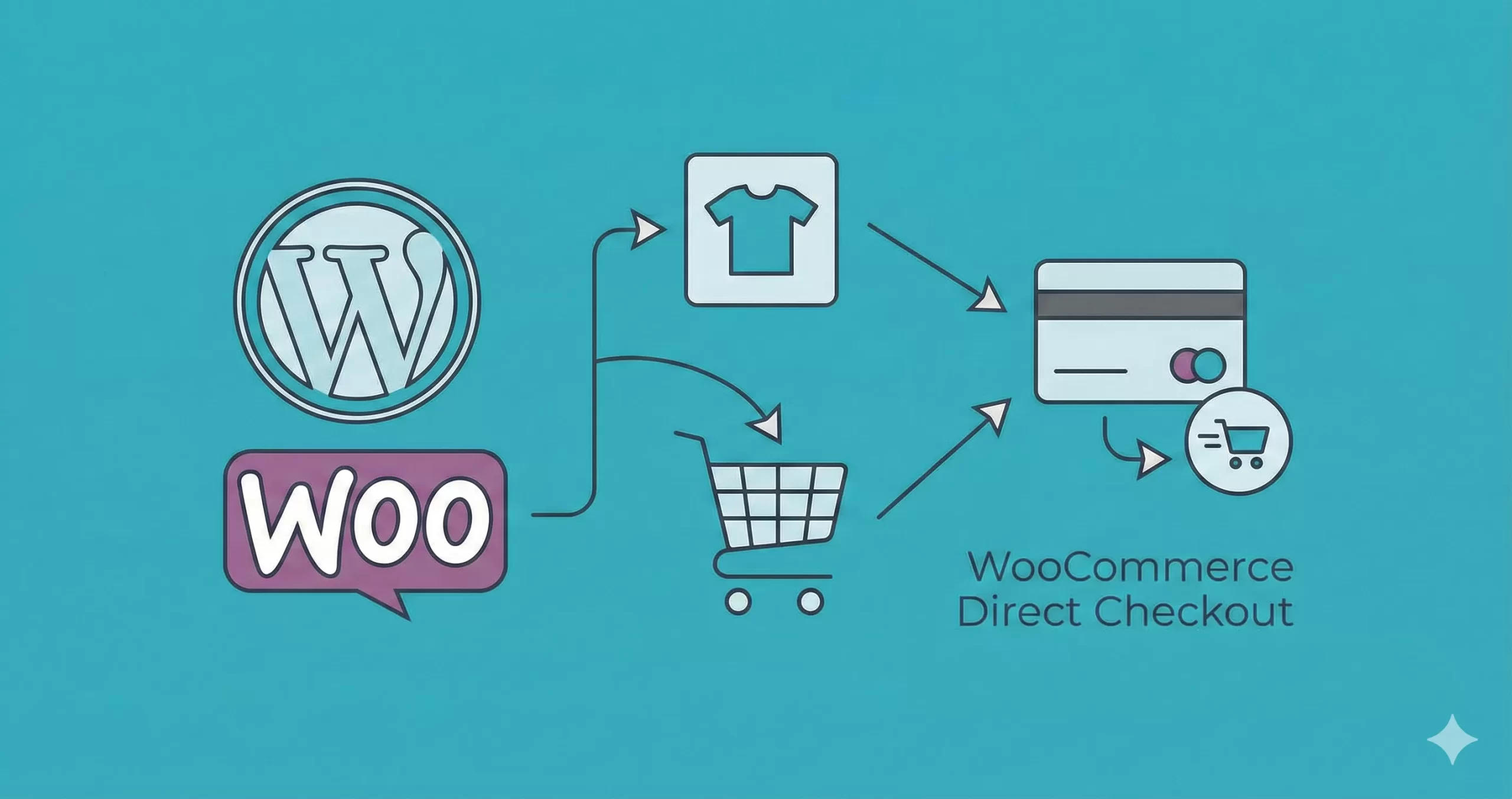
Reducing friction in the purchasing journey is the holy grail of eCommerce optimization. Every extra click stands between your customer and a completed sale. For store owners selling high-intent items or single-product launches, the default WooCommerce flow — Product Page -> Cart Page -> Checkout Page — can feel unnecessarily long. The solution? Implementing a WooCommerce direct checkout workflow.
By skipping the cart page entirely, you guide users straight to the payment gateway, potentially increasing conversion rates significantly. In this technical guide, we will implement a robust, code-based solution to enable WooCommerce direct checkout for specific products without relying on bloated third-party plugins.
Prerequisites
Before modifying your theme files, ensure your environment is safe and ready. This is an intermediate-level tutorial that involves editing PHP files.
- Access to your WordPress admin dashboard and File Manager (cPanel/FTP).
- A WordPress Child Theme installed and active.
- PHP 7.4 or higher (PHP 8.0+ recommended).
- A complete site backup (Database + Files).
- Basic understanding of WooCommerce hooks and filters.
Backup Required
functions.php file. A syntax error here can cause a critical error (White Screen of Death). Why Implement WooCommerce Direct Checkout?
Understanding the “why” is as critical as the “how.” The default WooCommerce behavior is designed for a traditional shopping experience where users browse multiple aisles, adding various items to a basket before deciding to pay. However, this model does not fit every business type.
If you sell digital downloads, subscriptions, or limited-edition drops, the “Add to Cart” step is often redundant. It forces the user to load a new page (the Cart), review an item they just decided to buy, and then click “Proceed to Checkout.” That is two extra page loads and one extra click. By enabling WooCommerce direct checkout, you streamline this process into a single action: Click -> Pay.
You might also like:
Step 1: Identify Target Product IDs
Since we are applying this logic only to specific products, we first need to retrieve their unique ID numbers from the database. WooCommerce assigns a unique integer to every product, whether it is a simple product or a variable one.
Finding the ID in the Dashboard
Navigate to your WordPress Dashboard and go to Products > All Products. Hover your mouse over the product you wish to redirect. You will see a gray ID number appear next to the “Edit” / “Quick Edit” links.
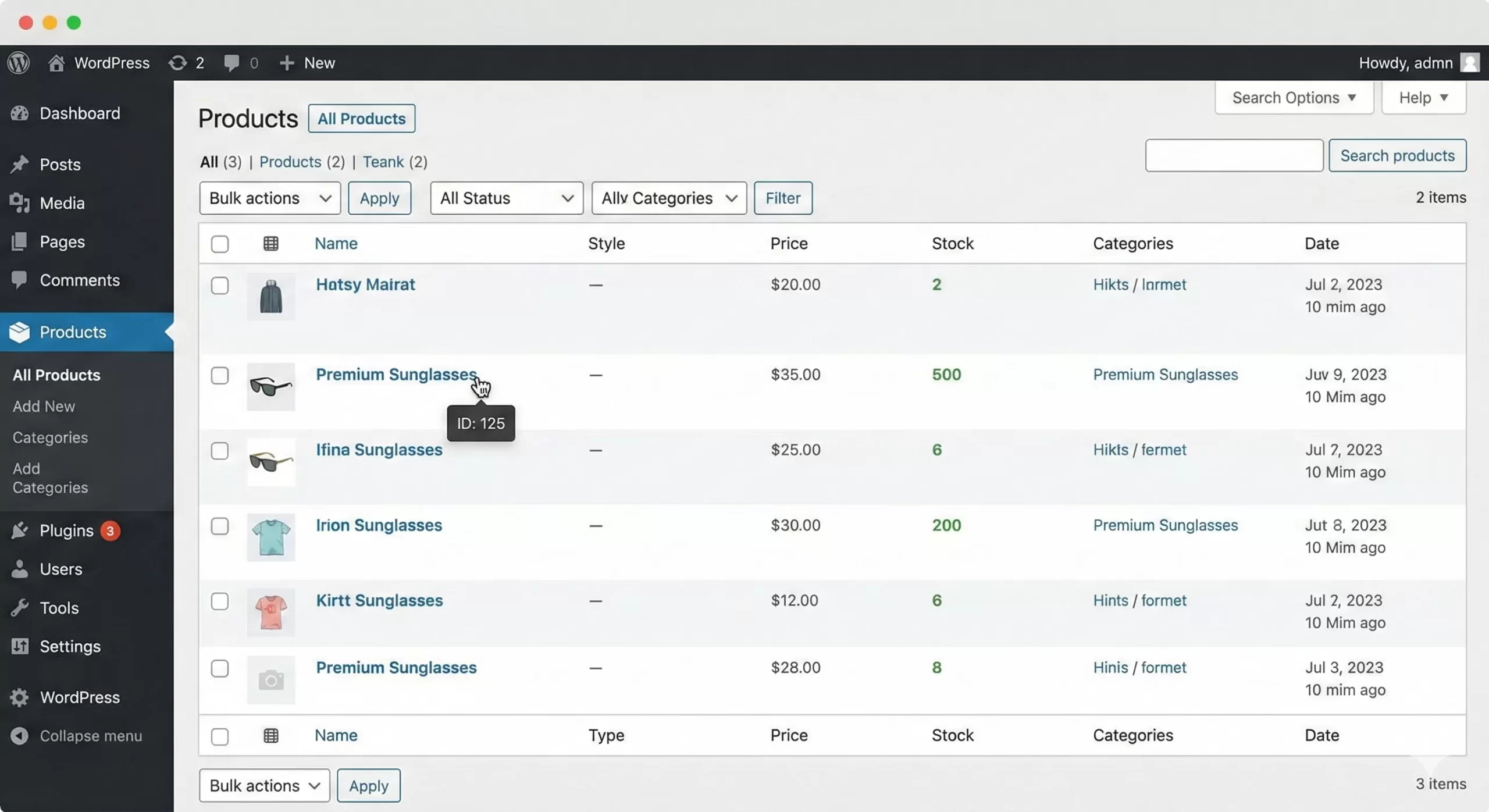
Note down the IDs for all products where you want to trigger the WooCommerce direct checkout functionality. For this tutorial, let’s assume we are targeting products with IDs 125 and 450.
Step 2: Add the Add-to-Cart Redirect Filter
The core of this functionality lies in the woocommerce_add_to_cart_redirect filter. This filter allows developers to intercept the URL a user is sent to after successfully adding an item to the cart. By default, this might be the cart page or the same product page (depending on your WooCommerce settings).
The Logic Flow
We will write a function that checks if the product being added to the cart matches our specific list of IDs. If it matches, we return the URL of the checkout page. If it does not match, we return the default URL, preserving normal behavior for other products in your store.
Intermediate
in_array() PHP function to check our list of IDs. This makes the code scalable; you can add as many products as you like simply by adding their ID to the array. Open your child theme’s functions.php file and add the following code block:
/**
 * Redirect specific products to checkout immediately after add to cart.
 * Focus Keyword: WooCommerce direct checkout
 */
function pnet_redirect_checkout_add_cart( $url ) {

    // Define the product IDs that should trigger direct checkout
    $target_products = array( 125, 450 );

    // Check if the product added to the cart is in our target list
    // We check the $_POST request to see which product ID was submitted
    if ( isset( $_POST['add-to-cart'] ) && in_array( (int) $_POST['add-to-cart'], $target_products ) ) {

        // Return the Checkout URL
        return wc_get_checkout_url();
    }

    // Otherwise, return the default URL (Cart or Product Page)
    return $url;
}
add_filter( 'woocommerce_add_to_cart_redirect', 'pnet_redirect_checkout_add_cart' );
In the code above, the function pnet_redirect_checkout_add_cart intercepts the redirect URL. We verify if the add-to-cart variable exists in the POST request (which happens when the button is clicked). If the ID matches our $target_products array, we utilize the native wc_get_checkout_url() function to safely retrieve the checkout page link.
You might also like:
Step 3: Change the ‘Add to Cart’ Button Text
Technical implementation is only half the battle; user expectation is the other half. If a button says “Add to Cart,” users expect to stay on the page or go to a cart. If they are suddenly whisked away to a checkout payment screen, it can be jarring. To optimize the WooCommerce direct checkout experience, we must change the button text to “Buy Now” or “Purchase Immediately” for these specific items.
Filter for Single Product Pages
We will use the woocommerce_product_single_add_to_cart_text filter to alter the text on the individual product details page.
/**
 * Change the "Add to Cart" text to "Buy Now" for specific products.
 */
function pnet_change_add_to_cart_text( $text ) {

    global $product;

    // Define the same product IDs as before
    $target_products = array( 125, 450 );

    // Check if the current product ID is in our array
    if ( $product && in_array( $product->get_id(), $target_products ) ) {
        return __( 'Buy Now', 'woocommerce' );
    }

    return $text;
}
add_filter( 'woocommerce_product_single_add_to_cart_text', 'pnet_change_add_to_cart_text' );
Filter for Archive/Shop Pages
Don’t forget the shop archives! If a user clicks the button from the main shop catalog, the text should also reflect the direct action. We use the woocommerce_product_add_to_cart_text filter here.
/**
 * Change "Add to Cart" text on Archive/Shop pages.
 */
function pnet_change_archive_add_to_cart_text( $text, $product ) {

    // Define the target IDs
    $target_products = array( 125, 450 );

    if ( $product && in_array( $product->get_id(), $target_products ) ) {
        return __( 'Buy Now', 'woocommerce' );
    }

    return $text;
}
add_filter( 'woocommerce_product_add_to_cart_text', 'pnet_change_archive_add_to_cart_text', 10, 2 );
Step 4: Disable AJAX Add to Cart (Optional)
WooCommerce often uses AJAX (Asynchronous JavaScript and XML) to add products to the cart without reloading the page. While great for standard shopping, AJAX can sometimes conflict with a custom WooCommerce direct checkout redirect, causing the redirect to fail or simply showing a “View Cart” message instead of moving the user forward.
To ensure a 100% success rate for our “Buy Now” flow, it is often safer to disable AJAX for these specific products, forcing a standard page reload which triggers our PHP redirect immediately.
Pro Tip
/**
 * Remove AJAX functionality for specific products to force the redirect.
 */
function pnet_remove_ajax_add_to_cart_class( $class, $product ) {

    $target_products = array( 125, 450 );

    if ( in_array( $product->get_id(), $target_products ) ) {
        // We replace the 'ajax_add_to_cart' class with an empty string
        $class = str_replace( 'ajax_add_to_cart', '', $class );
    }

    return $class;
}
add_filter( 'woocommerce_loop_add_to_cart_link', function( $html, $product ) {
    $target_products = array( 125, 450 );

    if ( in_array( $product->get_id(), $target_products ) ) {
        // Regex to remove the ajax class from the button link
        $html = preg_replace( '/class=".*ajax_add_to_cart.*"/', 'class="button product_type_simple add_to_cart_button"', $html );
    }
    return $html;
}, 10, 2 );
Must Read: Easily Customize WooCommerce Thank You Page: The Ultimate Guide
Step 5: Redirecting by Category (Advanced)
Managing a list of IDs can become tedious if you have 50 products that need WooCommerce direct checkout. A smarter approach for larger stores is to apply this logic based on Product Categories. For instance, you might want all products in the “Digital” category to skip the cart.
We can modify our initial function to check for a category slug instead of an ID.
/**
 * Redirect products in specific categories to checkout.
 */
function pnet_redirect_checkout_by_category( $url ) {

    // Check if we have a post ID from the button click
    if ( isset( $_POST['add-to-cart'] ) ) {
        $product_id = (int) $_POST['add-to-cart'];

        // Check if product belongs to category 'ebooks' or 'software'
        if ( has_term( array( 'ebooks', 'software' ), 'product_cat', $product_id ) ) {
            return wc_get_checkout_url();
        }
    }

    return $url;
}
add_filter( 'woocommerce_add_to_cart_redirect', 'pnet_redirect_checkout_by_category' );
This method is far more dynamic. Simply assign the category “Ebooks” to any new product, and the WooCommerce direct checkout functionality will apply automatically without code updates.
Step 6: Testing and Validation
Once you have implemented the code, thorough testing is required. Caching plugins are the most common culprit for code changes not appearing immediately.
- Clear Cache: Purge all server, page, and object caches (e.g., WP Rocket, Redis).
- Incognito Mode: Open a private browser window to test as a “Guest” user.
- The Click Test: Go to the product page. Ensure the button says “Buy Now.” Click it. You should land immediately on the
/checkout/page with the item added. - The Cart Test: Add a non-target product to the cart. Ensure it behaves normally (goes to cart or stays on page).
Troubleshooting Common Errors
Even with clean code, WordPress environments vary. Here are the most common issues when setting up WooCommerce direct checkout and how to fix them.
1. Redirect Loop or “Cart is Empty” Error
If users are redirected to the checkout but see “Your cart is currently empty,” it means the redirect happened before the session cookie could save the cart data. This is often a hosting cache issue. Ensure that your caching plugin excludes the Checkout, Cart, and My Account pages effectively.
2. Button Text Isn’t Changing
If the text still says “Add to Cart,” your theme might be hardcoding the button label. Check your theme’s /woocommerce/loop/add-to-cart.php template file. If the theme overrides the default hooks, you may need to edit the template directly or increase the priority of your filter (e.g., change 10 to 99 in the add_filter function).
3. Works on Single Page but not Shop Page
This is the AJAX issue mentioned in Step 4. If the shop page uses AJAX, the PHP redirect filter is often bypassed. You must ensure the product class on the shop page does not include ajax_add_to_cart.
Summary
Implementing WooCommerce direct checkout is a powerful strategy to reduce cart abandonment for specific product types. By removing the intermediate cart step, you create a streamlined path to purchase that respects the user’s time and intent. While plugins exist for this, the manual code method provided above offers a lightweight, bloat-free solution that you can fully customize.
Remember, the goal of WooCommerce direct checkout is not just to speed up the site technically, but to speed up the psychology of the purchase. Test your IDs, verify your categories, and enjoy the optimized workflow.



![WooCommerce Custom Email Notifications: Send Pro Alerts Instantly [2026 Updated]](https://cdn.pixelnet.in/wp-content/uploads/2026/02/09103248/WooCommerce-custom-email-notifications-768x406.webp)