Every WordPress developer has encountered the panic-inducing moment when a plugin update fails, leaving the site in a state of limbo. One of the most common hurdles during this process is the error message stating that the Destination folder already exists. This error typically occurs when a previous installation failed to complete, leaving behind orphaned files, or when a manual upload conflicts with an existing directory. Unlike generic server errors, this specific issue points directly to a file system conflict that prevents WordPress from creating the necessary directory for the new plugin or theme.
While this error stops the installation in its tracks, the solution is often straightforward if you understand the underlying file structure of WordPress. In this guide, we will explore multiple methods to resolve the Destination folder already exists error, ranging from manual FTP intervention to advanced WP-CLI commands for developers. We will also provide a programmatic solution to prevent this issue in your custom deployment scripts.
Prerequisites
- Administrator access to the WordPress Dashboard.
- FTP/SFTP credentials or access to the Hosting Control Panel (cPanel/Plesk).
- SSH access (optional, for WP-CLI method).
- Backup your site: Always create a full database and file backup before deleting directories.
- PHP 7.4 or higher (Recommended PHP 8.0+ for security).
- A code editor for reviewing custom snippets (VS Code or similar).
Understanding the Root Cause of the Error
To effectively fix the issue where the Destination folder already exists, it is crucial for a developer to understand how the WordPress WP_Upgrader class works. When you initiate a plugin or theme installation, WordPress attempts to unzip the package into a temporary directory and then moves it to wp-content/plugins/ or wp-content/themes/.
If WordPress detects a folder with the identical name in the target directory, it halts the process to prevent overwriting potentially customized files or causing data loss. This is a fail-safe mechanism. The error commonly arises from:
- Failed Updates: A previous update script timed out or was interrupted, leaving the folder but not the complete plugin.
- Manual Uploads: You manually uploaded a folder via FTP but tried to install the same plugin via the Dashboard.
- Restored Backups: A backup restoration might have left file permissions inconsistent, causing WordPress to lose track of existing folders.
For Developers
WP_Filesystem API is responsible for these checks. Specifically, the error is triggered within wp-admin/includes/class-wp-upgrader.php when install_package() returns a destination conflict error code. Method 1: The Manual Fix via FTP/SFTP
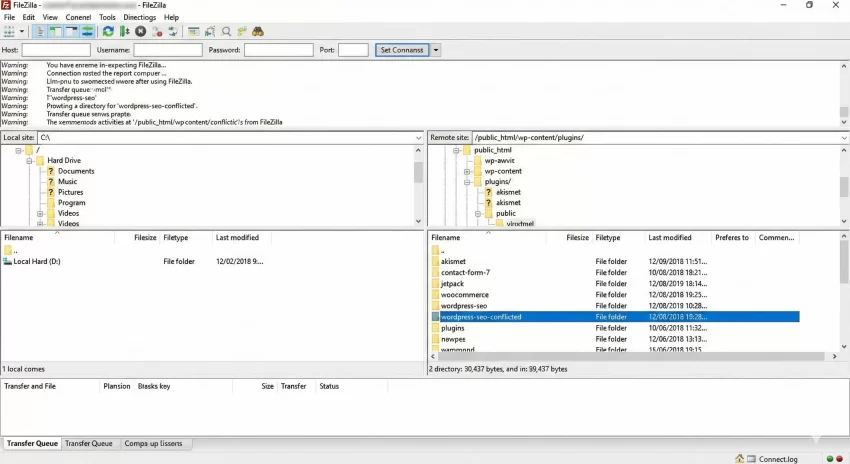
The most reliable way to resolve the Destination folder already exists error is by manually removing the conflicting directory using an FTP client like FileZilla or Transmit. This ensures you have full visual confirmation of what is being deleted, minimizing the risk of removing the wrong asset.
Step 1: Connect to Your Server
Open your FTP client and connect to your web server using your host credentials. Navigate to the public root directory, usually named public_html, www, or htdocs.
Step 2: Locate the Plugins Folder
Navigate to the wp-content directory. Inside, you will find a plugins folder (or themes if you are fixing a theme error). Open this folder to view all currently installed plugins.
Step 3: Identify and Delete the Conflict
Locate the folder name that matches the plugin you are trying to install. For example, if you are installing “Yoast SEO,” look for a folder named wordpress-seo. Since the installation failed, this folder likely contains corrupt or incomplete files.
Right-click the folder and select Delete. Confirm the action. Once the folder is completely removed from the server, the conflict is resolved.
Backup Required
wp-config.php inside a security plugin) that you might need to reference later. Method 2: Using cPanel File Manager
If you do not have an FTP client handy, the File Manager provided by hosting control panels like cPanel is an excellent alternative to fix the Destination folder already exists error. This method is often faster as it executes file operations directly on the server without network latency.
Step 1: Access File Manager
Log in to your hosting dashboard and look for the “File Manager” icon. Ensure you select the option to show hidden files (dotfiles) if prompted, although plugin folders are rarely hidden.
Step 2: Navigate to Content Directory
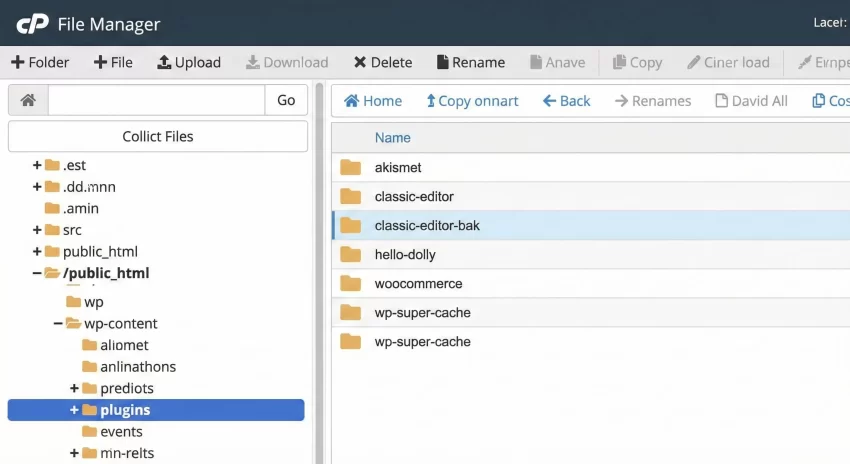
In the directory tree on the left, click on public_html, then double-click wp-content and then plugins. You should see a list of folders corresponding to your plugins.
Step 3: Remove the Folder
Find the folder causing the Destination folder already exists error. Select it and click the “Delete” button in the top toolbar. A prompt will appear asking if you want to skip the trash and permanently delete the files. Check this box to ensure a clean removal.
After the folder is gone, return to your WordPress Dashboard and retry the plugin installation. It should now proceed without errors.
Must Read: Build a Stunning WordPress Mega Menu Without Bloated Plugins
Method 3: The Command Line Approach (WP-CLI)
For advanced WordPress developers and system administrators, using the command line is the most efficient workflow. WP-CLI allows you to manage plugins without touching a mouse. If you encounter the Destination folder already exists error, you can force the installation using specific flags.
Step 1: Access Server via SSH
Open your terminal and SSH into your server. Navigate to the root directory of your WordPress installation.
cd /var/www/html/example.com/public_html
Step 2: Force Install the Plugin
Standard WP-CLI installation commands might still throw a warning if the folder exists. However, you can use the --force flag. This flag tells WP-CLI to overwrite the existing directory, effectively bypassing the Destination folder already exists error.
# Syntax: wp plugin install <slug> --force

wp plugin install elementor --force
This command downloads the latest version of the plugin and overwrites the existing folder structure. It is a powerful command, so use it with caution.
Pro Tip
--activate to the end of the command to install and activate it in one go: wp plugin install elementor --force --activate. Method 4: Programmatic Solution for Developers
As a WordPress developer, you may want to build a utility tool to handle these conflicts automatically, perhaps as part of a custom deployment script or a maintenance plugin. The following PHP function utilizes the WP_Filesystem API to check for an existing directory and safely remove it before attempting an installation.
Understanding the Code
The code below checks if the WordPress filesystem credentials are available. It then constructs the path to the plugins directory and checks if the specific plugin folder exists. If the Destination folder already exists, it recursively deletes it.
/**
 * Safely removes a plugin folder if it exists to prevent installation errors.
 *
 * @param string $plugin_slug The slug of the plugin (folder name).
 * @return bool|WP_Error True on success, WP_Error on failure.
 */
function pnet_force_cleanup_plugin_folder( $plugin_slug ) {
    // Access the global WordPress filesystem
    global $wp_filesystem;

    // Initialize the filesystem if it is not already
    if ( empty( $wp_filesystem ) ) {
        require_once ABSPATH . 'wp-admin/includes/file.php';
        WP_Filesystem();
    }

    // Define the target directory path
    $plugin_dir = WP_PLUGIN_DIR . '/' . $plugin_slug;

    // Check if the destination folder already exists
    if ( $wp_filesystem->exists( $plugin_dir ) && $wp_filesystem->is_dir( $plugin_dir ) ) {

        // Attempt to delete the folder recursively
        $deleted = $wp_filesystem->delete( $plugin_dir, true );

        if ( ! $deleted ) {
            return new WP_Error(
                'folder_delete_failed',
                sprintf( 'Could not delete the existing folder: %s', $plugin_slug )
            );
        }
    }

    return true;
}

// Example Usage:
// This could be hooked into a custom admin button or CLI command
$result = pnet_force_cleanup_plugin_folder( 'woocommerce' );

if ( is_wp_error( $result ) ) {
    error_log( $result->get_error_message() );
} else {
    // Proceed with wp_insert_post or generic installation logic
}
This snippet is particularly useful if you are writing a “Site Reset” or “Plugin Manager” tool for your clients. By checking if the folder exists and handling the deletion programmatically, you ensure a smoother user experience.
Troubleshooting Common Errors
Even after removing the folder, you might encounter persistent issues. Here are common troubleshooting steps if the Destination folder already exists error or related issues persist.
Permission Denied Errors
If you cannot delete the folder via FTP or the Dashboard, your file permissions might be incorrect. WordPress directories should typically be set to 755 and files to 644. Use your FTP client to right-click the plugins folder, select “File Permissions,” and reset them recursively.
OpCode Cache Issues
Sometimes, PHP OpCode caching (like OPcache) keeps a reference to the old files in memory. If you delete a folder and immediately try to reinstall it, the server might think the files are still there. Purge your server cache or restart the PHP-FPM service via SSH:
sudo service php8.1-fpm restart
Database Inconsistencies
Rarely, the plugin files are gone, but WordPress still thinks the plugin is “active” in the database option active_plugins. This can cause white screens. You may need to access your database via phpMyAdmin, look at the wp_options table, find the active_plugins row, and manually edit the serialized array to remove the plugin entry.
Intermediate
Conclusion
The Destination folder already exists error is a common rite of passage for WordPress developers. While it stops your workflow, it is fundamentally a safety feature protecting your file integrity. Whether you choose to delete the folder manually via FTP, use the cPanel File Manager, or utilize the power of WP-CLI, the goal remains the same: clear the path for a fresh installation.
By understanding the file structure and utilizing the programmatic methods discussed, you can not only fix this error when it happens but also build tools to prevent it in your client projects. Remember, a clean filesystem is the foundation of a stable WordPress site.



