One of the most significant signals for search engine relevance is content freshness. However, by default, most WordPress themes rigidly display the original publication date, leaving your refreshed content looking stale in the eyes of visitors and search bots. If you are frequently updating your evergreen content, showing the WordPress last updated date is not just a cosmetic choice—it is a critical SEO necessity.
In this technical guide, we will walk through the programmatic method to replace or append the “Last Updated” meta data to your posts. We will move beyond simple plugins and implement a lightweight, code-based solution that ensures your theme handles date logic correctly without bloating your database.
Prerequisites for Custom Development
Before we modify theme files or inject functions, ensure your environment meets the following standards:
- PHP Version: 7.4 or higher (PHP 8.0+ recommended for best performance).
- Access: FTP/SFTP access or a File Manager in your hosting control panel.
- Environment: A Child Theme installed and active. (Never edit parent theme files directly, as updates will wipe your changes).
- Backup: A full site backup (database + files) taken immediately before starting.
- Knowledge: Basic understanding of WordPress Template Hierarchy and Hooks.
Step 1: Understanding the Logic (The Conditional Check)
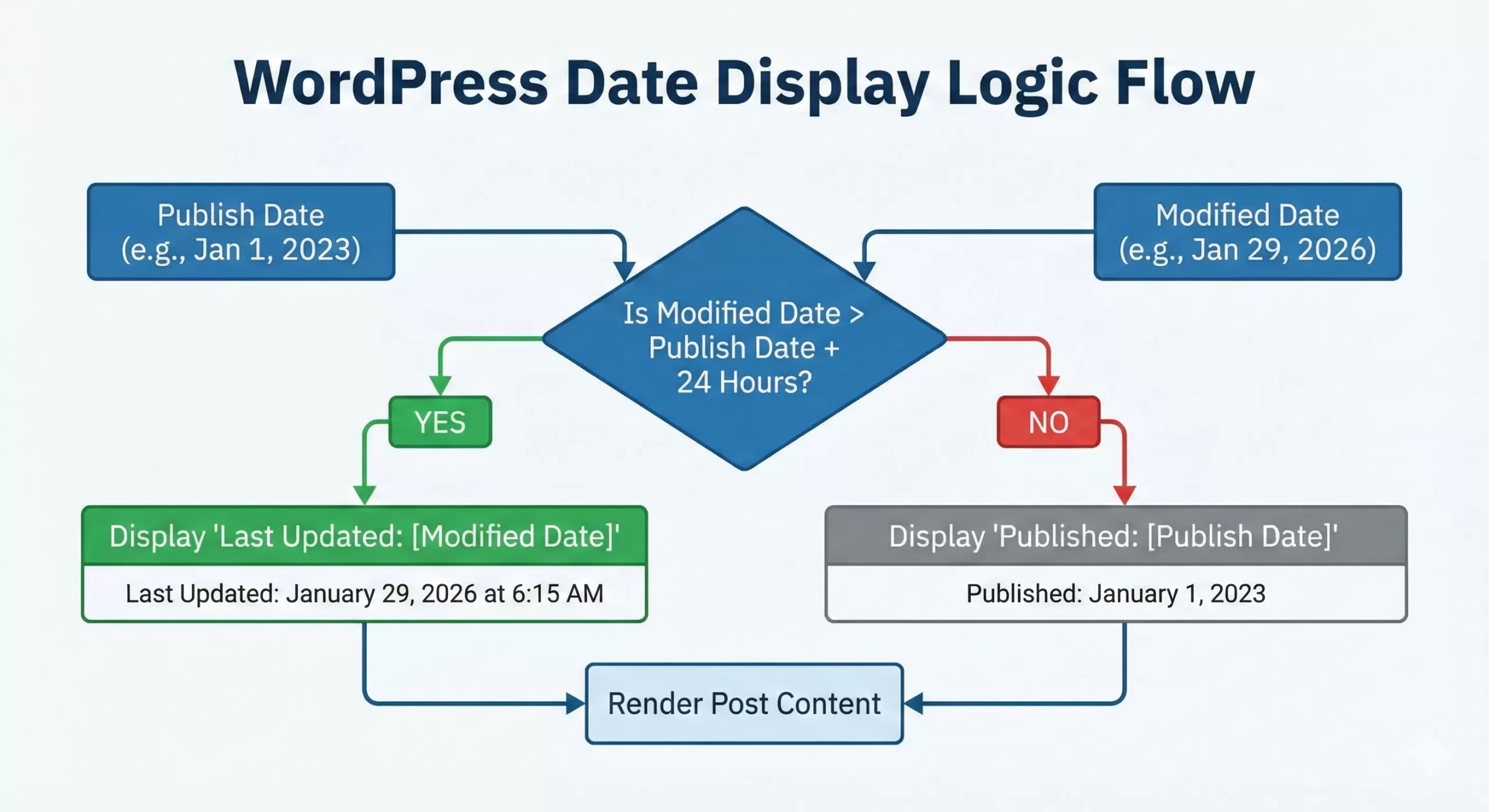
The core logic we need to implement is a simple conditional comparison. We cannot simply output the modified date on every post; if a post has never been updated, the modified date is identical to the published date. Displaying “Last Updated: [Date]” on a post that hasn’t actually been changed looks redundant.
We will use the native WordPress function get_the_modified_time() and compare it against the original publish time. If they differ significantly, we render the update notification.
Step 2: Method 1 – The Filter Hook Approach (Recommended)
The cleanest way to add the WordPress last updated date without editing individual template files (like single.php) is by filtering the post content or the existing meta data output. This method ensures compatibility across most themes.
2.1 Open Your Functions File
Navigate to /wp-content/themes/your-child-theme/functions.php (or, use a site-specific plugin) via your FTP client or code editor.
2.2 Add the Custom Function
Copy and paste the following code block. We are using the pnet_ prefix to prevent namespace collisions.
/**
 * Display the Last Updated Date before post content.
 * Checks if the post has been modified significantly (more than 24 hours).
 */
function pnet_add_last_updated_date( $content ) {
    $u_time = get_the_time('U');
    $u_modified_time = get_the_modified_time('U');

    // Only run this on single posts (not pages or archives)
    if ( is_single() ) {
        // Check if modified time is at least 1 day (86400 seconds) greater than publish time
        if ( $u_modified_time >= $u_time + 86400 ) {

            $updated_date = get_the_modified_time('F j, Y');
            $updated_time = get_the_modified_time('g:i a');

            $custom_content = '<p class="pnet-last-updated">Last Updated: ' . $updated_date . ' at ' . $updated_time . '</p>';

            // Append the custom date above the content
            $content = $custom_content . $content;
        }
    }
    return $content;
}

add_filter( 'the_content', 'pnet_add_last_updated_date' );
2.3 Code Breakdown
get_the_time('U'): Retrieves the publish date in Unix timestamp format.+ 86400: We add a 24-hour buffer. This prevents the “Last Updated” label from appearing if you fix a typo 5 minutes after publishing.add_filter( 'the_content' ): This injects our string directly into the post body, ensuring it appears regardless of how the theme handles header meta data.
You might also like:

Step 3: Method 2 – The Shortcode Approach (For Manual Control)
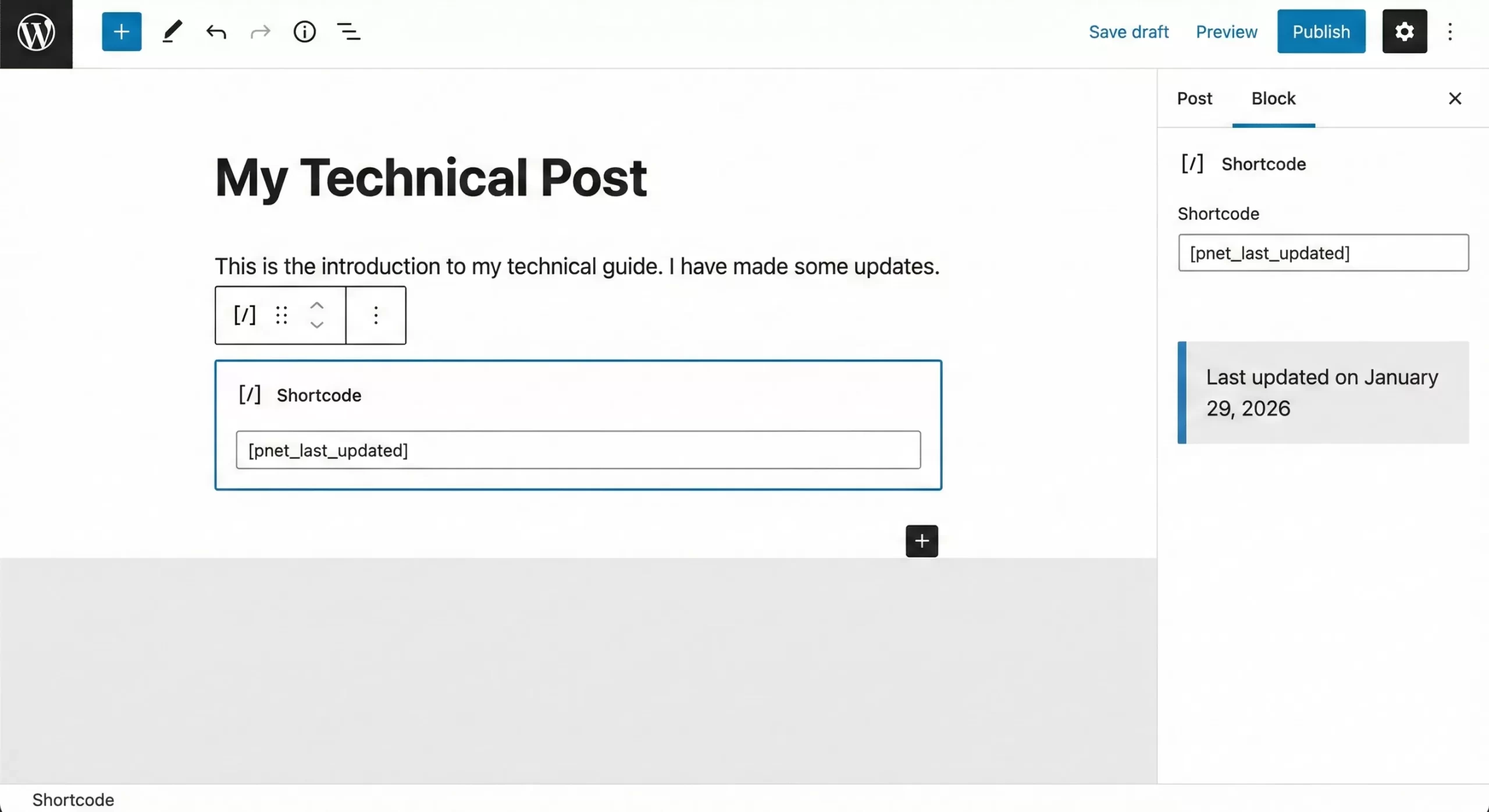
Sometimes you may not want the date to appear globally on all posts. A shortcode allows you to place the date manually within the Block Editor or page builders like Elementor.
3.1 Register the Shortcode
Add this snippet to your functions.php file:
function pnet_last_updated_shortcode() {
    $u_time = get_the_time('U');
    $u_modified_time = get_the_modified_time('U');

    if ( $u_modified_time >= $u_time + 86400 ) {
        return '<span class="pnet-last-updated-shortcode">Last updated on ' . get_the_modified_time('F j, Y') . '</span>';
    }
    return ''; // Return nothing if not updated
}

add_shortcode( 'pnet_last_updated', 'pnet_last_updated_shortcode' );
Usage: Simply place [pnet_last_updated] anywhere in your post content.
Must Read: Easily Display Related Posts in WordPress: Boost Engagement Without Bloat
Step 4: Styling the Date Output
The PHP functions above wrap the date in a specific CSS class (.pnet-last-updated). To ensure it stands out to users, you need to apply some CSS. Go to Appearance > Customize > Additional CSS.
.pnet-last-updated {
    background-color: #f1f1f1;
    border-left: 5px solid #0073aa; /* WordPress Blue */
    padding: 10px 15px;
    font-size: 0.9rem;
    color: #555;
    margin-bottom: 20px;
    font-weight: 600;
}

.pnet-last-updated-shortcode {
    font-style: italic;
    color: #666;
}
Step 5: Updating Schema.org Structured Data
Visually changing the date is great for humans, but search engines rely on Structured Data (JSON-LD). If your theme’s schema markup still prioritizes datePublished, Google might ignore your visual changes.
While many SEO plugins handle this, as a developer, you should ensure the the_modified_date() is being respected in the schema.
5.1 Disabling Default Theme Schema (Optional)
If your theme hardcodes the schema, you may need to dequeue its structured data function. Check your theme documentation for the specific handle.
5.2 Inspecting the Source
Use the “Inspect Element” tool in your browser to verify the output. You want to ensure the metadata tags look like this:
<meta property="article:published_time" content="2023-01-01T10:00:00+00:00" />
<meta property="article:modified_time" content="2026-03-15T09:30:00+00:00" />
You might also like:

Common Errors and Troubleshooting
Even with clean code, the WordPress last updated date might not appear as expected. Here are the most common technical hurdles:
1. Server-Side Caching
If you implement the code but don’t see the change, your server (Redis/Varnish) or a plugin (WP Rocket/W3 Total Cache) is likely serving a static HTML version of the page generated before your code edit.
Fix: Purge all caches immediately after saving your functions.php file.
2. The “Unix Timestamp” Confusion
Error: The date appears as a long string of numbers (e.g., 1735689600).
Cause: This happens if you use get_the_modified_time() without specifying a format while not passing 'U' explicitly for calculation purposes elsewhere. In our code, we use 'F j, Y' to format it as “Month Day, Year”.
3. Timezone Discrepancies
Error: You update a post, but the “Last Updated” text doesn’t appear for several hours.
Cause: This is due to the logic $u_modified_time >= $u_time + 86400. If your WordPress timezone settings (Settings > General) do not match your server time, or if you are editing within the 24-hour buffer window, the condition returns false.
Fix: To test immediately, temporarily remove + 86400 from the code logic.
Advanced: Modifying Theme Templates Directly
For developers building custom themes, relying on the the_content filter might feel “hacky.” The robust method is to edit the template parts directly.
- Locate your
single.phporcontent-single.phpfile. - Find the function calling
the_date()orthe_time(). - Replace it with this conditional block:
$pnet_u_time = get_the_time('U');
$pnet_u_modified_time = get_the_modified_time('U');

if ($pnet_u_modified_time >= $pnet_u_time + 86400) {
    echo '<p>Last updated on: ' . get_the_modified_time('F jS, Y') . '</p>';
} else {
    echo '<p>Published on: ' . get_the_time('F jS, Y') . '</p>';
}
Conclusion
By implementing these changes, you ensure that your site signals relevance to search engines and transparency to users. Prioritizing the WordPress last updated date is a high-impact, low-effort technical optimization that every content-heavy site should adopt.