
Every site owner wants to keep visitors engaged longer. One of the most effective strategies to achieve this is to display related posts in WordPress at the bottom of your articles. While there are dozens of plugins available to handle this, they often come with a heavy price: bloated code, increased database queries, and slower page load speeds.
If you are serious about performance, the best way to display related posts in WordPress is often by getting your hands dirty with a little bit of code. This gives you total control over the output, styling, and query performance.
In this guide, we will walk through exactly how to build a lightweight, custom function to show relevant content based on categories or tags. By the end, you’ll know exactly how to display related posts in WordPress efficiently.
Why You Should Display Related Posts in WordPress Manually
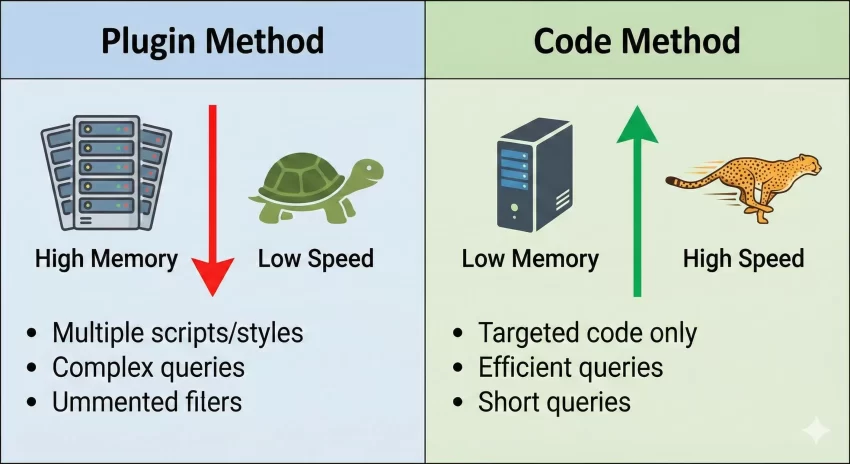
Before we dive into the PHP, let’s look at why manual implementation often beats a plugin. When you display related posts in WordPress using a massive third-party plugin, you often load scripts and styles on every page, even where they aren’t needed. Many plugins also perform complex relevance calculations on the fly, which can cripple a shared hosting environment.
By using a custom function, you ensure that you only display related posts in WordPress exactly where you want them, using efficient database queries that scale with your site.
The Logic: How to Find Related Content
To display related posts in WordPress effectively, we need to understand the logic. We aren’t just picking random posts; we are looking for posts that share a context with the current article. Usually, this context is defined by:
- Categories: Broad topics (e.g., “Development”).
- Tags: Specific topics (e.g., “PHP”, “Functions”).
For this tutorial, we will focus on categories, as they tend to provide the most relevant results for readers. The logic for our function will be:
- Get the ID of the current post.
- Get the categories assigned to the current post.
- Run a new
WP_Queryto find other posts in those same categories. - Exclude the current post ID (so it doesn’t link to itself).
- Output the results in a clean list.
You might also like:

Step 1: The Code to Display Related Posts in WordPress
We will create a function named pnet_related_posts_by_category. You can add this code to your theme’s functions.php file or, better yet, a site-specific plugin.
Here is the complete PHP snippet to display related posts in WordPress:
function pnet_related_posts_by_category() {
    // Get the current post ID
    $post_id = get_the_ID();

    // Get categories of the current post
    $categories = get_the_category($post_id);

    // If no categories, return nothing
    if ( ! $categories ) {
        return;
    }

    // Get the first category ID to keep it strict, or array_map for all
    $category_ids = array();
    foreach ( $categories as $individual_category ) {
        $category_ids[] = $individual_category->term_id;
    }

    // Arguments for the query
    $args = array(
        'category__in'   => $category_ids,
        'post__not_in'   => array( $post_id ),
        'posts_per_page' => 3, // How many posts to show
        'orderby'        => 'rand', // Randomize specific results
        'ignore_sticky_posts' => 1,
    );

    // The Query
    $pnet_query = new WP_Query( $args );

    // The Loop
    if ( $pnet_query->have_posts() ) {
        $output = '<div class="pnet-related-posts">';
        $output .= '<h3>You Might Also Like</h3>';
        $output .= '<div class="pnet-related-grid">';

        while ( $pnet_query->have_posts() ) {
            $pnet_query->the_post();

            $output .= '<div class="pnet-related-item">';
            if ( has_post_thumbnail() ) {
                $output .= '<a href="' . get_the_permalink() . '">';
                $output .= get_the_post_thumbnail( get_the_ID(), 'medium' );
                $output .= '</a>';
            }
            $output .= '<h4><a href="' . get_the_permalink() . '">' . get_the_title() . '</a></h4>';
            $output .= '</div>';
        }

        $output .= '</div>'; // .pnet-related-grid
        $output .= '</div>'; // .pnet-related-posts

        // Restore original Post Data
        wp_reset_postdata();

        return $output;
    }
}
Understanding the Code
In the code above, we utilize the WP_Query class. This is the standard way to fetch posts from the database. If you want to dive deeper into the parameters available, I highly recommend checking the official WP_Query documentation on the WordPress Codex.
Crucially, we use 'post__not_in' to ensure the article the user is currently reading doesn’t appear in the suggestions. This is a common mistake when beginners try to display related posts in WordPress manually.
Tip: The Ultimate Custom 404 Page WordPress Guide to Boost Retention : Stop Losing Visitors!
Step 2: Displaying the Function via Shortcode
Now that we have the logic, we need a way to output it. While you could hook this directly into the_content, using a shortcode gives you more flexibility to place it exactly where you need it.
Add this snippet below the previous function:
function pnet_related_shortcode() {
    return pnet_related_posts_by_category();
}
add_shortcode( 'pnet_related', 'pnet_related_shortcode' );
Now, you can simply use [pnet_related] in any post, page, or widget area to display related posts in WordPress instantly.
You might also like:

Step 3: Styling the Output
A list of links isn’t very enticing. To effectively display related posts in WordPress, visual appeal is key. We need a grid layout that draws the eye.
Add the following CSS to your theme’s style.css file or the Customizer’s “Additional CSS” section:
.pnet-related-posts {
    margin-top: 40px;
    padding-top: 20px;
    border-top: 2px solid #eee;
}

.pnet-related-grid {
    display: grid;
    grid-template-columns: repeat(auto-fit, minmax(250px, 1fr));
    gap: 20px;
}

.pnet-related-item img {
    width: 100%;
    height: auto;
    border-radius: 8px;
    transition: transform 0.3s ease;
}

.pnet-related-item img:hover {
    transform: scale(1.05);
}

.pnet-related-item h4 {
    font-size: 18px;
    margin-top: 10px;
}
Alternative: Using Tags Instead of Categories
Sometimes categories are too broad. If you have a “News” category, unrelated news items might show up together. In this case, you might prefer to display related posts in WordPress by Tags.
To do this, you simply change the argument in our PHP array. Replace the category__in lines with:
// Get tags of current post
$tags = get_the_tags($post_id);

if ($tags) {
    $tag_ids = array();
    foreach($tags as $individual_tag) $tag_ids[] = $individual_tag->term_id;

    $args = array(
        'tag__in' => $tag_ids,
        'post__not_in' => array($post_id),
        'posts_per_page' => 3,
    );
}
This modification allows you to display related posts in WordPress with laser-focused relevance. If an article is tagged “CSS Grid”, the related posts will also feature “CSS Grid”.
Common Issues When You Display Related Posts in WordPress
Even with code this simple, things can go wrong. Here are a few troubleshooting tips:
1. No Posts Appearing
If the section is blank, ensure your posts actually share categories. If you have a post in a unique category with no other articles, the query returns nothing. You might want to add a fallback to display related posts in WordPress based on recent posts if no category matches are found.
2. Formatting Looks Broken
If the grid isn’t aligning, check your theme’s CSS. Some themes have aggressive styling for div or h3 elements that might override our custom CSS. Inspect the element in your browser to debug.
Conclusion
Learning how to display related posts in WordPress without relying on heavy plugins is a significant step toward becoming a better developer and site owner. You save on resources, improve load times, and maintain complete control over the user experience.
By implementing the pnet_related_posts_by_category function, you ensure that your readers always have somewhere to go next, reducing your bounce rate and boosting your SEO signals. Whether you choose to filter by category or tag, the ability to display related posts in WordPress programmatically is a tool every site owner should have in their arsenal.
Try implementing this code on your staging site today and watch your engagement metrics climb!