Putting premium text in a public WordPress post and hiding it with CSS or JavaScript can leave the content accessible to non-subscribers in the page source or other delivery paths. This guide provides a practical WordPress Content Restriction approach: a site-specific PHP shortcode that checks a trusted, server-side subscriber entitlement before displaying its enclosed content. Authorized visitors receive the protected content; other visitors receive an appropriate fallback.
That shortcode controls the normal frontend rendering path, but it does not, by itself, make a public post private or create a complete paywall. REST API responses, feeds, excerpts, previews, caches, and other integrations may still expose the original post content. We will identify those boundaries and the tests needed to avoid treating hidden output as secure content storage.
- PHP 8.0+ and a WordPress site running a supported release.
- Administrator access and a staging environment for implementation and testing.
- A current backup of your database and site files.
- A site-specific or custom plugin for the code; do not add it to a parent theme.
- A membership, subscription, or billing integration that can reliably set and revoke a server-side subscriber entitlement. For staging, arrange a temporary test entitlement if needed.
- A test administrator account and a separate logged-in non-subscriber account. You should also be able to test as a logged-out visitor.
Choose the Entitlement Source and Define the Paywall Boundary
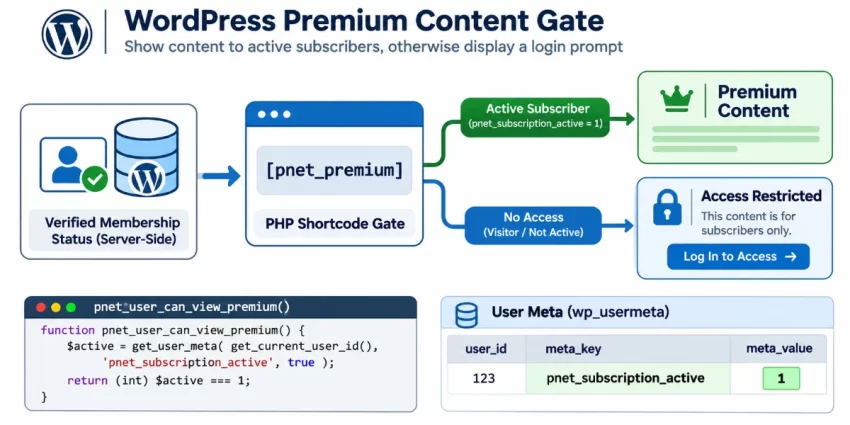
Before writing the shortcode, decide what qualifies a visitor for access. Use a trusted server-side signal from your membership or billing integration; a submitted form value, URL parameter, cookie, or JavaScript state is not proof of an active subscription. For this tutorial, the integration contract is that the verified subscription lifecycle sets the current user’s pnet_subscription_active user meta to the exact string 1 while access is active, then removes or changes that value when access ends.
This example meta key is not a universal WordPress subscription field. Your membership integration must write it through trusted server-side lifecycle code after verifying entitlement—not through a public request or an editor-controlled shortcode attribute. WordPress provides server-side user-meta functions for storing and retrieving this kind of value; see the official get_user_meta() reference.
The shortcode contract will be [pnet_paywall] protected content [/pnet_paywall]. Entitled users receive the enclosed content; visitors without access receive a safe fallback message, such as a prompt to sign in. Keep entitlement decisions on the server and do not accept an account ID or an “is subscriber” flag from the shortcode caller.
Set a clear boundary: this controls whether content appears in the normal frontend rendering path, but does not make a public post private. The original post may still be exposed through REST API responses, feeds, excerpts, previews, page caches, or third-party integrations. If complete content privacy, payment processing, renewals, or compliance requirements matter, use a mature membership system or a private-content architecture that controls every delivery path.
Security Boundary
Create a Site-Specific Plugin
Place the paywall code in a small plugin so it remains available if you change themes. In your site’s wp-content/plugins directory, create a folder named pnet-paywall, then create pnet-paywall.php inside it. Add the following complete plugin file; the implementation of the shortcode itself will be added in the next step.
<?php
/**
* Plugin Name: PixelNet Paywall
* Description: Adds subscriber-only content controls for this site.
* Version: 1.0.0
* Requires PHP: 8.0
* Text Domain: pnet-paywall
*/
if (!defined('ABSPATH')) {
exit;
}
/**
* Return the installed plugin version for use by this plugin's components.
*
* @return string
*/
function pnet_paywall_plugin_version() {
return '1.0.0';
}
[/code]
<p>The plugin header lets WordPress identify the file in the Plugins screen, while the direct-access guard prevents the PHP file from being run outside WordPress. The small version helper uses the required <code>pnet_</code> prefix and provides a single place for later plugin components to read the current version. Keep custom functions prefixed consistently to reduce the chance of collisions with WordPress core or other plugins.</p>
<p>Save the file, then sign in to the WordPress admin and open <strong>Plugins → Installed Plugins</strong>. Find <strong>PixelNet Paywall</strong> and select <strong>Activate</strong>. If it does not appear, check that the folder and filename match the paths above, that the plugin header is at the start of the file, and that there are no PHP syntax errors. Avoid placing this code in a parent theme’s <code>functions.php</code>: a theme change or update could remove the paywall functionality. Keep this plugin site-specific, and use a staging site before deploying edits to production.</p>
<div class="pn-contextual-link">
<i class="fa-sharp fa-light fa-lightbulb-on pn-icon" aria-hidden="true"> </i>
<p class="d-inline m-0"><strong>Did you know:</strong> You can <a href="https://www.pixelnet.in/blog/disable-wp-rocket-lazy-load/" title="Disable WP Rocket Lazy Load: Easily Boost LCP in 5 Simple Steps" contenteditable="false" style="cursor: pointer;">Disable WP Rocket Lazy Load</a> to prevent above-the-fold images from delaying Largest Contentful Paint (LCP), improve image discovery, and boost your WordPress Core Web Vitals without sacrificing lazy loading for other images.</p>
</div>
<h2 id="implement-paywall-shortcode">Implement the Subscriber Check and Shortcode</h2>
<p>Append this code to the site-specific plugin file created in the previous step, after its direct-access guard. The entitlement helper deliberately allows administrators through, then requires a logged-in user’s <code>pnet_subscription_active</code> user meta to equal the exact string <code>1</code>. Your trusted membership integration must maintain that value; the shortcode itself must never grant access based on visitor-supplied data.</p>
[code lang='php']<?php
/**
* Check whether the current user can view premium content.
*
* @return bool
*/
function pnet_user_can_view_premium(): bool {
if (current_user_can('manage_options')) {
return true;
}
if (!is_user_logged_in()) {
return false;
}
return get_user_meta(get_current_user_id(), 'pnet_subscription_active', true) === '1';
}
/**
* Render content enclosed by the [pnet_paywall] shortcode.
*
* @param array $atts Shortcode attributes.
* @param string|null $content Enclosed content.
* @return string
*/
function pnet_paywall_shortcode($atts, $content = null): string {
$atts = shortcode_atts(
array(
'message' => 'An active subscription is required to view this content.',
),
is_array($atts) ? $atts : array(),
'pnet_paywall'
);
$fallback = is_scalar($atts['message'])
? (string) $atts['message']
: 'An active subscription is required to view this content.';
if (!pnet_user_can_view_premium()) {
$message = esc_html($fallback);
if (!is_user_logged_in()) {
$login_url = esc_url(wp_login_url());
return '<p>' . $message . ' <a href="' . $login_url . '">Log in</a>.</p>';
}
return '<p>' . $message . '</p>';
}
return wp_kses_post(do_shortcode((string) $content));
}
add_shortcode('pnet_paywall', 'pnet_paywall_shortcode');
Use the shortcode as [pnet_paywall]Protected content[/pnet_paywall]. The optional message attribute changes the plain-text fallback, for example [pnet_paywall message="Please sign in to continue."]...[/pnet_paywall]. Do not add attributes for a user ID, entitlement status, or arbitrary HTML: access is determined from the current user’s server-side entitlement, and the fallback is escaped before output.
Shortcode output is returned rather than echoed so WordPress can place it correctly in the content rendering flow. For an entitled viewer, do_shortcode() intentionally processes nested shortcodes; wp_kses_post() then restricts the rendered result to HTML permitted in post content. Visitors without access receive only the escaped fallback and, when logged out, an escaped login URL.
Connect the Shortcode to a Real Subscription Lifecycle
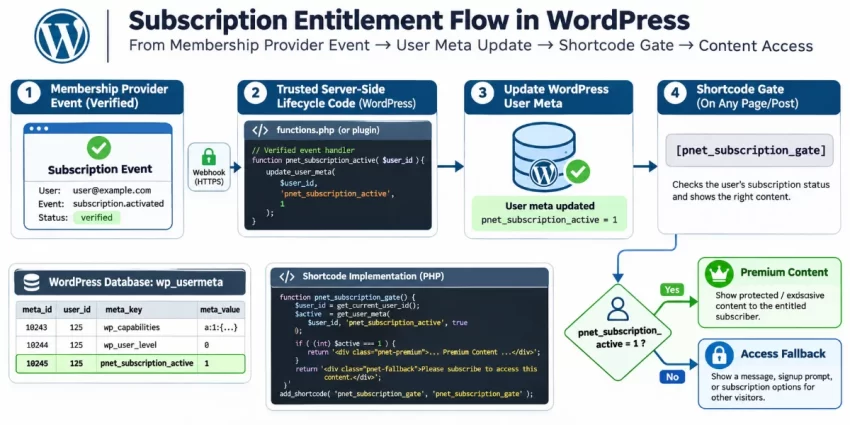
The shortcode now checks the current user’s pnet_subscription_active user meta, but that value is useful only if a trusted integration keeps it accurate. Connect the entitlement helper to your membership or payment provider’s server-side API or lifecycle hooks. Set the value to the exact string 1 only after the provider confirms that the user is entitled to access; when a subscription expires, is canceled, or otherwise loses access, remove the meta value or change it so the check fails.
The meta key is a tutorial contract, not a standard WordPress subscription field. Map it to the provider’s verified events and the correct WordPress account; never grant access through a public AJAX handler, a query parameter, a cookie, or a shortcode attribute. Test the complete lifecycle, including initial activation, renewal, cancellation, failed payment, expiration, and account deletion. Confirm that each event updates or clears the entitlement for the intended user, and that delayed or repeated events do not leave stale access behind.
Production Entitlement
Place the Shortcode Around Premium Content
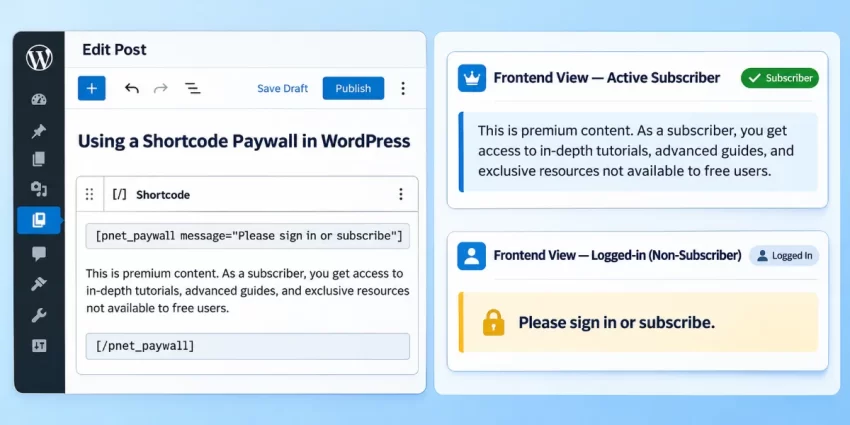
With the shortcode registered, add it around the specific material that should appear only for entitled users. In the WordPress block editor, use a Shortcode block; in another editor or supported content area, confirm that shortcodes are processed there. Keep the protected block focused: text outside the opening and closing tags is not gated by this shortcode.
[pnet_paywall message="Please sign in or subscribe to read this premium guide."]
<p>Premium content: subscribers can access the complete analysis, implementation notes, and member resources in this section.</p>
[/pnet_paywall]
Both shortcode tags are required, and the closing tag must match pnet_paywall. The message attribute supplies a plain-text fallback; it does not grant access or accept HTML. A logged-out visitor sees the fallback and login link, while a logged-in non-subscriber sees the fallback message. An active subscriber—and an administrator with the deliberate capability bypass—sees the enclosed content. Test each state in a separate browser session rather than relying only on your administrator account.
Use a Shortcode block for a straightforward editor test, then check the rendered page as each account type. The subscriber should see the premium paragraph; the other accounts should not. This verifies the normal frontend result, not every way public post content might be delivered. Continue with the API, feed, and cache checks in the next step before treating the material as private.
You might also like:
Test Access States and Protect Other Content Paths
Validate the shortcode with four separate sessions: an administrator, an active subscriber, a logged-in non-subscriber, and a logged-out visitor. Confirm that the administrator and subscriber receive the protected content, while the other visitors see only the fallback. If the protected content contains a permitted nested shortcode, verify that it renders for authorized users and does not run for unauthorized visitors.
Do not stop at the visible page. Inspect its source and test the post’s REST API representation, feeds, excerpts, search results, previews, and any alternate endpoints or integrations that return content. A public post can expose its original shortcode content through these paths even when the normal frontend rendering shows a fallback. If that exposure is unacceptable, use private posts or a membership solution that controls all relevant delivery paths.
Test caching as well as authorization. Purge page, object, and CDN caches, then repeat the tests with different accounts. Configure cache bypass or variation rules so a cached response containing subscriber content cannot be served to a non-subscriber. Browser cache clearing alone does not verify server-side or CDN behavior.
For details on how WordPress registers shortcode callbacks and processes shortcode content, see the official WordPress Shortcode API guide. Treat successful shortcode rendering as one check—not proof that the underlying public post is private.
You might also like:
Common Errors
When a paywall behaves unexpectedly, check both the shortcode’s normal rendering path and the trusted entitlement data behind it. Diagnose access in separate sessions for each account type; an administrator’s view alone cannot confirm that subscribers and other visitors receive the correct output.
Shortcode prints literally
Confirm that the PixelNet Paywall plugin is active and that add_shortcode('pnet_paywall', 'pnet_paywall_shortcode') runs when the plugin loads. Check the shortcode tag for spelling errors, and make sure both the opening and closing tags are present and match. Also verify that the content area or block you used processes shortcodes.
Active subscribers see the fallback
Check that the subscription integration updates the user meta key pnet_subscription_active for the WordPress account currently signed in, using the exact string 1. Confirm the provider’s status and account mapping, and test renewal or cancellation updates. A similar-looking value such as true will not pass this implementation’s strict comparison.
Visitors can still find protected text
Look for premium material placed outside the shortcode tags, then inspect page source and alternate delivery paths such as REST responses, feeds, excerpts, previews, and search results. Also check theme or plugin filters that may expose content, and ensure a cached subscriber response is not being served to another visitor. A shortcode does not make a public post private.
Nested shortcodes fail or behave unexpectedly
Verify that do_shortcode() runs only after the entitlement check succeeds. If authorized output is still wrong, test the nested shortcode separately and review its own access checks, output, and required context. Do not move nested processing ahead of the paywall check to troubleshoot unauthorized output.
A code edit causes a fatal error
Make changes on staging, inspect PHP syntax and server error logs, and check for duplicate function names. Restore the last known-good plugin file if the site becomes unavailable, then reapply changes in small, testable edits.
Accounts see inconsistent results
Purge page, object, and CDN caches, then retest with distinct logged-in and logged-out sessions. Browser cache clearing alone is not enough; configure cache rules to prevent subscriber HTML from reaching non-subscribers.
Summary
A site-specific plugin, a trusted server-side subscriber entitlement, and a shortcode callback give you a practical way to control whether premium content appears in the normal frontend rendering path. The example checks the current user’s entitlement before processing and returning the enclosed content; visitors without access receive an escaped fallback instead. Keeping the implementation in a plugin also means it can remain active when you change themes.
That rendering check is not complete content privacy. A shortcode alone does not secure the original content in a public post, REST API responses, feeds, excerpts, previews, or other integrations. Nor does it prevent a cache from delivering subscriber output to someone else. If the material must be private across every delivery path, use private content controls or a membership solution designed to protect those paths—not just the rendered page.
Before launch, work through these production checks:
- Connect verified subscription lifecycle events to the entitlement, including activation, renewal, cancellation, failed payment, and expiration.
- Test administrator, active subscriber, logged-in non-subscriber, and logged-out access in separate sessions; inspect alternate content paths as well as the frontend.
- Validate page, object, and CDN cache behavior so authorized output cannot be served to an unauthorized visitor.
Recheck the integration whenever account or subscription workflows change, and keep testing revocation as carefully as granting access. With those boundaries understood, this implementation provides a useful frontend gate for WordPress Content Restriction while making clear when a broader access-control system is needed.