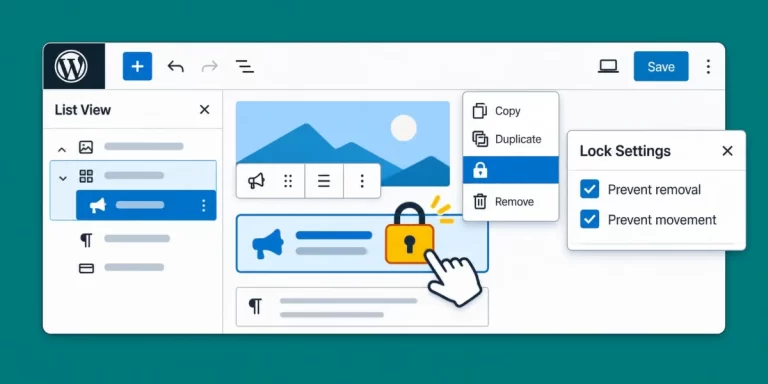
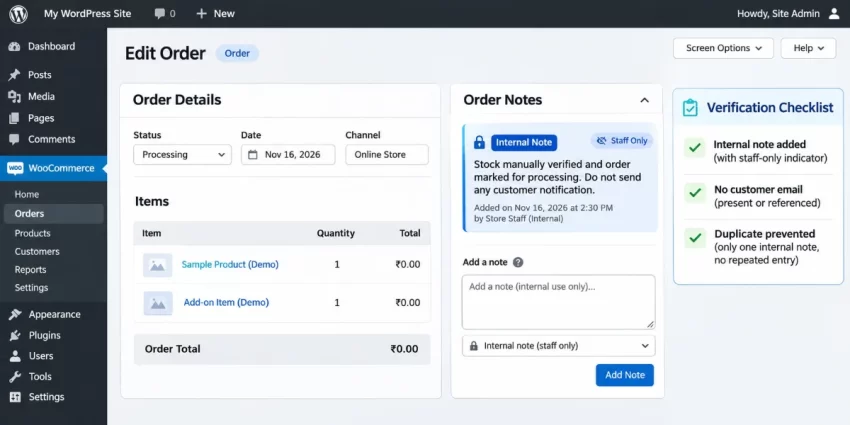
Order workflows often need to record fulfillment, review, or integration details, but a customer-facing note can expose internal information or send an unwanted email. This guide shows how to add WooCommerce Admin Order Notes privately through WooCommerce’s order API and connect the code to a controlled event. Internal notes appear in the order’s administration notes area rather than as customer-visible notes.
You’ll prepare a site-specific implementation, use a reusable helper and an appropriate WooCommerce hook, then test note privacy and troubleshoot common errors. Before making changes, make sure you have the following:
- A WordPress site running WooCommerce, plus a staging environment for testing.
- PHP 8.0+ knowledge and access to create or edit a small site-specific plugin.
- A recent backup of your database and site files.
- An administrator account with permission to view and edit WooCommerce orders.
- A test order and a way to inspect its notes and check related email behavior.
Choose a safe place for the custom code
Put this functionality in a small site-specific plugin rather than your parent theme. A plugin remains active if you change themes, keeps order-workflow logic separate from presentation, and can be disabled without editing theme files. Avoid relying on a temporary code-snippet entry for production behavior unless your team tracks and deploys that snippet through its normal code-review process.
Create a directory such as wp-content/plugins/pnet-order-admin-notes/, then add a PHP file named pnet-order-admin-notes.php. The starter below gives the plugin a WordPress-readable header, exits when loaded outside WordPress, and waits until plugins have loaded before checking for WooCommerce. You can add the note helper and its order-event hook to this file in the following steps.
<?php
/**
 * Plugin Name: PixelNet Order Admin Notes
 * Description: Adds private administrative notes to WooCommerce orders.
 * Version: 1.0.0
 * Requires PHP: 8.0
 */

defined('ABSPATH') || exit;

function pnet_order_admin_notes_init() {
    if (!class_exists('WooCommerce')) {
        return;
    }

    // Register order-note functionality here.
}
add_action('plugins_loaded', 'pnet_order_admin_notes_init');
Save the file and activate the plugin from Plugins in the WordPress dashboard. The function uses the required pnet_ prefix to reduce the risk of naming conflicts. Keep the plugin in version control where available, deploy it to staging first, and test with a disposable order before promoting the change. For a quick manual note, an administrator can use the order editor; this server-side plugin is for recording notes consistently when a chosen workflow event occurs.
Backup Required
Understand internal and customer order notes
WooCommerce stores order notes as comments associated with an order and presents them in the order’s administration notes area. Their customer-note status determines whether a note is intended only for store staff or is customer-facing. Use WooCommerce’s order methods to create notes rather than inserting comments directly; the API handles the order relationship and relevant WooCommerce behavior, including compatibility with different order-storage setups.
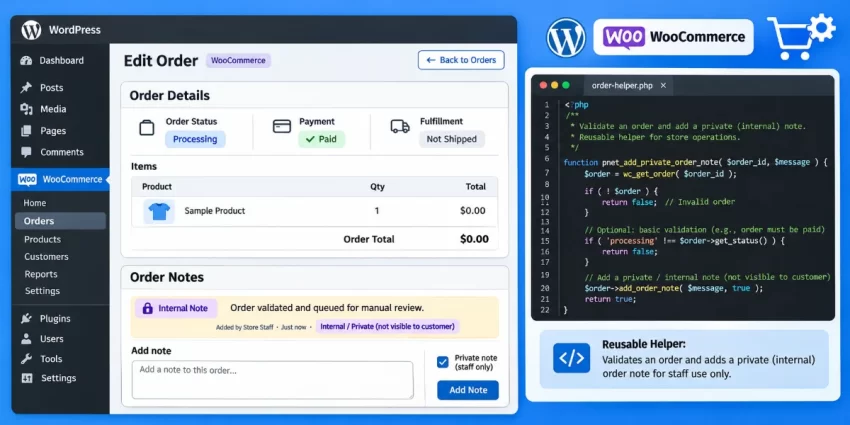
The second argument to WC_Order::add_order_note() is the customer-note flag. Pass false (or 0) for an internal note. Pass true (or 1) only when the note is meant for the customer; customer notes may trigger a notification, depending on WooCommerce email behavior and store configuration. For staff-only operational details, explicitly pass false so the intended privacy is clear to anyone reviewing the code.
The optional third argument, $added_by_user, controls whether WooCommerce attributes the note to the current user. Set it deliberately: use true when the action should be attributed to a logged-in user, and consider false for automated work that should use WooCommerce’s system attribution. In background jobs or other contexts without a logged-in user, verify attribution behavior in staging rather than assuming a particular staff member will be recorded.
Review the official WooCommerce WC_Order code reference for the method signature and related order methods. This distinction is important: an internal note records staff context in the admin history, while customer updates should be created intentionally through a customer-facing channel.
Create a reusable helper for private notes
Add a helper to your site-specific plugin so order-note creation has one consistent validation and privacy policy. It accepts an order ID and note text, loads the order with wc_get_order(), and rejects invalid orders or empty content before changing anything. The text should come from trusted server-side values; this helper trims and sanitizes it as plain text rather than accepting arbitrary markup.
The function returns the new note’s comment ID when WooCommerce creates it, or false if validation fails or the API does not return a usable ID. Its second argument to add_order_note() is explicitly false, marking the note as internal. The third argument is also explicit: the default false avoids claiming that an automated action was performed by the current user; pass true only when attribution to the logged-in user is intended.
function pnet_add_private_order_note($order_id, $note, $added_by_user = false) {
    if (!function_exists('wc_get_order') || !is_scalar($order_id)) {
        return false;
    }

    $order_id = absint($order_id);
    if ($order_id add_order_note($note, false, (bool) $added_by_user);

    if (!is_numeric($note_id) || (int) $note_id < 1) {
        return false;
    }

    return (int) $note_id;
}
Call this helper from server-side code after checking the relevant order event and preparing the message. For example, a caller can test the returned value to determine whether note creation succeeded, then log a failure or set an idempotency flag only after success. Do not use wp_insert_comment() or write directly to order storage: WooCommerce’s order API manages the association and avoids assumptions about how orders are stored.
Did you know: You can effortlessly bypass bloated plugins and implement native WooCommerce wholesale pricing strategies directly via WordPress hooks to offer flawless B2B discounts safely?
Attach the helper to a controlled WooCommerce event
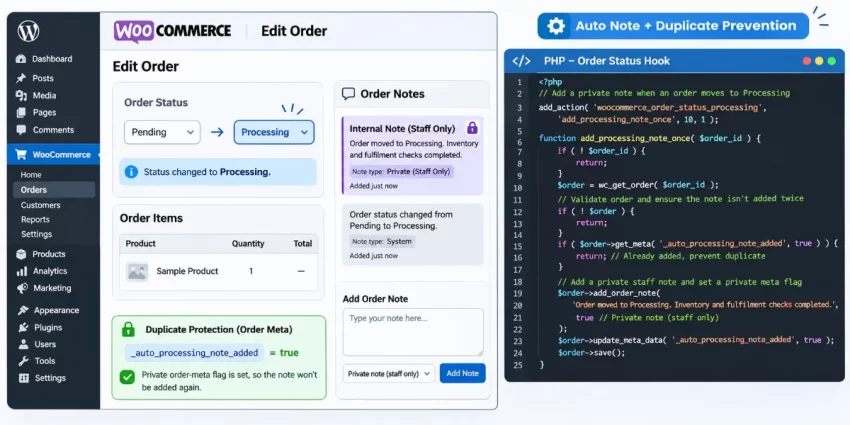
To record an operational detail when an order enters Processing, connect the helper to WooCommerce’s woocommerce_order_status_processing action. WooCommerce fires this status-specific hook during a status transition and supplies the order ID (and, in standard usage, the order object). This is more deliberate than adding notes during page loads, where a callback could run repeatedly without a meaningful order change.
Add the callback below after the helper from the previous step in your site-specific plugin. It reloads and validates the order using WooCommerce’s API, checks a dedicated order-meta flag, and sets that flag only after the helper reports success. Order metadata is read and written through the order object, avoiding assumptions about whether the store uses HPOS or legacy order storage.
function pnet_note_order_entered_processing($order_id, $order = null) {
    if (!is_scalar($order_id) || !function_exists('wc_get_order')) {
        return;
    }

    $order_id = absint($order_id);
    if ($order_id get_meta($meta_key, true)) {
        return;
    }

    if (!function_exists('pnet_add_private_order_note')) {
        return;
    }

    $note_id = pnet_add_private_order_note(
        $order_id,
        'Order entered Processing. Review fulfillment workflow and integration status.'
    );

    if ($note_id) {
        $order->update_meta_data($meta_key, 1);
        $order->save();
    }
}
add_action(
    'woocommerce_order_status_processing',
    'pnet_note_order_entered_processing',
    10,
    2
);
The status-specific action is suitable when entering Processing marks a real business transition in your store. Choose another lifecycle hook if your fulfillment process records the relevant event elsewhere. The meta flag prevents ordinary repeat executions from adding another note; it is not a replacement for testing concurrency-sensitive workflows. The helper explicitly creates an internal note, not a customer update, and this administrative history does not replace customer notifications or a fulfillment system.
Pro Tip
You might also like:
Test the note and verify it stays private
Run this check on staging with a disposable order before deploying the plugin to a live store. Use an order that can safely move through the status your callback handles, and note its current status so you can confirm that the intended transition actually occurs. Avoid using real customer details; a test order with a clearly marked test email makes email checks safer.
- Trigger the workflow. In the WooCommerce order editor, move the test order into Processing using the normal workflow and save the change. If the order is already Processing, change it to an appropriate earlier status first, then transition it again. Simply reloading the order screen may not fire the status-transition action.
- Inspect the admin notes. Open the order’s notes area in the dashboard and find the entry created by the callback. Confirm it appears as an internal note, not as a customer note. Check that its text is accurate, contains no unintended markup or sensitive data, and is attached to the correct order.
- Check customer-facing behavior. Review the customer’s order view, any email logs, and the test mailbox. The internal note should not appear in customer-facing order details or generate a customer-note email. Other emails may be triggered by the order’s status change, so distinguish those normal notifications from a note notification.
- Verify duplicate protection. Trigger the same meaningful transition again if your test workflow permits it, or inspect the order’s notes after the callback has another opportunity to run. Confirm that the dedicated order-meta flag prevents an additional copy. Do not treat a page refresh alone as proof that the status hook fired a second time.
If the note is absent, confirm the plugin is active, check the PHP error log, and verify that the selected status transition and callback signature match your WooCommerce workflow. Once staging checks pass, deploy through your normal release process and repeat a controlled verification on production without exposing internal details.
Did you know: Customizing the visual hierarchy of your single product pages can significantly boost user engagement? You can seamlessly configure a WooCommerce price below description layout using just a few lines of highly optimized, native WordPress PHP code without relying on heavy page builders.
Common Errors
When an automated note is missing, duplicated, or visible to a customer, check the order lookup, hook behavior, and arguments passed to WooCommerce’s order API. Diagnose the failure on staging first, using a test order and the relevant PHP error log.
Order lookup returns false
Confirm the hook supplies an order ID, that the ID is a positive integer, and that the order still exists. Some hooks pass an order object instead of an ID, so verify the callback signature for the event you selected. Load and save orders through wc_get_order() and WooCommerce order methods; do not query order tables directly. This also avoids assumptions that can break with HPOS.
A customer receives a note email
Inspect the second argument to add_order_note(). For a private administrative note, explicitly pass false; true marks the note as customer-facing and may trigger a notification. Also check whether another part of the workflow creates a customer note or sends an email independently.
The note appears more than once
A status hook or extension callback may run more than once, especially during retries or repeated transitions. Use a dedicated order-meta idempotency flag, check it before adding the note, and set it only after note creation succeeds. If duplicates persist, confirm that the flag is saved on the same order and that another callback is not generating the same note.
The note is missing or attributed unexpectedly
Check that the plugin is active, the callback is registered with the correct argument count, and the expected event actually occurred. Review PHP errors and, on staging, log the order ID and hook execution. The third add_order_note() argument controls whether the note is attributed to the current user. Background jobs may have no logged-in user, so choose this argument deliberately and verify the resulting attribution.
Note text is malformed or a custom workflow behaves differently
Trim and validate generated text, and do not insert untrusted request data directly into a note. Treat note content as plain text and escape it appropriately wherever you display it outside WooCommerce’s order notes interface. For custom statuses or asynchronous workflows, identify the extension’s actual lifecycle event and test it on staging; do not assume the standard Processing hook will run.
You might also like:

Summary
Programmatically recording fulfillment checks, review decisions, or integration events can improve an order’s staff history, but using a customer-facing note for internal context risks exposing operational details or sending an unintended notification. The safe approach is to load the order with wc_get_order(), confirm it is a valid WC_Order, validate and trim the note text, and create the note with $order->add_order_note($note, false, false). The explicit false customer-note argument keeps the entry internal; the third argument should also be chosen deliberately to control attribution.
Keep the implementation in a site-specific plugin, then connect its helper to a deliberate event that represents a real order transition. Use WooCommerce order methods for note and metadata operations rather than writing directly to database tables, and add an idempotency guard when an event could be retried or repeated. Set that guard only after the note is successfully created. These practices help keep the implementation maintainable and compatible with WooCommerce storage changes, including HPOS.
Before deployment, test the complete workflow on staging with a disposable order. Confirm that the note appears in the correct order’s admin notes area as internal, that the customer does not receive it or see it in customer-facing details, and that triggering the event again does not create a duplicate. Also verify the chosen hook and its arguments against your store’s actual status workflow, especially if an extension or background process changes order states.
Use staff-only notes for operational context; send customer updates through an intentional customer-facing channel instead. With validation, a controlled hook, duplicate protection, and privacy checks in place, WooCommerce Admin Order Notes can document order events without confusing internal history with customer communication.