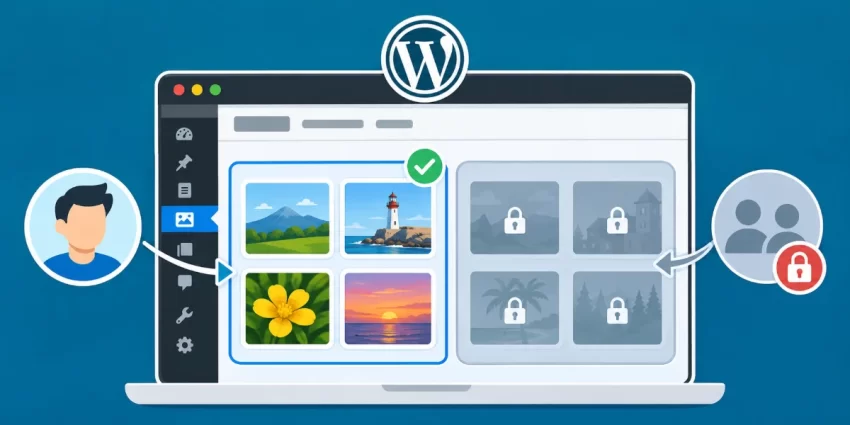
WordPress users can often browse uploads added by other people, leaving the Media Library cluttered and potentially revealing sensitive context through filenames or previews. This guide shows how to use a small PHP implementation to restrict WordPress Media Library Access in both the admin list and the media-selection modal, so eligible non-administrator users see their own uploads while administrators retain full visibility. This is an interface-level restriction: it does not prevent access to files through publicly reachable URLs. You’ll also learn where to place the code, how to test it with separate accounts, and how to troubleshoot common issues.
Before making changes, prepare a safe test environment and confirm you have the access and accounts needed to verify attachment ownership:
- A maintained WordPress installation and PHP 8.0 or later, or the higher PHP version required by your site.
- A recent site backup and, preferably, a staging site for testing.
- Administrator access and a safe way to add PHP, preferably through a small site-specific plugin. A child theme’s
functions.phpis an alternative. - A non-administrator test account with the
upload_filescapability and at least one attachment uploaded by that account. For reliable comparison, arrange a second account with its own upload, too.
Prerequisites
Prepare a safe environment before changing attachment queries. The test account must be able to upload files so you can verify that its own attachments remain visible while uploads belonging to other users are filtered out.
- A maintained WordPress installation running PHP 8.0 or later, or the higher PHP version supported by your site.
- A recent backup and, preferably, a staging site where you can test the change before deploying it.
- Administrator access and a safe way to add PHP, preferably a small site-specific plugin. A child theme’s
functions.phpis an alternative. - A non-administrator test account with the
upload_filescapability and at least one attachment uploaded by that account. For comparison, prepare a second account with its own upload.
Define the access rule and its limits
WordPress stores an author value on each attachment, which typically identifies the account that uploaded it. The rule for this implementation is straightforward: when a user who is not an administrator requests media, constrain the attachment query to that user’s ID. This changes which attachment records are returned; it does not transfer ownership or rewrite the attachment’s author.
That rule must be applied to both places users browse media. The standard Media Library list uses an admin query, while the grid and editor’s media-selection dialog request attachments through AJAX. Filtering only the list can leave uploads from other accounts visible in the modal. WordPress provides the ajax_query_attachments_args filter for modifying the arguments used by the AJAX attachment query; the list query needs its own narrowly scoped handling.
For the policy in this guide, users who can upload files see only their own attachments, while users with the manage_options capability retain full visibility. This is a deliberate capability-based administrator exception, rather than a check for a particular username or role name. Before implementing it, confirm that this matches your site’s role policy; a custom role that should see all media may need an explicit exception of its own.
Interface visibility is not file privacy
Keep this distinction in mind when testing: success means another user’s attachment is absent from the supported Media Library views, not that its file has become inaccessible everywhere. The next step applies the same ownership rule to the admin list and AJAX-backed modal without changing unrelated queries.
Did you know: You can Lock Blocks In WordPress to keep essential page layouts intact while giving clients room to edit content? Learn how a few simple settings can prevent accidental deletions and protect your carefully designed WordPress pages.
Add the media-query restriction
For a durable implementation, add the code below to a small site-specific plugin rather than editing WordPress core. Create a folder such as wp-content/plugins/pnet-media-ownership/, then save the code as pnet-media-ownership.php inside it. A child theme’s functions.php can also work, but the restriction will stop loading if you change themes.
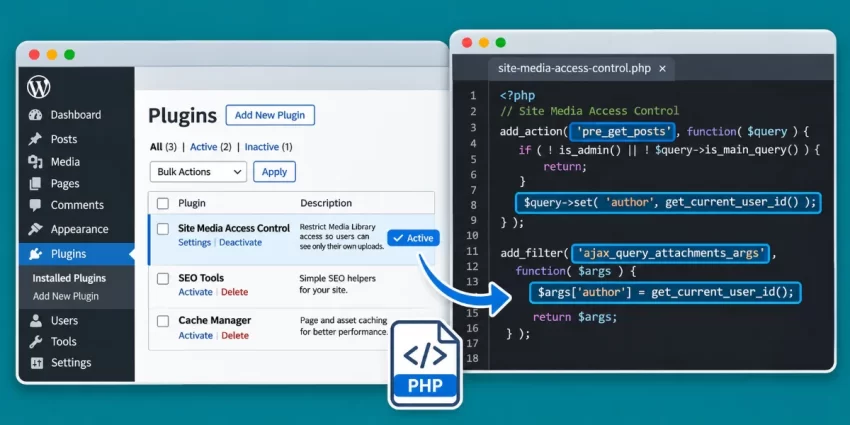
The first function limits only the main admin query for attachments. The second applies the same author condition to the AJAX request used by the media modal. Both leave administrators with manage_options untouched and apply the rule to other users who have the upload_files capability.
<?php
/**
 * Plugin Name: PixelNet Media Ownership Filter
 * Description: Shows eligible users only their own attachments in core Media Library views.
 * Version: 1.0.0
 */

function pnet_filter_admin_attachment_query( $query ) {
    if ( ! is_admin() || ! $query->is_main_query() ) {
        return;
    }

    if ( 'attachment' !== $query->get( 'post_type' ) ) {
        return;
    }

    if ( current_user_can( 'manage_options' ) || ! current_user_can( 'upload_files' ) ) {
        return;
    }

    $query->set( 'author', get_current_user_id() );
}
add_action( 'pre_get_posts', 'pnet_filter_admin_attachment_query' );

function pnet_filter_media_modal_query( $args ) {
    if ( current_user_can( 'manage_options' ) || ! current_user_can( 'upload_files' ) ) {
        return $args;
    }

    $args['author'] = get_current_user_id();
    return $args;
}
add_filter( 'ajax_query_attachments_args', 'pnet_filter_media_modal_query' );
Save the file, then activate PixelNet Media Ownership Filter from Plugins in the WordPress admin. Check that the plugin activates without a PHP error before deploying the change to production. The manage_options check is a capability-based administrator exception; if your site has a custom role that should see all uploads, add a deliberate capability check for that role rather than relying on a role name or username.
Test before production
You might also like:
Test both Media Library views
Verify the restriction with separate accounts that have distinct uploads. Using two non-administrator accounts helps prove that the result is based on attachment ownership, rather than an empty library or a test account that happens to own every file. Confirm that both accounts can upload files before starting.
Check the Media Library list
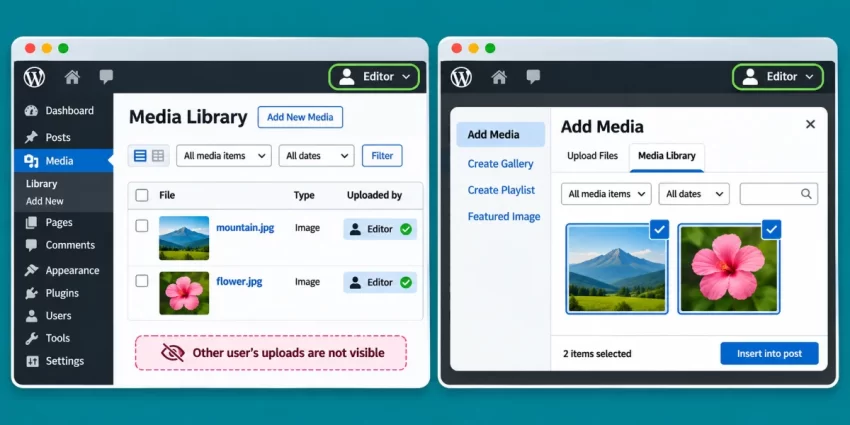
Sign in as the first non-administrator test user and open Media > Library. Select list view if the library opens in grid view. Confirm that attachments uploaded by this account appear and that a file uploaded by the second test account does not. If the first account has no uploads, add a small test image while signed in as that user, refresh the list, and confirm it appears.
Check the grid and editor modal
Switch the Media Library to grid view and check the same ownership behavior. Then open a post or page editor as the test user and choose Add Media (or the equivalent media control in your editor). The modal should show the user’s own attachment, but not the other account’s. Upload another test file as the current user, refresh or reopen the modal, and verify that the new file appears in both the modal and the library.
Confirm the administrator exception
Sign out and repeat the checks as an administrator with the manage_options capability. The administrator should be able to see attachments from both test users in list view and in the editor’s media modal. If either view differs from the expected results, record which account and view were affected before troubleshooting; this makes it easier to distinguish a query-filter issue from an ownership or account setup issue.
Finally, sign back in as each test user and verify the results again after refreshing the pages. A successful check confirms that regular users see their own uploads in both supported views while administrator visibility remains unchanged. It does not test or restrict access through direct file URLs.
You might also like:
Common Errors
If the restriction works in one view but not another, troubleshoot the list table and media modal separately. The list is filtered through pre_get_posts, while the core modal uses the ajax_query_attachments_args filter. Confirm that the modal filter is registered and returns its modified argument array. If a plugin or custom editor replaces the core media query, its browser may not use that filter; investigate that component’s query behavior rather than assuming the core modal rule applies.
Neither view is filtered
Check that the site-specific plugin is active, the PHP file has no syntax error, and both hooks are spelled correctly. Verify the test account is not an administrator with the manage_options capability, because the implementation intentionally preserves full visibility for that capability. Also confirm the account has upload_files; the supplied functions leave users without that capability unchanged.
The user sees no media
Attachment ownership is based on the attachment’s author, not on who currently edits a post that uses the file. Older uploads may have been added by an administrator or another account, so they will not appear for the test user. Check the attachment author in the admin interface or database, then test with a file uploaded while signed in as that user. Do not change ownership merely to make the library appear populated unless that matches your site’s intended policy.
Other attachment queries are affected
The pre_get_posts callback should stay narrowly scoped to the admin’s main attachment query. If another admin screen or workflow is unexpectedly filtered, add a check for the intended screen—for example, the Media Library screen—alongside the existing admin, main-query, and attachment-type checks. Avoid applying the author condition to every admin query, since that can change unrelated workflows.
A hidden file still opens by URL
This behavior is expected: filtering Media Library results does not restrict direct requests to files in the uploads directory. If files must be private, use a separate access-controlled storage and delivery design that verifies authorization before serving them. Likewise, custom REST endpoints and third-party media browsers may need their own authorization checks and attachment-query filtering; this implementation does not secure those routes automatically.
Conclusion
Filtering attachment queries in both the admin list and the media-selection modal gives non-administrator users a consistent view of their own uploads. The implementation uses pre_get_posts for the main admin attachment query and ajax_query_attachments_args for the modal’s AJAX-backed query. It applies the current user’s ID as the attachment author while leaving users with the manage_options capability able to browse all media.
Keep this code in a small site-specific plugin where possible, so it remains active if the site changes themes. After activation, test with separate non-administrator accounts that have distinct uploads: each should see its own files in list view and in the editor’s media modal, while an administrator should still see both users’ files. Retest after WordPress, editor, or media-plugin changes, since custom media browsers may use different queries.
This is a visibility rule for supported Media Library interfaces, not a file privacy mechanism. It does not change attachment ownership or stop someone from opening a publicly accessible upload URL. If your site needs to protect the files themselves, use private storage or another access-controlled delivery system that verifies permissions before serving each file, and secure custom REST endpoints separately. With those limits understood and both views verified, this focused change can reduce clutter and keep users’ media browsing appropriately scoped. In short, **WordPress Media Library Access** can be restricted by uploader without removing administrators’ full visibility.