There are few things more terrifying for a developer than finishing a site migration, logging in, and seeing a shattered layout. The text is there, but the images are gone, and every internal link leads to a 404 error page. If you are staring at a screen full of missing image icons, don’t panic. You simply need to learn how to fix broken links in WordPress to restore your site to its former glory.
Migration issues are a rite of passage for every WordPress professional. Whether you have moved from a local development environment (like XAMPP or LocalWP) to a live server, or you switched domains entirely, the database often retains the old URL structure. This mismatch is what causes the chaos. In this comprehensive guide, we will walk you through the safest, most effective methods to fix broken links in WordPress, ensuring your hard work doesn’t go to waste.
Why Do Links Break After Migration?
Before we dive into the solutions, it is crucial to understand the why. Unlike some other Content Management Systems that use relative paths (e.g., /images/logo.png), WordPress stores absolute URLs in the database (e.g., http://localhost/site/images/logo.png).
When you move the files and import the database to a new domain, those absolute paths remain hardcoded to the old location. To fix broken links in WordPress effectively, you have to find every instance of the old URL in the database and replace it with the new one. While this sounds daunting, we have several ways to handle it, ranging from beginner-friendly plugins to advanced developer scripts.
Prerequisite: Always Backup Before You Start
We are about to perform “Search and Replace” operations on your database. If a typo occurs during this process, it can break your site even further. Before you attempt to fix broken links in WordPress using the methods below, please ensure you have a fresh backup of your SQL database.
Method 1: The Plugin Route (Recommended for Beginners)
If you are not comfortable writing code or running SQL queries, using a plugin is the safest bet. The “Better Search Replace” plugin is the industry standard for this task because it handles serialized data correctly. Serialized data is how PHP stores arrays in the database; a standard text search-and-replace will break these arrays, causing widgets and theme settings to disappear.
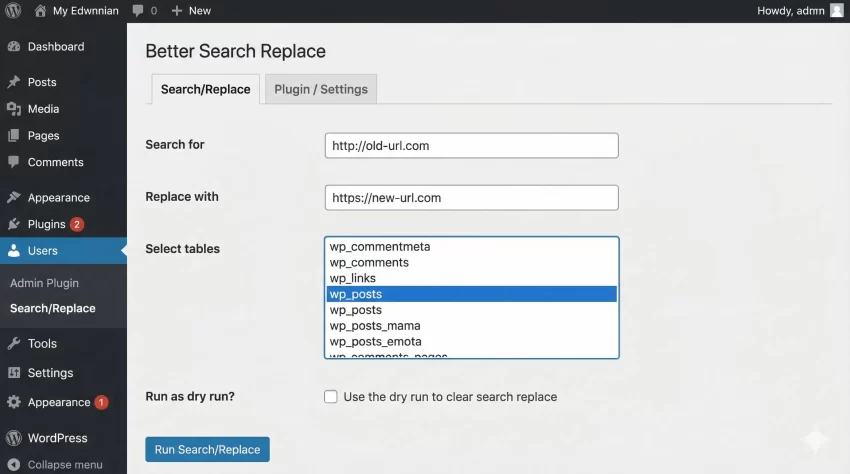
To fix broken links in WordPress with this method:
- Install and activate the Better Search Replace plugin.
- Go to Tools > Better Search Replace.
- In the “Search for” field, enter your OLD URL (e.g.,
http://localhost/mysite). - In the “Replace with” field, enter your NEW URL (e.g.,
https://www.example.com). - Select the tables you want to update. Usually, you want to select all of them, but specifically
wp_postsandwp_postmetaare crucial. - Check the “Run as dry run” box first. This allows you to see how many changes will be made without actually modifying the database.
- If the dry run looks correct, uncheck the box and run the search/replace to fix broken links in WordPress permanently.
You might also like:
Method 2: Using WP-CLI (The Professional Way)
If you have SSH access to your server, WP-CLI is arguably the fastest and most reliable way to fix broken links in WordPress. It is robust, fast, and handles serialized data automatically.
Once you are logged into your server terminal, navigate to your WordPress root directory. You can check the current site URL with this command:
wp option get home
To perform the replacement, use the search-replace command. This is incredibly powerful and will scan your entire database.
wp search-replace 'http://old-domain.com' 'https://new-domain.com' --all-tables
If you want to test it first (similar to the dry run in plugins), add the --dry-run flag:
wp search-replace 'http://old-domain.com' 'https://new-domain.com' --all-tables --dry-run
Using the command line is a hallmark of a senior developer. It removes the need for installing temporary plugins and executes the logic much faster, helping you fix broken links in WordPress in seconds.
Tip: Fix WordPress Upload Failed to Write File to Disk Error Fast (Proven Solutions)
Method 3: The SQL Approach (For Database Administrators)
Sometimes you might not have access to WP-CLI, or you might prefer working directly within phpMyAdmin. You can run raw SQL queries to update your content. However, warning: standard SQL queries do NOT handle serialized data. Use this method only if you are sure your serialized arrays do not contain URLs, or use it specifically for the post content body where serialized data is rare.
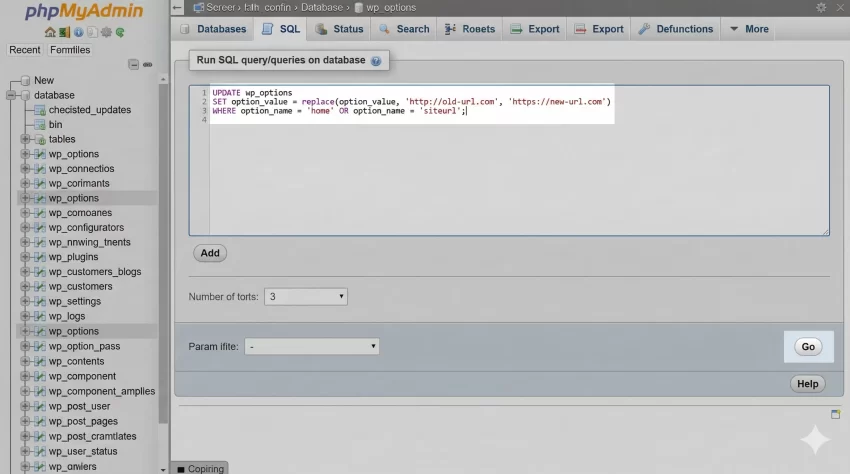
To fix broken links in WordPress directly via SQL, navigate to the SQL tab in phpMyAdmin and run the following commands. Ensure you change the table prefix if you are not using the default wp_.
-- Update the site URL and Home options
UPDATE wp_options SET option_value = replace(option_value, 'http://old-url.com', 'https://new-url.com') WHERE option_name = 'home' OR option_name = 'siteurl';

-- Update the GUIDs (Global Unique Identifiers)
UPDATE wp_posts SET guid = REPLACE (guid, 'http://old-url.com', 'https://new-url.com');

-- Update the Content in Posts and Pages to fix broken links in WordPress content
UPDATE wp_posts SET post_content = REPLACE (post_content, 'http://old-url.com', 'https://new-url.com');

-- Update Image Links in Post Meta
UPDATE wp_postmeta SET meta_value = REPLACE (meta_value, 'http://old-url.com', 'https://new-url.com');
Executing these queries will instantly update the text paths in your content, allowing you to fix broken links in WordPress posts and pages effectively.
You might also like:
Method 4: A Custom PHP Script (The Developer Solution)
If you are building a custom migration script or a theme that needs to self-correct URLs upon activation, you might want to write a PHP function. This is useful if you want to programmatic control over the replacement process.
We will use the wpdb Class to interact with the database directly. This class provides a set of functions to talk to the WordPress database safely.
Below is a custom function, pnet_fix_migration_links, which you can place in a one-time execution file. This script manually queries the posts and updates the content.
function pnet_fix_migration_links() {
    global $wpdb;

    // Define old and new URLs
    $old_url = 'http://old-domain.com';
    $new_url = 'https://new-domain.com';

    // 1. Update Post Content
    // We use prepare statements for security, though strict string replacement is straightforward here
    $query_content = "UPDATE {$wpdb->posts}
                      SET post_content = REPLACE(post_content, %s, %s)";

    $wpdb->query(
        $wpdb->prepare( $query_content, $old_url, $new_url )
    );

    // 2. Update Post GUIDs
    $query_guid = "UPDATE {$wpdb->posts}
                   SET guid = REPLACE(guid, %s, %s)";

    $wpdb->query(
        $wpdb->prepare( $query_guid, $old_url, $new_url )
    );

    echo 'Success: Attempted to fix broken links in WordPress content table.';
}

// Hook into admin init to run once (Remove after use!)
add_action('admin_init', 'pnet_fix_migration_links');
Note: This PHP snippet does not handle serialization. It is intended for quick patches of post content.
Don’t Forget the Permalinks!
Even after you fix broken links in WordPress database tables, you might still encounter 404 errors on your inner pages. This is usually because the .htaccess file hasn’t been updated to reflect the new structure.
There is a simple “soft reset” trick for this:
- Log in to your WordPress Dashboard.
- Go to Settings > Permalinks.
- Scroll down and simply click the Save Changes button. You do not need to change any settings.
This action forces WordPress to flush the rewrite rules and regenerate the .htaccess file, which is often the final step needed to fix broken links in WordPress completely.
Checking for Leftovers
Once you have run your search and replace, it is time to verify. Open your website in an Incognito/Private window. Clear your browser cache to ensure you aren’t seeing an old version of the site.
- Check the Homepage: Do the logo and hero images load?
- Check Inner Pages: Click through your navigation menu. Do the links work?
- Check Media Library: Go to the backend Media Library. Are the thumbnails visible?
If you still see issues, inspecting the page source (Right-click > View Page Source) can help. Search for the old domain name in the source code. If you find it inside a widget or a theme option, you may need to manually update that specific setting or ensure your serialization-safe search and replace (Method 1 or 2) ran correctly on the wp_options table.
Conclusion
Migrating a website is a significant milestone, but the post-migration cleanup is just as important. Knowing how to fix broken links in WordPress is a fundamental skill that saves time and protects your SEO rankings. Whether you choose the user-friendly plugin method, the swift WP-CLI commands, or manual SQL updates, the goal remains the same: ensuring a seamless experience for your visitors.
By following these steps, you ensure that your new site isn’t just live, but fully functional. So, take a deep breath, run your backups, and use these tools to fix broken links in WordPress efficiently.