
Running an online store is a balancing act between volume and margins. One of the silent killers of profitability is the dreaded “micro-order”—those small purchases where the shipping and processing costs eat up almost all your profit. The solution? Enforcing a WooCommerce minimum order amount.
By setting a threshold, you ensure that every transaction on your site is worth the effort. In this guide, we are going to walk through exactly how to implement this restriction programmatically. We will skip the bloated plugins and use a lightweight code snippet that keeps your site fast and your checkout secure.
Why You Need a WooCommerce Minimum Order Amount Strategy
Before we dive into the code, it is important to understand the why. Implementing a minimum purchase requirement is not just about blocking small orders; it is a psychological trigger that can actually increase your Average Order Value (AOV).
When customers see they are just a few dollars away from checkout eligibility, they are far more likely to add another item to their cart rather than abandon the purchase. This simple friction point turns a break-even sale into a profitable one.
Additionally, shipping logistics often dictate a floor price. If you offer flat-rate shipping or free shipping, low-value orders can actually cost you money to fulfill. A WooCommerce minimum order amount acts as a safety net, protecting your bottom line from inefficient sales.
The Problem with Plugin Solutions
You might be tempted to download a plugin to handle this. While there are plenty of options in the repository, they often come with unnecessary baggage. Plugins can add extra scripts, CSS files, and database queries that slow down your site.
For a simple logic check like this, a few lines of code in your child theme is always the superior choice. It is cleaner, faster, and gives you complete control over the messaging displayed to your customers.
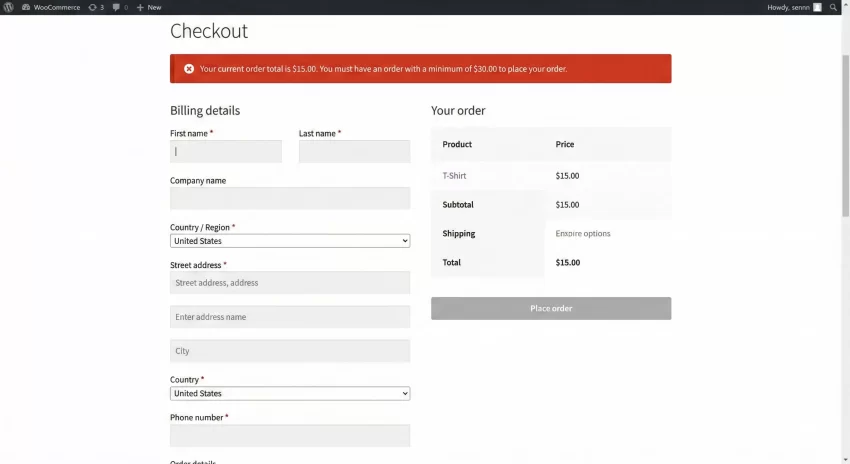
Step-by-Step: Adding the Code Snippet
Now, let’s get into the development side. We will be hooking into the checkout process to validate the cart total before the order is finalized. If the total is below our threshold, we will stop the process and display a helpful error message.
To implement this, you will need to add code to your child theme’s functions.php file or use a code snippets plugin. We will use the custom function prefix pnet_ as requested to avoid conflicts.
1. Define Your Minimum Amount
First, decide on your limit. For this example, we will set the WooCommerce minimum order amount to $30. You can adjust the variable in the code below to match your store’s currency and requirements.
2. The Code Snippet
Here is the complete code block. We are hooking into woocommerce_checkout_process. This action runs after the checkout button is clicked but before the order is actually created in the database.
/**
 * Set a Minimum Order Amount for WooCommerce Checkout
 * Author: PixelNet
 */

add_action( 'woocommerce_checkout_process', 'pnet_wc_minimum_order_amount' );
add_action( 'woocommerce_before_cart', 'pnet_wc_minimum_order_amount' );

function pnet_wc_minimum_order_amount() {
    // Set this variable to specify a minimum order value
    $minimum = 30;

    if ( WC()->cart->total < $minimum ) {

        if( is_cart() ) {

            wc_print_notice(
                sprintf( 'Your current order total is %s — you must have an order with a minimum of %s to place your order' ,
                    wc_price( WC()->cart->total ),
                    wc_price( $minimum )
                ), 'error'
            );

        } else {

            wc_add_notice(
                sprintf( 'Your current order total is %s — you must have an order with a minimum of %s to place your order' ,
                    wc_price( WC()->cart->total ),
                    wc_price( $minimum )
                ), 'error'
            );

        }
    }
}
Understanding the Code Logic
Let’s break down what is happening here so you can customize it further.
- The Hook: We use the woocommerce_checkout_process action. This is a standard WordPress action that allows us to validate field data or cart contents during the checkout POST request.
- The Condition: We check
WC()->cart->totalagainst our$minimumvariable. Note that this uses the total after discounts but likely before shipping, depending on your tax settings. - The Notice: If the condition is met (order is too low), we use
wc_add_noticeto display an error. This prevents the checkout from proceeding and alerts the user immediately.
You might also like:

Advanced Customization: Excluding Shipping from the Calculation
A common issue store owners face is whether the WooCommerce minimum order amount should include shipping costs or just the subtotal. The code above uses the cart total, which might include shipping depending on how your checkout calculates totals prior to the final step.
If you want to be stricter and ensure the subtotal (the cost of the products alone) meets the minimum, you should change the logic slightly. Here is how you modify the function to check the subtotal instead:
function pnet_wc_minimum_order_amount_subtotal() {
    $minimum = 30;

    // Use cart->subtotal instead of cart->total
    if ( WC()->cart->subtotal < $minimum ) {

        wc_add_notice(
            sprintf( 'You must purchase at least %s worth of products to checkout.',
                wc_price( $minimum )
            ), 'error'
        );
    }
}
Tip: Boost Sales: How to Display WooCommerce Discount Percentage Easily
Styling the Error Message
The default WooCommerce error notice is functional, but you might want it to stand out more. Since the message is output via standard WooCommerce notice classes, you can style it using CSS in your customizer.
Here is a quick CSS snippet to make your WooCommerce minimum order amount warning pop with a bold red border, ensuring customers do not miss it.
.woocommerce-error {
    border: 2px solid #e2401c;
    background-color: #ffebe8;
    color: #e2401c;
    font-weight: bold;
}
Troubleshooting Common Issues
Even with simple code, things can sometimes behave unexpectedly. Here are a few things to check if your restriction isn’t working as planned.
1. Caching Issues
If you have added the code but users can still checkout with low amounts, clear your server cache and your browser cache. WooCommerce sessions can sometimes persist, making it look like the code isn’t active.
2. Tax Configuration
Does your WooCommerce minimum order amount logic account for tax? If you enter prices inclusive of tax, but validate against the exclusive subtotal, you might confuse customers. Ensure your $minimum variable aligns with how you display prices in the shop.
3. Role-Based Exclusions
Sometimes you might want to exempt wholesale customers or administrators from this rule. You can wrap the logic in a conditional check like this:
// Exit function if user is admin or specific role
if ( current_user_can( 'administrator' ) ) {
    return;
}
You might also like:

Frequently Asked Questions
Can I set different minimums for different user roles?
Yes. As shown in the troubleshooting section, you can use WordPress conditional tags to check the user’s role and assign a different $minimum variable value accordingly. This is perfect for wholesale sites that require a higher bulk purchase volume.
Will this affect my analytics?
No. Since the order is never actually placed (it is blocked at the validation stage), these failed attempts won’t clutter your order history or skew your conversion data significantly. However, you might see a slight increase in cart abandonment if the threshold is too high.
Does this work with coupon codes?
Yes. The standard WC()->cart->total accounts for applied coupons. If a user applies a coupon that drops their total below the WooCommerce minimum order amount, the error will trigger, and they will need to add more items. This protects you from stacking discounts that result in zero-profit orders.
Conclusion
Setting a WooCommerce minimum order amount threshold is a powerful way to streamline your operations and guarantee a baseline profit for every package you ship. By using the custom function method outlined above, you keep your site lightweight and avoid the reliance on third-party plugins.
Remember to test the code in a staging environment before pushing it to your live site. A well-implemented WooCommerce minimum order amount strategy is a set-and-forget solution that pays dividends in the long run.