Have you ever noticed that your scheduled posts missed their publishing time? Or perhaps your backup plugin simply stopped taking snapshots of your database? These are classic signs of a WordPress cron job not working correctly.
For many WordPress developers and site owners, the “WP-Cron” system is a bit of a mystery. It works silently in the background—until it doesn’t. When it fails, it can leave your site looking unprofessional and your maintenance tasks undone.
In this guide, we will deep-dive into debugging these issues. We won’t just put a band-aid on the problem; we are going to fix it permanently. We will look at how to detect missing events and, most importantly, how to switch to a real system cron to ensure you never have to worry about a WordPress cron job not working again.
Understanding Why Your WordPress Cron Job Is Not Working
Before we jump into the code, it is vital to understand how WordPress handles time. Unlike a standard server, WordPress does not have a built-in clock that ticks every minute.
Default WordPress cron jobs are “pseudo-cron” jobs. They only trigger when a visitor loads a page on your website.
- The Scenario: You schedule a post for 8:00 AM.
- The Problem: If nobody visits your site until 10:00 AM, the post won’t publish until 10:00 AM.
This reliance on site traffic is the number one reason why you might find your WordPress cron job not working. On low-traffic sites, events trigger late. On high-traffic sites, the constant checking for cron jobs can actually crash your server (a race condition).
How to Detect Missing Scheduled Events
If you suspect your WordPress cron job not working properly, you need visibility. You cannot fix what you cannot see. The best way to debug the current state of your cron system is by using a plugin that lists all scheduled events.
Step 1: Install a Cron Manager
We recommend using WP Crontrol. It is the industry standard for viewing and managing cron events.
- Go to your WordPress Dashboard > Plugins > Add New.
- Search for “WP Crontrol“.
- Install and Activate it.
Step 2: Analyze Your Cron Events
Navigate to Tools > Cron Events.
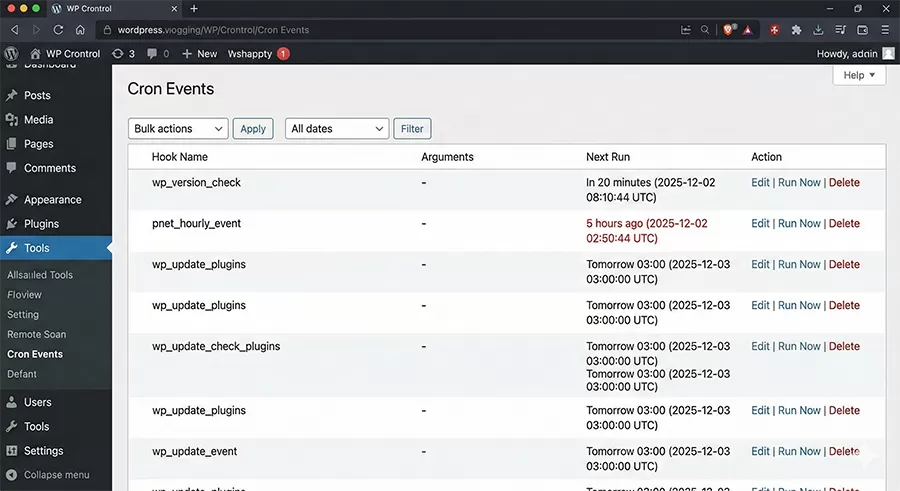
Here, you will see a list of every task WordPress plans to run. Look at the “Next Run” column.
- Good Sign: The time is in the future.
- Bad Sign: The time is in the past (e.g., “1 hour ago”).
If you see events listed as “now” or in the past that aren’t disappearing, this is confirmation of your WordPress cron job not working. These are “missed schedules,” and they are clogging up your database.
The Reliability Fix: Switching to a Real System Cron
If you are tired of dealing with a WordPress cron job not working, the best solution is to disable the default WordPress behavior and use the server’s system cron. This forces the cron to run on a strict clock, regardless of whether anyone visits your website.
Step 1: Disable Default WP-Cron
First, we need to tell WordPress to stop checking for cron jobs on every page load. This will also speed up your website loading time for visitors.
You need to edit your wp-config.php file. You can access this via FTP or your hosting File Manager. Add the following line of code before the line that says “That's all, stop editing“:
// Disable default WP Cron behavior to fix WordPress cron job not working issues
define( 'DISABLE_WP_CRON', true );
Once this is saved, WordPress will no longer fire scheduled events automatically. Your cron system is now paused.
Step 2: Set Up a Real System Cron
Now, we will set up a manual trigger. Most hosting providers (like Bluehost, SiteGround, or Hostinger) offer cPanel or a similar dashboard where you can manage “Cron Jobs.”
- Log in to your hosting cPanel.
- Find the “Cron Jobs” icon under the Advanced or Metrics section.
- Add a new Cron Job.
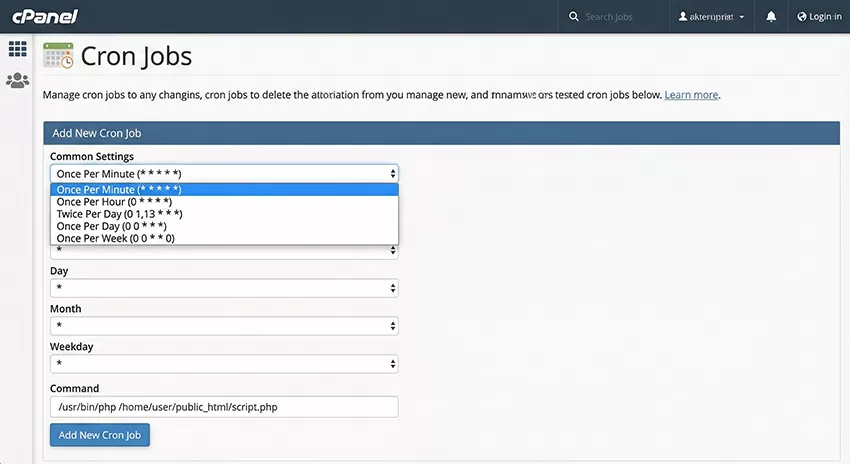
Recommended Settings:
- Common Settings: Once Per Minute (or once every 5 minutes).
- Command: You need to trigger the
wp-cron.phpfile. Use one of the following commands:
Option A (Wget – Recommended for most shared hosts):
wget -q -O - https://your-domain.com/wp-cron.php?doing_wp_cron >/dev/null 2>&1
Option B (PHP – Better for VPS/Dedicated):
php -q /home/yourusername/public_html/wp-cron.php
Note: Replace your-domain.com with your actual URL and check your specific server path for Option B.
By doing this, the server will “ping” WordPress every minute to check for tasks. This completely resolves the issue of a WordPress cron job not working due to low traffic.
You might also like:
Advanced Debugging: Logging Custom Cron Events
Sometimes, the scheduler is working, but a specific task is failing silently (perhaps due to a PHP error). To debug this, you can create a custom logging function.
Add the following code to your theme’s functions.php file or a custom plugin. We will use the prefix pnet_ to keep our functions unique.
/**
 * Custom logging function to debug if a WordPress cron job not working correctly.
 * * @param string $message The message to log.
 */
function pnet_log_cron_debug( $message ) {
    $log_entry = date( 'Y-m-d H:i:s' ) . " - " . $message . "\n";
    // Ensure you have a 'pnet-logs' folder in uploads or change path accordingly
    $log_file = WP_CONTENT_DIR . '/uploads/pnet_cron_debug.log';

    error_log( $log_entry, 3, $log_file );
}

/**
 * A test cron event to verify execution.
 */
function pnet_run_test_cron() {
    pnet_log_cron_debug( 'Success: The system cron triggered this event.' );
}
add_action( 'pnet_hourly_event', 'pnet_run_test_cron' );

// Schedule the event if it's not already scheduled
if ( ! wp_next_scheduled( 'pnet_hourly_event' ) ) {
    wp_schedule_event( time(), 'hourly', 'pnet_hourly_event' );
}
After adding this, wait for an hour (or manually trigger it via WP Crontrol). Check the uploads/pnet_cron_debug.log file. If you see timestamped entries, your system is healthy. If the file remains empty, you know your WordPress cron job not working issue is likely server-related, and you should contact your host.
Frequently Asked Questions
Q: Will disabling WP-Cron affect my plugins?
A: No. As long as you set up the system cron in cPanel immediately after disabling it in wp-config.php, your plugins will actually work better and more reliably.
Q: Why is my WordPress cron job not working even after switching to cPanel?
A: Check your DNS settings and firewall. Sometimes security plugins (like Wordfence) or server firewalls block the “loopback request” (the server talking to itself). Ensure your server IP is whitelisted.
Q: How often should I run the system cron?
A: For most sites, every 5 to 10 minutes is sufficient. However, if you have a high-traffic membership site or WooCommerce store, running it every minute ( * * * * * ) is standard practice to ensure order emails go out instantly.
Conclusion
Dealing with WordPress cron job not working can be frustrating, but it is almost always fixable. By moving away from the user-triggered default cron to a robust server-side cron, you ensure that your backups, scheduled posts, and email notifications happen exactly when they are supposed to.
Don’t leave your website’s automation to chance. Implement these changes today, and enjoy the peace of mind that comes with a reliable WordPress environment.