Have you ever faced the nightmare of a client asking for a lead from last week, only to realize the email notification never landed in their inbox? It happens more often than we’d like to admit. SMTP errors, spam filters, or server hiccups can make email unreliable.
That is why you absolutely must save Contact Form 7 to database tables or post types as a backup.
While there are plenty of heavy plugins that add this functionality, as a developer, you know that less is often more. Adding another plugin just to store a few strings of text is unnecessary bloat. In this guide, I will show you how to programmatically capture form submissions and save Contact Form 7 to database using the wpcf7_before_send_mail hook.
We will build a lightweight solution that automatically creates a private Custom Post Type (CPT) for every entry.
☑Why You Should Manually Save Contact Form 7 to Database
Contact Form 7 (CF7) is arguably the most popular form plugin, but it has one glaring weakness: out of the box, it doesn’t save messages. It simply emails them and forgets them.
If you rely solely on email, you are creating a single point of failure. By writing a small snippet of code to save Contact Form 7 to database, you gain:
- Data Redundancy: You have a permanent record of every submission.
- Debugging Power: You can verify what data was actually sent versus what arrived in the email.
- Performance: You avoid the overhead of third-party “CF7 Database” plugins that often load massive CSS/JS files you don’t need.
The Logic: How We Capture the Data
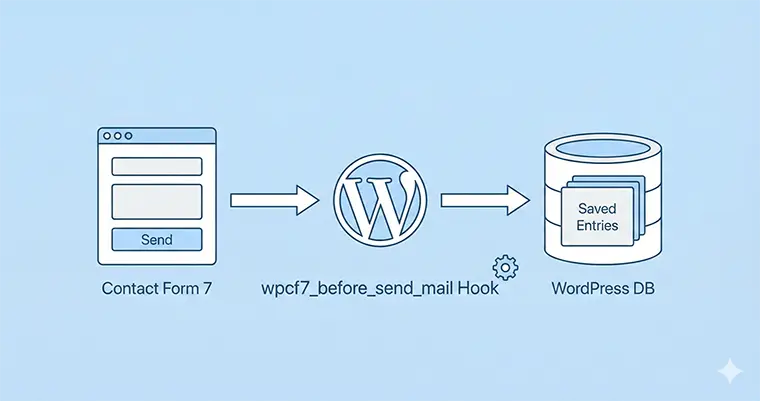
To save Contact Form 7 to database, we don’t need to reinvent the wheel. We will hook into the form submission process right before the email sends.
We will use the wpcf7_before_send_mail action hook. This hook gives us access to the WPCF7_Submission object, which contains everything the user just typed.
Here is the roadmap of what our code will do:
- Listen for a form submission.
- Retrieve the data instance.
- Sanitize the input (crucial for security).
- Insert the data into WordPress as a “Contact Entry” post type.
Step 1: Prepare the Custom Post Type
Before we can save Contact Form 7 to database, we need a place to put it. While you could create a custom SQL table, using a hidden Custom Post Type (CPT) is much easier to manage within the WordPress dashboard.
Add this code to your theme’s functions.php or a custom plugin file. Notice I am using the pnet_ prefix to keep our namespace clean.
/**
 * Register a hidden CPT to store CF7 submissions.
 */
function pnet_register_submission_cpt() {
    $args = array(
        'label'               => 'Contact Entries',
        'public'              => false, // Keep it hidden from frontend
        'show_ui'             => true,  // Show in Admin Dashboard
        'capability_type'     => 'post',
        'hierarchical'        => false,
        'rewrite'             => false,
        'query_var'           => false,
        'menu_icon'           => 'dashicons-email',
        'supports'            => array( 'title', 'editor', 'custom-fields' ),
    );
    register_post_type( 'pnet_contact_entry', $args );
}
add_action( 'init', 'pnet_register_submission_cpt' );
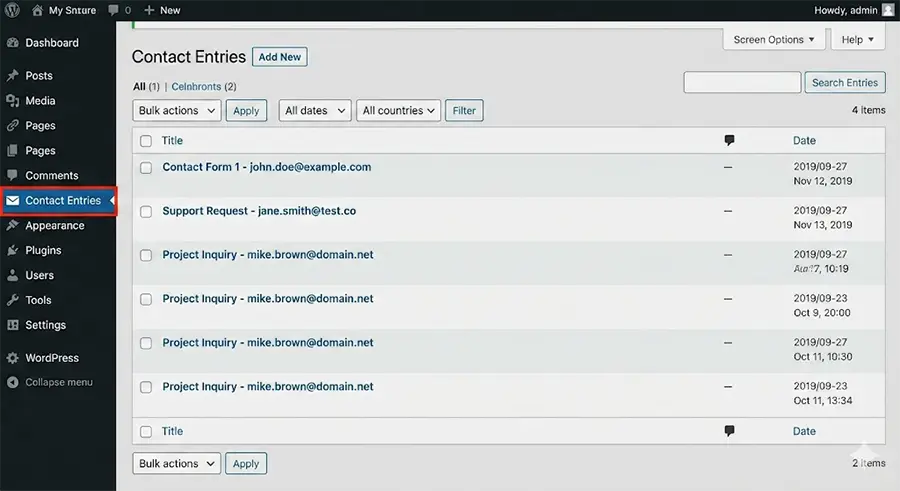
Once you save this, you will see a “Contact Entries” tab in your WordPress admin. This is where we will save Contact Form 7 to database submissions.
Step 2: The Core Function to Save Data
Now for the heavy lifting. We will write the function that intercepts the form data.
This is the most critical part of learning to save Contact Form 7 to database. We need to ensure we are getting the current submission instance.
Copy the following code into your functions.php:
/**
 * Capture CF7 submission and save to custom post type.
 *
 * @param WPCF7_ContactForm $contact_form
 */
function pnet_save_cf7_to_db( $contact_form ) {
    // Get the submission instance
    $submission = WPCF7_Submission::get_instance();

    // If no submission exists, bail out
    if ( ! $submission ) {
        return;
    }

    // Get the posted data (array of field values)
    $posted_data = $submission->get_posted_data();

    // We can also get the form title to organize entries
    $form_title = $contact_form->title();

    // Prepare the post title (e.g., "Contact Form - john@example.com")
    // Assuming you have a field named 'your-email' in CF7
    $email = isset( $posted_data['your-email'] ) ? sanitize_email( $posted_data['your-email'] ) : 'No Email';
    $post_title = $form_title . ' - ' . $email;

    // Prepare the post content
    // We will iterate through all fields to create a readable body
    $content = '';
    foreach ( $posted_data as $key => $value ) {
        // Skip CF7 internal fields starting with _
        if ( substr( $key, 0, 1 ) !== '_' ) {
            if ( is_array( $value ) ) {
                $value = implode( ', ', $value ); // Handle checkboxes/multiselect
            }
            $content .= '<strong>' . ucfirst( $key ) . ':</strong> ' . esc_html( $value ) . '
';
        }
    }

    // Arguments for wp_insert_post
    $post_args = array(
        'post_title'   => $post_title,
        'post_content' => $content,
        'post_status'  => 'publish',
        'post_type'    => 'pnet_contact_entry', // The CPT we created earlier
    );

    // Insert the post into the database
    $post_id = wp_insert_post( $post_args );

    // Optional: Save specific fields as meta data for easier querying later
    if ( ! is_wp_error( $post_id ) ) {
        if ( isset( $posted_data['your-email'] ) ) {
            update_post_meta( $post_id, 'pnet_contact_email', sanitize_email( $posted_data['your-email'] ) );
        }
    }
}

// Hook into wpcf7_before_send_mail with priority 10 and 1 argument
add_action( 'wpcf7_before_send_mail', 'pnet_save_cf7_to_db', 10, 1 );
Code Breakdown
Let’s analyze how this code works to save Contact Form 7 to database:
WPCF7_Submission::get_instance(): This is the standard method to grab the data currently being processed by CF7.get_posted_data(): This returns an associative array of the form fields (e.g.,['your-name' => 'John', 'your-email' => 'john@test.com']).- Sanitization: We use
sanitize_emailandesc_html. When you save Contact Form 7 to database, never trust user input. Always sanitize it before it touches your database. wp_insert_post: This standard WordPress function saves the data as a post in ourpnet_contact_entrypost type.
Handling Special Fields and Uploads
The example above handles standard text fields perfectly. But what if you have file uploads?
When you save Contact Form 7 to database, file uploads are handled slightly differently because they aren’t stored in get_posted_data as a file path initially. They are in the uploaded_files() method of the submission object.
If you need to handle attachments, you would expand the function like this:
// ... inside pnet_save_cf7_to_db function ...

    $uploaded_files = $submission->uploaded_files();

    if ( $uploaded_files ) {
        $content .= '<hr><strong>Attachments:</strong>
';
        foreach ( $uploaded_files as $name => $path ) {
            // Note: CF7 stores temp files. You might need to move them
            // to the uploads folder if you want permanent storage.
            $content .= 'File: ' . basename( $path ) . '
';
        }
    }
Troubleshooting Common Issues
If you implement this code but fail to save Contact Form 7 to database, check these common culprits:
- Field Name Mismatch: Ensure
your-emailmatches the actual tag name in your CF7 form editor. - Hook Priority: If another plugin is interfering, try increasing the priority in the
add_actioncall from10to20. - Caching: Sometimes server-side caching can delay the appearance of new posts in the admin. Clear your cache if the “Contact Entries” list looks empty.
Conclusion
There is a sense of security that comes when you save Contact Form 7 to database manually. You are no longer at the mercy of SMTP servers. You have a clean, searchable log of every interaction directly inside WordPress, and you did it without adding a heavy plugin to your stack.
This method gives you total control. You can expand it to send data to a CRM, a Google Sheet, or an external API, all starting from this same wpcf7_before_send_mail hook. Now, go ahead and implement this function on your site. Your client (and your peace of mind) will thank you.
Do you have a specific custom field you are struggling to capture? Drop a comment below and let’s debug it together.



