
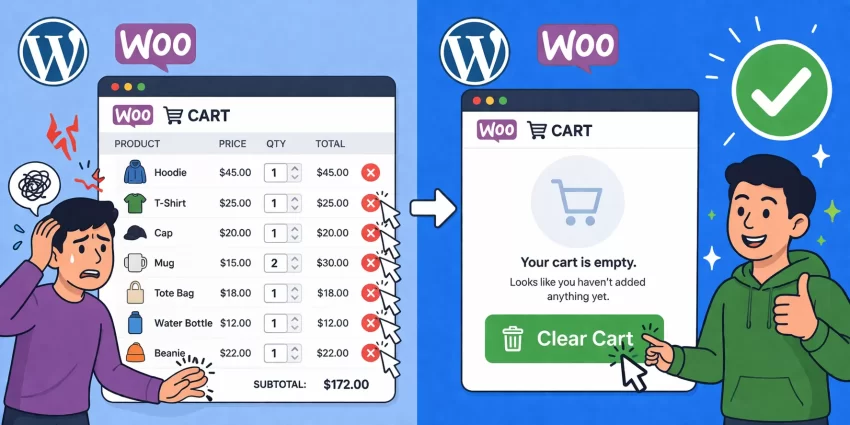
When managing an e-commerce store with large inventories, bulk orders, or wholesale products, users often make mistakes while filling their digital baskets. The core problem arises when a customer needs to remove 15 individual items; manually clicking the ‘x’ icon next to every single product is tedious, frustrating, and drastically increases the risk of cart abandonment. The perfect solution is to implement a WooCommerce clear cart button that allows shoppers to instantly wipe their session clean with a single click and start over fresh. In this comprehensive, developer-focused 2026 guide, we will walk through exactly how to safely and efficiently add this functionality to your custom theme.
Building a robust WooCommerce clear cart button is not just about throwing an HTML link on the frontend; it involves hooking into WooCommerce’s core session architecture, handling query variables securely, and protecting the endpoint from cross-site request forgery (CSRF) attacks. By the end of this tutorial, your WooCommerce clear cart button will look native, function seamlessly without AJAX errors, and integrate flawlessly into your site’s cart interface.
Prerequisites for Development
Before writing the code for your WooCommerce clear cart button, ensure your development environment meets the modern standards and you have taken the necessary safety precautions.
- PHP 8.0 or higher: Modern WordPress and WooCommerce run most securely and efficiently on PHP 8.x. You can read more about supported versions on the official PHP website.
- Child Theme or Custom Plugin: Never modify your parent theme’s
functions.phpfile. Always use a child theme or a dedicated site-specific plugin. - WooCommerce 8.0+: Ensure your e-commerce plugin is up to date for session hook compatibility.
- Full Database Backup: Always generate a complete database and file backup before manipulating cart objects.
Backup Required
Step 1: Hooking the Button into the Cart Interface
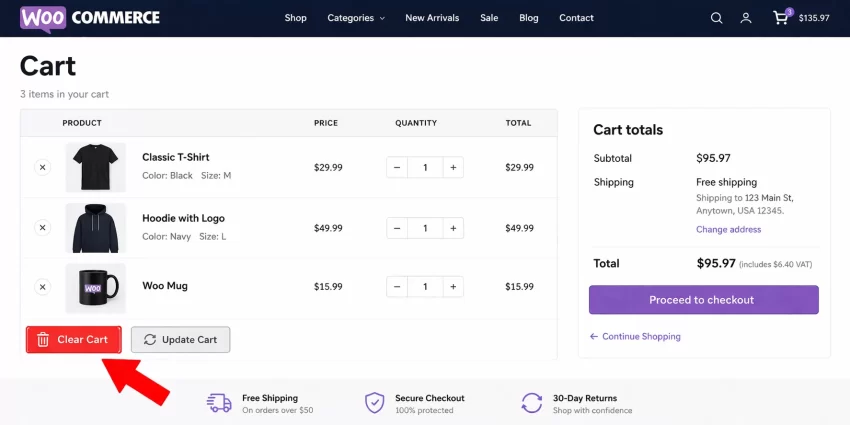
The first phase of building our WooCommerce clear cart button is to display the button itself on the frontend cart page. To do this non-destructively, we use an action hook provided by WooCommerce called woocommerce_cart_actions. This hook fires right next to the “Update Cart” button, making it the most logical and user-friendly location for cart manipulation.
By attaching our custom function to this hook, we ensure the WooCommerce clear cart button renders dynamically, adopting the surrounding form’s layout and respecting theme structures. We will construct a link that includes a specific query parameter (?empty_cart=yes). This parameter will be our signal to the server that the user intends to wipe their session.
add_action( 'woocommerce_cart_actions', 'pnet_add_clear_cart_button' );

/**
 * Renders the WooCommerce clear cart button on the cart page.
 */
function pnet_add_clear_cart_button() {
    // Generate the base URL for clearing the cart
    $clear_cart_url = add_query_arg( 'empty_cart', 'yes', wc_get_cart_url() );

    // Output the HTML button
    echo '<a href="' . esc_url( $clear_cart_url ) . '" class="button pnet-clear-cart-btn" title="Empty your cart completely">Clear Cart</a>';
}
Step 2: Securing the Request with WordPress Nonces
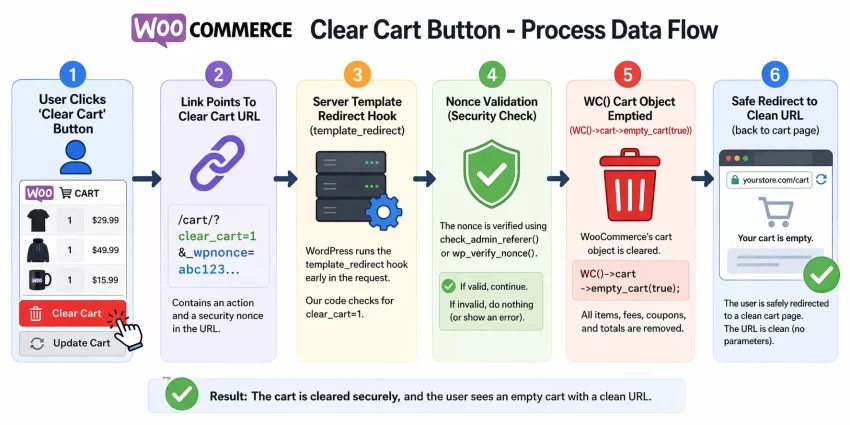
If we leave the URL as simply ?empty_cart=yes, our WooCommerce clear cart button creates a massive security vulnerability. A malicious actor could trick an authenticated user into clicking a disguised link (or load an invisible iframe) that forces their cart to empty against their will. To prevent this, we must utilize WordPress Nonces (Numbers Used Once).
A nonce acts as a unique cryptographic token tied to the user’s specific session and timeframe. In this step, we will update our previously created WooCommerce clear cart button function to append this security token to the URL.
add_action( 'woocommerce_cart_actions', 'pnet_secure_clear_cart_button' );

/**
 * Renders the secure WooCommerce clear cart button with nonce protection.
 */
function pnet_secure_clear_cart_button() {
    $clear_cart_url = add_query_arg( 'empty_cart', 'yes', wc_get_cart_url() );

    // Secure the URL with a nonce specific to clearing the cart
    $secured_url = wp_nonce_url( $clear_cart_url, 'pnet_clear_cart_action', 'pnet_cart_nonce' );

    echo '<a href="' . esc_url( $secured_url ) . '" class="button pnet-clear-cart-btn" title="Empty your cart completely">Clear Cart</a>';
}
For Developers
wp_nonce_url, the third parameter dictates the name of the GET variable. We have defined it as pnet_cart_nonce. We must explicitly look for this exact key during the validation phase. Did you know: Improving your website’s reading experience and keeping visitors engaged is easier than you think. You can implement a WordPress AJAX Load More button to seamlessly fetch and display content without forcing a frustrating page reload?
Step 3: Processing the Clear Cart Action
Now that the frontend WooCommerce clear cart button is outputting a secure, parameterized URL, we need the server to listen for that request and execute the data wipe. We will hook into template_redirect. This hook is ideal because it fires early enough in the WordPress lifecycle to perform redirects safely, but late enough that the WooCommerce core functions and cart session objects are fully instantiated.
Our server-side function will check if the empty_cart parameter exists, verify the cryptographic nonce, and if everything passes, execute the native WC()->cart->empty_cart() method. This is the heart of the WooCommerce clear cart button functionality.
add_action( 'template_redirect', 'pnet_process_clear_cart_request' );

/**
 * Intercepts the URL parameter, verifies security, and empties the cart.
 */
function pnet_process_clear_cart_request() {
    // Check if our specific query parameter is set
    if ( isset( $_GET['empty_cart'] ) && 'yes' === $_GET['empty_cart'] ) {

        // Validate the nonce for CSRF protection
        if ( ! isset( $_GET['pnet_cart_nonce'] ) || ! wp_verify_nonce( wp_unslash( $_GET['pnet_cart_nonce'] ), 'pnet_clear_cart_action' ) ) {
            wc_add_notice( 'Security verification failed. Please try again.', 'error' );
            return;
        }

        // Ensure WooCommerce cart object exists before manipulating
        if ( isset( WC()->cart ) ) {
            // Empty the cart, true parameter clears persistent session data
            WC()->cart->empty_cart( true );

            // Add a friendly success notice
            wc_add_notice( 'Your cart has been successfully cleared.', 'success' );

            // Redirect cleanly back to the cart page to remove URL parameters
            wp_safe_redirect( wc_get_cart_url() );
            exit;
        }
    }
}
Step 4: Styling the Cart Interface
A properly functioning WooCommerce clear cart button is excellent, but it also needs to look deliberate and visually distinct from primary actions like “Proceed to Checkout.” By default, it will inherit the standard .button class styles of your active theme.
To prevent accidental clicks, it is a UX best practice to style destructive actions (like a WooCommerce clear cart button) with muted colors or specific borders. Here is the CSS to isolate and style the button, assuming you used the custom class pnet-clear-cart-btn we added in Step 1.
/* Styles for the WooCommerce clear cart button */
.woocommerce-cart .actions .pnet-clear-cart-btn {
    background-color: #transparent;
    color: #e2401c;
    border: 2px solid #e2401c;
    margin-right: 15px;
    transition: all 0.3s ease-in-out;
}

.woocommerce-cart .actions .pnet-clear-cart-btn:hover,
.woocommerce-cart .actions .pnet-clear-cart-btn:focus {
    background-color: #e2401c;
    color: #ffffff;
    border-color: #e2401c;
    text-decoration: none;
}

/* Ensure mobile responsiveness */
@media screen and (max-width: 768px) {
    .woocommerce-cart .actions .pnet-clear-cart-btn {
        width: 100%;
        margin-right: 0;
        margin-bottom: 10px;
        display: block;
        text-align: center;
    }
}
Inject this CSS into your child theme’s style.css file or the WordPress Customizer. This will ensure your WooCommerce clear cart button aligns perfectly on desktop while stacking neatly on mobile devices.
You might also like: Stop Struggling: Easily Disable Gutenberg Editor Programmatically
Troubleshooting Common Issues
Even with pristine code, adding a WooCommerce clear cart button can occasionally conflict with aggressive caching or complex themes. Let’s explore the most frequent problems developers encounter.
Why does my WooCommerce clear cart button redirect to a 404 page?
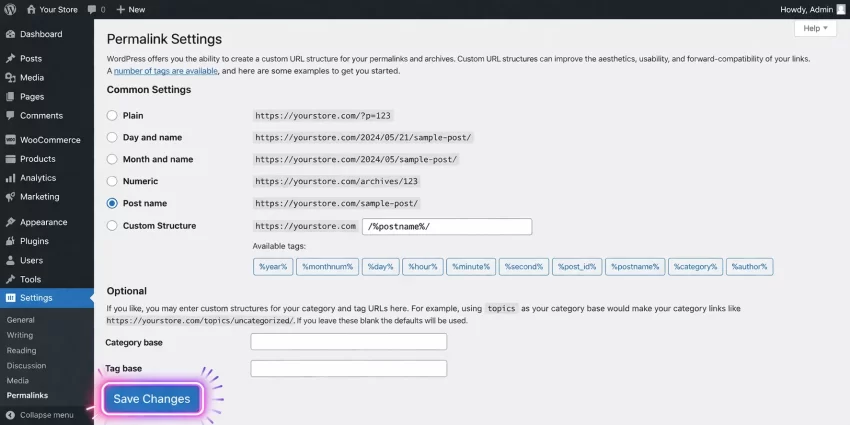
If clicking the WooCommerce clear cart button results in a 404, it usually means your permalink structure requires a flush. Navigate to Settings > Permalinks in your WordPress dashboard and simply click “Save Changes” to rebuild the routing rules. Furthermore, ensure wc_get_cart_url() is returning a valid page ID.
The cart empties, but the URL stays messy with parameters. Why?
This happens when the wp_safe_redirect() function in step 3 fails to execute. This is often caused by headers already being sent by another poorly coded plugin, or white space at the end of your functions.php file. Check your error logs for “Headers already sent” warnings to fix your WooCommerce clear cart button redirection.
My caching plugin is serving a cached version of the full cart.
If you are using aggressive page caching (like LiteSpeed or WP Rocket), the WooCommerce clear cart button might empty the database session, but the frontend still displays cached HTML. Ensure that your cart page is strictly excluded from all page-level caching. WooCommerce usually handles this via the DONOTCACHEPAGE constant, but manual exclusion in your cache settings might be required.
Summary and Final Thoughts
Enhancing your store’s user experience is vital for conversion optimization. By providing users with a safe, intuitive way to reset their shopping progress, you mitigate frustration. Adding a custom WooCommerce clear cart button takes less than 50 lines of PHP but delivers outsized value for usability. By utilizing action hooks, enforcing cryptographic nonces, and managing the session data server-side, you have implemented a robust, professional-grade solution that bypasses the limitations of bulky third-party plugins. Test thoroughly, style to match your brand, and enjoy a cleaner, more efficient e-commerce environment.