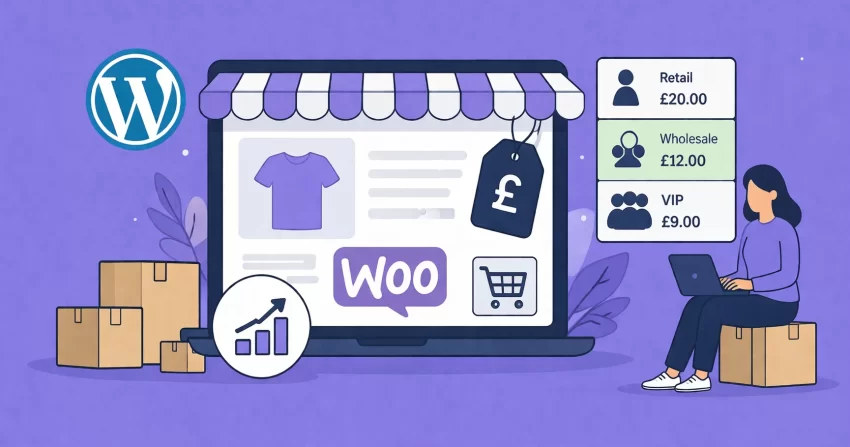
Managing a dual-purpose eCommerce store that caters to both regular retail consumers and bulk-buying business clients can be a logistical nightmare. If you are a developer, your clients have likely approached you with the problem of displaying one price to the public and a heavily discounted price to their verified B2B vendors. The solution is implementing robust WooCommerce wholesale pricing natively through WordPress, completely bypassing the need for bloated, expensive third-party plugins that slow down the site.
By leveraging WordPress user roles and WooCommerce’s extensive hook system, you can easily set different prices for different user roles directly in your theme or custom plugin. This comprehensive guide will walk you through creating a bespoke WooCommerce wholesale pricing architecture. We will cover creating the custom user role, injecting custom pricing fields into the product data metabox, dynamically altering the frontend price display, and securely modifying the final cart calculations to ensure the correct price is charged at checkout.
Before diving into the code required to build your custom WooCommerce wholesale pricing solution, ensure you meet the necessary development environment requirements.
- PHP 8.0 or higher.
- WordPress 6.0+ and WooCommerce 8.0+ installed and active.
- A child theme or a custom utility plugin to house your code.
- A full backup of your WordPress database.
- Basic understanding of WordPress hooks (actions and filters).
Backup Required
Step 1: Setting Up the Wholesale User Role
The foundation of any WooCommerce wholesale pricing system is identifying which users qualify for the discount. We achieve this by registering a custom WordPress user role specifically for your wholesale buyers.
WordPress provides a straightforward function to add new roles. However, because user roles are saved to the database, you only need to run this function once, not on every page load. We will hook this into a theme setup action but include a conditional check to ensure it doesn’t execute redundantly.
Using the add_role Function
The add_role() function requires an internal slug, a display name, and an array of capabilities. We will clone the basic capabilities of the default WooCommerce ‘customer’ role so our wholesalers can still manage their accounts and view past orders seamlessly.
add_action('admin_init', 'pnet_register_wholesale_role');

function pnet_register_wholesale_role() {
    // Check if the role already exists to avoid redundant database writes
    if (!get_role('wholesale_buyer')) {
        // Get the default customer role capabilities
        $customer_role = get_role('customer');
        $capabilities = $customer_role ? $customer_role->capabilities : array('read' => true);

        add_role(
            'wholesale_buyer',
            'Wholesale Buyer',
            $capabilities
        );
    }
}
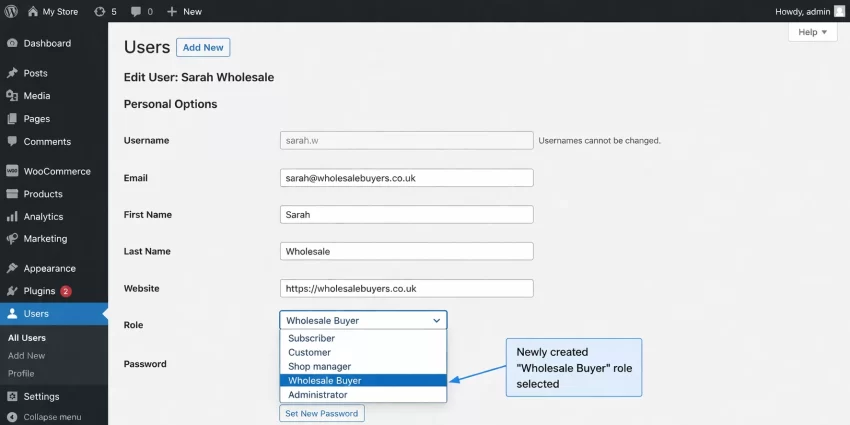
Once this code is executed, you will be able to navigate to the WordPress admin dashboard, go to Users, and assign the “Wholesale Buyer” role to any registered user. This is the crucial first piece of the WooCommerce wholesale pricing puzzle.
You might also like: How to Effortlessly Add Custom Image Size WordPress to Media Settings
Step 2: Adding Custom Pricing Fields to Products
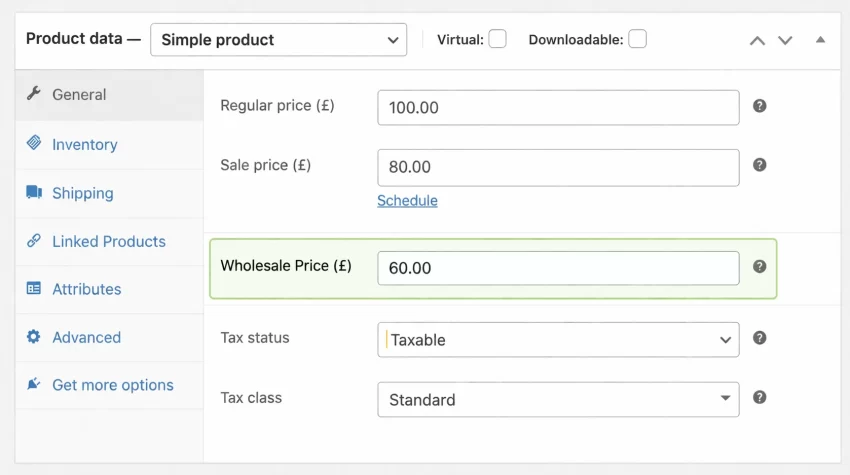
With our role established, we need a way for store managers to input the custom wholesale price for each product. This requires adding a custom text input field into the WooCommerce “Product Data” metabox on the single product editing screen.
Integrating custom fields into WooCommerce involves two primary tasks: displaying the HTML input field within the correct tab (usually the “General” tab where regular and sale prices live) and securely saving the data entered by the admin into the WordPress postmeta table.
Displaying the Field in WooCommerce Admin
To inject our WooCommerce wholesale pricing field, we will hook into woocommerce_product_options_pricing. WooCommerce provides handy built-in functions like woocommerce_wp_text_input() that automatically generate the correct HTML structure, complete with tooltips and styling that matches the native interface.
add_action('woocommerce_product_options_pricing', 'pnet_add_wholesale_price_field');

function pnet_add_wholesale_price_field() {
    global $post;

    echo '<div class="options_group">';

    woocommerce_wp_text_input(array(
        'id'            => '_wholesale_price',
        'label'         => __('Wholesale Price (\xA3)', 'text-domain'),
        'placeholder'   => '',
        'description'   => __('Enter the exclusive price for Wholesale Buyers.', 'text-domain'),
        'desc_tip'      => true,
        'data_type'     => 'price',
        'custom_attributes' => array(
            'step' => 'any',
            'min'  => '0'
        )
    ));

    echo '</div>';
}
Saving the Custom Field Data
Displaying the field is not enough; we must capture the input when the store manager clicks “Update” or “Publish”. We hook into woocommerce_process_product_meta, retrieve the value from the $_POST array, sanitize it, and save it using update_post_meta().
add_action('woocommerce_process_product_meta', 'pnet_save_wholesale_price_field');

function pnet_save_wholesale_price_field($post_id) {
    if (isset($_POST['_wholesale_price'])) {
        // Sanitize the text field
        $wholesale_price = sanitize_text_field($_POST['_wholesale_price']);

        // Update the post meta
        update_post_meta($post_id, '_wholesale_price', $wholesale_price);
    }
}
For Developers
Step 3: Modifying the Frontend Price Display
Now that we have the data stored, we need to alter how the product price is rendered on the frontend (shop page, category pages, and single product pages) specifically for users logged in with our custom role. The WooCommerce wholesale pricing strategy requires visual confirmation for the buyer.
It is vital to understand that modifying the frontend HTML display does not change the actual price charged in the cart. This step is purely cosmetic, designed to show the wholesale user the discount they are receiving.
Filtering woocommerce_get_price_html
The woocommerce_get_price_html filter allows us to intercept the HTML string that WooCommerce generates for the price and replace it with our own. We will check if the current user has the ‘wholesale_buyer’ role, check if a wholesale price exists for the product, and if both are true, render the custom price.
add_filter('woocommerce_get_price_html', 'pnet_display_wholesale_price_frontend', 10, 2);

function pnet_display_wholesale_price_frontend($price_html, $product) {
    // Check if user is logged in
    if (!is_user_logged_in()) {
        return $price_html;
    }

    // Check if user has the wholesale role
    $current_user = wp_get_current_user();
    if (in_array('wholesale_buyer', (array) $current_user->roles)) {

        // Get the custom wholesale price meta
        $wholesale_price = get_post_meta($product->get_id(), '_wholesale_price', true);

        // If a wholesale price exists, format and display it
        if (!empty($wholesale_price)) {
            $formatted_wholesale_price = wc_price($wholesale_price);
            $original_price = wc_price($product->get_regular_price());

            // Create a custom HTML string showing the original price struck out
            $custom_price_html = '<del>' . $original_price . '</del> <ins>' . $formatted_wholesale_price . '</ins> <span class="wholesale-badge">(Wholesale)</span>';
            return $custom_price_html;
        }
    }

    return $price_html;
}
This snippet ensures that regular retail customers still see the standard $price_html, while your B2B clients see a visually appealing WooCommerce wholesale pricing format, reinforcing the value of their account status.
Step 4: Adjusting the Cart and Checkout Calculation
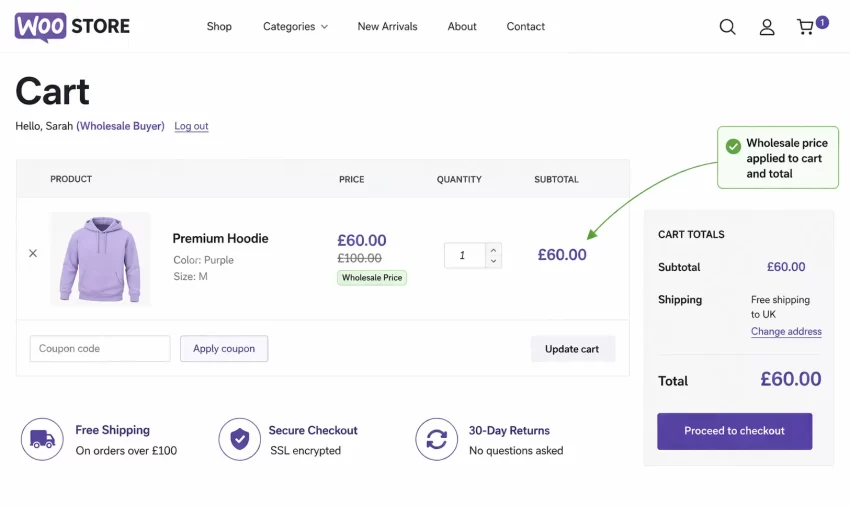
This is the most critical step in implementing your WooCommerce wholesale pricing logic. The previous step only changed the visual representation of the price. If you stop there, the customer will still be charged the regular retail price at checkout. We must intercept the cart calculation process.
To safely alter the actual cost of items as they are added to the cart and processed through checkout, we must hook into the woocommerce_before_calculate_totals action.
Hooking into woocommerce_before_calculate_totals
This hook fires right before WooCommerce tallies up the final cart totals. We will iterate through every item currently sitting in the user’s cart object, check their user role, retrieve our custom post meta for the wholesale price, and dynamically set the product’s price for that specific cart session.
add_action('woocommerce_before_calculate_totals', 'pnet_apply_wholesale_price_cart', 10, 1);

function pnet_apply_wholesale_price_cart($cart_obj) {
    // Avoid running in admin backend or during ajax requests unless necessary
    if (is_admin() && !defined('DOING_AJAX')) {
        return;
    }

    // Check if user is logged in
    if (!is_user_logged_in()) {
        return;
    }

    $current_user = wp_get_current_user();

    // Check if the user is a wholesale buyer
    if (in_array('wholesale_buyer', (array) $current_user->roles)) {

        // Loop through all cart items
        foreach ($cart_obj->get_cart() as $cart_item_key => $cart_item) {
            $product_id = $cart_item['product_id'];

            // Retrieve the custom wholesale price
            $wholesale_price = get_post_meta($product_id, '_wholesale_price', true);

            // If a valid wholesale price is found, apply it to the cart item
            if (!empty($wholesale_price) && is_numeric($wholesale_price)) {
                $cart_item['data']->set_price($wholesale_price);
            }
        }
    }
}
Pro Tip
Common Errors & Troubleshooting
When developing a custom WooCommerce wholesale pricing structure, you might encounter a few common roadblocks. Here are the most frequent issues and how to resolve them.
Why is the wholesale price not showing in the cart?
If the visual price looks correct on the product page but reverts to retail in the cart, your woocommerce_before_calculate_totals hook is either failing or being overridden. Ensure you are using the $cart_item['data']->set_price() method correctly. Also, check for plugin conflicts; dynamic pricing plugins often aggressively hook into cart calculations and may override your custom logic. Try increasing the priority of your hook to 99: add_action('woocommerce_before_calculate_totals', 'pnet_apply_wholesale_price_cart', 99, 1);.
Why are variable products not displaying the wholesale price?
The code provided in this guide targets simple products to establish the core logic. Variable products require a different approach because the custom fields need to be injected into each variation individually, not just the parent product. You must use woocommerce_product_after_variable_attributes to add the input fields, woocommerce_save_product_variation to save the meta data, and adjust your cart loop to check $cart_item['variation_id'] instead of $cart_item['product_id'].
Why is the wholesale user role not appearing in the dropdown?
The add_role() function saves the role to the wp_options table under the wp_user_roles key. If you placed the registration snippet inside a conditional block that failed to execute (e.g., inside an activation hook that didn’t trigger), the role won’t exist. You can temporarily remove the if(!get_role(...)) check, load any admin page once to force the creation, and then put the check back.
You might also like: Better WordPress Cron Job for Superior Site Performance
Summary
Creating a highly tailored B2B eCommerce experience doesn’t require excessive reliance on heavy third-party plugins. By following these steps, you have learned how to construct a lightweight, efficient, and native solution for your clients. You registered a dedicated user role, extended the product data interface to accept custom monetary values, manipulated the frontend display for better user experience, and securely intercepted the cart object to process the final financial transaction.
Implementing WooCommerce wholesale pricing through code gives you absolute control over the performance and logic of your store. You can easily extend this foundation to include tiered pricing based on quantity, category-wide percentage discounts, or even distinct tax exemptions for wholesale buyers. Always remember to thoroughly test cart calculations in a staging environment before pushing your code to a live production site.