Has your “Secure” padlock icon suddenly disappeared? Seeing a “Not Secure” warning on your site can be terrifying. It kills user trust and hurts your Google rankings instantly. This is usually caused by the dreaded fix mixed content error in WordPress. While the repository is full of heavy plugins claiming to solve this, they often bloat your site or merely mask the problem with JavaScript.
As a developer, you know that the cleanest solution is always a native one. In this guide, we will walk through how to fix mixed content error in WordPress permanently by modifying the database and wp-config.php file. This method ensures your site is fast, secure, and free from unnecessary third-party code.
What is the Mixed Content Error and How You Fix Mixed Content Error in WordPress?
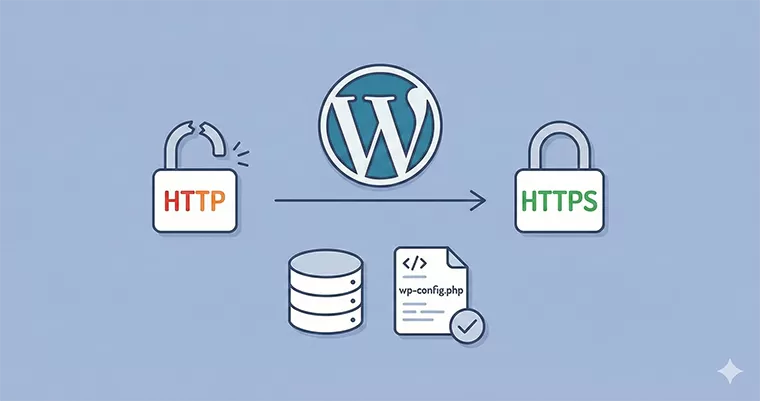
To understand how to fix mixed content error in WordPress, you must first understand the cause. This error occurs when your site is loaded over a secure HTTPS connection, but it requests internal resources (like images, scripts, or stylesheets) using the insecure HTTP protocol.
Browsers like Chrome block this content to protect the user, resulting in a “broken” layout or a missing padlock icon. To fix mixed content error in WordPress, we need to ensure every single request – from your database URLs to your theme assets – is served over HTTPS.
Step 1: The Essential Backup (Do Not Skip)
Before we attempt to fix mixed content error in WordPress via the database, you must back up your site. We are about to run raw SQL queries that will permanently alter your data.
- Log in to your hosting control panel (cPanel, DirectAdmin, etc.).
- Navigate to phpMyAdmin.
- Select your database and click the Export tab.
- Choose “Quick” and click Go to download the
.sqlfile.
Once your safety net is in place, we can proceed to fix mixed content error in WordPress.
Step 2: Force SSL in wp-config.php
The wp-config.php file is the heart of your WordPress installation. It is often the most reliable place to define your site’s URLs, overriding whatever might be stuck in the database settings. This is a critical first step to fix mixed content error in WordPress.
- Access your site files via FTP or File Manager.
- Locate
wp-config.phpin the root directory. - Add the following lines just above the line that says
/* That's all, stop editing! Happy publishing. */.
/**
 * PNET Custom SSL Enforcement
 * Vital settings to fix mixed content error in WordPress
 */
define( 'WP_HOME', 'https://your-domain.com' );
define( 'WP_SITEURL', 'https://your-domain.com' );

// Force Admin SSL
define( 'FORCE_SSL_ADMIN', true );
Note: Replace your-domain.com with your actual domain.
Defining these constants forces WordPress to use HTTPS for all generated links, which is a massive step helping to fix mixed content error in WordPress.
Advanced: Handling Load Balancers
If your site is behind a load balancer (like AWS ELB or Cloudflare) and you get a “Too Many Redirects” loop, add this snippet to your wp-config.php as well. This often helps fix mixed content error in WordPress in complex server environments.
// PNET: Fix infinite loop on load balancers
if ( isset( $_SERVER['HTTP_X_FORWARDED_PROTO'] ) && $_SERVER['HTTP_X_FORWARDED_PROTO'] === 'https' ) {
    $_SERVER['HTTPS'] = 'on';
}
Step 3: Fixing URLs in the Database
Now for the heavy lifting. Most mixed content warnings come from old http:// links hardcoded into your posts and pages. To permanently fix mixed content error in WordPress, we will run SQL queries to update these.
Warning: Do not use these queries on serialized data (like theme options in wp_options). For post content, however, they are highly effective.
- Open phpMyAdmin and select your database.
- Click the SQL tab.
- Paste the following queries. (Remember to change
wp_to your actual table prefix if it’s different, and replace the domains with your own).
-- Update the Options table (Non-serialized only)
UPDATE wp_options
SET option_value = REPLACE(option_value, 'http://old-domain.com', 'https://new-domain.com')
WHERE option_name = 'home' OR option_name = 'siteurl';

-- Update Post Content to fix mixed content error in WordPress
UPDATE wp_posts
SET post_content = REPLACE(post_content, 'http://old-domain.com', 'https://new-domain.com');

-- Update Post GUIDs (Global Unique Identifiers)
UPDATE wp_posts
SET guid = REPLACE(guid, 'http://old-domain.com', 'https://new-domain.com');

-- Update Post Meta (Custom Fields)
UPDATE wp_postmeta
SET meta_value = REPLACE(meta_value, 'http://old-domain.com', 'https://new-domain.com');
Click Go to execute. This will instantly update thousands of links in your content, helping you fix mixed content error in WordPress without installing a single plugin.
You might also like:

Step 4: The Developer’s Safety Net (Custom Function)
Sometimes, a theme or plugin will have a stubborn link hardcoded in a template file that the database search misses. To truly fix mixed content error in WordPress, you can add a simple output buffer filter to your theme’s functions.php.
This is a lightweight “developer” way to catch stragglers on the fly. We will use the pnet_ prefix to avoid naming conflicts with other function.
/**
 * PNET: On-the-fly Mixed Content Fixer
 * Buffers output and replaces http with https before rendering.
 */
function pnet_fix_mixed_content_buffer_start() {
    ob_start( 'pnet_replace_http_with_https' );
}

function pnet_replace_http_with_https( $buffer ) {
    // Check if we are not in admin to avoid issues
    if ( ! is_admin() ) {
        // Replace insecure internal links
        $buffer = str_replace( 'http://your-domain.com', 'https://your-domain.com', $buffer );

        // Optional: Fix insecure external scripts (use with caution)
        // $buffer = str_replace( 'http://', 'https://', $buffer );
    }
    return $buffer;
}

add_action( 'template_redirect', 'pnet_fix_mixed_content_buffer_start' );
This script runs before the page is sent to the browser, catching any instances of http that might have slipped through. It is a powerful fail-safe to fix mixed content error in WordPress.
Step 5: Enforcing SSL via .htaccess
You have updated the config and the database. The final lock on the door to fix mixed content error in WordPress is the .htaccess file (for Apache servers). This redirects any incoming traffic from HTTP to HTTPS before it even hits WordPress.
Add this code to the very top of your .htaccess file:
<IfModule mod_rewrite.c>
RewriteEngine On
RewriteCond %{HTTPS} off
RewriteRule ^(.*)$ https://%{HTTP_HOST}%{REQUEST_URI} [L,R=301]
</IfModule>
This 301 redirect is SEO-friendly and ensures that search engines know your site has permanently moved to the secure version, which is vital when you fix mixed content error in WordPress.
Step 6: Troubleshooting & Verification
After applying these fixes, clear your browser cache and your site cache.
- Check the Console: Right-click on your page, select Inspect, and look at the Console tab. If you still see red warnings, you may have a hardcoded link in a CSS or JS file.
- WhyNoPadlock: Use an external tool like WhyNoPadlock to scan your page. It gives a detailed report on any remaining items preventing you from successfully fix mixed content error in WordPress.
Conclusion
By following these steps, you have done more than just patch a hole; you have optimized your database and configuration to serve a secure site natively. You didn’t need a bloat-heavy plugin to fix mixed content error in WordPress. You used the tools already at your disposal: wp-config.php, SQL, and a little bit of PHP magic.
Maintaining a lean WordPress installation is key to long-term performance. Whenever you migrate a site or install an SSL certificate, refer back to this guide to fix mixed content error in WordPress the professional way.