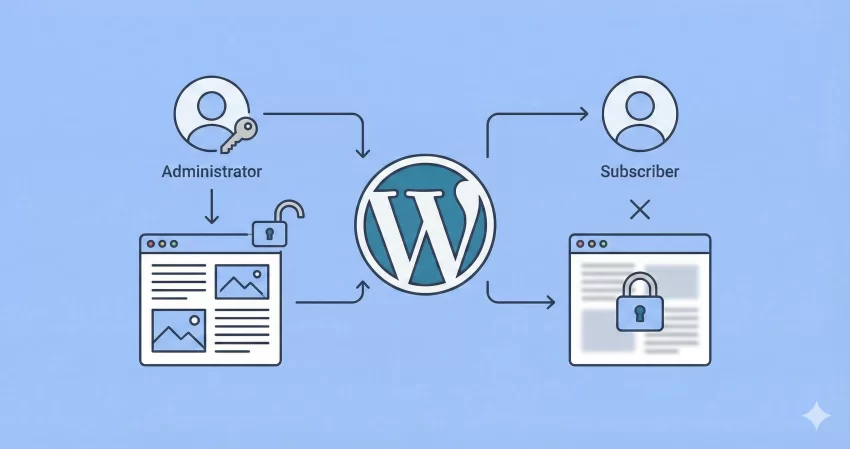
If you have been developing with WordPress for as long as I have, you know that the repository is filled with heavy membership plugins. While tools like MemberPress or Restrict Content Pro are powerful, they are often overkill when you just need to hide a specific paragraph, a download link, or a video from non-logged-in users.
As developers, we should always strive for efficiency. Why load thousands of lines of code when a simple PHP function can do the job?
In this guide, I will show you how to restrict content by user role using a custom shortcode and the native current_user_can() function. This method is lightweight, secure, and gives you granular control over your website’s visibility without slowing down your database.
Why You Should Restrict Content by User Role Programmatically
Before we dive into the code, let’s look at why you might want to restrict content by user role manually rather than using a plugin.
- Performance: Membership plugins often load heavy CSS and JS files on every page load.
- Control: Custom code allows you to define exactly what happens when a user is denied access (e.g., show a custom message, redirect, or display a login form).
- Cost: Most robust content restriction plugins require a paid subscription.
When you restrict content by user role using the method below, you keep your WordPress installation lean and mean.
Understanding the current_user_can() Function
At the heart of our solution is the WordPress function current_user_can(). This is one of the most important security functions in WordPress development. It checks if the current user has a specific capability or role.
For example, an Administrator has the capability manage_options, while a Subscriber usually only has read. By checking for these capabilities, we can logically wrap our content.
The Solution: A Custom “Check Role” Shortcode
We are going to create a shortcode that acts as a wrapper. You will be able to wrap any content in your editor with [pnet_restrict] tags to hide it from unauthorized eyes.
Step 1: The Code Snippet
Add the following code to your theme’s functions.php file or, preferably, a site-specific plugin. As per our development standards, all functions are prefixed with pnet_ to avoid conflicts.
/**
 * Shortcode to restrict content by user role or capability.
 * Usage: [pnet_restrict capability="administrator"]Hidden Content[/pnet_restrict]
 */
function pnet_restrict_content_shortcode( $atts, $content = null ) {
    // Define default attributes
    $atts = shortcode_atts( array(
        'capability' => 'read', // Default capability required
        'message'    => '',     // Optional custom message
    ), $atts, 'pnet_restrict' );

    // Check if the current user has the required capability
    if ( current_user_can( $atts['capability'] ) && ! is_null( $content ) ) {
        // User has permission, return the content
        return do_shortcode( $content );
    }

    // User does not have permission.
    // Return a custom message if provided, or nothing (null).
    if ( ! empty( $atts['message'] ) ) {
        return '< p class="pnet-restricted-alert">' . esc_html( $atts['message'] ) . '</ p>';
    }

    return ''; // Return nothing if no permission and no message
}
add_shortcode( 'pnet_restrict', 'pnet_restrict_content_shortcode' );
Step 2: Explaining the Code
This function is designed to restrict content by user role by checking a specific “capability” passed in the shortcode attributes.
$atts: We set a default capability of ‘read‘. This means if you don’t specify a role, anyone who is logged in (Subscribers and up) can see the content.current_user_can(): This performs the logic check. If the user passes, we return the $content.do_shortcode(): We wrap the return in this function so that you can nest other shortcodes inside your restricted area (like a button or a form).
You might also like:
How to Use the Shortcode to Restrict Content by User Role
Now that the logic is in place, let’s see how to use it in the WordPress Block Editor (Gutenberg) or the Classic Editor.
To restrict content by user role for Administrators only, you would use the manage_options capability.
Example 1: Admin Only Content
[pnet_restrict capability="manage_options" message="Access Denied: Admins Only."]
   <h3 >Secret Admin Data</ h3>
This paragraph is only visible to site administrators.
[/pnet_restrict]
Example 2: Logged-in Users Only
If you want to restrict content by user role so that only registered members (subscribers) can see it, use the read capability.
[pnet_restrict capability="read" message="Please login to view this download link."]
   < a href="/download/exclusive-file.zip">Download Pro File</ a>
[/pnet_restrict]
Styling the Restriction Message
If you chose to display a message to unauthorized users, you might want to style it to make it stand out. Because we added the class pnet-restricted-alert in the PHP function above, we can target it easily with CSS.
Add this to your Customizer > Additional CSS:
.pnet-restricted-alert {
    background-color: #f8d7da;
    color: #721c24;
    padding: 15px;
    border: 1px solid #f5c6cb;
    border-radius: 5px;
    font-weight: bold;
}
Now, when you restrict content by user role, the denial message will look professional and alert the user clearly.
You might also like:
Advanced Method: Restrict Content by User Role Automatically (Global Filter)
The shortcode method above is manual. You have to wrap content every time. But what if you want to restrict content by user role globally for a specific post category?
For this, we can hook into the_content filter.
Note: Use this with caution. It will override manual settings.
function pnet_auto_restrict_category( $content ) {
    // Check if we are on a single post and it's in the 'premium' category
    if ( is_single() && in_category( 'premium' ) ) {

        // If the user cannot manage options (is not admin), restrict them
        if ( ! current_user_can( 'manage_options' ) ) {
            return '< p class="pnet-restricted-alert">This content is for Premium Members only.< /p>';
        }
    }

    // Otherwise return content as normal
    return $content;
}
add_filter( 'the_content', 'pnet_auto_restrict_category' );
This snippet checks if a post is in the “Premium” category. If it is, it forces WordPress to restrict content by user role unless the user is an administrator. This is a powerful way to monetize a blog without configuring complex plugin settings.
Common Capabilities for Reference
To effectively restrict content by user role, you need to know which capabilities belong to which role. Here is a quick cheat sheet:
- Administrator:
manage_options - Editor:
publish_pages - Author:
publish_posts - Contributor:
edit_posts - Subscriber:
read
By swapping these capabilities into your [pnet_restrict] shortcode, you have full control over who sees what.
Final Thoughts
Learning how to restrict content by user role programmatically adds a vital tool to your developer toolkit. It reduces your reliance on third-party plugins, improves your site’s load times, and gives you the flexibility to handle logic exactly how your client needs it.
Remember, while current_user_can() is powerful for front-end display, it does not prevent a savvy user from accessing the REST API if you have sensitive data there. However, for 99% of use cases involving hiding text, links, or videos, this method is the gold standard.
Try implementing the pnet_restrict shortcode on your staging site today and experience the freedom of a plugin-free setup.