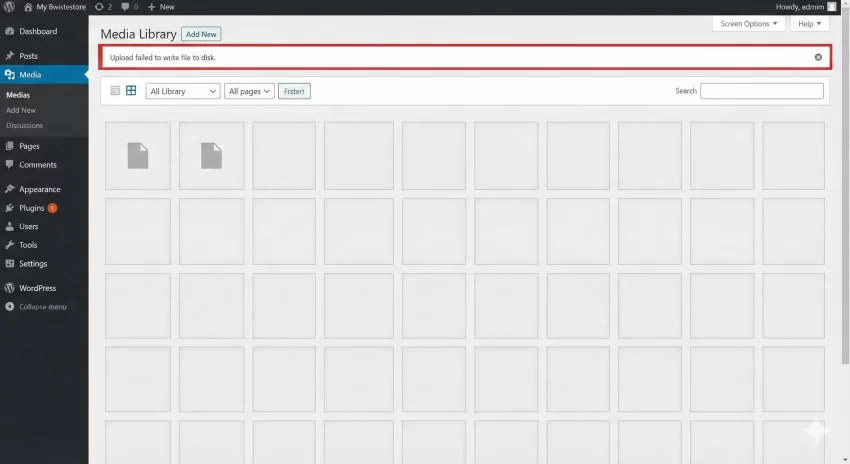
If you are seeing the dreaded WordPress upload failed to write file to disk error while uploading images, themes, or plugins, you are not alone. This is one of the most common WordPress file system errors and, fortunately, one of the easiest to fix once you understand the root cause.
In this in-depth guide, you will learn exactly why the WordPress upload failed to write file to disk error occurs, how WordPress handles file uploads internally, and the most reliable step-by-step methods to fix it permanently, even on shared hosting.
What Does “Upload: Failed to Write File to Disk” Mean in WordPress?
When you upload a file in WordPress, the system temporarily stores the file and then writes it to the wp-content/uploads directory. The WordPress upload failed to write file to disk error means WordPress was unable to complete that final write operation.
In most cases, this error is caused by incorrect file permissions, server configuration issues, or exhausted disk space. WordPress itself is rarely the problem.
Common Scenarios Where This Error Appears
- Uploading images to the Media Library
- Installing or updating themes
- Installing or updating plugins
- Uploading files via page builders
Why the WordPress Upload Failed to Write File to Disk Error Happens
Before fixing the issue, it is important to understand the most common causes behind the WordPress upload failed to write file to disk error.
- Incorrect Folder Permissions: WordPress requires write access to certain directories. If your server permissions are too restrictive, WordPress cannot save uploaded files.
- Full Disk Space on Hosting Server: If your hosting account has run out of disk space, WordPress cannot write any new files, triggering the error.
- Temporary Directory Issues: PHP uses a temporary directory to store uploaded files before moving them. If this directory is missing or misconfigured, uploads will fail.
- Server-Level Security Restrictions: Firewalls,
mod_securityrules, or aggressive hosting security settings can block file write operations.
You might also like:

How to Fix WordPress Upload Failed to Write File to Disk Error
Now let us walk through the most effective fixes. Follow these steps in order. In most cases, the issue will be resolved by the first or second solution.
Fix 1: Check and Correct Folder Permissions
Incorrect permissions are the number one cause of the WordPress upload failed to write file to disk error.
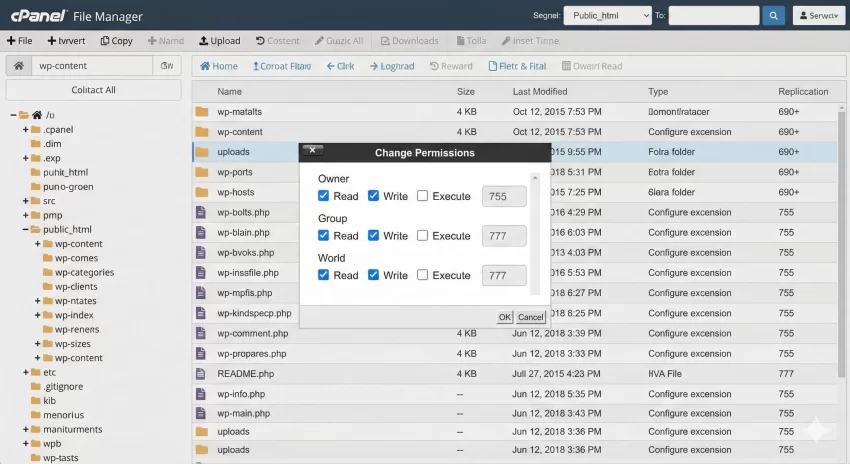
Recommended Permissions: Folders: 755, Files: 644
How to Fix Permissions Using cPanel
- Log in to your hosting cPanel
- Open File Manager
- Navigate to
public_html/wp-content - Right-click the
uploadsfolder - Set permissions to 755
Make sure all subfolders inside uploads inherit the same permissions.
Fix 2: Define a Custom Upload Temporary Directory
If PHP cannot find or access a temporary directory, WordPress will fail to write files to disk.
You can explicitly define a temporary directory in your wp-config.php file.
define('WP_TEMP_DIR', dirname(__FILE__) . '/wp-content/temp/');
After adding this line, create a folder named temp inside wp-content and set its permissions to 755.
Fix 3: Check Available Disk Space
Many users overlook this simple cause. If your hosting storage quota is full, the WordPress upload failed to write file to disk error is unavoidable.
Log into your hosting dashboard and check disk usage. If space is low:
- Delete unused backups
- Remove old staging sites
- Clear cache directories
- Upgrade your hosting plan if necessary
Fix 4: Disable Plugins Temporarily
Some security and optimization plugins interfere with file uploads.
Deactivate all plugins temporarily and try uploading a file again. If the error disappears, reactivate plugins one by one to identify the culprit.
Fix 5: Check PHP Configuration
Incorrect PHP settings can also trigger the WordPress upload failed to write file to disk error.
Ensure the following PHP values are properly set:
upload_tmp_dir = "/tmp"
file_uploads = On
If you do not have access to php.ini, contact your hosting provider and request these settings.
You might also like:

Advanced Fix: Force WordPress Filesystem Method
In rare cases, WordPress fails to determine the correct filesystem method.
You can force the direct method by adding the following code to wp-config.php:
define('FS_METHOD', 'direct');
Use this method cautiously, especially on shared hosting environments.
Tip: Easily Remove Unused CSS and JS in WordPress for Blazing Fast Speed
How WordPress Handles File Uploads Internally
WordPress uses PHP functions such as wp_handle_upload() to manage file uploads. You can explore the official documentation on this function in the WordPress Codex. WordPress wp_handle_upload() Function Documentation
Preventing the Error in the Future
To ensure you never encounter the WordPress upload failed to write file to disk error again, follow these best practices:
- Monitor disk usage regularly
- Avoid setting permissions to 777
- Use reputable hosting providers
- Keep WordPress core and plugins updated
- Audit security plugins after installation
Conclusion
The WordPress upload failed to write file to disk error can be frustrating, but it is almost always related to server permissions or configuration issues rather than WordPress itself.
By following the fixes outlined in this guide, you can quickly diagnose the cause, resolve the error, and restore normal upload functionality. Whether you are a beginner or an experienced WordPress developer, understanding how WordPress interacts with the file system will save you hours of troubleshooting in the future.
If the issue persists even after applying all fixes, contacting your hosting provider with specific error details is the fastest path to resolution.