It is the scenario every WordPress developer dreads. It is late on a Friday, you see that orange notification bubble in your dashboard, and you think, “I’ll just quickly update these plugins before the weekend.” You click update, watch the spinner, and suddenly—white screen of death, or a layout that looks like a Picasso painting.
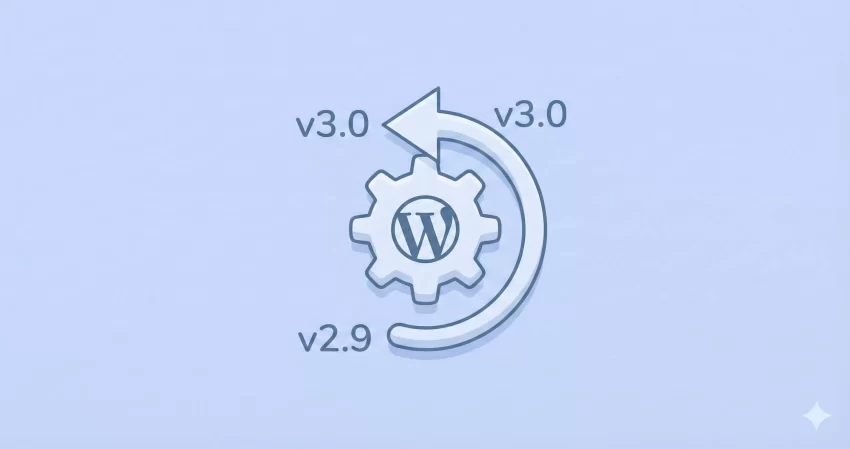
When an update introduces a critical bug or breaks compatibility with your theme, the fastest solution isn’t always to debug the code immediately; it is to revert the site to its previous working state. In this guide, we will explore exactly how to rollback WordPress plugin versions to restore your site’s stability instantly.
Why You Might Need to Downgrade a Plugin
WordPress generally encourages keeping everything up to date for security and performance. However, there are valid reasons to rollback WordPress plugin versions:
- Plugin Conflicts: The new version conflicts with your theme or another plugin, causing JavaScript errors or PHP fatal errors.
- Removed Features: Sometimes developers deprecate features in major updates that your site relies on.
- Buggy Releases: Even big developers push bad code occasionally. A “hotfix” might be days away, and you cannot afford the downtime.
Before we proceed, there is one golden rule: Always create a backup before performing a rollback. Even though we are reverting to a previous version, the database changes made by the newer version might not always revert cleanly. A fresh backup is your safety net.
Method 1: The “No-Code” Way (Using WP Rollback)
For most users, the safest and easiest way to rollback WordPress plugin versions is by using a dedicated plugin. The most popular tool for this job is “WP Rollback.” It connects to the WordPress Plugin Repository and allows you to switch between version tags easily.
Step 1: Install WP Rollback
Navigate to Plugins > Add New, search for “WP Rollback,” install, and activate it. This plugin is essential for any site maintainer’s toolkit.
Step 2: Choose the Plugin to Downgrade
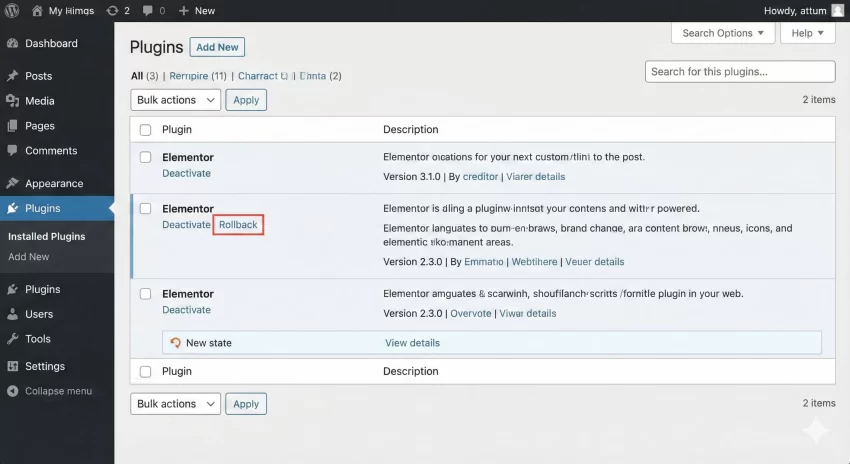
Go to your main Plugins list. You will notice a new “Rollback” link appears next to the standard “Edit” and “Deactivate” links for plugins installed from the official repository.
Step 3: Select the Version
Clicking “Rollback” takes you to a screen listing every version of that plugin ever released. Select the version number you had installed previously (usually the one right below the current installed version).
Step 4: Confirm and Rollback
Click the “Rollback” button. The plugin will warn you about backups (take this seriously!). Confirm the action, and WordPress will effectively reinstall the older version over the current one.
You might also like:
Method 2: The Manual Way (FTP/SFTP)
If you cannot access your WordPress dashboard (perhaps the update caused a fatal error), or if you are using a premium plugin that isn’t in the WordPress repository, the WP Rollback plugin won’t help. You need to perform a manual rollback WordPress plugin operation via FTP.
Step 1: Obtain the Previous Version
For free plugins, find the plugin page on WordPress.org. Click on the “Advanced View” on the right sidebar. Scroll to the bottom of the page to find a dropdown menu labeled “Previous Versions.” Select the version you want to rollback WordPress plugin to, and download the ZIP file.
For premium plugins, you will need to log into the developer’s marketplace (like CodeCanyon or the vendor’s site) and look for their changelog or version history download section.
Step 2: Connect via FTP
Use an FTP client like FileZilla to connect to your server. Navigate to:
/wp-content/plugins/
Step 3: Rename the Current Plugin Folder
Find the folder of the problematic plugin (e.g., contact-form-7). Do not delete it yet—just in case. Rename it to something like contact-form-7-broken. This effectively deactivates the plugin and removes the “bad” code from the active path.
Step 4: Upload the Old Version
Unzip the older version you downloaded in Step 1. Upload the unzipped folder into the /plugins/ directory.
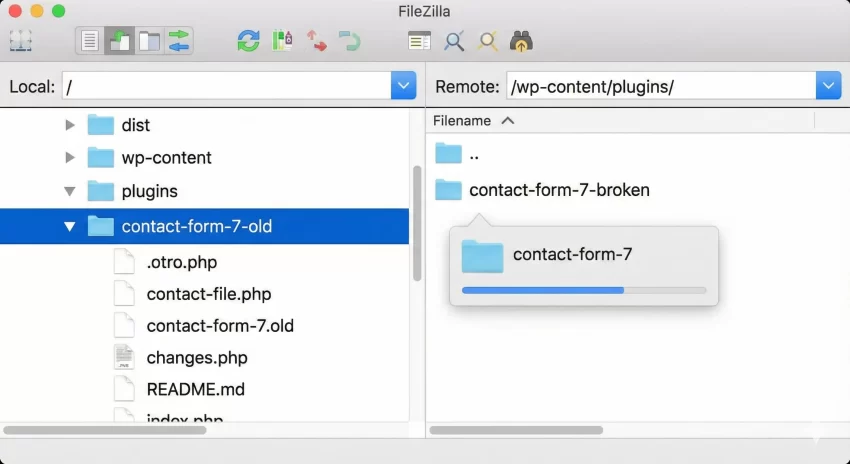
Once the upload is complete, log back into your WordPress dashboard. Navigate to the Plugins page to ensure the old version is active. You have successfully managed to rollback WordPress plugin files manually!
Tip: Locked Out? Safely Reset WordPress Password phpMyAdmin in 5 Minutes
Method 3: Preventing the Issue (Control Your Updates)
Constant rollbacks are not a sustainable strategy. While auto-updates are great for security, they can be risky for mission-critical plugins (like WooCommerce or major page builders). As a developer, you can control which plugins auto-update using a custom code snippet.
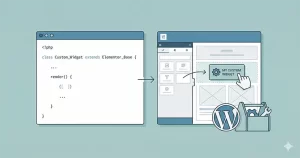
We can use the auto_update_plugin filter to programmatically disable updates for specific plugins. This ensures that you can test updates on a staging site before they hit production.
Add the following code to your theme’s functions.php file or a site-specific plugin. Note that we are using the pnet_ prefix to prevent function name collisions.
/**
 * Disable auto-updates for specific plugins.
 *
 * @param bool   $update Whether to update the plugin or not.
 * @param object $item   The plugin update object.
 * @return bool
 */
function pnet_disable_specific_plugin_updates( $update, $item ) {
    // Array of plugin slugs to block from auto-updating
    $plugins_to_block = array(
        'woocommerce',
        'elementor',
        'contact-form-7'
    );

    if ( isset( $item->slug ) && in_array( $item->slug, $plugins_to_block ) ) {
        return false; // Block update
    }

    return $update; // Return original status for others
}
add_filter( 'auto_update_plugin', 'pnet_disable_specific_plugin_updates', 10, 2 );
You might also like:

Common Risks When You Rollback WordPress Plugin Versions
While rolling back is often a lifesaver, it is not without risks. Here is what you need to watch out for:
1. Database Desynchronization
Some major updates (like WooCommerce 8.0 to 9.0) run a “database migration” routine. This modifies your database tables to fit the new version. If you revert the files to the old version but the database remains in the “new” structure, you might experience data corruption. Always check the plugin’s changelog to see if “Database Changes” were listed before you rollback.
2. Security Vulnerabilities
Often, an update is released specifically to patch a security hole. If you rollback WordPress plugin versions to an older release to fix a layout bug, you might be reopening a security vulnerability. In these cases, it is better to reach out to the developer support for a patch rather than staying on an insecure version.
3. Dependency Issues
The WordPress ecosystem is interconnected. A plugin might have updated to support PHP 8.2. Rolling it back to a version that only supports PHP 7.4 while your server runs 8.2 could cause immediate errors.
Advanced Troubleshooting: The “Rollback” Failed
Sometimes, even a rollback doesn’t fix the issue. This usually happens because of browser caching, server-side caching (like Varnish or Redis), or CDN caching (like Cloudflare).
If you have performed the rollback WordPress plugin steps above but the site still looks broken:
- Clear Browser Cache: Hard refresh your browser (Ctrl + F5).
- Purge Server Cache: If you use a caching plugin like WP Rocket or W3 Total Cache, locate the “Clear Cache” button in your admin bar.
- Regenerate Assets: Page builders often store CSS in separate files. Look for a “Regenerate CSS” tool in your page builder’s settings.
Conclusion
Knowing how to rollback WordPress plugin versions is a skill that separates the casual user from the experienced site manager. Whether you choose the ease of the WP Rollback plugin or the precision of a manual FTP upload, the ability to revert changes gives you the confidence to manage complex WordPress installations.
Remember, a rollback is a temporary fix, not a permanent solution. Use it to get your site back online, then set up a staging environment to troubleshoot the conflict properly so you can eventually move forward to the latest, most secure version.