
Every online store owner knows the power of “New.” It is a psychological trigger that screams freshness, innovation, and relevance. When a regular customer lands on your shop page, their eyes are naturally drawn to items they haven’t seen before. This is why adding a WooCommerce new product badge is one of the most effective, yet underutilized, strategies to boost click-through rates and reduce inventory stagnation.
While there are dozens of plugins that can achieve this, they often come with a hidden cost: bloat. Heavy JavaScript files, extra CSS requests, and unnecessary database queries can slow down your site, hurting the very SEO ranking you are trying to improve. If you are a developer or a DIY store owner, there is a better way.
In this guide, we will walk through how to add a stylish, lightweight “New” badge to your recent products programmatically. No plugins, just clean, efficient code.
Why Programmatic Badges are Superior
Before we dive into the code, it is worth understanding why a custom solution often beats a plugin for this specific task. A WooCommerce new product badge logic is actually quite simple: Is the product’s creation date within the last X days?
Plugins often complicate this by adding extensive settings panels, color pickers, and conditional logic you may never use. By adding a small snippet to your theme’s functions.php file, you gain:
- Zero Performance Impact: The code runs only when needed.
- Total Design Control: You can style the badge to match your brand perfectly using CSS.
- Set It and Forget It: The badge automatically disappears after your specified number of days.
You might also like:
The Code: Adding the “New” Badge
To implement this, we will hook into the WooCommerce product loop. Specifically, we will use the woocommerce_before_shop_loop_item_title hook, which allows us to insert content just before the product title, like our WooCommerce new product badge, (usually over the product image).
Copy and paste the following snippet into your child theme’s functions.php file or a custom site-specific plugin.
/**
 * Add "New" Badge to Recent WooCommerce Products
 *
 * This function checks the creation date of a product and displays
 * a "New" badge if it was created within the last 30 days.
 */
function pnet_add_new_badge_to_shop() {
    global $product;

    // 1. Get the product creation date
    $date_created = $product->get_date_created();

    // Safety check: ensure we have a valid date
    if ( ! $date_created ) {
        return;
    }

    // 2. Define the "Newness" threshold (in days)
    $newness_days = 30;

    // 3. Calculate the difference
    $created_timestamp = $date_created->getTimestamp();
    $offset_timestamp  = strtotime( '-' . $newness_days . ' days' );

    // 4. Compare and Output
    if ( $created_timestamp > $offset_timestamp ) {
        echo '<span class="pnet-new-badge">' . esc_html__( 'New', 'pnet' ) . '</span>';
    }
}
add_action( 'woocommerce_before_shop_loop_item_title', 'pnet_add_new_badge_to_shop', 10 );
Tip: WooCommerce Redirect After Checkout: An Easy Guide to Boost Retention
How It Works
Let’s break down the function pnet_add_new_badge_to_shop:
- We access the global
$productobject to retrieve the specific product’s data. - We define
$newness_days = 30;. You can change this number to 15, 60, or whatever fits your inventory cycle. - We compare the product’s creation timestamp against the timestamp of exactly 30 days ago.
- If the product is newer than that threshold, we echo a simple HTML
spantag with the classpnet-new-badge.
For more details on available hooks, you can check the official WooCommerce Hooks documentation.
You might also like:

Styling Your Badge with CSS
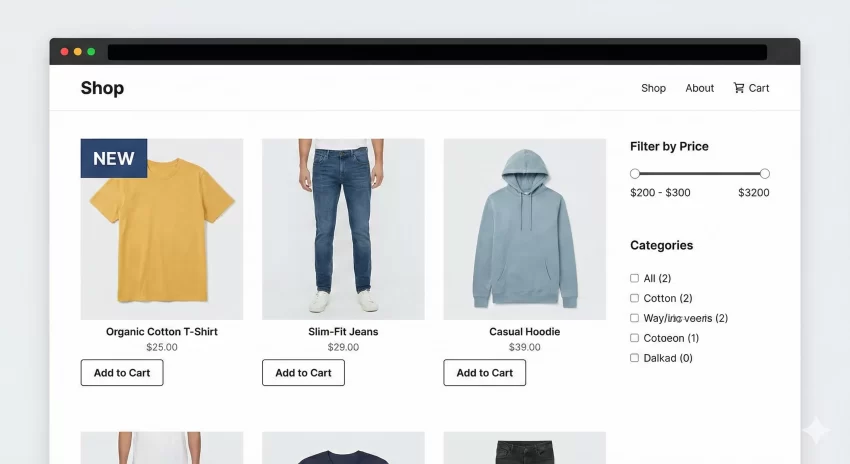
Right now, the WooCommerce new product badge is just plain text. Let’s make it pop. We want a design that is modern, flat, and unobtrusive but visible. Add the following CSS to your theme’s style.css file or the Customizer’s “Additional CSS” section.
/* * Styles for pnet_new_badge
 * Position: Top-Left of the product image
 */
.product .pnet-new-badge {
    position: absolute;
    top: 10px;
    left: 10px;
    background-color: #14213D; /* Navy Blue background */
    color: #ffffff;
    font-size: 12px;
    font-weight: 700;
    text-transform: uppercase;
    padding: 5px 12px;
    border-radius: 3px;
    z-index: 9;
    box-shadow: 0 2px 5px rgba(0,0,0,0.2);
    line-height: 1;
}

/* Optional: Add a subtle hover effect */
.product:hover .pnet-new-badge {
    background-color: #FCA311; /* Orange accent on hover */
    transition: background-color 0.3s ease;
}
This CSS positions the WooCommerce new product badge absolutely over the product image (which usually has position: relative by default in WooCommerce). We used a navy blue background with a sharp contrast text, ensuring the WooCommerce new product badge is readable on light or dark product photos.
Advanced Customization
Changing the Position
If you prefer the WooCommerce new product badge on the right side, simply change the CSS properties:
.product .pnet-new-badge {
    left: auto;
    right: 10px;
}
Targeting Specific Categories
Sometimes you might want to show the WooCommerce new product badge only for a specific category, say “Clothing”. You can modify the PHP function to check the category slug before displaying the badge.
// Inside the pnet_add_new_badge_to_shop function
if ( has_term( 'clothing', 'product_cat', $product->get_id() ) ) {
    // Check date and display badge...
}
Troubleshooting Common Issues
If your WooCommerce new product badge isn’t appearing, check these common culprits:
- Caching: If you are using a caching plugin (like WP Rocket or W3 Total Cache), clear your cache after adding the code.
- Z-Index: If the badge is “behind” the image, increase the
z-indexin your CSS to99. - Theme Overrides: Some themes use custom hooks for their product loops. You may need to change
woocommerce_before_shop_loop_item_titleto a theme-specific hook.
Conclusion
Adding a WooCommerce new product badge doesn’t require an expensive monthly subscription or a bloated plugin. With just a few lines of PHP and CSS, you can create a professional, automated system that highlights your fresh inventory and drives customer interest.
By keeping your implementation lightweight, you ensure your site remains fast—a critical factor for both user experience and SEO. Try adding this snippet to your staging site today and watch how a simple visual cue can impact your store’s engagement.