There is nothing more annoying than trying to upload a high-quality video, a heavy theme, or a large PDF to your site, only to be met with the dreaded “exceeds the maximum upload size for this site” error. If you need to increase WordPress maximum upload size to accommodate larger files, you are not the only one. Most hosting providers set a conservative limit by default—often as low as 2MB or 8MB—to protect server resources. However, as a developer or site owner, these limits can halt your productivity. In this guide, we will explore both plugin-based and code-level solutions to break through these barriers and give your site the flexibility it deserves.
Why is There a Maximum Upload Limit in WordPress?
Before we dive into the “how,” it’s important to understand the “why.” Your WordPress site doesn’t exist in a vacuum; it lives on a server (usually running Apache or Nginx). Hosting companies set limits on file uploads to prevent users from accidentally (or intentionally) overwhelming the server’s memory. While this is great for server stability, modern web assets—like high-resolution images or complex plugins—frequently exceed those 10-year-old default limits.
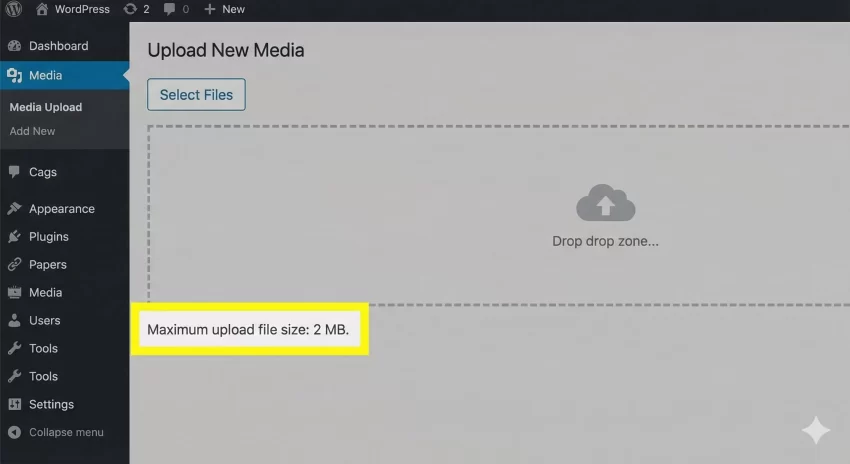
You can check your current limit by navigating to Media > Add New in your WordPress dashboard. You will see the “Maximum upload file size” listed at the bottom of the upload box.
Method 1: Increase WordPress Maximum Upload Size Using a Plugin
If you aren’t comfortable editing server files, the easiest way to increase WordPress maximum upload size is by using a dedicated plugin. This is the “no-code” solution that works for 90% of users on shared hosting.
Using the Big File Uploads Plugin
One of the most reliable plugins for this task is “Big File Uploads.” It allows you to bypass the standard PHP limits by using “chunked” uploads or by overriding the server’s configuration via the plugin interface.
- Install and activate the plugin from the WordPress repository.
- Go to Settings > Big File Uploads.
- Enter the value you desire in Megabytes or Gigabytes.
- Save changes and verify the new limit in your Media Library.
You might also like:
Method 2: Increase WordPress Maximum Upload Size Using Codes
For developers who prefer a “lean” site without unnecessary plugins, using code is the superior route. There are several files where you can inject directives to increase WordPress maximum upload size. Depending on your hosting environment, one of these will work for you.
1. Editing the functions.php File
The simplest code-based approach is to add a few lines to your theme’s functions.php file. While this is easy, keep in mind that if you change your theme, these settings will reset.
// Increase WordPress maximum upload size via functions.php
function pnet_increase_upload_size_limit() {
    @ini_set( 'upload_max_size' , '64M' );
    @ini_set( 'post_max_size', '64M' );
    @ini_set( 'max_execution_time', '300' );
}
add_action( 'init', 'pnet_increase_upload_size_limit' );
2. Creating or Editing the php.ini File
If the functions.php method doesn’t work, it’s likely because your server requires a direct PHP configuration change. You can create a file named php.ini in your root directory (via FTP or File Manager) and add the following code:
upload_max_filesize = 64M
post_max_size = 64M
memory_limit = 128M
max_execution_time = 300
3. Modifying the .htaccess File
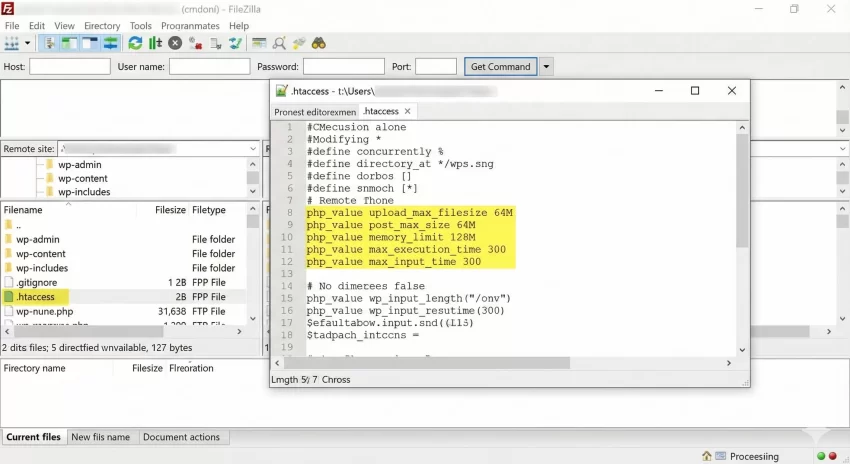
For sites running on Apache servers, the .htaccess file is a powerful tool. By adding specific PHP flags here, you can often bypass global server restrictions to increase WordPress maximum upload size.
php_value upload_max_filesize 64M
php_value post_max_size 64M
php_value memory_limit 128M
php_value max_execution_time 300
php_value max_input_time 300
Method 3: Using the upload_size_limit Filter
Sometimes, the server allows large uploads, but WordPress itself restricts them. In such cases, you can use a WordPress filter to programmatically increase WordPress maximum upload size. This is particularly useful if you want to set different limits based on user roles.
You can learn more about how WordPress handles filters in the WordPress Codex: upload_size_limit.
/**
* Filter the maximum upload size allowed in WordPress.
* Prefix used: pnet_
*/
function pnet_custom_upload_size_limit( $size ) {
    // Set the limit to 100MB in bytes
    return 1024 * 1024 * 100;
}
add_filter( 'upload_size_limit', 'pnet_custom_upload_size_limit', 20 );
You might also like:

Common Issues and Troubleshooting
If you have tried to increase WordPress maximum upload size using the methods above and the limit still hasn’t changed, here are a few things to check:
1. Shared Hosting Restrictions
Many “budget” hosting providers have a hard cap on their servers. Even if you change your .htaccess or php.ini, the server might ignore your instructions. If this happens, you will need to contact your host’s support team and ask them to increase the limit for you.
2. Nginx Servers
If your site runs on Nginx instead of Apache, the .htaccess file will not exist or will not work. You (or your host) will need to edit the nginx.conf file and add the client_max_body_size directive.
http {
    client_max_body_size 64M;
}
3. Multisite Limitations
If you are running a WordPress Multisite network, there is a separate setting in the Network Admin area. Go to Network Admin > Settings and look for the “Max upload file size” option. This setting will override individual site configurations, so ensure it is set high enough to allow your users to increase WordPress maximum upload size effectively.
Summary: Which Method Should You Use?
To recap, if you want to increase WordPress maximum upload size quickly, follow this hierarchy:
Increasing the limit is essential for a modern workflow. Whether you choose to increase WordPress maximum upload size using a plugin or custom code, always remember to back up your site before editing core files like .htaccess or functions.php. By following the steps above, you can stop worrying about file size errors and focus on creating amazing content for your visitors.
Tip: Fix WordPress Upload Failed to Write File to Disk Error Fast (Proven Solutions)
Frequently Asked Questions
1. Does trying to increase WordPress maximum upload size slow down my website?
No, simply increasing the limit does not slow down your site’s front-end performance. However, allowing extremely large uploads can consume more server bandwidth and disk space. It is best to set a limit that is “just enough” for your needs—for example, 64MB or 128MB—rather than setting it to 2GB if you only ever upload images.
2. I edited my .htaccess file, but I am getting a “500 Internal Server Error.” What happened?
This usually happens if your server is not running on Apache or if your host has restricted the use of “php_value” directives in .htaccess. If you see this error, immediately remove the code you added to restore your site, and try the php.ini or plugin method instead to increase WordPress maximum upload size.
3. Is there a maximum limit to how much I can increase the upload size?
Yes. You are ultimately limited by the physical hardware and the global configuration of your web server. If your hosting provider has a hard limit of 256MB at the server level, no amount of coding or plugins will allow you to go beyond that. In such cases, you must contact your host’s support team.
4. Can I increase WordPress maximum upload size for specific user roles only?
Yes! By using the upload_size_limit filter we discussed earlier, you can add a conditional check. For example, you could allow Administrators to upload 100MB files while restricting Contributors to only 2MB. This is a great way to maintain security on multi-author blogs.
function pnet_role_based_upload_limit( $size ) {
    if ( !current_user_can( 'manage_options' ) ) {
        // Limit non-admins to 2MB
        return 1024 * 1024 * 2;
    }
    // Admins get 100MB
    return 1024 * 1024 * 100;
}
add_filter( 'upload_size_limit', 'pnet_role_based_upload_limit', 20 );
5. Why does WordPress show a different limit than what I set in PHP?
WordPress checks several different variables. If your upload_max_filesize is 64MB but your post_max_size is only 8MB, WordPress will show the lower of the two (8MB) as your limit. To successfully increase WordPress maximum upload size, always ensure both values are updated and that post_max_size is equal to or larger than upload_max_filesize.