Are you tired of manually performing repetitive maintenance tasks on your website? Whether it is deleting old post revisions, checking for broken links, or fetching data from an external API, doing these things by hand kills your productivity. This is where the WordPress Cron Job becomes your best friend.
For any developer or site manager running a professional site—like we do here at PixelNet—automation is not just a luxury; it is a necessity. The WordPress Cron Job system allows you to schedule tasks to run automatically at specific intervals, ensuring your site runs smoothly even while you sleep.
In this comprehensive guide, we will dive deep into how WP-Cron works, compare using a plugin versus writing custom code, and show you exactly how to implement your own scheduled events using our custom pnet_ prefix standards.
What is a WordPress Cron Job?
In the world of Linux and server management, a “Cron” is a time-based job scheduler. It executes commands at specific dates and times. WordPress has its own version of this, affectionately known as WP-Cron. However, it works slightly differently than a system cron.
A standard system cron checks the clock continuously. The WordPress Cron Job, on the other hand, is a “pseudo-cron.” It only triggers when someone visits your website. When a page loads, WordPress checks if there are any scheduled tasks due. If there are, it fires them off.
Why Use WP-Cron?
You might wonder why WordPress doesn’t just use the server’s cron. The answer is compatibility. Not all WordPress hosting environments give users access to the system scheduler. By handling it internally, the WordPress Cron Job ensures that automation works on virtually any hosting setup, from shared servers to dedicated VPS environments.
Common Use Cases
- Publishing Scheduled Posts: This is the most common default usage.
- Backup Plugins: Triggering daily or weekly database backups.
- Maintenance: Clearing out expired transients or spam comments.
- API Syncing: Fetching stock prices or weather data every hour.
You might also like:

Method 1: Managing the WordPress Cron Job with a Plugin
If you are not comfortable touching code or simply want a visual interface to monitor your tasks, using a plugin is a fantastic solution. It allows you to see exactly what is running behind the scenes.
Recommended Plugin: WP Crontrol
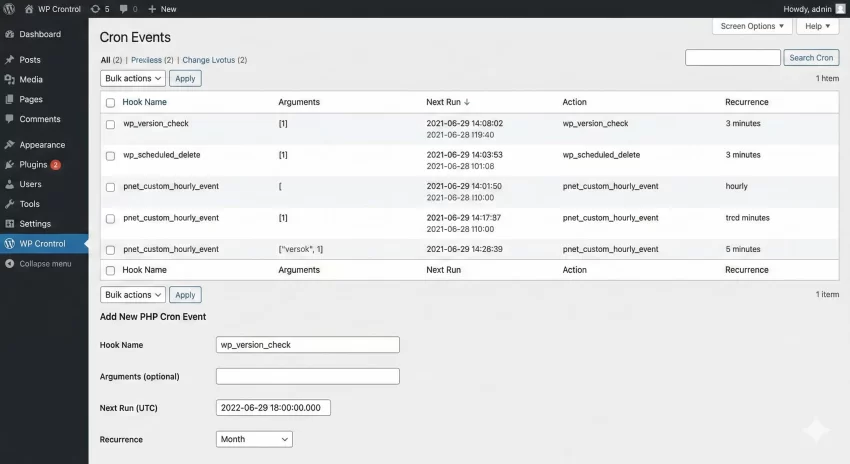
While there are several options, WP Crontrol is widely considered the standard for managing the WordPress Cron Job system. It gives you full visibility into all scheduled events, including core WordPress tasks and those created by other plugins.
Step-by-Step Guide
- Install and Activate: Go to your dashboard, search for “WP Crontrol,” and install it.
- Access the Cron Events: Navigate to Tools > Cron Events.
- Add a New Event: Click on the “Add New PHP Cron Event” tab.
- Schedule: You can choose a hook name, arguments, and the recurrence schedule (e.g., hourly, twice daily).
While plugins are great for monitoring, as developers, we often prefer hard-coding our schedules. This ensures that our automated tasks remain active even if a plugin is accidentally deactivated. Let’s look at how to code a WordPress Cron Job manually.
Method 2: The Developer Way (Custom Code)
Writing your own cron functions gives you total control. We will break this down into three steps: creating a custom time interval (optional), scheduling the event, and hooking your function to that event.
Note: All code snippets below should go into your theme’s functions.php file or a custom site-specific plugin.
Step 1: Adding Custom Recurrence Intervals
By default, the WordPress Cron Job system understands hourly, twicedaily, and daily. But what if you need a task to run every 10 minutes? We need to filter the schedules.
// Add a custom 10-minute interval to WordPress Cron Job schedules
function pnet_add_cron_interval( $schedules ) {
    $schedules['pnet_ten_minutes'] = array(
        'interval' => 600, // Time in seconds (10 * 60)
        'display'  => esc_html__( 'Every 10 Minutes' ),
    );
    return $schedules;
}
add_filter( 'cron_schedules', 'pnet_add_cron_interval' );
Step 2: Scheduling the Event
Next, we need to tell WordPress to schedule our event if it hasn’t been scheduled already. We usually wrap this in a function that runs on plugin activation or theme initialization.
It is crucial to use wp_next_scheduled() to check if the WordPress Cron Job already exists. If you skip this check, you might end up scheduling duplicate tasks on every single page load, which will crash your site.
// Schedule the custom WordPress Cron Job event
function pnet_schedule_custom_task() {
    if ( ! wp_next_scheduled( 'pnet_custom_hourly_event' ) ) {
        wp_schedule_event( time(), 'hourly', 'pnet_custom_hourly_event' );
    }
}
add_action( 'init', 'pnet_schedule_custom_task' );
Step 3: Hooking the Function
Now that the event pnet_custom_hourly_event is scheduled, we need to attach a function to it. This is the code that will actually execute when the timer hits zero.
// The function to execute when the WordPress Cron Job runs
function pnet_execute_custom_task() {
    // Example: Delete temporary options to keep DB clean
    delete_option( 'pnet_temp_cache_data' );

    // Log execution for debugging (optional)
    error_log( 'PixelNet Custom Task ran successfully.' );
}
add_action( 'pnet_custom_hourly_event', 'pnet_execute_custom_task' );
Step 4: Unscheduling on Deactivation
Good hygiene is important. If you switch themes or deactivate your plugin, you should clean up the WordPress Cron Job so it doesn’t keep trying to run a function that no longer exists.
// Clear the WordPress Cron Job timestamp
function pnet_clear_scheduled_task() {
    $timestamp = wp_next_scheduled( 'pnet_custom_hourly_event' );
    if ( $timestamp ) {
        wp_unschedule_event( $timestamp, 'pnet_custom_hourly_event' );
    }
}
register_deactivation_hook( __FILE__, 'pnet_clear_scheduled_task' );
For more details on the specific functions used here, you can refer to the wp_schedule_event documentation on the WordPress Developer Resources.
You might also like:
Bonus: A Real-World Database Cleanup Script
Now that you understand the structure, let’s apply it to a practical scenario. One of the best uses for a WordPress Cron Job is keeping your database lean by removing unnecessary data.
The following script will automatically delete all post revisions and spam comments. By attaching this to your scheduled event, you ensure your database never gets bloated with junk files.
Warning: This script permanently deletes data. Always back up your database before implementing cleanup scripts.
// The callback function for our database cleanup task
function pnet_run_database_cleanup() {
    global $wpdb;

    // 1. Delete all post revisions to save space
    // We use a direct SQL query for efficiency
    $wpdb->query( "DELETE FROM $wpdb->posts WHERE post_type = 'revision'" );

    // 2. Delete all comments marked as 'spam'
    $wpdb->query( "DELETE FROM $wpdb->comments WHERE comment_approved = 'spam'" );

    // 3. Delete all comments in the 'trash'
    $wpdb->query( "DELETE FROM $wpdb->comments WHERE comment_approved = 'trash'" );

    // Optional: Log the cleanup time for your reference
    error_log( 'DB Cleanup completed at ' . date( 'Y-m-d H:i:s' ) );
}

// Hook this function to the event we created in Step 2
add_action( 'pnet_custom_hourly_event', 'pnet_run_database_cleanup' );
In this example, we hooked the cleanup function to the pnet_custom_hourly_event we created earlier. However, for a production site, you would likely want to change the schedule to run daily instead of hourly to minimize server load.
Tip: How to Safely Enable SVG in WordPress Without Plugins: The Ultimate Guide
Performance: System Cron vs. WP-Cron
As mentioned earlier, the default WordPress Cron Job relies on site traffic. For high-traffic sites, checking for cron jobs on every page load can increase server load. Conversely, for low-traffic sites, if no one visits, your scheduled emails or backups might not run.
To solve this, many developers disable the default trigger and use a real system cron.
How to Disable Default WP-Cron
Open your wp-config.php file and add the following line:
define( 'DISABLE_WP_CRON', true );
Once disabled, you must set up a manual cron job in your hosting control panel (cPanel) to ping the wp-cron.php file every 5 or 10 minutes. This ensures your WordPress Cron Job runs reliably regardless of traffic, and it removes the checking overhead from user page loads.
Debugging Your Cron Jobs
Sometimes, a WordPress Cron Job will fail silently. This can happen due to PHP timeouts or memory limits. If your task involves heavy processing (like resizing 100 images), it is best to break it into smaller batches.
You can use the WP Crontrol plugin we mentioned earlier to manually “Run Now” any event. If it throws an error immediately, you know there is a bug in your code. If it runs but times out, you need to optimize your function.
Conclusion
Mastering the WordPress Cron Job opens up a world of possibilities for your websites. Whether you choose to use a plugin for simplicity or write custom code for flexibility, the ability to schedule automated tasks is a skill every WordPress developer needs.
By following the steps in this guide, you can ensure your site maintenance happens like clockwork, leaving you free to focus on more important things—like writing great content or developing your next big project.
Start experimenting with a simple WordPress Cron Job today, and watch your productivity soar!