
Direct communication channels are no longer a luxury; they are a necessity for conversion rate optimization. When you fail to provide an instant connection point, potential leads often bounce to competitors who are easier to reach. The most efficient solution to this friction is to add WhatsApp button WordPress functionality directly to your site’s interface. This creates a seamless bridge between your content and your support team.
While the WordPress repository is flooded with plugins that promise this functionality, they often come with significant downsides: bloated JavaScript files, tracking scripts, and security vulnerabilities. As a developer, the superior approach is to add WhatsApp button WordPress features programmatically. This ensures your code remains lightweight, fully customizable, and free from third-party dependencies. In this guide, we will walk through building a custom, floating WhatsApp widget using pure PHP, HTML, and CSS.
For Developers
Prerequisites
Before modifying your production environment, ensure you have the following ready. This setup ensures that your attempt to add WhatsApp button WordPress code does not disrupt existing site functionality.
- PHP 7.4 or higher: We will use modern syntax.
- Access to File Manager (FTP/SFTP): To edit
functions.php. - A Child Theme installed: Essential for preserving code changes.
- A Full Site Backup: Use UpdraftPlus or your host’s backup tool.
- WhatsApp Number: A verified phone number in international format.
Step 1: Setting Up the Environment
The foundation of any robust custom development in WordPress is the child theme. If you edit the parent theme directly, the next update from the theme developer will wipe out your custom logic to add WhatsApp button WordPress widgets.
Navigate to your wp-content/themes/ directory. If you haven’t created a child theme yet, create a new folder. Inside, create a style.css and a functions.php file. This isolates your new functionality from the core theme files, allowing for safer debugging and easier future maintenance.
Backup Required
Step 2: Defining Global Constants
Hardcoding phone numbers into your functions is bad practice. If the client changes their support number, you shouldn’t have to dig through logic functions to find it. We will define constants at the top of your child theme’s functions.php file.
Open your functions.php file and add the following configuration. This makes the goal to add WhatsApp button WordPress features more modular and manageable for future developers who might work on this site.
    /**
     * Define WhatsApp Configuration Constants
     * Change these values to match your specific requirements.
     */
    define( 'PNET_WA_NUMBER', '15551234567' ); // Format: CountryCode + Number (No + or -)
    define( 'PNET_WA_MESSAGE', 'Hello! I would like to inquire about your services.' );
    define( 'PNET_WA_POSITION', 'right' ); // Options: 'left' or 'right'
By defining PNET_WA_NUMBER, we ensure that the destination number is consistent across all functions. The message is URL-encoded automatically in the next steps, ensuring that spaces and special characters do not break the API link.
Step 3: Creating the Button Markup
Now we need to construct the HTML that renders the button. We will hook this into the wp_footer action. This ensures the markup is loaded at the very end of the page, preventing it from blocking the rendering of critical above-the-fold content (LCP).
The function below checks if the user is on the front end of the site. It then constructs the WhatsApp API link using the constants we defined earlier. We use http_build_query to safely append the pre-filled message text.
    /**
     * Render the WhatsApp Floating Button in the Footer
     */
    function pnet_render_whatsapp_button() {
        // Ensure this only runs on the front end
        if ( is_admin() ) {
            return;
        }

        // Prepare the API URL
        $phone   = PNET_WA_NUMBER;
        $message = urlencode( PNET_WA_MESSAGE );
        $api_url = "https://wa.me/{$phone}?text={$message}";

        // sanitize_html_class ensures the position class is safe
        $position_class = sanitize_html_class( 'pnet-wa-' . PNET_WA_POSITION );

        // Output the HTML
        ?>
        <div id="pnet-wa-widget" class="<?php echo esc_attr( $position_class ); ?>">
            <a href="<?php echo esc_url( $api_url ); ?>" target="_blank" rel="noopener noreferrer" aria-label="Chat with us on WhatsApp">
                <svg width="60" height="60" viewBox="0 0 24 24" fill="none" xmlns="http://www.w3.org/2000/svg">
                    <path fill-rule="evenodd" clip-rule="evenodd" d="M12 4C7.58172 4 4 7.58172 4 12C4 13.5684 4.4542 15.0298 5.25056 16.2842L4.06282 20.2458L8.14815 19.1235C9.32426 19.6896 10.6277 20 12 20C16.4183 20 20 16.4183 20 12C20 7.58172 16.4183 4 12 4ZM2 12C2 6.47715 6.47715 2 12 2C17.5228 2 22 6.47715 22 12C22 17.5228 17.5228 22 12 22C10.3707 22 8.83584 21.6118 7.48122 20.9168L2.24264 22.3536L3.8188 17.0927C2.66228 15.6322 2 13.8828 2 12Z" fill="#25D366"/>
                    <path d="M16.9231 15.3846C16.8462 15.2308 16.6923 15.1538 16.4615 15.0769C16.2308 15 15.1538 14.4615 14.9231 14.3846C14.6923 14.3077 14.5385 14.3846 14.3846 14.6154C14.2308 14.8462 13.7692 15.3846 13.6154 15.5385C13.4615 15.6923 13.3077 15.6923 13.0769 15.5385C12.8462 15.4615 12.0769 15.2308 11.1538 14.3846C10.4615 13.7692 10 13 9.84615 12.6923C9.69231 12.5385 9.84615 12.3846 9.92308 12.2308C10.0769 12.0769 10.1538 11.9231 10.2308 11.7692C10.3077 11.6154 10.3846 11.4615 10.3077 11.3077C10.2308 11.1538 9.61538 9.61538 9.38462 9.07692C9.15385 8.53846 8.92308 8.61538 8.76923 8.61538C8.61538 8.61538 8.46154 8.61538 8.30769 8.61538C8.15385 8.61538 7.84615 8.69231 7.61538 8.92308C7.38462 9.15385 6.69231 9.76923 6.69231 11.0769C6.69231 12.3846 7.61538 13.6154 7.76923 13.8462C7.92308 14.0769 9.61538 16.7692 12.2308 17.8462C14.8462 18.9231 14.8462 18.5385 15.3077 18.5385C15.7692 18.5385 16.7692 18 16.9231 17.5385C17.0769 17.0769 17.0769 16.6923 17.0769 16.6154C16.9231 16.3846 16.9231 15.5385 16.9231 15.3846Z" fill="#25D366"/>
                </svg>
            </a>
        </div>
        <?php
    }
    add_action( 'wp_footer', 'pnet_render_whatsapp_button' );
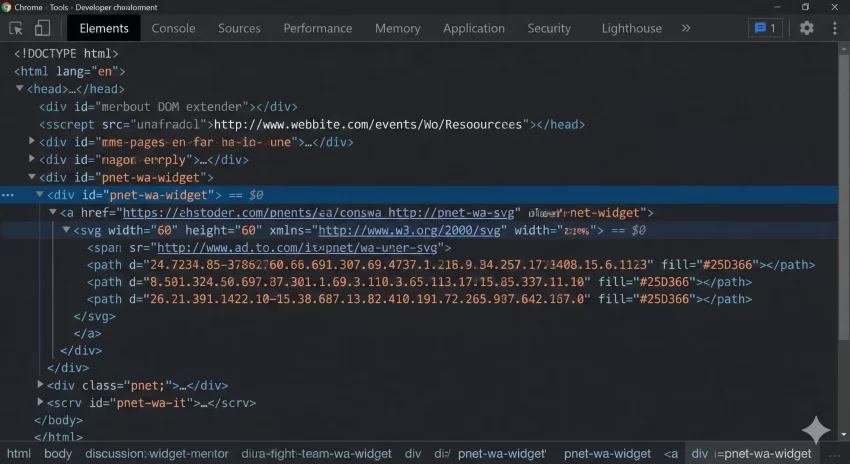
Using SVG inline ensures the icon is crisp on retina displays and does not require an extra HTTP request for an image file. The aria-label attribute improves accessibility for screen readers.
Why wp_footer?
We use wp_footer because chat widgets are rarely critical for the initial paint of the website. By pushing this to the footer, we ensure that the HTML parsing for the main content finishes before the browser worries about rendering our button.
You might also like: Stop Email Failures: The Ultimate WordPress SMTP Configuration Guide
Step 4: Styling with CSS
Raw HTML will simply display an SVG at the bottom of your site, likely breaking the layout. We need to position it “fixed” relative to the viewport so it stays visible as the user scrolls. This is the visual magic required to add WhatsApp button WordPress elements effectively.
Add the following code to your child theme’s style.css file, or inject it via a function in functions.php if you prefer keeping everything in one file (shown below for simplicity).
/**
* Enqueue CSS for WhatsApp Button
*/
function pnet_whatsapp_styles() {
?>
<img src="data:image/gif;base64,R0lGODlhAQABAIAAAAAAAP///yH5BAEAAAAALAAAAAABAAEAAAIBRAA7" data-wp-preserve="%3Cstyle%3E%0A%20%20%20%20%20%20%20%20%20%20%20%20%23pnet-wa-widget%20%7B%0A%20%20%20%20%20%20%20%20%20%20%20%20%20%20%20%20position%3A%20fixed%3B%0A%20%20%20%20%20%20%20%20%20%20%20%20%20%20%20%20bottom%3A%2020px%3B%0A%20%20%20%20%20%20%20%20%20%20%20%20%20%20%20%20z-index%3A%209999%3B%0A%20%20%20%20%20%20%20%20%20%20%20%20%20%20%20%20transition%3A%20all%200.3s%20ease%3B%0A%20%20%20%20%20%20%20%20%20%20%20%20%7D%0A%20%20%20%20%20%20%20%20%20%20%20%20%23pnet-wa-widget.pnet-wa-right%20%7B%0A%20%20%20%20%20%20%20%20%20%20%20%20%20%20%20%20right%3A%2020px%3B%0A%20%20%20%20%20%20%20%20%20%20%20%20%7D%0A%20%20%20%20%20%20%20%20%20%20%20%20%23pnet-wa-widget.pnet-wa-left%20%7B%0A%20%20%20%20%20%20%20%20%20%20%20%20%20%20%20%20left%3A%2020px%3B%0A%20%20%20%20%20%20%20%20%20%20%20%20%7D%0A%20%20%20%20%20%20%20%20%20%20%20%20%23pnet-wa-widget%20a%20%7B%0A%20%20%20%20%20%20%20%20%20%20%20%20%20%20%20%20display%3A%20block%3B%0A%20%20%20%20%20%20%20%20%20%20%20%20%20%20%20%20width%3A%2060px%3B%0A%20%20%20%20%20%20%20%20%20%20%20%20%20%20%20%20height%3A%2060px%3B%0A%20%20%20%20%20%20%20%20%20%20%20%20%20%20%20%20background-color%3A%20white%3B%0A%20%20%20%20%20%20%20%20%20%20%20%20%20%20%20%20border-radius%3A%2050%25%3B%0A%20%20%20%20%20%20%20%20%20%20%20%20%20%20%20%20box-shadow%3A%200%204px%2012px%20rgba(0%2C0%2C0%2C0.15)%3B%0A%20%20%20%20%20%20%20%20%20%20%20%20%20%20%20%20display%3A%20flex%3B%0A%20%20%20%20%20%20%20%20%20%20%20%20%20%20%20%20align-items%3A%20center%3B%0A%20%20%20%20%20%20%20%20%20%20%20%20%20%20%20%20justify-content%3A%20center%3B%0A%20%20%20%20%20%20%20%20%20%20%20%20%7D%0A%20%20%20%20%20%20%20%20%20%20%20%20%23pnet-wa-widget%3Ahover%20%7B%0A%20%20%20%20%20%20%20%20%20%20%20%20%20%20%20%20transform%3A%20scale(1.1)%3B%0A%20%20%20%20%20%20%20%20%20%20%20%20%20%20%20%20box-shadow%3A%200%206px%2016px%20rgba(0%2C0%2C0%2C0.2)%3B%0A%20%20%20%20%20%20%20%20%20%20%20%20%7D%0A%20%20%20%20%20%20%20%20%3C%2Fstyle%3E" data-mce-resize="false" data-mce-placeholder="1" class="mce-object mce-object-style" width="20" height="20" alt="<style>" />
<?php
}
add_action( 'wp_head', 'pnet_whatsapp_styles' );
Pro Tip
wp_head makes this code snippet portable. Step 5: Mobile Responsiveness
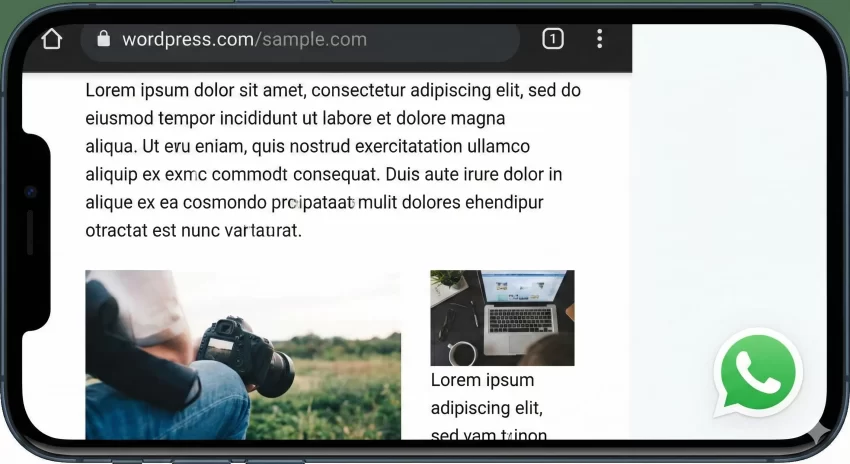
When you add WhatsApp button WordPress widgets, mobile users are your primary target. WhatsApp is inherently a mobile-first platform. Therefore, the button must not obstruct crucial UI elements like the “Add to Cart” button or navigation bars on smaller screens.
We can enhance our CSS to adjust the position slightly on mobile devices to account for bottom navigation bars often found in iOS Safari or Android Chrome.
/**
* Add Mobile Specific CSS
*/
function pnet_whatsapp_mobile_styles() {
?>
<img src="data:image/gif;base64,R0lGODlhAQABAIAAAAAAAP///yH5BAEAAAAALAAAAAABAAEAAAIBRAA7" data-wp-preserve="%3Cstyle%3E%0A%20%20%20%20%20%20%20%20%20%20%20%20%40media%20screen%20and%20(max-width%3A%20768px)%20%7B%0A%20%20%20%20%20%20%20%20%20%20%20%20%20%20%20%20%23pnet-wa-widget%20%7B%0A%20%20%20%20%20%20%20%20%20%20%20%20%20%20%20%20%20%20%20%20bottom%3A%2015px%3B%0A%20%20%20%20%20%20%20%20%20%20%20%20%20%20%20%20%20%20%20%20width%3A%2050px%3B%0A%20%20%20%20%20%20%20%20%20%20%20%20%20%20%20%20%20%20%20%20height%3A%2050px%3B%0A%20%20%20%20%20%20%20%20%20%20%20%20%20%20%20%20%7D%0A%20%20%20%20%20%20%20%20%20%20%20%20%20%20%20%20%23pnet-wa-widget.pnet-wa-right%20%7B%0A%20%20%20%20%20%20%20%20%20%20%20%20%20%20%20%20%20%20%20%20right%3A%2015px%3B%0A%20%20%20%20%20%20%20%20%20%20%20%20%20%20%20%20%7D%0A%20%20%20%20%20%20%20%20%20%20%20%20%20%20%20%20%23pnet-wa-widget%20a%20%7B%0A%20%20%20%20%20%20%20%20%20%20%20%20%20%20%20%20%20%20%20%20width%3A%2050px%3B%0A%20%20%20%20%20%20%20%20%20%20%20%20%20%20%20%20%20%20%20%20height%3A%2050px%3B%0A%20%20%20%20%20%20%20%20%20%20%20%20%20%20%20%20%7D%0A%20%20%20%20%20%20%20%20%20%20%20%20%20%20%20%20%23pnet-wa-widget%20svg%20%7B%0A%20%20%20%20%20%20%20%20%20%20%20%20%20%20%20%20%20%20%20%20width%3A%2050px%3B%0A%20%20%20%20%20%20%20%20%20%20%20%20%20%20%20%20%20%20%20%20height%3A%2050px%3B%0A%20%20%20%20%20%20%20%20%20%20%20%20%20%20%20%20%7D%0A%20%20%20%20%20%20%20%20%20%20%20%20%7D%0A%20%20%20%20%20%20%20%20%3C%2Fstyle%3E" data-mce-resize="false" data-mce-placeholder="1" class="mce-object mce-object-style" width="20" height="20" alt="<style>" />
<?php
}
add_action( 'wp_head', 'pnet_whatsapp_mobile_styles' );
Step 6: Advanced Conditional Logic
Sometimes you do not want to add WhatsApp button WordPress site-wide. For example, a checkout page should be distraction-free. We can modify our rendering function to exclude specific pages using WordPress conditional tags like is_checkout() or is_page().
Here is an updated version of the pnet_render_whatsapp_button function with exclusion logic:
    function pnet_render_whatsapp_button_conditional() {
        // Exit if admin
        if ( is_admin() ) {
            return;
        }

        // EXCLUSION LOGIC:
        // Do not show on Checkout (WooCommerce) or Cart
        if ( function_exists( 'is_checkout' ) && ( is_checkout() || is_cart() ) ) {
            return;
        }

        // Do not show on a specific landing page (ID 42)
        if ( is_page( 42 ) ) {
            return;
        }

        // ... [Rest of the rendering code from Step 3] ...
         $phone   = PNET_WA_NUMBER;
         $message = urlencode( PNET_WA_MESSAGE );
         $api_url = "https://wa.me/{$phone}?text={$message}";
         $position_class = sanitize_html_class( 'pnet-wa-' . PNET_WA_POSITION );
         ?>
         <div id="pnet-wa-widget" class="<?php echo esc_attr( $position_class ); ?>">
             <a href="<?php echo esc_url( $api_url ); ?>" target="_blank" rel="noopener noreferrer">
                 </a>
         </div>
         <?php
    }
You might also like: How to Create Custom WordPress Shortcode for Dynamic Data: Unlock Hidden Power
Troubleshooting Common Errors
Even with clean code, environments differ. Here are the most common issues developers face when attempting to add WhatsApp button WordPress scripts manually.
Button Not Appearing
If you have added the code but the button is missing, aggressive caching is usually the culprit. Clear your server-side cache (Varnish/Nginx), your WordPress plugin cache (WP Rocket/Autoptimize), and your browser cache. Since we hooked into wp_footer, ensure your theme actually calls wp_footer() in its footer.php file.
Button Hidden Behind Elements
If the button is clickable but visually obscured by a footer or a modal, your z-index is too low. In Step 4, we set z-index: 9999;. If your theme uses extremely high z-indices (some page builders use 99999), increase your value to 999999.
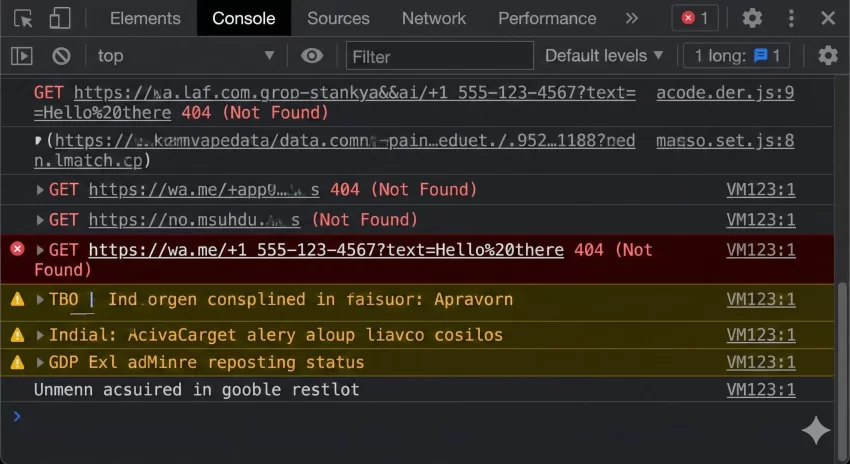
Link Goes to 404
This happens if the URL is malformed. Ensure that PNET_WA_NUMBER contains only digits. Do not include spaces, parentheses, dashes, or the ‘+’ symbol. The WhatsApp API requires a clean international format string (e.g., ‘15550000000’ not ‘+1 555-000-0000’).
Summary
We have successfully navigated how to add WhatsApp button WordPress functionality using a purely programmatic approach. By avoiding plugins, you have saved your site from unnecessary HTTP requests and potential security vulnerabilities. You now have a lightweight, responsive, and customizable chat widget that directs users straight to your preferred communication channel.
Remember to test the button on an actual mobile device to verify that the wa.me link triggers the WhatsApp app correctly. This “Problem-Solution” approach not only improves site performance but also empowers you as a developer to maintain full control over your site’s codebase.



