Every second a customer spends filling out a checkout form is a second they might reconsider their purchase. One of the most common friction points in e-commerce is the mandatory telephone number. While shipping carriers sometimes require it, digital goods often do not. By implementing a WooCommerce optional phone field, you remove a significant barrier to entry, potentially increasing your conversion rates overnight.
In this comprehensive technical guide, we will dive deep into the WordPress hooks and filters required to modify the checkout behavior. We aren’t just hiding the field with CSS; we are programmatically changing the validation logic to ensure a seamless experience. If you are ready to implement the WooCommerce optional phone field correctly, follow the steps below.
Prerequisites for Customization
Before modifying core behavior to achieve a WooCommerce optional phone field, ensure your development environment is safe and ready. Direct code edits can be risky if not handled properly.
- PHP 8.0+: Ensure your server is running a modern version of PHP for security and compatibility with the latest WooCommerce versions.
- WordPress 6.0+ & WooCommerce 8.0+: This guide assumes you are on a recent stable release.
- Child Theme Installed: Never edit the parent theme’s
functions.phpdirectly. Changes will be lost on update. - FTP/SFTP Access: In case of a syntax error, you need file access to revert changes.
- Backup: Always create a full site backup before touching backend code.
Having these prerequisites in place ensures that your journey to creating a WooCommerce optional phone field is smooth and error-free. We will be working primarily within the functions.php file of your active child theme.
Backup Required
Understanding WooCommerce Checkout Hooks
To successfully implement a WooCommerce optional phone field, developers must first understand how WooCommerce constructs its forms. The checkout page is not a static HTML file; it is dynamically generated via PHP arrays passed through specific filters.
The primary filter we are interested in is woocommerce_checkout_fields. This filter exposes the entire array of billing, shipping, account, and order fields before they are rendered on the frontend. By intercepting this data, we can locate the specific key responsible for the telephone requirement and modify it. This is the standard, best-practice method for creating a WooCommerce optional phone field.
The structure usually looks like this:
['billing']: Contains First Name, Last Name, Address, Email, and Phone.['shipping']: Contains shipping address details.['account']: Password fields (if registration is enabled).['order']: Order notes.
We will be targeting ['billing']['billing_phone']. The default configuration for this key includes an attribute 'required' => true. Our goal for the WooCommerce optional phone field is to simply switch this boolean to false.
Locating Your Functions File
Access your server via FTP or use the WordPress Theme File Editor. Navigate to /wp-content/themes/your-child-theme/functions.php. This is where all the logic for the WooCommerce optional phone field will reside. Do not use the main theme folder, as updates will wipe your work.
You might also like: The Ultimate Guide to Conditionally Enqueue Scripts in WordPress – Make Your Website Faster
Step 1: The Code Snippet Implementation
Now, let’s look at the actual code required. This function hooks into WooCommerce and alters the array. This is the most efficient way to achieve a WooCommerce optional phone field without using heavy plugins that slow down your site.
Copy the following code block. Note that we use a unique prefix pnet_ to avoid conflicts with other plugins or themes.
/**
 * Makes the billing phone field optional in WooCommerce Checkout.
 *
 * @param array $fields The existing array of checkout fields.
 * @return array The modified array with phone requirement removed.
 */
function pnet_make_phone_optional( $fields ) {
    // Check if the billing phone field exists in the array
    if ( isset( $fields['billing']['billing_phone'] ) ) {
        // Set the required key to false
        $fields['billing']['billing_phone']['required'] = false;
    }

    return $fields;
}

// Hook the function into the woocommerce_checkout_fields filter
add_filter( 'woocommerce_checkout_fields', 'pnet_make_phone_optional' );
Once you paste this at the bottom of your functions.php file, save the changes. This snippet instructs WooCommerce to stop validating the phone number field as mandatory. This effectively creates a WooCommerce optional phone field instantly.
Code Explanation
Let’s break down what is happening here. The add_filter function connects our custom function pnet_make_phone_optional to the core WooCommerce event. When WooCommerce builds the checkout form, it passes the field settings through our function. By changing ['required'] to false, we satisfy the condition for a WooCommerce optional phone field.
Pro Tip
unset( $fields['billing']['billing_phone'] ); instead. However, for a WooCommerce optional phone field, retaining the field allows customers to provide it if they wish (e.g., for shipping updates). Step 2: Conditional Logic (Advanced)
Sometimes, you might want a WooCommerce optional phone field only for digital products, or perhaps only for customers in specific countries. Applying the change globally is simple, but conditional logic requires checking the cart contents or user location.
For example, if you sell both physical and digital goods, you might need the phone number for shipping carriers but not for downloads. To make a smart WooCommerce optional phone field, we can check the cart contents before modifying the field.
/**
 * Conditionally make phone optional based on cart contents.
 */
function pnet_conditional_phone_optional( $fields ) {
    $needs_shipping = WC()->cart->needs_shipping();

    // If no shipping is required (digital products), make phone optional
    if ( ! $needs_shipping ) {
        if ( isset( $fields['billing']['billing_phone'] ) ) {
            $fields['billing']['billing_phone']['required'] = false;
        }
    }

    return $fields;
}
add_filter( 'woocommerce_checkout_fields', 'pnet_conditional_phone_optional' );
This advanced snippet ensures that your WooCommerce optional phone field is dynamic. It improves user experience by only asking for data when it is strictly necessary.
Step 3: Styling and Visual Cues
Once you have implemented the backend logic for the WooCommerce optional phone field, you need to ensure the frontend reflects this change. By default, WooCommerce removes the red asterisk (*) next to optional fields, but you might want to add a label that explicitly says “(Optional)”.
To ensure your customers understand they can skip this, we can modify the label within the same filter. A clear UI is essential when deploying a WooCommerce optional phone field strategy.
function pnet_style_optional_phone( $fields ) {
    if ( isset( $fields['billing']['billing_phone'] ) ) {
        $fields['billing']['billing_phone']['required'] = false;
        // Append (Optional) to the label text
        $fields['billing']['billing_phone']['label'] = 'Phone (Optional)';
    }
    return $fields;
}
add_filter( 'woocommerce_checkout_fields', 'pnet_style_optional_phone' );
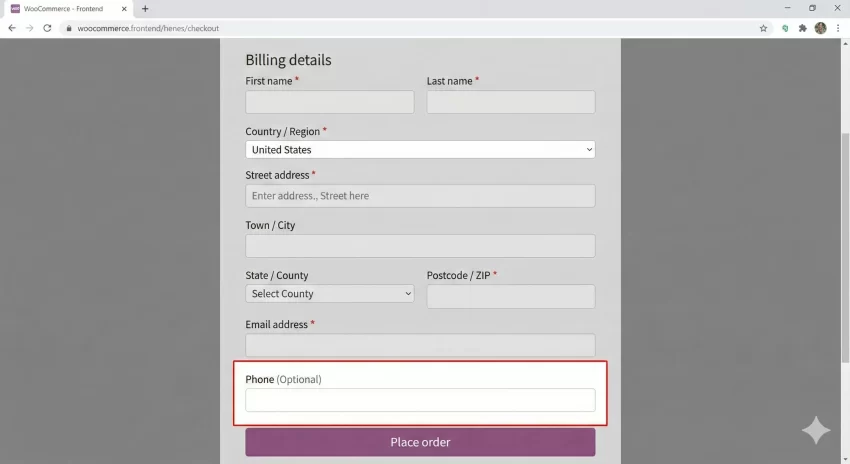
This small change reduces cognitive load. Users scanning the form will instantly see the WooCommerce optional phone field and move past it if they prefer not to share their number.
You might also like: Better WordPress Cron Job for Superior Site Performance
Step 4: Testing and Validation
Never assume your code works without testing. After implementing the WooCommerce optional phone field, go to your store in Incognito mode. Add a product to the cart and proceed to checkout.
Try to place an order leaving the phone field blank. If the order goes through successfully, your WooCommerce optional phone field is working. If you see a validation error saying “Phone is required,” caches might be interfering.
Database Verification
Check the order details in the backend (WooCommerce > Orders). Ensure that orders placed without a phone number do not cause issues with your fulfillment plugins. Most shipping plugins handle an empty WooCommerce optional phone field gracefully, but some older APIs might expect a string.
Intermediate
Common Errors and Troubleshooting
Even with a simple snippet, things can go wrong. Here are common issues developers face when creating a WooCommerce optional phone field.
The Red Asterisk is Still Visible
If you set the field to not required but the asterisk remains, it is likely a CSS issue or a caching issue. Clear your browser cache and server cache (e.g., WP Rocket or Redis). The WooCommerce optional phone field logic is usually sound, but the visual rendering might lag.
Theme Overrides
Some premium themes have their own checkout managers that override standard WooCommerce hooks. If the code above doesn’t work, check your theme settings (Appearance > Customize > WooCommerce > Checkout). If the theme forces the field, you may need a higher priority on your filter to enforce the WooCommerce optional phone field.
// Increasing priority to 20 to override theme defaults
add_filter( 'woocommerce_checkout_fields', 'pnet_make_phone_optional', 20 );
Checkout Field Editor Plugins
If you have a plugin installed like “Checkout Field Editor,” it might be controlling the field settings via the database, rendering your functions.php code useless. To successfully implement a code-based WooCommerce optional phone field, disable these plugins or use their interface instead.
Why Prioritize This Change?
Implementing a WooCommerce optional phone field is more than a technical tweak; it is a conversion optimization strategy. Users are increasingly privacy-conscious. Demanding a phone number for a digital download feels intrusive.
By using the WooCommerce optional phone field method, you align your store with modern UX best practices (User Experience). Refer to authoritative sources like the Baymard Institute, which regularly cites form length as a primary reason for cart abandonment.
Conclusion
We have covered everything from the prerequisites to the specific PHP functions needed to make the WooCommerce optional phone field a reality on your store. By accessing the woocommerce_checkout_fields filter, changing the validation rules, and potentially adjusting the label, you create a smoother path to purchase for your customers.
Remember, the goal of the WooCommerce optional phone field is to reduce friction. Whether you use the simple snippet or the advanced conditional logic, ensure you test thoroughly. A streamlined checkout is the most effective way to improve your bottom line without spending extra on advertising.
You might also like: How To Create a Custom Elementor Widget: The Ultimate Guide



