Editors cannot quickly spot posts with missing or incorrect featured images in the default WordPress admin list, so problems can go unnoticed until a post is published. Add a Featured Image Admin Column with a focused, code-first implementation: it shows a compact thumbnail, provides a clear fallback when no image is assigned, and explains how to test and adapt the result. The example targets the standard Posts list; you can extend the same approach to Pages or custom post types when needed.
Before adding PHP, prepare a safe place to test the change and confirm that the target post type supports featured images. Use a child theme or site-specific plugin rather than editing WordPress core files.
- PHP 8.0 or later and administrator access to a WordPress site.
- A current site backup and, preferably, a staging environment.
- A child theme or site-specific plugin where you can add PHP.
- Featured images enabled for the target post type, plus at least one test post with a featured image.
- Basic familiarity with PHP hooks and the WordPress admin.
Choose the Post Types and Column Behavior
Begin with the standard Posts screen so the change stays focused and predictable. WordPress provides post-type-specific hooks for its admin list tables; the implementation that follows will register and render the column for Posts rather than applying it to every content type. Pages and custom post types may use different hooks, so add those only if their editors also need image previews.
Decide what editors should see before writing the callbacks: a small, consistently sized thumbnail when a featured image exists, and a readable message such as “No image” when it does not. That fallback makes missing images obvious instead of leaving an ambiguous blank cell. The registration callback will add a stable column key without removing existing columns, while a separate renderer will output the thumbnail or fallback for that key. Keep both custom functions prefixed with pnet_, and place them in a child theme or site-specific plugin—not in WordPress core. This scoped approach makes the Featured Image Admin Column easier to test, maintain, and extend later.
Confirm the Admin Screen Hooks
WordPress separates adding a list-table column from filling its cells. For the standard Posts screen, the manage_post_posts_columns filter receives the existing columns as an associative array. Your callback should return that array with the new column key and label added, preserving the columns supplied by WordPress and other plugins.
The matching manage_post_posts_custom_column action runs when WordPress renders a custom cell. Its callback receives the column name and the post ID. Check the column name before producing output, then use the supplied post ID to retrieve the featured image. Passing that ID explicitly keeps rendering tied to the correct row rather than relying on a global post object, which can be unreliable in admin list-table callbacks.
These hooks are specific to the post type, so this pair scopes the work to Posts. The official WordPress reference for the Posts columns filter documents the registration hook; the corresponding custom-column action handles cell output. Keeping registration and rendering separate makes the implementation easier to inspect and troubleshoot.
Add the Featured Image Admin Column to Posts
Register the column with the Posts-specific filter and keep the existing columns intact. This callback inserts the new column immediately before the title column when available; if another plugin or screen configuration has changed the array, it safely appends the column instead.
Add this code to your child theme’s functions.php file or, preferably, a site-specific plugin. The registration callback only adds the heading; a separate custom-column action will render each thumbnail in the next step.
function pnet_add_featured_image_column( $columns ) {
    $new_columns = array();

    foreach ( $columns as $key => $label ) {
        if ( 'title' === $key ) {
            $new_columns['pnet_featured_image'] = 'Featured Image';
        }

        $new_columns[ $key ] = $label;
    }

    if ( ! isset( $new_columns['pnet_featured_image'] ) ) {
        $new_columns['pnet_featured_image'] = 'Featured Image';
    }

    return $new_columns;
}
add_filter( 'manage_post_posts_columns', 'pnet_add_featured_image_column' );
The stable pnet_featured_image key identifies this column for the renderer. If a PHP error prevents access to the admin, remove the snippet using your hosting file manager or deployment method, then check the PHP error log before restoring a corrected version.
Backup Required
Insert the Column Beside the Title
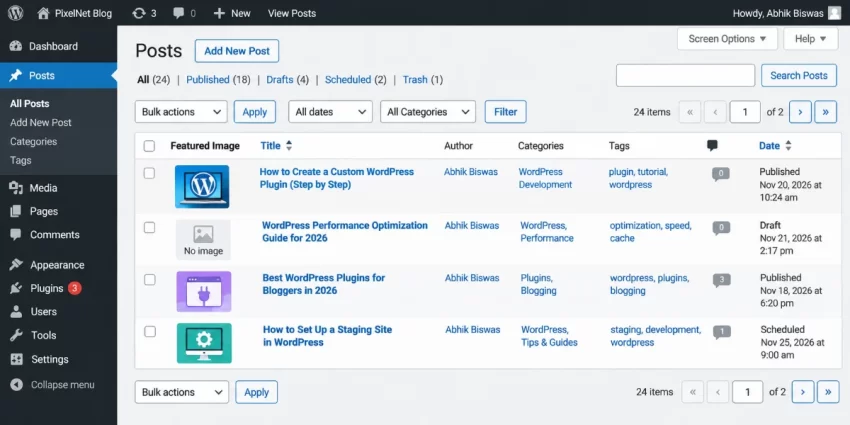
The registration callback from the previous step already places the Featured Image column immediately before the Title column. It rebuilds the columns array in its original order, inserting the new key at the chosen point and retaining every existing key and label. If the Title column is missing, the callback appends the image column instead, so it remains visible.
To place the column elsewhere, change the condition that checks 'title' === $key to check another existing column key, such as 'date'. The image column will appear immediately before that column. If a plugin adds columns, inspect their keys in the array and select a stable position; avoid replacing the array with a newly hard-coded list, which could remove WordPress or plugin columns. Keep only one registration callback attached to this filter, and edit the existing callback rather than adding a second function with the same name.
Pro Tip
Render the Thumbnail and an Empty State
Register a renderer for the custom-column action and check the column key before doing any work. The callback receives the post ID for the current row, so use that value directly rather than depending on the global post object. If the key does not match, return without output; this prevents the callback from affecting other custom columns.
Add this code alongside the column-registration callback in your child theme or site-specific plugin. It outputs WordPress-generated thumbnail markup after filtering it with wp_kses_post(), or an explicit fallback when no thumbnail is available.
function pnet_render_featured_image_column( $column_name, $post_id ) {
    if ( 'pnet_featured_image' !== $column_name ) {
        return;
    }

    $thumbnail = get_the_post_thumbnail(
        $post_id,
        'thumbnail',
        array( 'class' => 'pnet-admin-featured-image' )
    );

    if ( $thumbnail ) {
        echo wp_kses_post( $thumbnail );
        return;
    }

    echo '<span class="pnet-admin-no-image">' . esc_html__( 'No image', 'pixelnet' ) . '</span>';
}
add_action( 'manage_post_posts_custom_column', 'pnet_render_featured_image_column', 10, 2 );
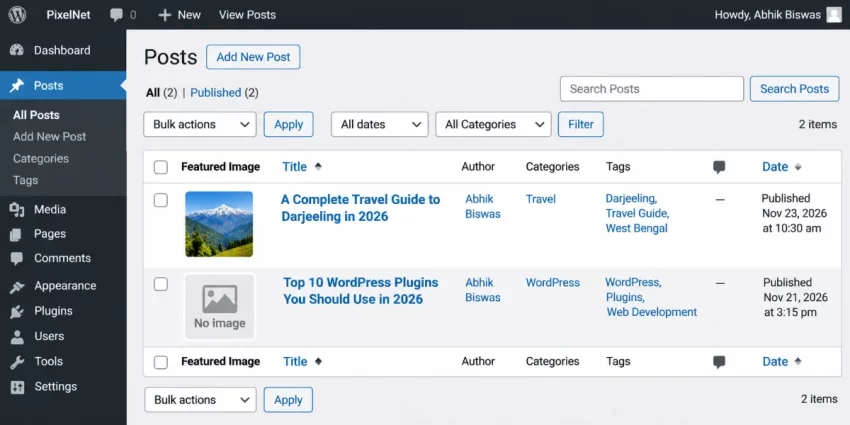
The column key must exactly match the key added during registration: pnet_featured_image. The small thumbnail size keeps the list compact, while the fallback makes missing images clear to editors. The text is escaped, and the generated image markup is passed through wp_kses_post() rather than printing arbitrary output.
You might also like:

Style and Scope the Admin Column
The renderer already adds the pnet-admin-featured-image class, so you can size its thumbnail without affecting images elsewhere in the dashboard. Keep the preview compact and use object-fit: cover to prevent unusually shaped source images from stretching the table row.
Load the styling only on the Posts list screen. Add this callback to the same site-specific plugin or child theme as the column code; it checks the current screen before attaching the CSS.
function pnet_enqueue_featured_image_column_styles( $hook_suffix ) {
    if ( 'edit.php' !== $hook_suffix ) {
        return;
    }

    $screen = get_current_screen();
    if ( ! $screen || 'edit-post' !== $screen->id ) {
        return;
    }

    wp_register_style( 'pnet-featured-image-column', false, array(), '1.0.0' );
    wp_enqueue_style( 'pnet-featured-image-column' );
    wp_add_inline_style( 'pnet-featured-image-column', '');
}
add_action( 'admin_enqueue_scripts', 'pnet_enqueue_featured_image_column_styles' );
Place the following CSS string in the final wp_add_inline_style() call, replacing the empty string. These selectors target only the custom column and its markup.
.column-pnet_featured_image {
    width: 88px;
}

.column-pnet_featured_image .pnet-admin-featured-image {
    display: block;
    width: 64px;
    height: 64px;
    object-fit: cover;
}

.column-pnet_featured_image .pnet-admin-no-image {
    color: #646970;
}
Keep the thumbnail small so rows remain easy to scan and row actions stay accessible. Check the list at narrower viewport widths and alongside plugin-added columns; adjust the column width only as needed. Do not apply broad rules to all admin images or tables.
Did you know: You can declutter your WordPress admin list and make content management easier by hiding Yoast SEO metadata—learn how to Remove Yoast SEO Columns using Screen Options or a simple code snippet.
Extend the Column to Pages or Custom Post Types
The Posts implementation is deliberately scoped to the standard Posts screen. Pages use the corresponding post-type-specific hooks manage_page_posts_columns and manage_page_posts_custom_column. For a custom post type, replace page with its registered post-type key in both hook names. For example, a post type with the key book uses manage_book_posts_columns to register the column and manage_book_posts_custom_column to render its cells.
Update the registration and rendering hooks as a pair for every additional post type. The column key must remain the same in both callbacks, and the renderer must accept the column name and row post ID. Do not switch to a broad admin-column hook unless you intentionally want the column on other post-type lists too.
Before testing, confirm that the target post type supports featured images. For Pages, check the active theme supports post thumbnails; for a custom post type, ensure its registration includes thumbnail support. Then visit that specific edit screen and test rows both with and without an assigned image. This verifies the correct hooks are running and that the fallback appears as expected.
Verify the Column and Test Edge Cases
Open Posts > All Posts and confirm the Featured Image column appears beside the intended column. Test at least three rows: one with a featured image, one without an image, and one whose source image is unusually large or has a different aspect ratio. The thumbnail should remain compact, and the image-free row should display the clear “No image” fallback rather than an unexplained blank cell.
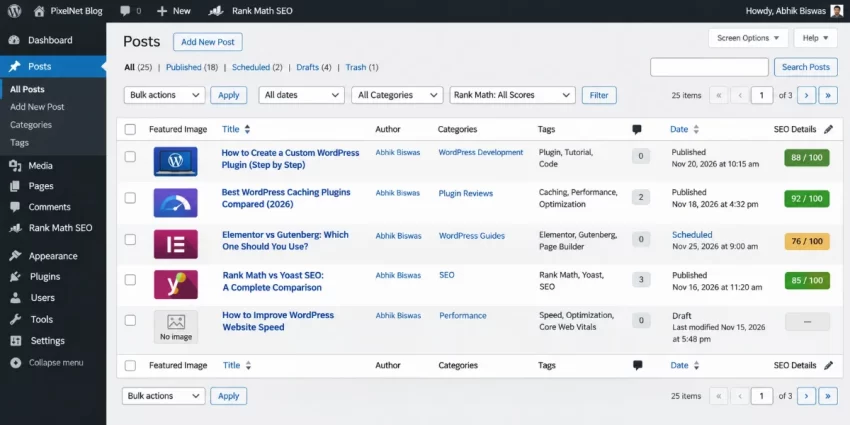
Check the list on more than one page of results and at desktop and narrower viewport widths. Confirm that column placement and row height remain usable, then verify existing columns, sorting, bulk actions, and row actions still work. If plugins add columns, make sure the new preview does not obscure their controls or push important information out of view.
- Confirm thumbnails load and stay within the intended dimensions.
- Check the fallback text, pagination, and responsive layout.
- Verify core and plugin list-table controls remain functional.
You might also like:

Common Errors and Troubleshooting
Most problems come from a mismatch between the registration hook, the renderer, or the post type being tested. Diagnose the symptom before changing code so you do not accidentally affect other admin lists.
The Column Does Not Appear
Confirm the snippet is loaded and the filter targets the correct post type. Check that the callback name in add_filter() matches the declared function, and that the column key is added to the returned array. Also open Screen Options on the Posts list: the column may be unchecked. If it remains missing, review the PHP error log and temporarily disable other code that modifies the list-table columns.
The Cell Is Blank or the Thumbnail Is Missing
Make sure the renderer checks the exact column key used during registration and receives the row post ID. Test a post with an assigned featured image, then confirm the post type supports thumbnails. The fallback should appear when no image exists; if the cell is empty, check that the callback is attached to the matching custom-column action and that it handles the no-image case.
A PHP Error Blocks Admin Access
Use your hosting file manager, SFTP, or deployment workflow to remove or comment out the added snippet in the child theme or site-specific plugin. If the code is in a plugin, temporarily deactivate that plugin. Check the PHP error log, correct the reported line, and retest on staging before re-enabling it. Do not edit WordPress core files to recover the change.
Rows Are Too Tall or Styling Spills Over
Constrain the thumbnail dimensions and scope CSS to the Posts list screen and custom column class. Recheck narrower viewports and plugin-added columns to ensure the preview does not disrupt row actions.
The Column Does Not Appear
First, confirm you are viewing Posts > All Posts, not the Pages screen or a custom post type list. The manage_post_posts_columns filter only targets the standard Posts list. Check that the snippet is loaded from the active child theme or site-specific plugin, and that the function named in add_filter() exactly matches the callback declaration. The callback must return the updated columns array with the pnet_featured_image key.
Next, open Screen Options at the top of the list and make sure the Featured Image column is enabled. If it is enabled but still absent, inspect the PHP error log for syntax or fatal errors, and temporarily disable other custom code or plugins that reorder or replace the columns array. A conflicting callback may remove your key after it has been added.
Once the registration is visible, verify the matching renderer is attached separately; that affects cell contents, not whether the heading appears. These checks usually identify why the Featured Image Admin Column is missing without changing unrelated admin screens.
The Cell Is Blank or the Thumbnail Is Missing
Start by comparing the column key in the registration callback with the key checked by the renderer. They must match exactly: pnet_featured_image. Also confirm the renderer is attached to manage_post_posts_custom_column and accepts both the column name and the post ID. Use the supplied post ID when requesting the thumbnail so the image belongs to the current row.
Test with a post that definitely has a featured image assigned. If the thumbnail is still absent, verify that the Posts post type supports featured images and that the attachment is available. For a post without an image, the renderer should output the explicit “No image” fallback; a completely blank cell usually means the callback did not run, returned early, or omitted its no-image branch. If only some rows are affected, inspect those posts individually and confirm their featured-image assignments.
Rows Are Too Tall or Admin Styling Spills Over
If the table rows are unusually tall, make sure the thumbnail rule targets .column-pnet_featured_image .pnet-admin-featured-image, not every image in the WordPress admin. Keep the preview to a compact fixed width and height, such as 64px by 64px, and use object-fit: cover to prevent distortion. The thumbnail class is added by the renderer, so confirm it is present in the generated markup.
If styling affects other screens, verify that the stylesheet is loaded only on the Posts list and that its selectors are limited to the custom column. Avoid broad selectors for admin tables, images, or table cells. Recheck the list at narrower viewport widths and with plugins that add columns; adjust the preview size or column width if it crowds row actions or makes the table difficult to scan.
Conclusion
A useful thumbnail column makes it easier for editors to review featured images directly from the Posts list and quickly identify entries that need attention. The implementation uses one post-type-specific filter to register the column and a matching action to render each cell. The renderer uses the row post ID, displays WordPress thumbnail markup when an image is assigned, and provides a clear “No image” fallback otherwise. Restrained styling scoped to the Posts screen keeps the preview readable without affecting other areas of the admin.
Test the change on staging before deploying it, checking posts both with and without featured images, the column placement, and the existing list-table controls. Keep the registration and rendering hooks paired, and extend them to Pages or a custom post type only when editors need the same workflow there. With careful scope and a clear fallback, the Featured Image Admin Column is a small, maintainable improvement to everyday content management.