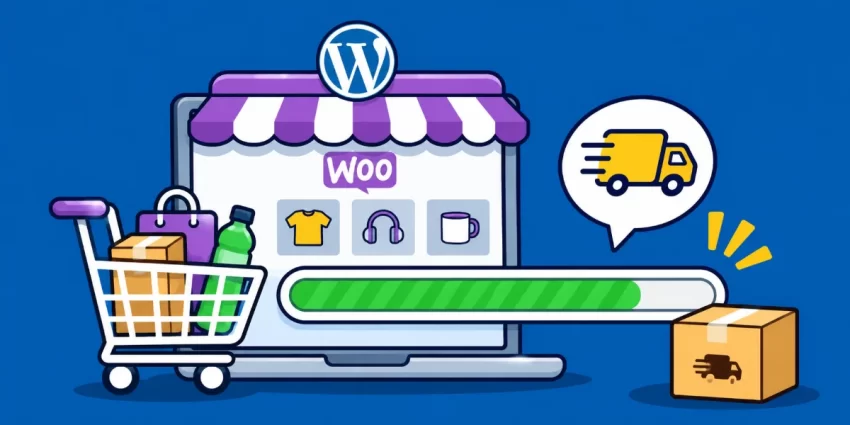
Shoppers often reach the cart without knowing how many more products they need to add to qualify for free shipping, which can make the offer feel unclear. This WooCommerce Free Shipping Bar guide provides a code-first solution: show the remaining shippable item count on the cart and checkout pages, then use that same quantity threshold to control whether the intended free-shipping method is available.
The implementation counts shippable product quantities, not cart lines, and excludes virtual products. It is designed for a quantity-based promotion—for example, five eligible items. WooCommerce’s native minimum-spend condition is a different rule: if your offer depends on the order total, use a spend-based calculation rather than presenting it as an item-count offer. Before adding code, make sure you have the following:
- A current, supported WordPress installation with WooCommerce and PHP 8.0 or newer, or the minimum version required by your site.
- A configured shipping zone for the customer destinations you want to serve, with an enabled WooCommerce Free shipping method.
- A defined quantity threshold and a clear policy for which shippable products count, such as five physical product quantities.
- A full site backup and a staging site, or a safe maintenance window for testing.
- Access to a child theme or reputable code snippets plugin; do not edit your parent theme directly.
- A test customer address and physical products with shipping enabled.
Step 1: Define the item-count rule and configure the shipping zone
First, decide what qualifies. A quantity-based offer might grant free shipping when a customer adds five shippable product units. That is different from a minimum-spend promotion: do not estimate remaining items from product prices, because cart value does not reliably represent quantity.
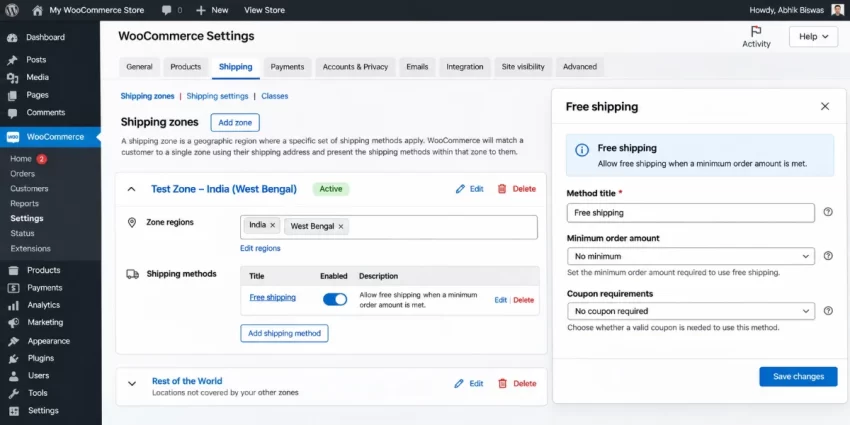
In your WordPress dashboard, go to WooCommerce → Settings → Shipping → Shipping zones. Edit the zone that serves the destinations included in your offer, or create one if needed. Add or edit its Free shipping method and leave the method enabled. For this implementation, configure it without a minimum spend or coupon requirement; the custom quantity rule will determine eligibility. The method can only be offered to customers whose addresses match that zone.
WooCommerce’s official free-shipping setup guide explains the zone and method settings. Keep the zone active and confirm its destination coverage with a test address before adding the code in the next steps.
Pro Tip
You might also like:

Decide which products count toward the threshold
Choose a consistent definition before adding the counter. For a physical-goods promotion, count the quantity of each product that needs shipping, not the number of distinct cart lines. If a shopper orders three units of one product, those should count as three items toward the threshold. Counting lines instead would incorrectly treat that purchase as one item and could make the progress message disagree with the offer.
Virtual products should not qualify because they do not need shipping. Bundles, kits, and composite products need a deliberate policy: decide whether the package counts as one shippable unit, whether its components count individually, or whether that product type is excluded. The right choice depends on how your store packs and ships those products. Apply the same policy to both the customer-facing count and shipping eligibility.
For the example in this guide, set the threshold to five eligible product quantities. You will define that value once in the shared helper in the next step, so changing the promotion later means updating one setting rather than editing separate message and shipping calculations. If your offer is based on order value instead, use a spend threshold and a spend-based message; do not convert the cart total into an estimated item count.
Step 2: Add a reusable shippable-item counter
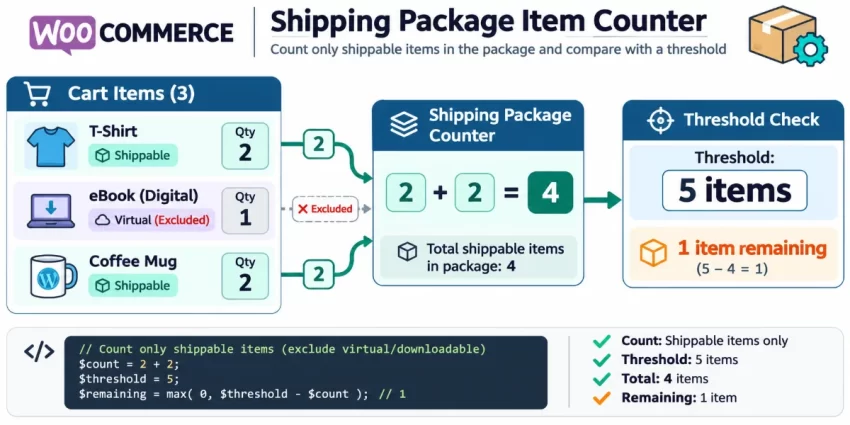
Define the threshold and quantity counter once, then reuse them in the shipping-availability rule and customer notice. This keeps both parts aligned when the promotion changes. The example counts each eligible product quantity in a WooCommerce shipping package; it does not count distinct cart lines.
Add this complete snippet to your child theme’s functions.php file or a code snippets plugin. If you use a snippets plugin, omit any closing PHP tag supplied by its editor. Add the code only once, and change the threshold value in the first function when needed.
function pnet_free_shipping_item_threshold() {
    return 5;
}

function pnet_count_shippable_package_items( $package ) {
    if ( ! is_array( $package ) || empty( $package['contents'] ) || ! is_array( $package['contents'] ) ) {
        return 0;
    }

    $item_count = 0;

    foreach ( $package['contents'] as $cart_item ) {
        if ( ! is_array( $cart_item ) || empty( $cart_item['data'] ) || ! is_object( $cart_item['data'] ) ) {
            continue;
        }

        $product = $cart_item['data'];

        if ( ! method_exists( $product, 'needs_shipping' ) || ! $product->needs_shipping() ) {
            continue;
        }

        $quantity = isset( $cart_item['quantity'] ) ? absint( $cart_item['quantity'] ) : 0;
        $item_count += $quantity;
    }

    return $item_count;
}
The counter safely handles missing package contents and invalid product data, skips products that do not need shipping, and adds the integer quantity for each qualifying product. For example, three shippable units on one cart line contribute three toward the threshold of five. The later filter and notice can now use these same helpers rather than maintaining separate calculations.
Step 3: Gate WooCommerce Free shipping by the item count
Use WooCommerce’s availability filter for the Free shipping method so the offer is controlled by the same package counter and threshold as the customer message. Keep the method enabled in the matching shipping zone and remove any minimum-spend or coupon requirement that conflicts with this quantity-based rule. The filter receives the shipping package, so eligibility is calculated from the products in that package.
function pnet_free_shipping_target_instance_id() {
    return 12; // Replace 12 with the intended Free shipping instance ID.
}

function pnet_gate_free_shipping_by_item_count( $is_available, $package, $shipping_method ) {
    if ( ! $is_available ) {
        return false;
    }

    if ( ! is_object( $shipping_method ) || ! isset( $shipping_method->instance_id ) ) {
        return $is_available;
    }

    $target_instance_id = absint( pnet_free_shipping_target_instance_id() );

    // Use 0 only when this rule should apply to every Free shipping instance.
    if ( 0 !== $target_instance_id && absint( $shipping_method->instance_id ) !== $target_instance_id ) {
        return $is_available;
    }

    return pnet_count_shippable_package_items( $package ) >= pnet_free_shipping_item_threshold();
}
add_filter( 'woocommerce_shipping_free_shipping_is_available', 'pnet_gate_free_shipping_by_item_count', 10, 3 );
Replace 12 with the instance ID for the method you intend to gate. In WooCommerce, open the relevant zone and edit its Free shipping method; the instance ID is commonly visible in the method settings URL as instance_id=12. Verify the value on staging. The optional zero setting applies the threshold to every Free shipping instance, so use it only if that is intentional. A matching quantity cannot make the method available outside its configured zone.
WooCommerce documents shipping method availability and its filters in the official Free shipping class reference. The callback leaves unrelated methods untouched and preserves an unavailable result from WooCommerce before applying the count threshold.
For Developers
Confirm the intended method instance
Use the instance ID to limit the quantity rule to the Free shipping method attached to the intended zone. In your WordPress dashboard, open WooCommerce → Settings → Shipping → Shipping zones, select the target zone, and edit its Free shipping method. The method settings URL commonly includes a value such as instance_id=12; use that number in pnet_free_shipping_target_instance_id() instead of the example value. If your dashboard URL does not expose it, inspect the method settings in a staging environment or temporarily log the shipping method instance ID while testing.
After setting the ID, test with an address that matches the zone and a cart below and at the threshold. Confirm that only the intended Free shipping rate changes availability, while other Free shipping methods retain their normal behavior. The optional value 0 disables the instance restriction and applies the quantity rule to every Free shipping instance; choose it only when all such promotions should share this threshold.
Instance scoping does not override zone matching. A customer whose destination is outside the configured zone cannot receive that zone’s Free shipping method just by adding enough items. Check the destination and the method instance together whenever the rate does not appear.
Did you know: You can explore our complete guide on WooCommerce bulk discount programmatically for step-by-step details.
Step 4: Display the remaining item count on cart and checkout
Use the shared threshold and shippable-item counter to create a notice in both locations. The message shows the number still needed below the threshold and confirms when the customer qualifies. This keeps your WooCommerce Free Shipping Bar aligned with the shipping rule rather than displaying a separate estimate.
Add this code after the counter and availability filter. It uses WooCommerce notice output and translation-ready strings. The cart contents are passed to the same counter helper; for stores using custom package splitting, adapt the notice count to match the package policy used by the shipping filter.
function pnet_display_free_shipping_item_notice() {
    if ( ! function_exists( 'WC' ) || ! WC()->cart || WC()->cart->is_empty() ) {
        return;
    }

    if ( function_exists( 'is_order_received_page' ) && is_order_received_page() ) {
        return;
    }

    $package = array(
        'contents' => WC()->cart->get_cart(),
    );
    $item_count = pnet_count_shippable_package_items( $package );
    $threshold = absint( pnet_free_shipping_item_threshold() );
    $remaining = max( 0, $threshold - $item_count );

    if ( $remaining > 0 ) {
        $message = sprintf(
            _n(
                'You have %d item left to reach free shipping.',
                'You have %d items left to reach free shipping.',
                $remaining,
                'pixelnet'
            ),
            $remaining
        );
    } else {
        $message = esc_html__( 'You have reached the item count for free shipping.', 'pixelnet' );
    }

    wc_print_notice( esc_html( $message ), 'notice' );
}
add_action( 'woocommerce_before_cart', 'pnet_display_free_shipping_item_notice' );
add_action( 'woocommerce_before_checkout_form', 'pnet_display_free_shipping_item_notice' );
The order-received guard prevents the notice from appearing on the confirmation page, while the empty-cart check avoids irrelevant output. The remaining count is never negative, and the reached-threshold message replaces the progress message once the target is met. The pixelnet text domain can be changed to your theme or plugin text domain.
Test the cart and checkout after changing quantities. WooCommerce may refresh checkout totals and shipping rates asynchronously, so confirm that the notice updates after recalculation and that the free-shipping rate changes at the same threshold. If a custom theme or cart block does not run these classic hooks, use its supported notice extension point.
You might also like:
Step 5: Style the notice as a clear progress bar
Give the notice a visible meter that reflects the same eligible item count used by the shipping rule. In the existing pnet_display_free_shipping_item_notice() function, replace its wc_print_notice() line with the following. It uses the existing $item_count, $threshold, and $message variables; the text remains clear even when a customer cannot perceive the bar.
$progress = $threshold > 0 ? min( 100, (int) floor( ( $item_count / $threshold ) * 100 ) ) : 100;
$qualified_count = min( $item_count, $threshold );
$accessible_label = sprintf(
    esc_attr__( '%1$d of %2$d shippable items toward free shipping', 'pixelnet' ),
    $qualified_count,
    $threshold
);

$notice_html = sprintf(
    '<div class="pnet-free-shipping-progress"><span class="pnet-free-shipping-progress__message">%1$s</span><span class="pnet-free-shipping-progress__track" role="progressbar" aria-label="%2$s" aria-valuemin="0" aria-valuemax="100" aria-valuenow="%3$d"><span class="pnet-free-shipping-progress__fill" style="width:%3$d%%"></span></span></div>',
    esc_html( $message ),
    $accessible_label,
    $progress
);

wc_print_notice( wp_kses_post( $notice_html ), 'notice' );
Add this CSS in your child theme stylesheet or site-specific CSS area. The selectors are limited to the custom progress element, so other WooCommerce notices are not restyled.
.pnet-free-shipping-progress {
    display: grid;
    gap: 0.75rem;
    width: 100%;
    color: #172033;
    font-weight: 600;
}

.pnet-free-shipping-progress__track {
    display: block;
    width: 100%;
    height: 0.75rem;
    overflow: hidden;
    border: 1px solid #425466;
    border-radius: 999px;
    background: #fff;
}

.pnet-free-shipping-progress__fill {
    display: block;
    height: 100%;
    border-radius: inherit;
    background: #146c43;
    transition: width 180ms ease-in-out;
}

@media (max-width: 480px) {
    .pnet-free-shipping-progress {
        gap: 0.5rem;
        font-size: 0.95rem;
    }
}

@media (prefers-reduced-motion: reduce) {
    .pnet-free-shipping-progress__fill {
        transition: none;
    }
}
The percentage is capped at 100, and the accessible label plus message communicates progress without relying on color alone. Check the bar at zero, below threshold, and qualifying quantities on mobile and desktop.
Step 6: Test the threshold, message, and shipping result
Verify that the notice and the actual shipping rate agree. Use a test address inside the target zone, then check each cart state below. The empty cart should show no progress notice, while qualifying quantities should update the message and available rates after cart or checkout recalculation.
- One item below the threshold: The notice should show the precise number still needed, and the targeted Free shipping rate should be unavailable.
- Exactly at the threshold: The notice should confirm qualification and the targeted rate should appear.
- Above the threshold: The notice should remain in its reached state, and the rate should still be available.
- Multiple units on one line: Set the product quantity above one and confirm every shippable unit counts.
- Virtual product: Confirm it does not increase the qualifying count.
- Outside the zone: Even at or above the threshold, the target zone rate must not appear.
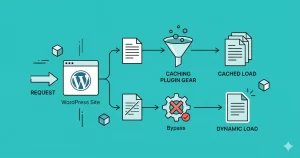
During testing, bypass or clear page, object, and cart-fragment caches. Change quantities on both cart and checkout, wait for shipping recalculation, and confirm the message refreshes with the rate. If a PHP error occurs, disable the snippet through your code snippets plugin or recovery access; do not keep retrying on the live site. Review the PHP error log and WooCommerce logs under WooCommerce → Status → Logs, then correct and retest the code on staging before re-enabling it.
You might also like:

Common Errors: Fix incorrect counts and missing free-shipping rates
When the customer message and available rates disagree, check the quantity calculation and shipping setup separately. The most common problems are a mismatched product count, a zone or method setting, or a stale cart update.
- The message counts product lines instead of quantities: The counter must add each cart item quantity. Test a single product line with multiple units; those units should each count toward the threshold.
- Virtual products qualify unexpectedly: Check that the counter calls
needs_shipping()before adding a product quantity. Review bundle or composite-product rules separately if those products should be treated differently. - The notice appears, but free shipping does not: Confirm the customer address matches the intended zone, the Free shipping method is enabled, and its native minimum-spend or coupon requirements do not conflict with the custom rule. Verify the availability filter and target method instance ID as well.
- Free shipping appears too early: Check for another Free shipping instance or a shipping plugin that adds a competing rate. The custom filter only controls the instance it targets.
- The count is stale after cart updates: Clear or bypass page, object, and cart-fragment caches. Test quantity changes after checkout recalculates shipping, and check whether a theme override or custom cart template bypasses the notice hooks.
- A WooCommerce update causes a fatal error: Disable the snippet using the snippets plugin or recovery access, review PHP and WooCommerce logs, and retest compatibility on staging before enabling it again.
Finally, keep the offer description aligned with its rule. A minimum-spend promotion needs a spend-based calculation and message; do not describe it as a remaining item count.
Conclusion: Keep the message and shipping rule in sync
A reliable quantity-based free-shipping offer depends on making the customer message and shipping eligibility follow the same rule. First, configure the shipping zone and enable the intended Free shipping method. Then count only the shippable product quantities that qualify, apply that count to the correct method instance, and calculate the remaining quantity from the same threshold and counter. This prevents a notice from promising free shipping when the checkout rate is still unavailable—or granting the rate before the customer qualifies.
Before publishing, check the zone destination and method instance, then test quantities below, at, and above the threshold. Include multiple units on one cart line, virtual products, and quantity changes on both cart and checkout. Repeat those checks after WooCommerce, theme, shipping-extension, or cart-fragment changes, since updates or customizations can affect rate calculation and notice refreshes. If your promotion is based on order value rather than product quantity, use a spend-based rule and an accurate spend-based message instead.
With the shared rule in place, shoppers can see exactly what remains to qualify, and the store applies the same condition when calculating shipping. Keep the threshold in one helper and verify both the message and checkout rate together whenever the offer changes. That gives your WooCommerce Free Shipping Bar a clear purpose: communicate progress while matching the actual shipping benefit.