Offering free gifts is an effective way to encourage customers to spend more in your WooCommerce store. However, manually adding promotional products or asking customers to claim gifts can create unnecessary friction during checkout. Wouldn’t it be better if your store automatically added a free product whenever a customer’s shopping cart exceeded $100?
In this tutorial, we’ll build a simple WooCommerce Free Gift feature using custom PHP code without installing an additional WooCommerce plugin. The functionality will automatically add a designated gift product when the eligible cart subtotal exceeds $100 and remove it when the subtotal drops below the required amount.
We’ll also ensure that the gift product is priced at zero, prevent duplicate gift entries, and handle cart updates dynamically so customers always see the correct promotional offer.
By the end of this guide, you’ll have a practical WooCommerce Free Gift implementation that you can customize for different promotional campaigns, minimum spending requirements, and gift products.
Prerequisites
Before implementing this functionality, make sure you have the following:
- A working WordPress website with WooCommerce installed and activated.
- PHP 8.0 or later.
- Administrator access to your WordPress dashboard.
- Access to your child theme’s
functions.phpfile or a PHP snippets management plugin. - A published WooCommerce product that you want to offer as a free gift.
- A recent backup of your WordPress files and database.
- Basic knowledge of PHP and WooCommerce hooks.
Important: Never modify your parent theme’s functions.php directly. Theme updates may overwrite your changes. Use a child theme or a code snippets plugin to manage custom functionality.
Create a Gift Product in WooCommerce
The first step is to create a dedicated product that will be automatically added to the shopping cart when the customer qualifies for the promotion.
Step 1: Navigate to Products
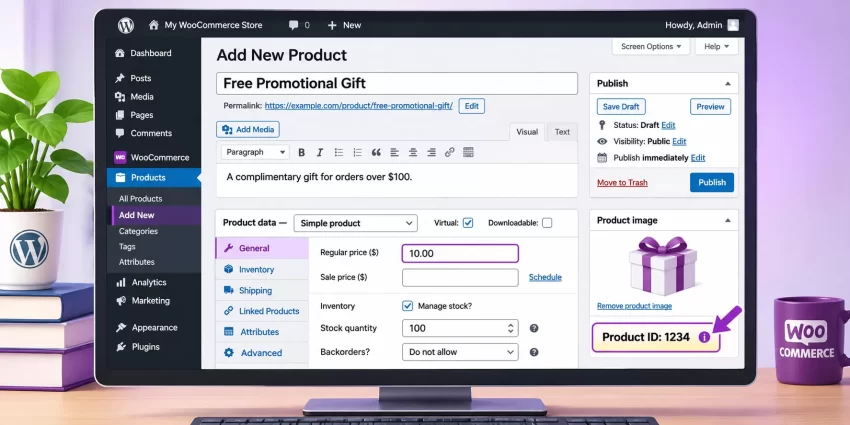
Log in to your WordPress dashboard and navigate to Products → Add New.
Enter a descriptive product name, such as “Free Promotional Gift.” You can also add a product description explaining what customers will receive as part of the promotion.
Step 2: Configure the Gift Product
Under the Product Data section, configure the following settings:
- Product Type: Simple Product.
- Regular Price: Enter a normal product price, such as $10.
- Sale Price: Leave empty.
- Virtual: Enable this option if the gift is a downloadable or non-physical product.
- Inventory: Configure stock management according to your requirements.
- Catalog Visibility: Set it to Hidden if you don’t want customers to purchase the gift independently from your product catalog.
Publish the product and note its Product ID.
You can find the Product ID by navigating to Products → All Products and hovering over the gift product’s title. WordPress will display the product ID in the status bar of your browser.
For example, assume your gift product has the following details:
| Setting | Value |
|---|---|
| Product Name | Free Promotional Gift |
| Product ID | 1234 |
| Product Type | Simple Product |
| Regular Price | $10 |
| Minimum Cart Subtotal | $100 |
| Gift Price | $0 |
We’ll use Product ID 1234 in our implementation. Replace it with the actual ID of your gift product.
Add the WooCommerce Free Gift PHP Functionality
Now we’ll implement the core functionality using WooCommerce hooks.
The implementation will perform four important operations:
- Calculate the eligible shopping cart subtotal.
- Check whether the subtotal exceeds the $100 threshold.
- Automatically add the designated gift product if the condition is satisfied.
- Remove the gift product if the customer reduces the cart subtotal below the threshold.
We’ll also make sure the gift product is priced at zero.
Step 1: Open Your Custom PHP Code Location
You can add the following code using either of these methods:
Method 1: Child Theme
Navigate to Appearance → Theme File Editor, select your active child theme, and open functions.php.
Method 2: Code Snippets Plugin
Install and activate a PHP snippets management plugin. Create a new PHP snippet, paste the code, and configure it to run on the frontend or everywhere, depending on the plugin’s execution options.
Using a snippets plugin is often more convenient because your custom functionality remains independent of theme changes.
Step 2: Define the Gift Product ID and Minimum Cart Amount
Before creating the main function, define the promotional settings. This makes it easier to change the gift product or minimum spending requirement without modifying the entire implementation.
define('PNET_FREE_GIFT_PRODUCT_ID', 1234);
define('PNET_FREE_GIFT_MINIMUM_AMOUNT', 100);
Here:
PNET_FREE_GIFT_PRODUCT_IDidentifies the WooCommerce product that will be offered as a gift.PNET_FREE_GIFT_MINIMUM_AMOUNTdefines the minimum eligible cart subtotal.
Replace 1234 with your actual gift product ID.
The example uses 100 as the threshold, assuming your store’s currency is USD. WooCommerce will interpret this amount using your store’s configured currency.
Step 3: Create the Automatic Gift Management Function
Next, create the main function that checks the shopping cart and manages the gift product.
function pnet_woocommerce_auto_add_free_gift($cart) {

    // Prevent execution in the admin dashboard.
    if (is_admin() && !defined('DOING_AJAX')) {
        return;
    }

    // Prevent recursive execution.
    static $running = false;

    if ($running || !$cart || $cart->is_empty()) {
        return;
    }

    $running = true;

    $gift_product_id = PNET_FREE_GIFT_PRODUCT_ID;
    $minimum_amount  = PNET_FREE_GIFT_MINIMUM_AMOUNT;

    $eligible_subtotal = 0;
    $gift_cart_key     = false;

    // Calculate subtotal excluding the gift product.
    foreach ($cart->get_cart() as $cart_item_key => $cart_item) {

        if ((int) $cart_item['product_id'] === $gift_product_id) {
            $gift_cart_key = $cart_item_key;
            continue;
        }

        $eligible_subtotal += (float) $cart_item['data']->get_price()
            * (int) $cart_item['quantity'];
    }

    // Check whether the customer qualifies.
    if ($eligible_subtotal > $minimum_amount) {

        // Add the gift only if it is not already in the cart.
        if (!$gift_cart_key) {

            $cart->add_to_cart(
                $gift_product_id,
                1,
                0,
                array(),
                array('pnet_free_gift' => true)
            );
        }

    } else {

        // Remove the gift if the customer no longer qualifies.
        if ($gift_cart_key) {
            $cart->remove_cart_item($gift_cart_key);
        }
    }

    $running = false;
}
add_action(
    'woocommerce_before_calculate_totals',
    'pnet_woocommerce_auto_add_free_gift',
    20
);
This is the central part of our WooCommerce Free Gift implementation.
Let’s understand what happens inside the function:
- Admin Check: Prevents unnecessary execution during normal dashboard requests while allowing AJAX cart operations.
- Recursion Protection: The static
$runningvariable prevents the function from repeatedly executing when WooCommerce recalculates cart totals after adding or removing a product. - Subtotal Calculation: Iterates through cart items and calculates the merchandise subtotal without including the gift product.
- Eligibility Check: Compares the eligible subtotal against the configured minimum amount.
- Automatic Addition: Adds one gift product when the customer qualifies.
- Automatic Removal: Removes the gift when the eligible subtotal no longer exceeds the minimum amount.
Notice that the comparison uses > rather than >=. This means the customer must spend more than $100. A cart worth exactly $100 will not qualify.
If you want the promotion to activate at exactly $100, replace:
if ($eligible_subtotal > $minimum_amount) {
With:
if ($eligible_subtotal >= $minimum_amount) {
Important: This example calculates eligibility using product prices before coupons and excludes shipping and taxes. If your promotion should use the discounted subtotal, the calculation will need to be adjusted.
Step 4: Make the Gift Product Free
Our previous function adds the gift product to the cart, but we still need to ensure customers aren’t charged its regular product price.
WooCommerce stores product pricing in the cart item product object. We can use the woocommerce_before_calculate_totals hook to set the gift product’s price to zero.
Add the following code:
function pnet_woocommerce_set_free_gift_price($cart) {

    if (is_admin() && !defined('DOING_AJAX')) {
        return;
    }

    if (!$cart || $cart->is_empty()) {
        return;
    }

    foreach ($cart->get_cart() as $cart_item) {

        if (
            (int) $cart_item['product_id'] ===
            PNET_FREE_GIFT_PRODUCT_ID
        ) {

            $cart_item['data']->set_price(0);
        }
    }
}
add_action(
    'woocommerce_before_calculate_totals',
    'pnet_woocommerce_set_free_gift_price',
    30
);
The function loops through the shopping cart and checks whether an item matches the configured gift product ID.
If a match is found, WooCommerce’s set_price(0) method changes its cart price to zero.
We use priority 30 so this function executes after our automatic gift management function, which runs at priority 20.
This ensures that the gift product is added or removed first and its price is then adjusted during the same totals calculation.
Step 5: Add a Free Gift Label to the Cart
Although the gift product is now free, customers may not immediately understand why it appears in their shopping cart.
We can improve the shopping experience by displaying a small promotional label next to the gift product’s name.
Add this code:
function pnet_woocommerce_free_gift_cart_label(
    $product_name,
    $cart_item,
    $cart_item_key
) {

    if (
        isset($cart_item['product_id']) &&
        (int) $cart_item['product_id'] ===
        PNET_FREE_GIFT_PRODUCT_ID
    ) {

        $product_name .= ' <strong class="pnet-free-gift-label">(FREE GIFT)</strong>';
    }

    return $product_name;
}
add_filter(
    'woocommerce_cart_item_name',
    'pnet_woocommerce_free_gift_cart_label',
    10,
    3
);
This filter appends a (FREE GIFT) label to the product name in the cart.
For example, customers will see:
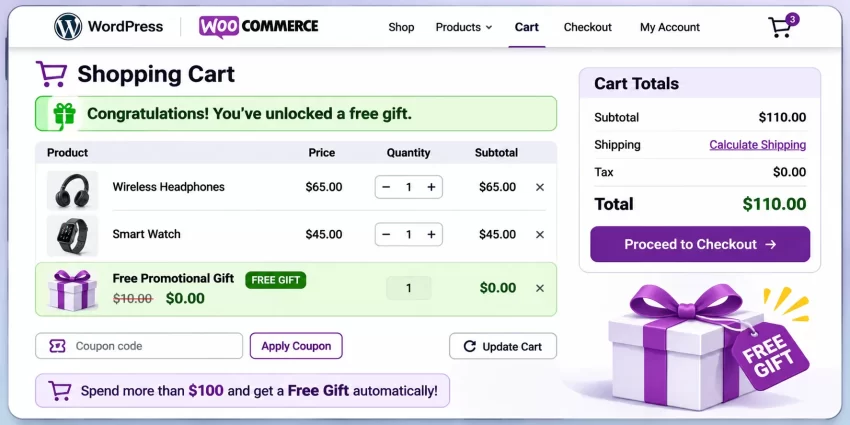
Free Promotional Gift (FREE GIFT)
This small visual improvement makes the promotion more transparent and helps customers distinguish the complimentary product from their purchased items.
sssssssss
Test the WooCommerce Free Gift Functionality
After adding the code, it’s important to test the complete shopping experience before making the promotion available to customers.
Step 1: Test Below the Minimum Amount
Open your WooCommerce storefront and add products worth less than $100 to the shopping cart.
For example:
- Product A: $40
- Product B: $30
- Eligible Subtotal: $70
Visit the cart page.
The gift product should not appear because the eligible subtotal has not exceeded the minimum spending requirement.
Step 2: Test Above the Minimum Amount
Now add another product to the shopping cart.
For example:
- Product A: $40
- Product B: $30
- Product C: $35
- Eligible Subtotal: $105
Refresh the cart page or allow the cart to update.
The WooCommerce Free Gift functionality should automatically add the designated gift product.
You should see the gift product with its regular price replaced by $0.00 and the (FREE GIFT) label displayed beside its name.
Step 3: Test Automatic Gift Removal
Next, remove one of the purchased products or reduce its quantity so that the eligible subtotal falls below $100.
For example:
- Product A: $40
- Product B: $30
- Eligible Subtotal: $70
The gift product should automatically disappear from the cart because the customer no longer meets the promotion requirement.
This is an important test because the WooCommerce Free Gift functionality must work in both directions. Adding a gift without checking whether the customer still qualifies can lead to unwanted promotional discounts.
Step 4: Test Quantity Changes and Cart Updates
Try changing product quantities using the WooCommerce cart quantity controls.
Check the following scenarios:
- Increasing the quantity should trigger the gift when the threshold is exceeded.
- Decreasing the quantity should remove the gift when the threshold is no longer met.
- Updating the cart multiple times should not add duplicate gifts.
- Refreshing the cart should preserve the correct promotional state.
Also test the functionality on mobile devices and with your active WooCommerce theme.
You might also like:

Common Errors and Troubleshooting
Even a relatively simple WooCommerce Free Gift implementation can encounter problems depending on the active theme, cart configuration, caching system, and other plugins.
Here are some common issues and their solutions.
Error 1: Gift Product Is Not Automatically Added
Possible Causes:
- Incorrect gift product ID.
- Gift product is unpublished.
- Gift product is out of stock.
- The product cannot be purchased.
- PHP code contains a syntax error.
- Another plugin is interfering with cart calculations.
Solution:
First, verify the gift product ID in the WooCommerce Products section. Ensure that the product is published, purchasable, and available in stock.
If the problem persists, temporarily disable other cart-related plugins and check your PHP error log.
Error 2: Gift Product Is Added Multiple Times
Possible Cause:
The automatic gift function is executing multiple times during cart recalculation, or another customization is adding the same product.
Solution:
The implementation checks whether the gift product already exists in the cart before adding it.
The static $running variable also prevents recursive execution during the current PHP request.
If duplicate gifts still appear, inspect other custom functions and plugins that interact with woocommerce_add_to_cart or woocommerce_before_calculate_totals.
Error 3: Gift Product Still Appears After Cart Total Drops Below $100
Possible Causes:
- The cart is not recalculating totals.
- A caching plugin is serving an outdated cart response.
- Another plugin is modifying the cart after our function executes.
- The gift product is being re-added by another customization.
Solution:
Check whether WooCommerce cart fragments and AJAX cart updates are working correctly. Exclude cart, checkout, and My Account pages from page caching.
Also verify that your automatic gift function executes during cart recalculation.
Error 4: Gift Product Shows Its Original Price
Possible Cause:
The zero-price function is not executing, or another plugin is changing the product price after our function runs.
Solution:
Verify that pnet_woocommerce_set_free_gift_price() is registered correctly and executes after the gift management function.
If a dynamic pricing or discount plugin is active, inspect its execution priority and adjust the integration accordingly.
Error 5: Promotion Does Not Work at Exactly $100
Possible Cause:
The code uses a strict greater-than comparison.
Solution:
Change:
if ($eligible_subtotal > $minimum_amount)
To:
if ($eligible_subtotal >= $minimum_amount)
This allows customers with an eligible subtotal of exactly $100 to receive the gift.
Error 6: Gift Product Is Removed Even Though the Cart Qualifies
Possible Causes:
- The gift product is out of stock.
- The gift product ID is incorrect.
- Another plugin is modifying cart contents.
- The gift product has purchasing restrictions.
Solution:
Verify the product’s stock status and purchasing settings. Check the WooCommerce logs and temporarily disable other cart-related customizations to identify conflicts.
You might also like:

Additional Improvements and Customization
The basic implementation is sufficient for a simple promotional campaign. However, developers may want to extend the WooCommerce Free Gift functionality to support more advanced marketing requirements.
Customize the Minimum Spending Requirement
You can change the minimum amount by modifying the configuration constant:
define('PNET_FREE_GIFT_MINIMUM_AMOUNT', 150);
Customers will now need an eligible subtotal greater than $150 to receive the gift.
Change the Gift Product
To offer a different promotional product, update the product ID:
define('PNET_FREE_GIFT_PRODUCT_ID', 5678);
Replace 5678 with the new gift product ID.
Display a Promotional Notice
You can improve customer engagement by displaying a message when the cart subtotal is below the spending requirement.
For example, you could display:
Spend more than $100 and receive a free gift with your order!
You can implement this using WooCommerce’s cart notice functionality and calculate the remaining amount based on the eligible cart subtotal.
function pnet_woocommerce_free_gift_notice() {

    if (!WC()->cart) {
        return;
    }

    $subtotal = 0;

    foreach (WC()->cart->get_cart() as $cart_item) {

        if (
            (int) $cart_item['product_id'] ===
            PNET_FREE_GIFT_PRODUCT_ID
        ) {
            continue;
        }

        $subtotal += (float) $cart_item['data']->get_price()
            * (int) $cart_item['quantity'];
    }

    $minimum = PNET_FREE_GIFT_MINIMUM_AMOUNT;

    if ($subtotal <= $minimum) {

        $remaining = $minimum - $subtotal;

        wc_print_notice(
            sprintf(
                'Spend more than %s to receive your free gift!',
                wc_price($remaining)
            ),
            'notice'
        );
    }
}
add_action(
    'woocommerce_before_cart',
    'pnet_woocommerce_free_gift_notice'
);
This example displays a notice on the cart page when the customer has not yet exceeded the minimum spending requirement. The displayed remaining amount is the additional amount needed to cross the threshold.
Important Considerations for Production Stores
Before deploying the feature on a production website, consider the following:
- Variable Products: The example is designed for a simple gift product. Variable gift products require additional variation ID and variation attribute handling.
- Coupon Discounts: The current calculation uses product prices before coupon discounts. Decide whether your promotional rules should use pre-discount or post-discount subtotals.
- Taxes and Shipping: The calculation excludes taxes and shipping charges. This is generally preferable for merchandise-based spending promotions.
- Stock Management: WooCommerce must be able to add the gift product to the cart. Consider what should happen when gift inventory reaches zero.
- Cart and Checkout Blocks: Test compatibility with your active WooCommerce cart and checkout implementation, particularly when using custom blocks or headless storefronts.
- High-Performance Order Storage (HPOS): This implementation uses WooCommerce cart APIs rather than directly manipulating order database tables, so it does not require direct HPOS database integration.
Production Testing Required
Conclusion
Automatically adding a complimentary product when customers spend more than $100 is a simple but effective way to encourage higher order values in a WooCommerce store. Instead of requiring customers to manually claim promotional products, you can use custom PHP functions and WooCommerce hooks to manage the entire process automatically.
With this WooCommerce Free Gift implementation, your store can calculate eligible cart subtotals, automatically add a designated gift product, set its price to zero, display a promotional label, and remove the gift when the customer no longer qualifies.
The best part is that you don’t need an additional WooCommerce extension to implement this basic functionality. By customizing the product ID and minimum spending threshold, you can adapt the same approach for seasonal promotions, special campaigns, and customer loyalty offers.