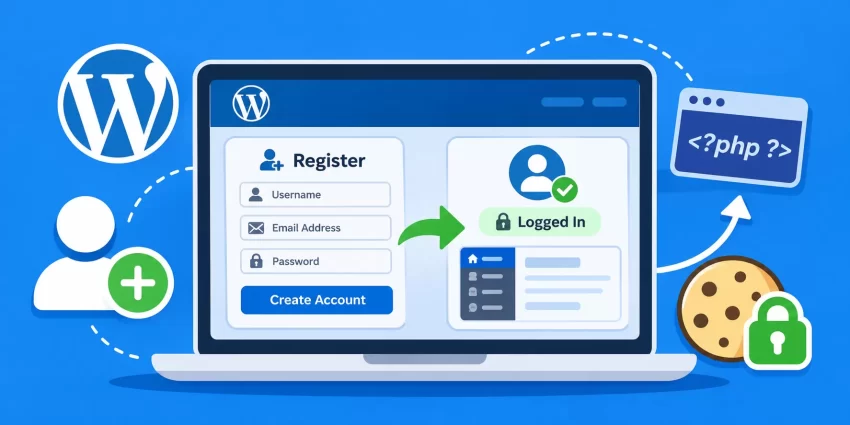
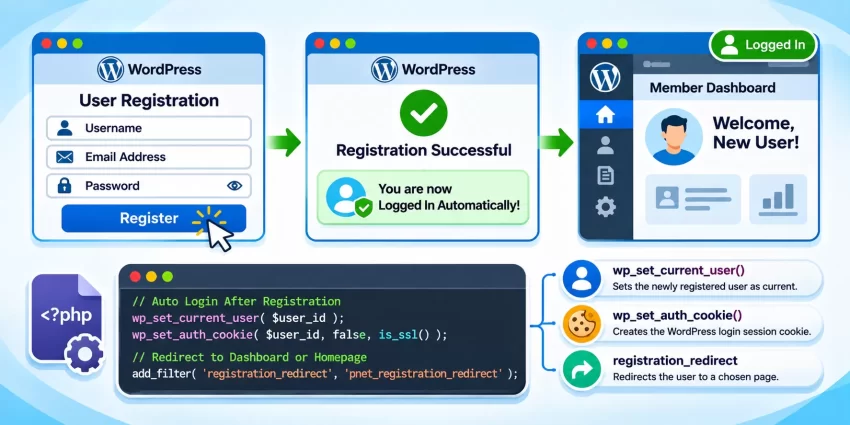
By default, WordPress registers new users without automatically logging them into their accounts. This creates an additional step in the registration process, requiring users to visit the login page and enter their credentials manually. Fortunately, you can implement Auto Login After Registration using a simple PHP function and WordPress hooks. In this guide, you will learn how to automatically authenticate newly registered users, establish their login sessions, and redirect them to a preferred page without installing an additional plugin.
Prerequisites
Before implementing Auto Login After Registration, make sure you have the following:
- A WordPress website with administrator access.
- PHP 8.0 or later recommended.
- Access to your child theme’s functions.php file or a custom functionality plugin.
- Basic knowledge of PHP and WordPress hooks.
- A complete website backup before modifying PHP files.
- A test user account or an alternative browser for testing registration.
- An active SSL certificate (HTTPS) recommended for secure authentication cookies.
Step 1: Understand the WordPress Registration Process
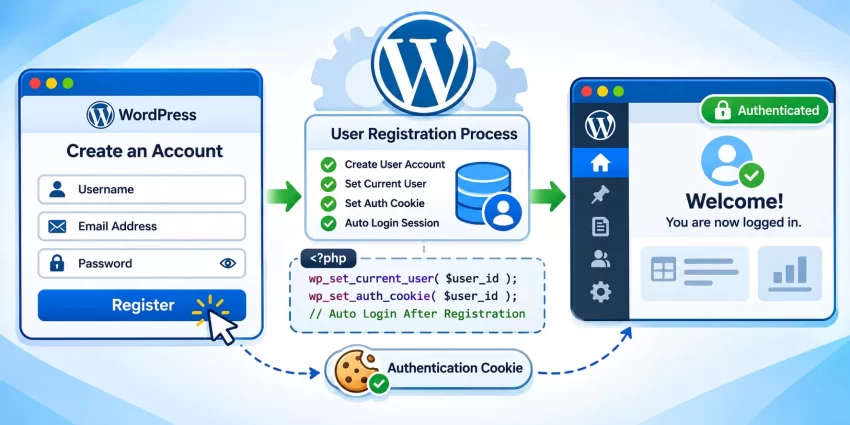
Before implementing Auto Login After Registration, it is important to understand how WordPress handles new user registrations. When someone registers through the standard WordPress registration system, WordPress creates a new user account but does not automatically establish an authenticated session.
WordPress provides the user_register action hook, which runs immediately after a new user has been successfully registered. We can use this hook to authenticate the newly created account without manually handling passwords or building a custom authentication system.
How the Authentication Process Works
The implementation involves three important WordPress functions:
- wp_set_current_user(): Sets the newly registered user as the current user for the ongoing request.
- wp_set_auth_cookie(): Generates the authentication cookie that maintains the user’s login session.
- is_user_logged_in(): Checks whether the current visitor has an authenticated WordPress session.
By combining these functions with the user_register hook, we can implement Auto Login After Registration without requesting the user’s password again.
Step 2: Create the Auto Login Function
Now that you understand the registration process, the next step is to create a custom PHP function that authenticates the newly registered user. We will use the WordPress user_register action hook to execute our function whenever a new user account is successfully created.
2.1 Add the PHP Function
Open your active child theme’s functions.php file or your custom functionality plugin. Add the following code:
/**
 * Automatically log in users after registration.
 */
function pnet_auto_login_after_registration($user_id) {

    // Ensure we have a valid user ID.
    $user_id = absint($user_id);

    if (!$user_id) {
        return;
    }

    // Retrieve the newly registered user.
    $user = get_user_by('id', $user_id);

    if (!$user) {
        return;
    }

    // Set the newly registered user as current.
    wp_set_current_user($user_id);

    // Create the authentication cookie.
    wp_set_auth_cookie(
        $user_id,
        false,
        is_ssl()
    );
}

// Run after successful user registration.
add_action(
    'user_register',
    'pnet_auto_login_after_registration',
    10,
    1
);
The function receives the newly created user’s ID, verifies that the account exists, and establishes the authenticated session. The second argument of wp_set_auth_cookie() controls whether the login session should be remembered. We have set it to false, meaning the browser session will normally expire when the browser session ends, subject to WordPress cookie and browser behavior.
The third argument uses is_ssl() to ensure that WordPress applies secure-cookie handling when the website is accessed over HTTPS. This implementation does not require the user’s password because WordPress has already completed account creation.
2.2 Understand the Hook Priority and Arguments
The user_register action accepts the newly created user ID as its first argument. We have registered the callback with a priority of 10 and explicitly specified that it accepts one argument. This ensures that our function receives the correct user ID when the registration event occurs.
Using a uniquely prefixed function name such as pnet_auto_login_after_registration also reduces the possibility of naming conflicts with your theme or other plugins.
Pro Tip
Did you know: You can Automatically Rename WordPress Images using a simple PHP function to instantly boost your on-page SEO by ensuring every file has a descriptive, keyword-rich filename without manual effort?
Step 3: Redirect Users After Automatic Login
Establishing an authenticated session is only part of the Auto Login After Registration process. You should also determine where users should land after successfully registering. By default, the standard WordPress registration process may redirect users to a registration confirmation or login-related screen.
We can customize the standard registration redirect using the registration_redirect filter. This allows newly authenticated users to be sent directly to the website homepage or another suitable destination.
3.1 Add a Custom Registration Redirect
Add the following code below your previous function in functions.php or your custom plugin:
/**
 * Redirect automatically logged-in users after registration.
 */
function pnet_registration_redirect($redirect_to) {

    // Only redirect users who are authenticated.
    if (is_user_logged_in()) {

        // Redirect to the website homepage.
        return home_url('/');
    }

    // Preserve the original redirect for other cases.
    return $redirect_to;
}

add_filter(
    'registration_redirect',
    'pnet_registration_redirect',
    10,
    1
);
This function checks whether the newly registered user has an authenticated session. If the user is logged in, WordPress receives the homepage URL as the registration redirect destination. Otherwise, the original redirect URL remains unchanged.
3.2 Redirect Users to a Custom Dashboard
If your website has a dedicated member dashboard, account page or onboarding page, you can replace the homepage URL with your preferred destination. For example, to redirect users to a custom dashboard, change the return statement to:
return home_url('/my-account/');
Make sure that the destination page exists and that newly registered users have permission to access it. If your website uses WooCommerce, you can also consider its My Account page instead of creating a separate dashboard.
Important Note
You might also like:
Step 4: Test the Automatic Login Functionality
After adding both functions, the next step is to verify that Auto Login After Registration works correctly. Testing is important because an incorrect authentication cookie, an existing session or a conflicting registration plugin can affect the final result.
4.1 Register a New Test User
Open your WordPress registration page in an incognito or private browsing window. This helps ensure that you are testing a completely new visitor rather than an administrator who is already authenticated.
Enter a valid username, email address and password, then submit the registration form. If the implementation is working correctly, WordPress should create the account, establish an authenticated session and redirect the user to your configured destination.
4.2 Verify the Login Status
To verify the authentication status, you can temporarily add the following debugging code to a suitable frontend template or a temporary test shortcode:
if (is_user_logged_in()) {

    $current_user = wp_get_current_user();

    echo 'Welcome, ' . esc_html(
        $current_user->display_name
    );

} else {

    echo 'You are not logged in.';

}
If the new user is authenticated, the welcome message should display the registered user’s display name. You can also visit the WordPress account page or another page restricted to logged-in users to confirm that the authentication session persists across requests.
Remove the temporary debugging code after testing. Once everything works, Auto Login After Registration should operate automatically for future registrations that use the standard WordPress registration process.
You might also like:

Common Errors and Troubleshooting
1. User Registers Successfully but Is Not Logged In
Possible cause: The user_register callback may not be executing, the authentication cookie may not be set, or another plugin may interfere with the registration process.
Solution: Verify that the action is registered correctly, check for PHP errors and ensure that output is not sent before WordPress sets the authentication cookie. Also test the registration process with conflicting plugins temporarily disabled on a staging website.
2. User Is Logged In but Redirected to the Registration Confirmation Page
Possible cause: Your registration system may use a custom redirect instead of the standard registration_redirect filter.
Solution: Check the registration plugin’s redirect settings and use its supported redirect hook. The standard registration_redirect filter only controls registration flows that actually apply that filter.
3. Authentication Cookie Is Not Working
Possible cause: Incorrect HTTPS configuration, cookie-domain conflicts, caching issues or headers already being sent can prevent the browser from receiving or using the authentication cookie correctly.
Solution: Make sure your website uses a consistent HTTPS URL, check your WordPress Site Address and WordPress Address settings, clear relevant caches and verify that PHP does not generate output before the authentication cookie is set.
4. Automatic Login Does Not Work with a Third-Party Registration Plugin
Possible cause: Some registration plugins use custom user creation workflows, AJAX requests, email verification or approval-based registration processes.
Solution: Consult the plugin’s developer documentation and identify the appropriate action hook that runs after registration has been successfully completed. Avoid forcing authentication before email verification or administrator approval when those security checks are required.
Security Considerations
Automatic authentication improves the registration experience, but it should never bypass your website’s security requirements. If your website requires email verification, administrator approval, payment confirmation or other registration checks, users should only be authenticated after those requirements have been satisfied.
Also, avoid implementing automatic login for registrations created through administrative user-management screens or unrelated integrations. The user_register hook can run whenever a user is created through WordPress APIs, not exclusively when a visitor submits the public registration form. For production websites with additional account-approval rules, implement an explicit eligibility check before setting authentication cookies.
Security Warning
Conclusion
Implementing automatic user authentication after registration is a straightforward way to improve the WordPress registration experience. By using the user_register action hook, wp_set_current_user() and wp_set_auth_cookie(), you can establish a login session without asking newly registered users to enter their credentials again. The registration_redirect filter also allows you to send authenticated users directly to a homepage, account page or custom dashboard.
With the implementation described in this guide, you can enable Auto Login After Registration without installing an additional plugin or building a custom authentication system. Remember to test the functionality thoroughly and preserve any existing email verification, moderation and account-security requirements before deploying the solution on a live website.