When running an international e-commerce store, the default currency settings often fall short of specific regional requirements. A common frustration for developers and store owners alike is the generic display of symbols—for instance, the dollar sign ($) is used by over 20 countries, yet WooCommerce may not automatically distinguish between CAD, AUD, or USD in the way your UI requires. If you are looking to change woocommerce currency symbol to improve clarity, trust, and conversion rates, you have landed on the definitive guide.
This tutorial is designed specifically for WordPress developers who need granular control over pricing displays. We will move beyond basic settings and dive into the specific hooks and filters required to programmatically alter currency symbols and their positions. By the end of this guide, you will be able to change woocommerce currency symbol logic globally or conditionally based on your specific project needs.
Intermediate
functions.php or a custom plugin. Familiarity with PHP filters and WooCommerce hooks is recommended. Prerequisites and Preparation
Before modifying your store’s currency logic, ensure your environment is ready. Direct code manipulations can break checkout pages if syntax errors occur. Please verify the following:
- PHP 7.4 or 8.0+: Ensure your server is running a supported version of PHP for optimal WooCommerce performance.
- Backup Your Site: Always create a full database and file backup before editing theme files.
- Child Theme Installed: Never edit the parent theme directly; use a child theme’s
functions.phpto preserve changes during updates. - FTP/SFTP Access: Have file access ready in case a syntax error locks you out of the WordPress admin dashboard.
- Code Editor: A code editor like VS Code or Sublime Text is recommended for writing clean PHP.
Method 1: Native WooCommerce Settings
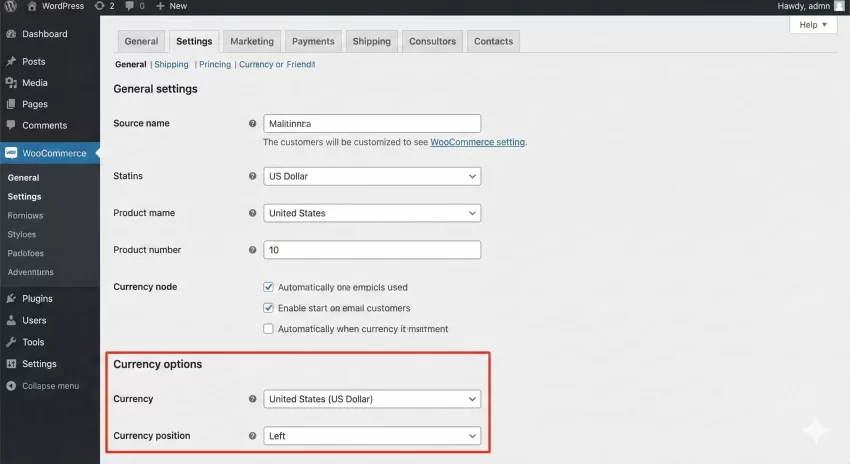
Before writing custom code, it is prudent to verify if the native settings can resolve your issue. WooCommerce provides a basic interface to handle standard currency configurations. While this method does not allow you to replace a symbol with a custom SVG or text string, it handles the fundamental currency selection and basic positioning (left, right, left with space, right with space).
To access these controls, navigate to your WordPress Dashboard. Go to WooCommerce > Settings > General. Scroll down to the “Currency options” section. Here, you can select your base currency. However, you will notice that selecting “United States Dollar” locks the symbol to “$”. If you need to change woocommerce currency symbol to “USD $” or a custom icon, these settings will not suffice, and you must proceed to the code-based methods below.
Method 2: Change Currency Symbol via Filter
The most robust way to change woocommerce currency symbol is by utilizing the woocommerce_currency_symbol filter. This filter exposes the currency symbol string before it is rendered on the front end, allowing you to intercept it and return a different value. This is particularly useful if you want to change “$” to “US$” to avoid confusion with other dollar-based currencies.
The following code snippet demonstrates how to target a specific currency (in this case, USD) and replace its symbol. You can add this code to your child theme’s functions.php file or a site-specific plugin.
/**
 * Change WooCommerce Currency Symbol for specific currencies.
 *
 * @param string $currency_symbol The default currency symbol.
 * @param string $currency        The currency code (e.g., USD, EUR).
 * @return string Modified currency symbol.
 */
function pnet_change_woocommerce_currency_symbol( $currency_symbol, $currency ) {
    switch ( $currency ) {
        case 'USD':
            $currency_symbol = 'US$ ';
            break;
        case 'AUD':
            $currency_symbol = 'AU$ ';
            break;
        case 'EUR':
            $currency_symbol = 'Euro ';
            break;
    }

    return $currency_symbol;
}
add_filter( 'woocommerce_currency_symbol', 'pnet_change_woocommerce_currency_symbol', 10, 2 );
In the code above, we define the function pnet_change_woocommerce_currency_symbol which accepts two arguments: the symbol and the currency code. The switch statement checks which currency is currently active. If the store is set to USD, we override the symbol to ‘US$ ‘. This ensures that whenever you need to change woocommerce currency symbol, you are doing so conditionally, preventing unintended changes if you switch base currencies later.
You might also like: The Ultimate Guide to WooCommerce Product Custom Fields: Let Users Customize Product
Method 3: Change Currency Position
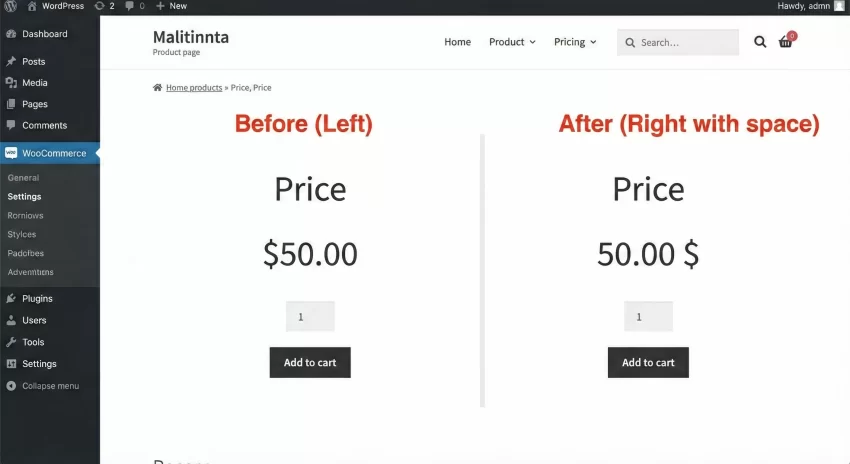
Sometimes the issue isn’t the symbol itself, but where it sits relative to the price. While the settings menu offers “Left” and “Right” options, you might need a more specific format, such as placing the symbol after the amount but with a specific non-breaking space, or handling the position differently for different currencies on a multi-currency site.
To control the position, we filter the woocommerce_price_format. The default format is usually %1$s%2$s (where %1$s is the symbol and %2$s is the amount) or vice versa. By manipulating this string, you can control exactly how the price appears.
/**
 * Change the currency position/format dynamically.
 *
 * @param string $format   The current price format (e.g., %1$s%2$s).
 * @param string $currency_pos The position setting from options (left, right, etc).
 * @return string The modified price format.
 */
function pnet_change_price_position_format( $format, $currency_pos ) {
    // Force the symbol to the right with a space for all currencies
    // %2$s = Amount, %1$s = Symbol

    // Example: 50.00 USD
    return '%2$s %1$s';
}
add_filter( 'woocommerce_price_format', 'pnet_change_price_position_format', 10, 2 );
This snippet effectively ignores the backend setting and hardcodes the position to “Amount [Space] Symbol”. This is powerful for enforcing strict design guidelines across a theme. However, use this with caution if your site supports RTL (Right-to-Left) languages, as it might disrupt standard reading patterns.
Method 4: Adding a Completely Custom Currency
There are scenarios where the currency you need doesn’t exist in WooCommerce at all (e.g., a cryptocurrency, a loyalty point system, or a very new fiat currency). In this case, you can’t just change woocommerce currency symbol; you need to register a new currency entirely.
This process requires two steps: defining the currency code and name, and then assigning a symbol to it. This is a common requirement for niche stores operating in regions with less common currencies or for specialized B2B portals.
/**
 * Register a custom currency (e.g., Bitcoin or Points).
 *
 * @param array $currencies Existing list of currencies.
 * @return array Modified list of currencies.
 */
function pnet_add_custom_currency( $currencies ) {
    $currencies['PNT'] = __( 'Pnet Points', 'woocommerce' );
    return $currencies;
}
add_filter( 'woocommerce_currencies', 'pnet_add_custom_currency' );

/**
 * Assign a symbol to the custom currency.
 *
 * @param string $currency_symbol The default symbol.
 * @param string $currency        The currency code.
 * @return string The new symbol.
 */
function pnet_add_custom_currency_symbol( $currency_symbol, $currency ) {
    switch( $currency ) {
        case 'PNT':
            $currency_symbol = 'Pts';
            break;
    }
    return $currency_symbol;
}
add_filter( 'woocommerce_currency_symbol', 'pnet_add_custom_currency_symbol', 10, 2 );
After adding this code, go back to WooCommerce > Settings > General. You will now see “Pnet Points” available in the currency dropdown. This method provides the ultimate flexibility for developers needing to change woocommerce currency symbol logic to support non-standard monetary units.
Database Considerations
Advanced: Conditional Symbol Changes
For high-end implementations, you might want to display different symbols for the same currency based on the user’s context or specific product categories. For example, showing a simplified “$” on the shop page for aesthetics, but a detailed “USD $” on the checkout page for legal clarity.
We can expand our previous filter to check for WooCommerce conditional tags. This allows us to change woocommerce currency symbol dynamically as the user navigates the site.
/**
 * Conditionally change currency symbol based on page type.
 *
 * @param string $currency_symbol The symbol.
 * @param string $currency        The currency code.
 * @return string Modified symbol.
 */
function pnet_conditional_currency_symbol( $currency_symbol, $currency ) {
    // Only apply change if currency is USD
    if ( 'USD' === $currency ) {
        // Check if we are on the checkout or cart page
        if ( is_checkout() || is_cart() ) {
            return 'USD $';
        }
        // Default specifically for catalog/shop
        return '$';
    }
    return $currency_symbol;
}
add_filter( 'woocommerce_currency_symbol', 'pnet_conditional_currency_symbol', 10, 2 );
This level of detail improves user experience (UX) significantly. A cleaner interface while shopping keeps the design minimal, while the precise symbol at checkout ensures the customer knows exactly what they are paying. This strategy effectively solves the problem of ambiguity without cluttering the main shop interface.
You might also like: Easily Display Related Posts in WordPress: Boost Engagement Without Bloat
Troubleshooting Common Errors
Even with clean code, issues can arise. If you have applied the code to change woocommerce currency symbol but don’t see the results, consider the following common pitfalls.
1. Caching Plugins
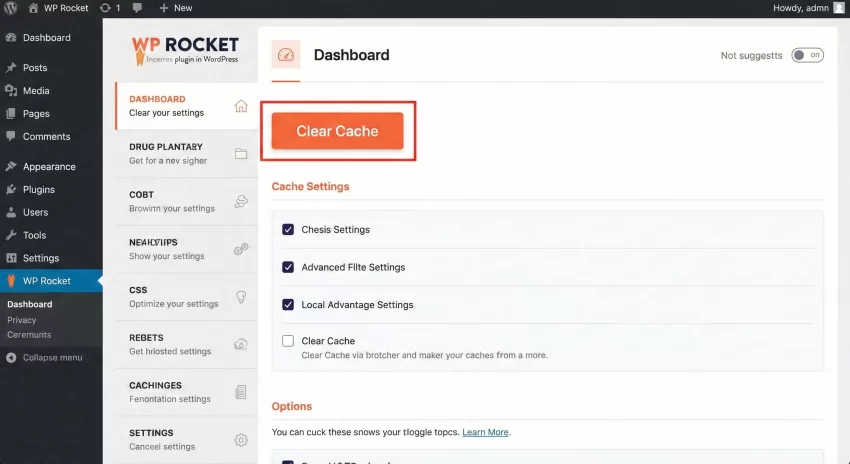
The most common culprit is caching. WooCommerce fragments and page caching (via plugins like WP Rocket or server-side Varnish) can store the old HTML with the previous symbol. Always clear all caches after deploying these snippets.
2. Theme Hardcoding
Some poorly coded themes might hardcode the currency symbol in their template files (price.php or loop files) instead of using the standard wc_price() function. If your theme does this, the filters above will not work. You will need to create a child theme and correct the template files to use proper WooCommerce functions.
3. Multi-Currency Plugins
If you use plugins like “WOOCS – WooCommerce Currency Switcher,” they often have their own internal logic that overrides standard WooCommerce filters. You may need to use the specific hooks provided by that plugin developer to change woocommerce currency symbol effectively within their ecosystem.
Summary
Customizing how prices appear is a fundamental skill for any WordPress developer. Whether you simply need to distinguish between dollars with a “US$” prefix or register a completely new reward point system, WooCommerce offers the flexibility to do so through the woocommerce_currency_symbol and woocommerce_price_format filters. By following the steps outlined in this guide, you can successfully change woocommerce currency symbol and position to match your client’s exact branding and regional requirements.
Remember to always test these changes in a staging environment first. Currency settings affect the most critical part of an e-commerce site—the transaction—so accuracy is paramount. With these snippets, you now have the toolkit to handle any pricing display challenge that comes your way.
You might also like: How to Create a Stunning WordPress Multi-Step Form : Boost Conversions Instantly