It is the nightmare scenario every website owner dreads. You click “Update” on a few plugins, look away for a moment, and when you refresh your site, it’s gone. Instead of your beautiful homepage, you are staring at a stark white screen with a single, terrifying message:
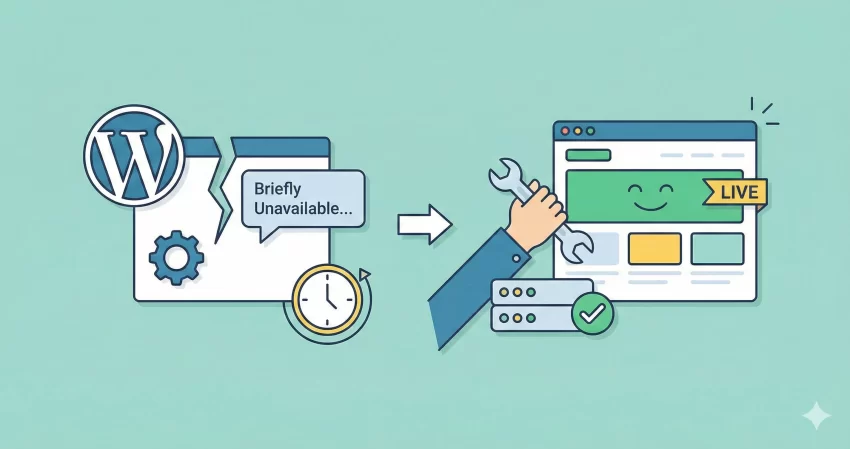
“Briefly unavailable for scheduled maintenance. Check back in a minute.“
Panic sets in. You wait a minute. You wait ten. The message doesn’t leave. You can’t access your dashboard, your visitors can’t see your content, and it feels like you have broken everything.
Take a deep breath. You haven’t broken your site. You are simply stuck in a loop of the WordPress maintenance mode error. The good news? It is one of the easiest WordPress issues to fix, and you don’t need to be a developer to solve it. In this guide, we will walk you through exactly why this happens and show you the proven method to fix it immediately.
What Causes the WordPress Maintenance Mode Error?
To fix the problem, it helps to understand what is happening behind the scenes. WordPress is actually quite smart. When you run an update (for the core software, a theme, or a plugin), WordPress temporarily puts your site into “Maintenance Mode.”
It does this to ensure that while files are being patched or replaced, your visitors don’t see a broken or half-loaded website. Technically, WordPress creates a temporary file named .maintenance in your website’s root folder. This file tells your server to display the maintenance message instead of your actual site.
Under normal circumstances, the update finishes in a few seconds, and WordPress automatically deletes the .maintenance file, bringing your site back to life. However, sometimes things go wrong.
The WordPress maintenance mode error occurs when that file fails to delete itself. This can happen if:
- You closed your browser tab in the middle of an update.
- The server timed out or had a momentary memory glitch.
- The update script was interrupted by a connection loss.
The update might have actually finished successfully, but because the file is still there, WordPress thinks it is still working.
How to Fix the “Briefly Unavailable” Error (Step-by-Step)
Since the problem is a leftover file, the solution is simple: we need to manually delete that file. We will use two common methods. If you have access to your hosting account (cPanel), use Method 1. If you prefer FTP, use Method 2.
Method 1: Using cPanel File Manager (Easiest)
Most hosting providers (like Bluehost, SiteGround, or HostGator) provide a cPanel or a custom dashboard with a “File Manager.” This is the fastest way to fix the WordPress maintenance mode error for beginners.
- Step 1: Log in to your web hosting dashboard and locate the File Manager tool.
- Step 2: Navigate to the
public_htmlfolder. This is usually where your WordPress files live. If your site is on a subdomain, look for the folder with your site’s name. - Step 3: Look for a file named
.maintenance.
Note: If you cannot see it, look for a “Settings” button (usually in the top right corner) and make sure “Show Hidden Files (dotfiles)” is checked.
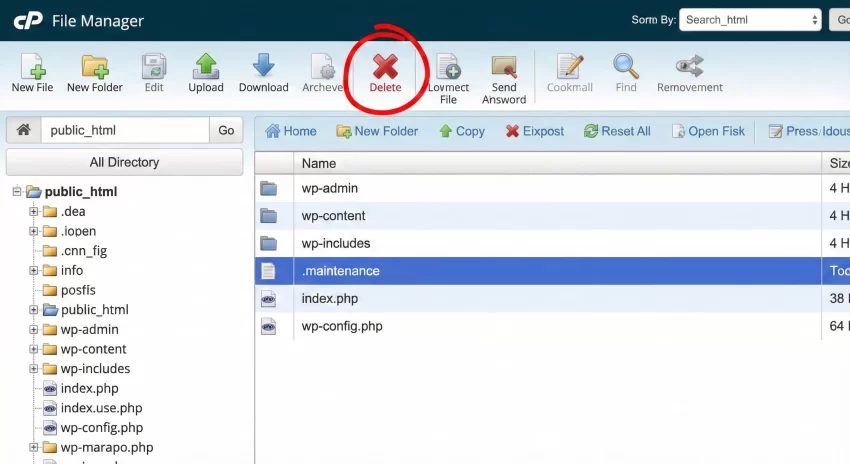
- Step 4: Right-click on the
.maintenancefile and select Delete. - Step 5: Clear your browser cache and refresh your website. Your site should load perfectly!
Method 2: Using an FTP Client (FileZilla)
If you don’t have access to cPanel, you can use an FTP client like FileZilla. This connects your computer directly to your website’s server.
- Open FileZilla and enter your FTP credentials (host, username, password).
- Connect to your site and open the public_html folder in the “Remote site” window (usually on the right side).
- Locate the
.maintenancefile in the file list. - Right-click the file and select Delete.
Once the file is gone, the WordPress maintenance mode error is resolved.
You might also like:
How to Prevent Getting Stuck in WordPress Maintenance Mode Error
While fixing the issue is easy, preventing it is even better. Here are a few tips to ensure you don’t face the WordPress maintenance mode error again during your next update cycle.
1. Do Not Close Your Tab
This is the most common mistake. When you see the “Updating…” spinning wheel, do not navigate away or close the tab until WordPress says “Update Complete.” Breaking the connection mid-update leaves the maintenance file stranded.
2. Avoid Bulk Updates
It is tempting to click “Select All” and update 20 plugins at once. However, this puts a heavy load on your server. If your hosting plan has limited resources, the process might time out. Instead, update plugins one by one or in small batches of 2-3.
3. Check Your Hosting Resources
If you encounter this error frequently, your hosting plan might be too slow for the scripts to execute efficiently. You may need to upgrade your plan or increase your PHP memory limit.
Advanced Tip: Customizing the WordPress Maintenance Mode Error
Sometimes, you might want to put your site in maintenance mode manually without relying on updates, or perhaps you want to control how the maintenance mode works programmatically.
WordPress has a built-in function for maintenance checks. You can create a file named maintenance.php in your wp-content folder to display a custom page, but did you know you can also control maintenance logic via code?
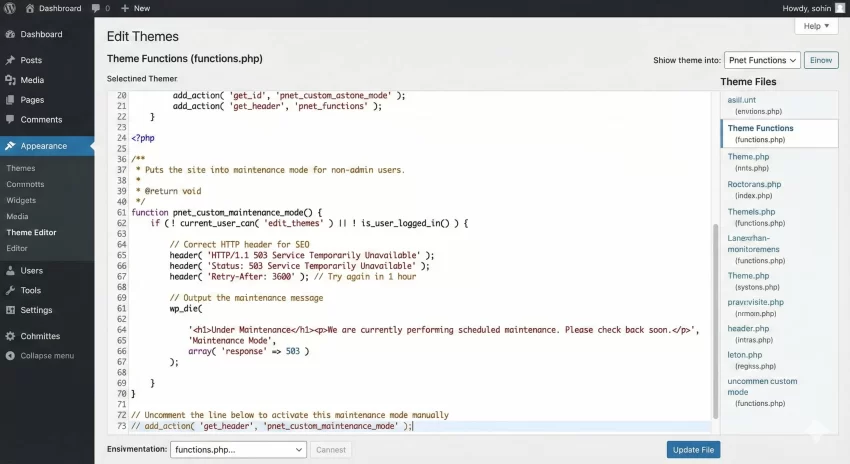
If you are a developer or an aspiring one, you can use the wp_maintenance function logic or filters to handle maintenance states. Below is a custom function example. Let’s say you want to ensure that logged-in administrators can still see the site while everyone else sees a maintenance message. You can add this to your theme’s functions.php file.
Note: We are using the prefix pnet_ for our custom function to avoid conflicts, as per best coding practices.
/**
 * Puts the site into maintenance mode for non-admin users.
 * * @return void
 */
function pnet_custom_maintenance_mode() {
    if ( ! current_user_can( 'edit_themes' ) || ! is_user_logged_in() ) {
        // Correct HTTP header for SEO
        header( 'HTTP/1.1 503 Service Temporarily Unavailable' );
        header( 'Status: 503 Service Temporarily Unavailable' );
        header( 'Retry-After: 3600' ); // Try again in 1 hour

        // Output the maintenance message
        wp_die(
            '<h1>Under Maintenance</h1><p>We are currently performing scheduled maintenance. Please check back soon.</p>',
            'Maintenance Mode',
            array( 'response' => 503 )
        );
    }
}

// Uncomment the line below to activate this maintenance mode manually
// add_action( 'get_header', 'pnet_custom_maintenance_mode' );
This snippet is a manual way to trigger a similar effect to the WordPress maintenance mode error, but with control! It returns a 503 status code, which tells Google your site is only down temporarily and shouldn’t be de-indexed.
You might also like:
Frequently Asked Questions
Is my site broken forever?
No. The “Briefly unavailable” screen is just a mask. Your database and files are safe. Deleting the .maintenance file simply removes the mask.
Why can’t I find the .maintenance file?
If you are in your root folder and can’t see it, ensure your File Manager has “Hidden Files” enabled. If you still don’t see it, your site might be cached. Try clearing your browser cache. If the error persists without the file, check your wp-config.php file ensuring you haven’t accidentally left a maintenance rule active.
Will this error affect my SEO rankings?
If the error stays up for a long time (days), Google might think your site is down and temporarily drop it from search results. However, if you fix the WordPress maintenance mode error quickly (within hours), there is zero impact on your SEO.
Conclusion
Seeing the “Briefly unavailable for scheduled maintenance” error can stop your heart for a second, but now you know it is mostly a harmless glitch. By simply deleting the .maintenance file via cPanel or FTP, you can get back to business in seconds.
Remember to update your plugins in small batches to prevent this from happening again. With these tricks up your sleeve, you are one step closer to mastering WordPress management.